IntroductionPrerequisitesUsed HardwareVersions Used and Required SoftwareDocumentationEther CAT SetupLinMot-Talk FSoE AddressSafety EngineeringMaster Slave ConnectionMotion SetupThe CompanyNTI AG – Expertise in linear motion
Introduction
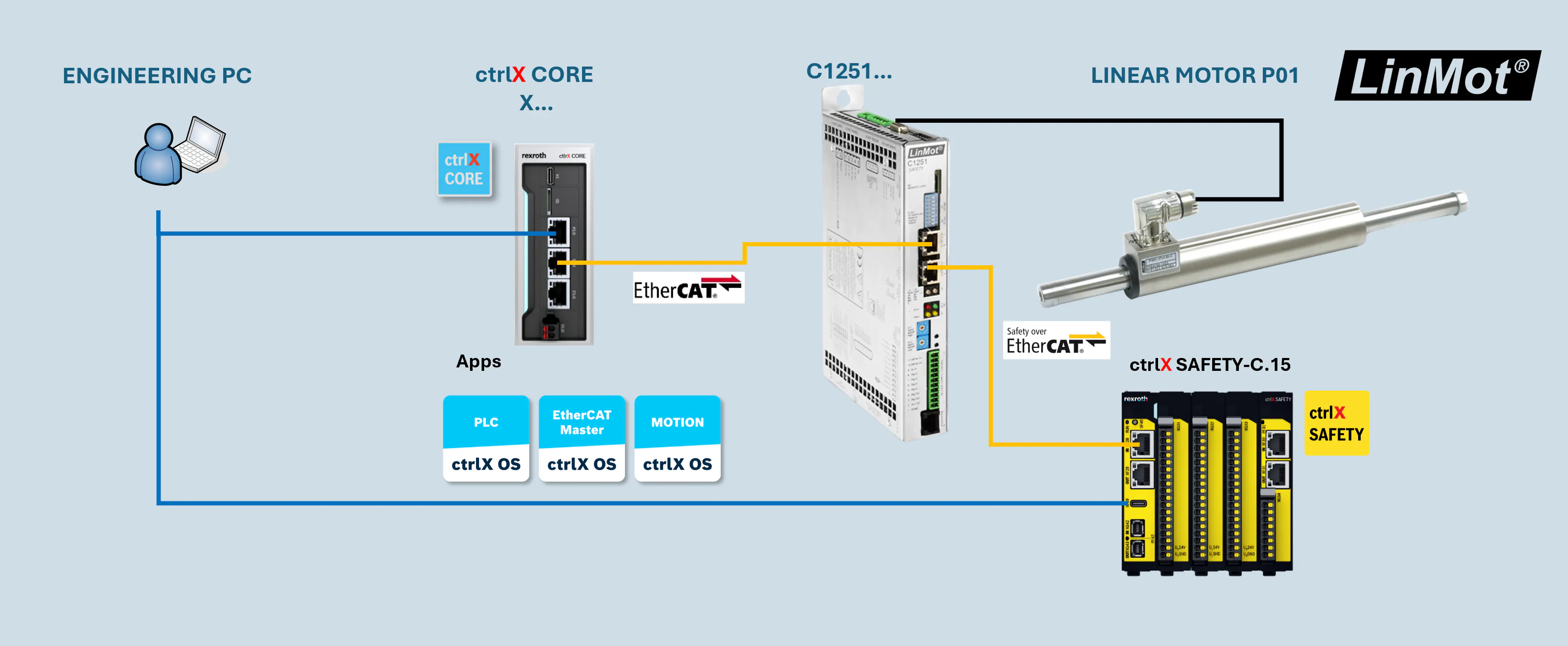
This guide explains how-to integrate a third-party EtherCAT FSoE slave into a ctrlX SAFETY SAFEX-C.15 system. In this example, the third-party slave is a LinMot DS402 drive.
Prerequisites
Used Hardware
ctrlX CORE X*-Serie
LinMot CoE / DS402 Drive(e.g. C1251-MI-XC-2S-E0-000 )
LinMot PS01-37... Stator
LinMot PL01-20... Runner
ctrlX SAFETY SAFEX-C.15
Fig. 1.: Hardware Overview
Versions Used and Required Software
ctrlX PLC Engineering v3.6.2+
ctrlX I/O Engineering v3.6.2+
ctrlX Safety Engineering v1.8.3.10207
LinMot-Talk 6.14 Drive Configuration Software -> Download
ctrlX Apps from ctrlX OS Store
ctrlX OS - EtherCAT Master v3.6.0+
ctrlX OS - Motion v3.6.1+
ctrlX OS - PLC v3.6.2+
Example project I/O:
Documentation
Ether CAT Setup
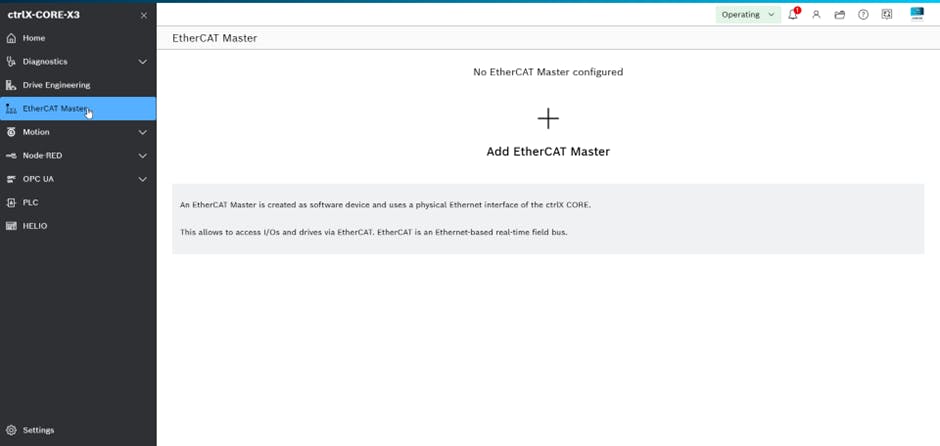
Open the Web-Interface of the ctrlX CORE and navigate to the EtherCAT App.
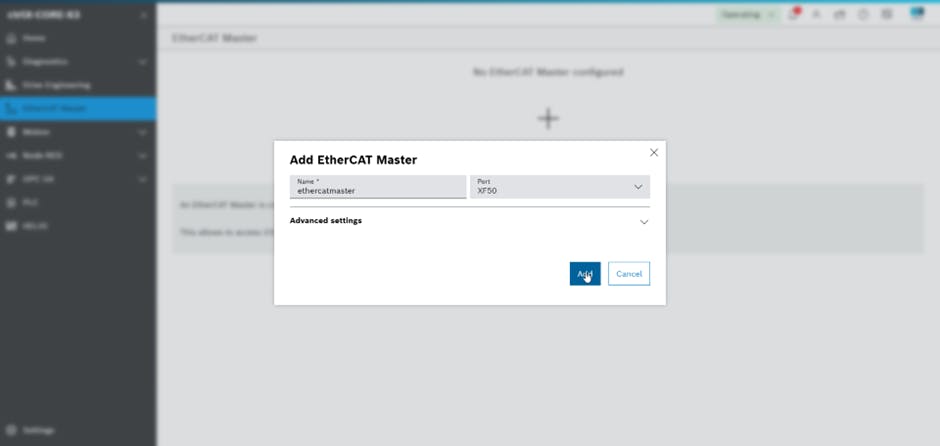
Fig. 2.: Web-Interface EtherCAT Master Click on "Add" to create an new "EtherCat Master" instance.
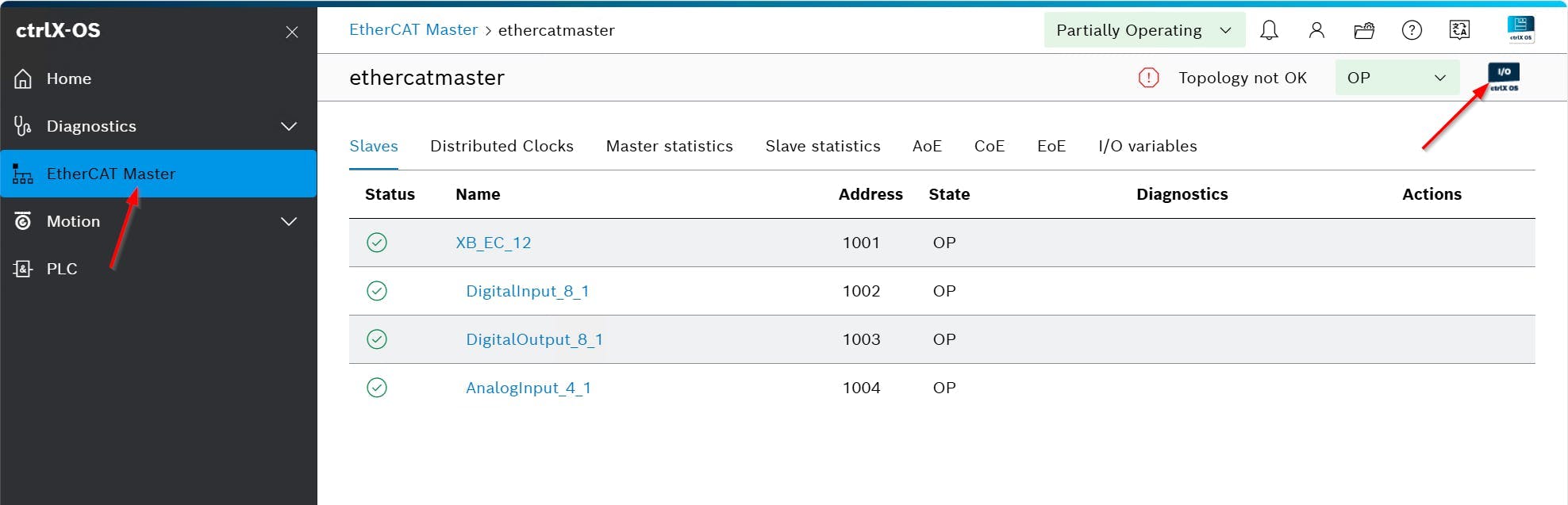
Fig. 3.: Add an EtherCAT Master to the ctrlX CORE In the EtherCAT Master Web-Interface, click on the I/O Engineering icon to open the "Engineering Tool".
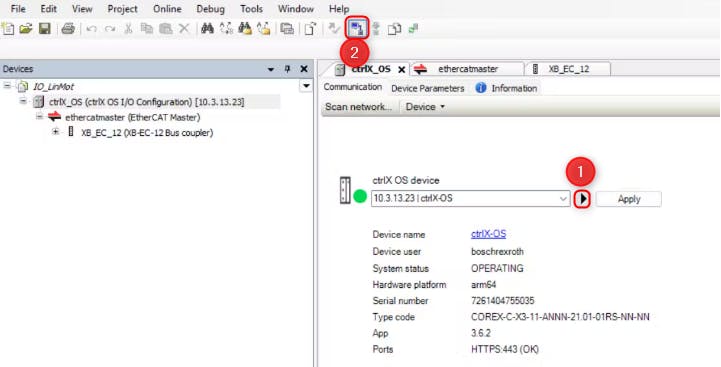
Fig. 4.: Open ctrlX I/O Engineering in the Web-Interface Ensure that the ctrlX I/O Engineering tool is connected to the ctrlX OS Device.
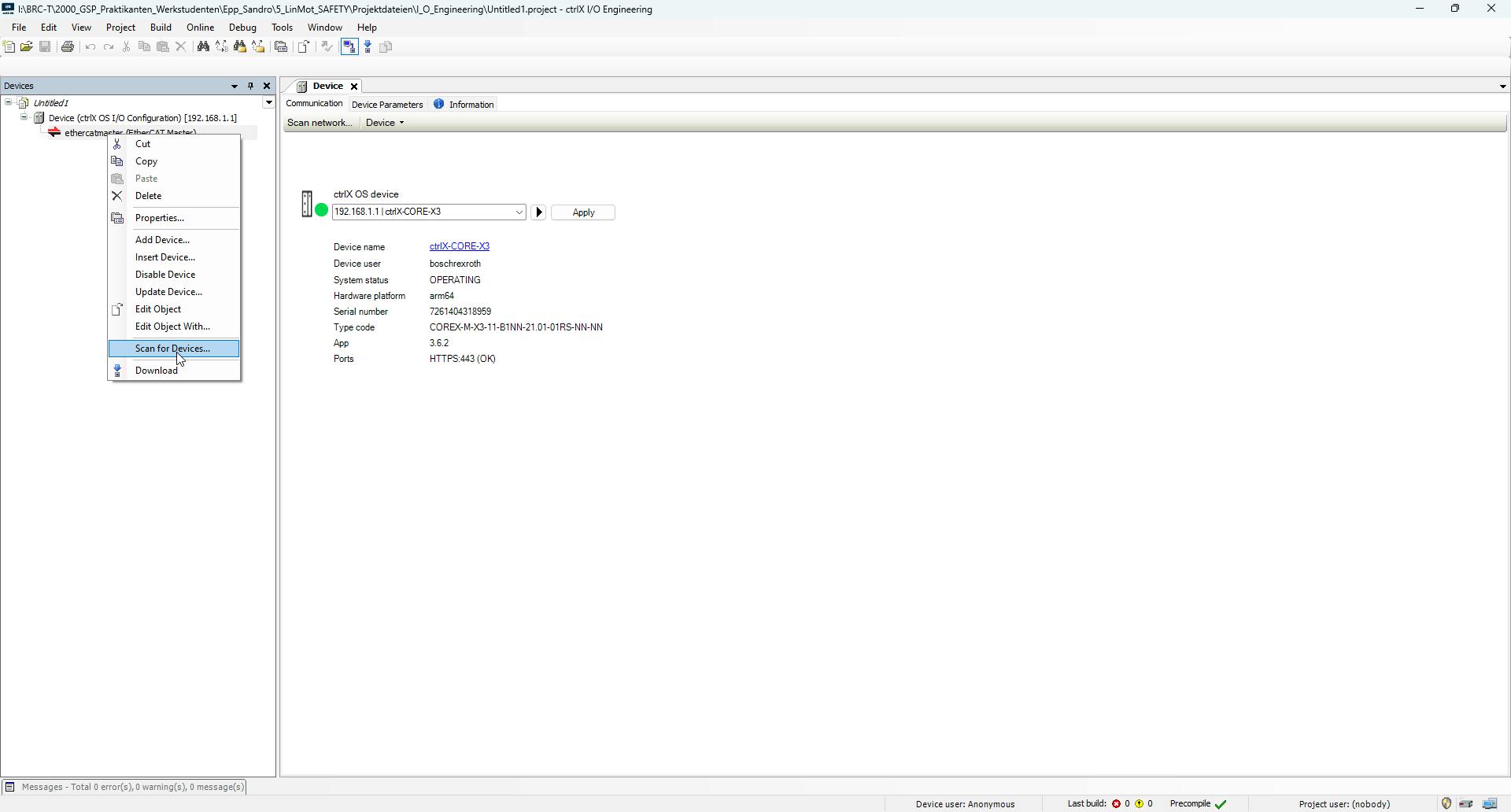
Fig. 5.: Connecting the ctrlX CORE in the I/O Engineering Tool Right-click the "ethercatmaster" and “Scan for Devices” to detect the connected EtherCAT slaves.
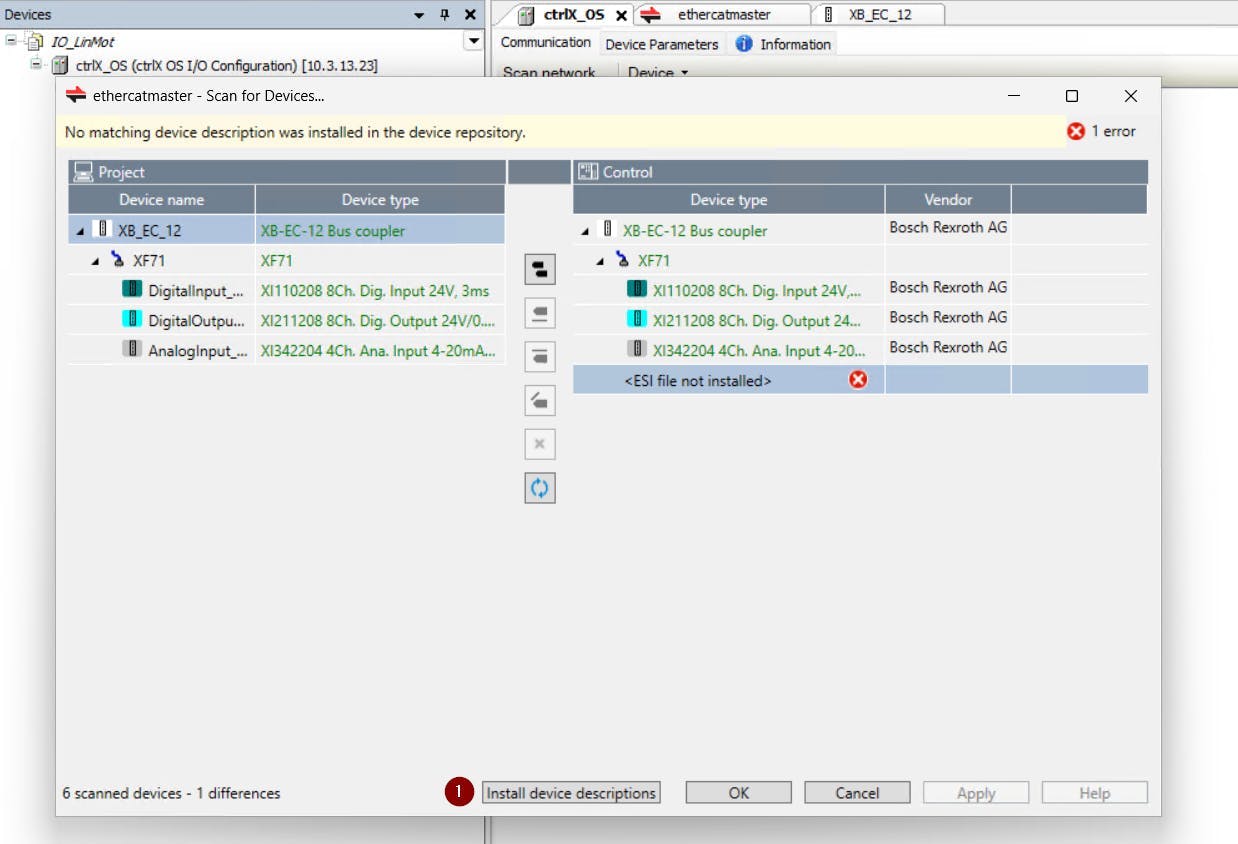
Fig. 6.: Scan for Devices Connected with the ctrlX CORE If the XML (ESI) file is not yet installed, the drive will appear as an unidentified Device. Click “Install device descriptions” and select the appropriate XML file for the drive. Repeat the same process for the Safety Module.
Fig. 7.: Loading an XML File in I/O Engineering
Default XML location when LinMot-Talk is installed:
C:\Program Files (x86)\LinMot\LinMot-Talk 6.xx Build xxxxxxxx\Firmware\Interfaces\EtherCat_NX\XMLXML File of the SAFETY Modules:
Once the Device description is installed, the Drive will be recognized be added to the project. Close the wizard by clicking “OK”.
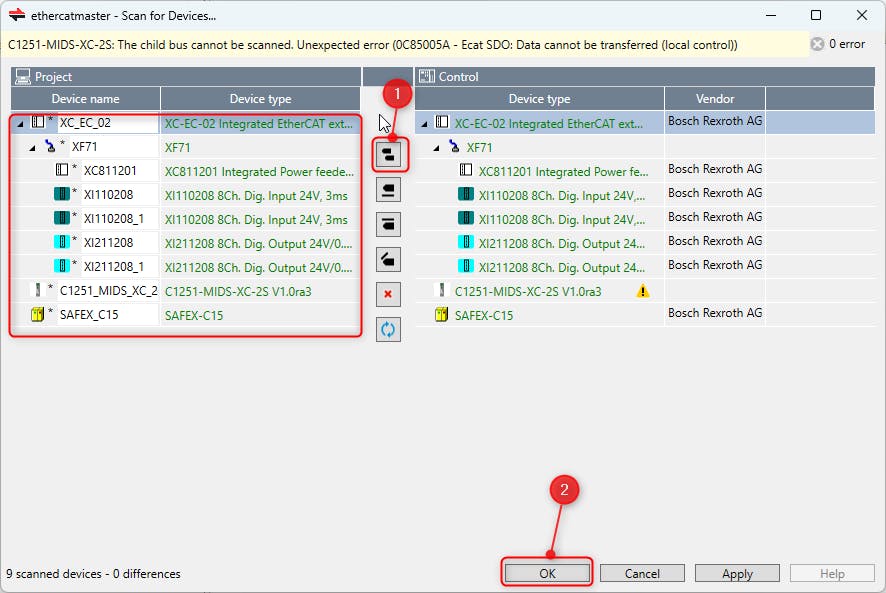
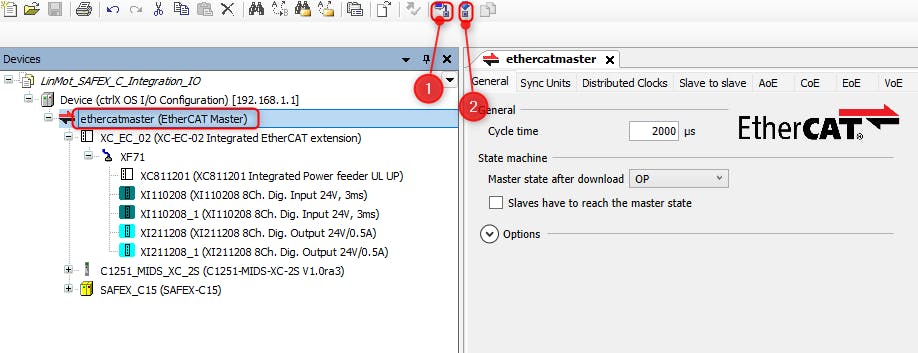
To transfer the configuration to the ctrlX CORE, establish an online connection first, then click the “Download” button to upload the configuration to the Device.
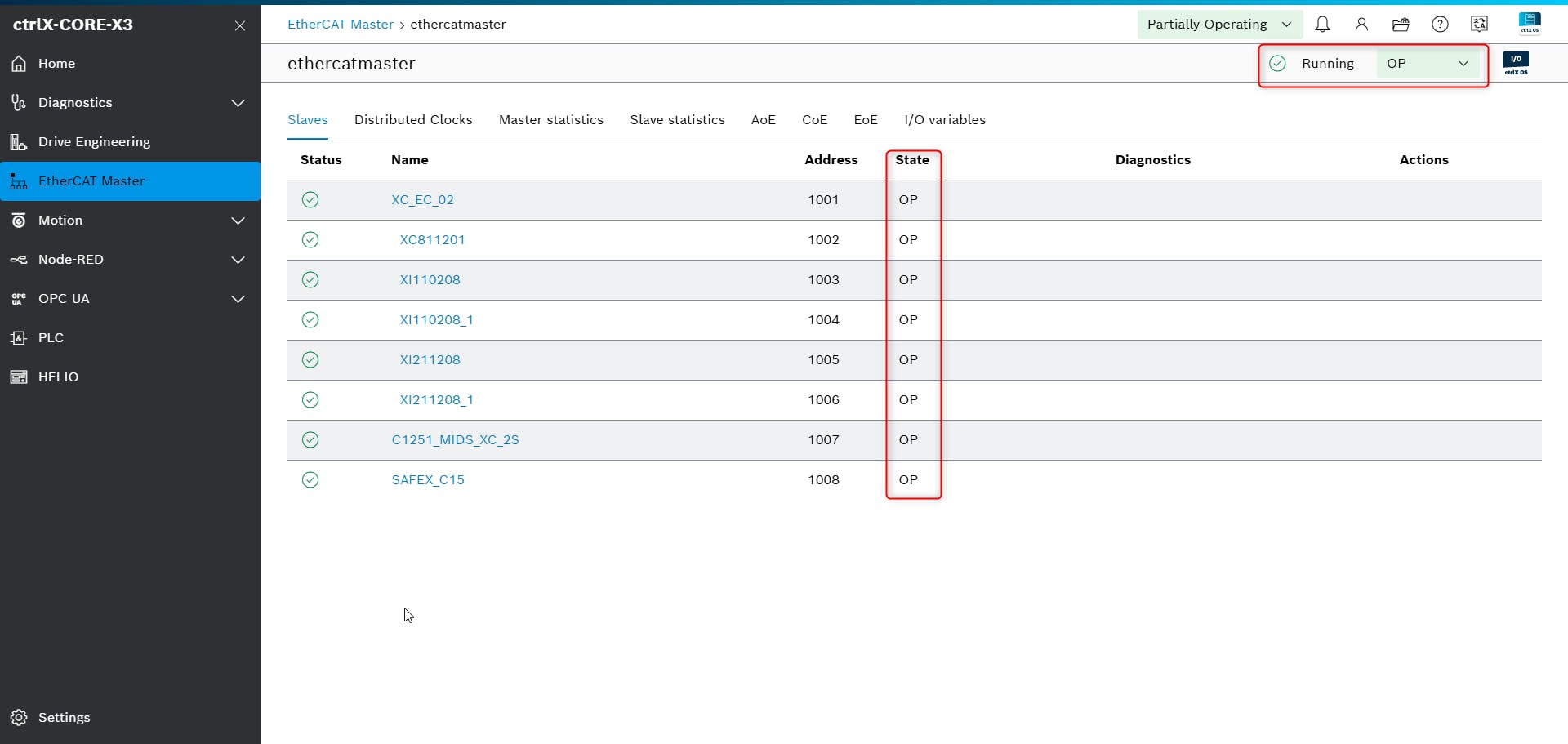
In the ctrlX OS Web-Interface, the "EtherCAT Master" should now be operational with and all slaves should be correctly recognized.
LinMot-Talk FSoE Address
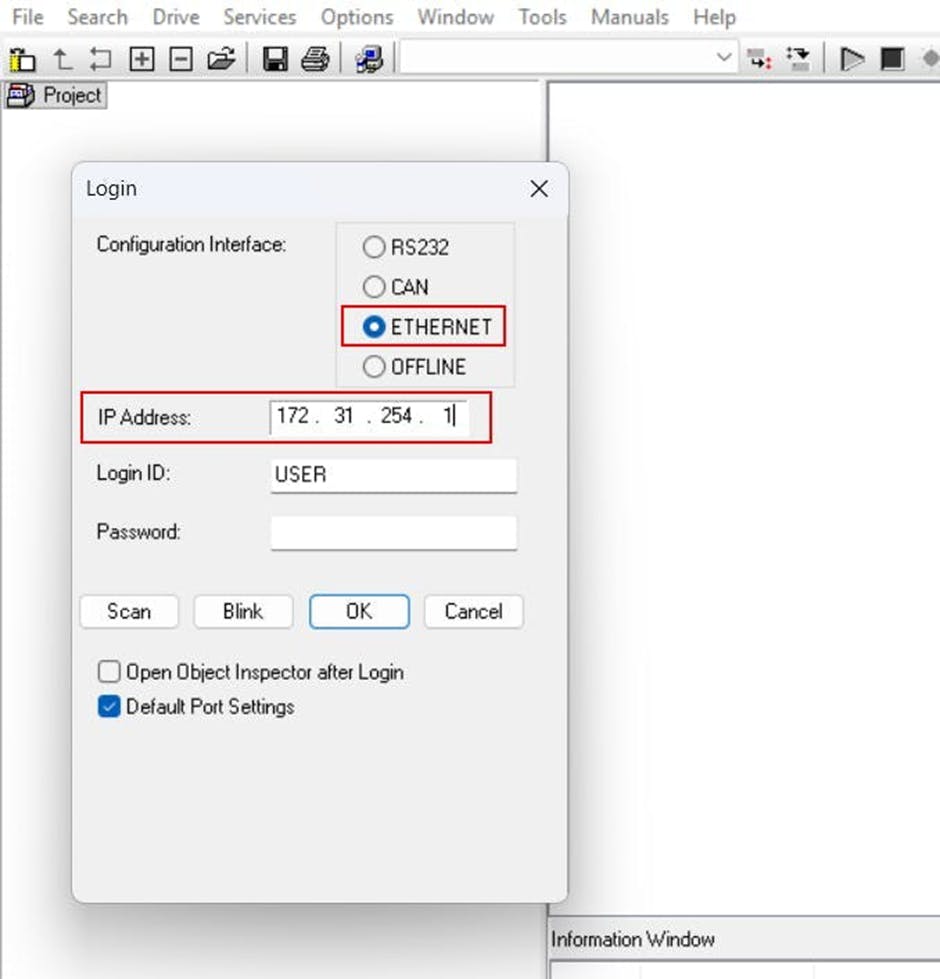
Open LinMot-Talk, navigate to File > Login, select Ethernet, and enter the EoE IP address of the LinMot Drive. If you are accessing the Drive via EoE, follow the advanced steps described in the how-to guide: "Interface LinMot C1250-MI-XC-1S Drive with ctrlX CORE via EtherCAT".
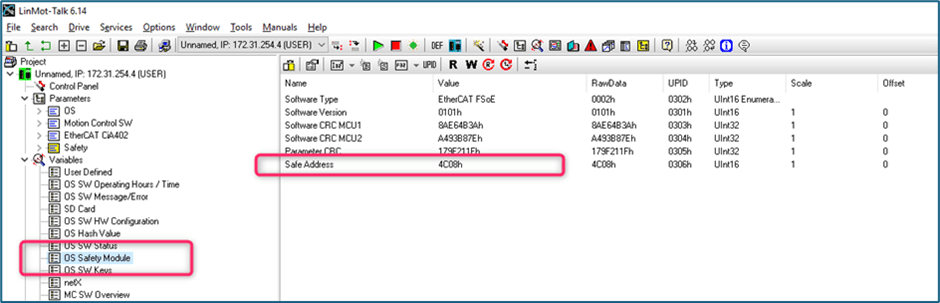
Fig. 11.:Login Details for connecting the LinMot drive with LinMot-Talk Open the Variables and select "OS Safety Module". There you will find the "Safe Address" of the LinMot Drive which is given in hexadecimal format. You can convert this address using a calculator.
Example:
hexadecimal Number: "4C08"
FSoE slave address: 19464
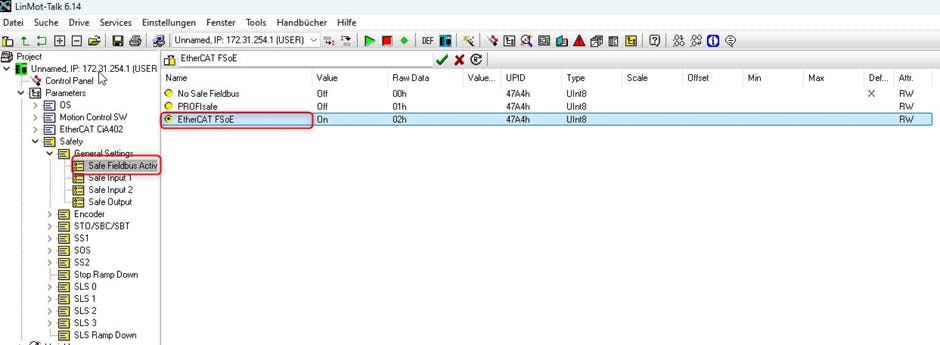
Open the "Parameters" and navigate to "Safety". Under "General Settings" ,go to "Safe Fieldbus Activation" and change the setting from "No Safe Fieldbus" to "EtherCAT FSoE".
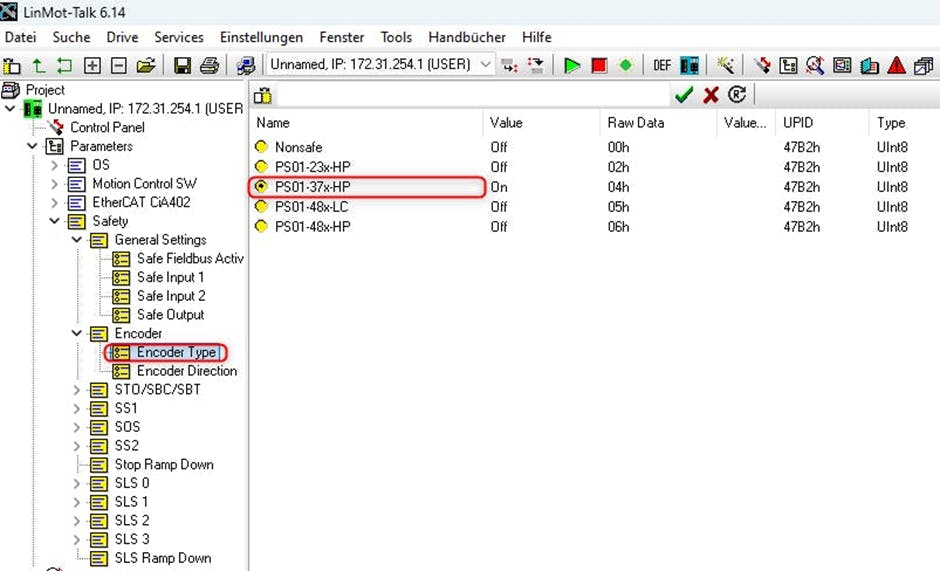
Fig. 13.: Default Setting of the Safe Fieldbus Activation Once "FSoE" is activated, navigate to the "Encoder Type" setting and change it from "Nonsafe" to "PS01-37x-HP".
Fig. 14.: Default Setting of the Encoder Type of the Safety
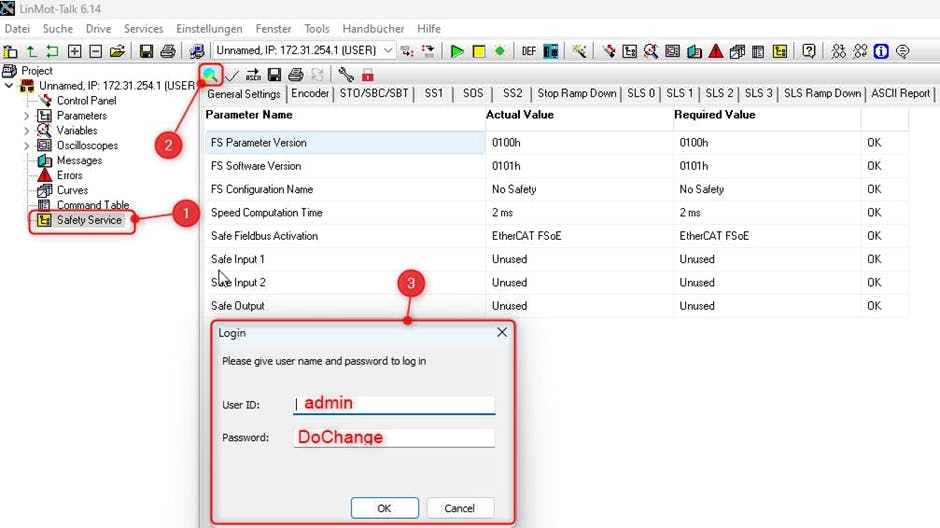
After adjusting the parameters, the Safety Service has to be revalidated. To do this, go to the "Safety Service" section, click the "Start Validation" Button and enter the User ID and Password.
Fig. 15.: Revalidation of the Safety Service for the Linmot
Safety Validation:
User ID: admin
Password: DoChange
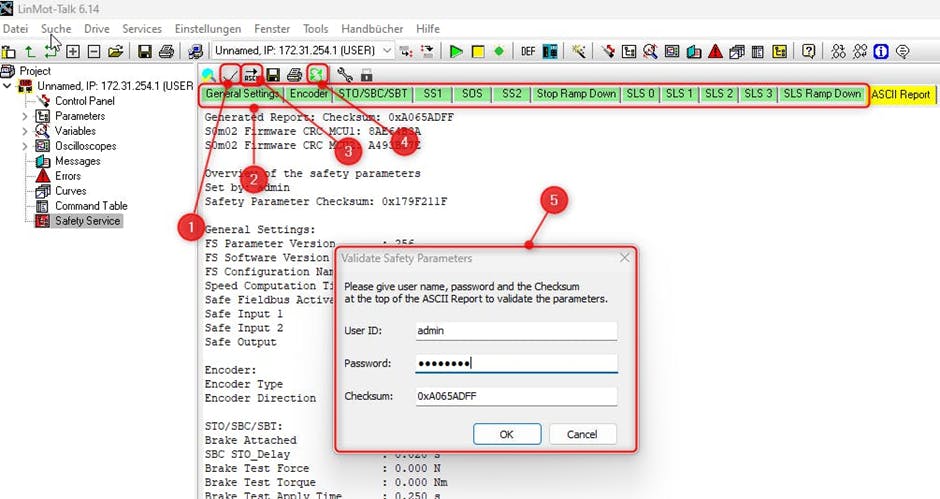
Press the "Varify Par. Group" button repeatedly until all parameter groups are marked green. Then click "Read ASCII Report", followed by "Validate". Enter the User ID and Password from the previous step to complete the validation.
Fig. 16.: Verifying the Parameter Groups, Reading the ASCII Report and Validate the Safety Parameters
Safety Engineering
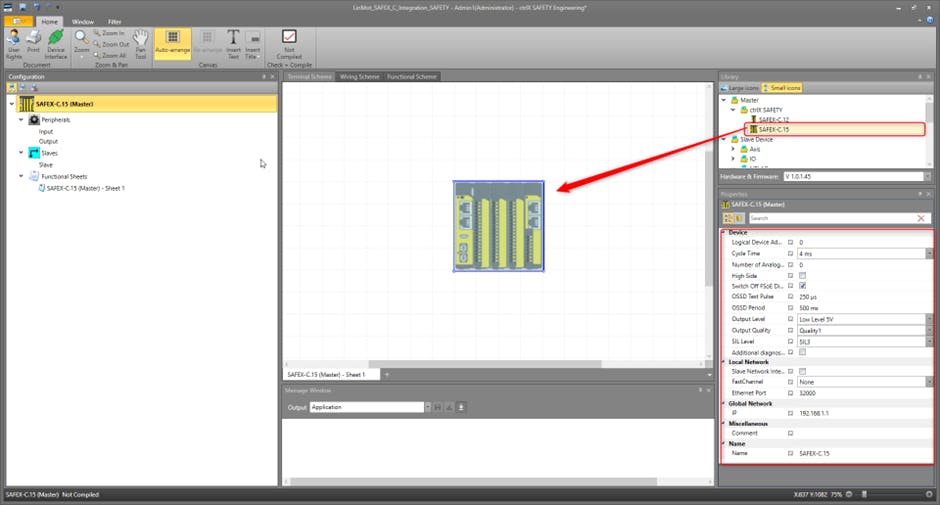
Open ctrlX Safety Engineering and drag the SAFEX-C.15 module into the Terminal Scheme to begin configuration
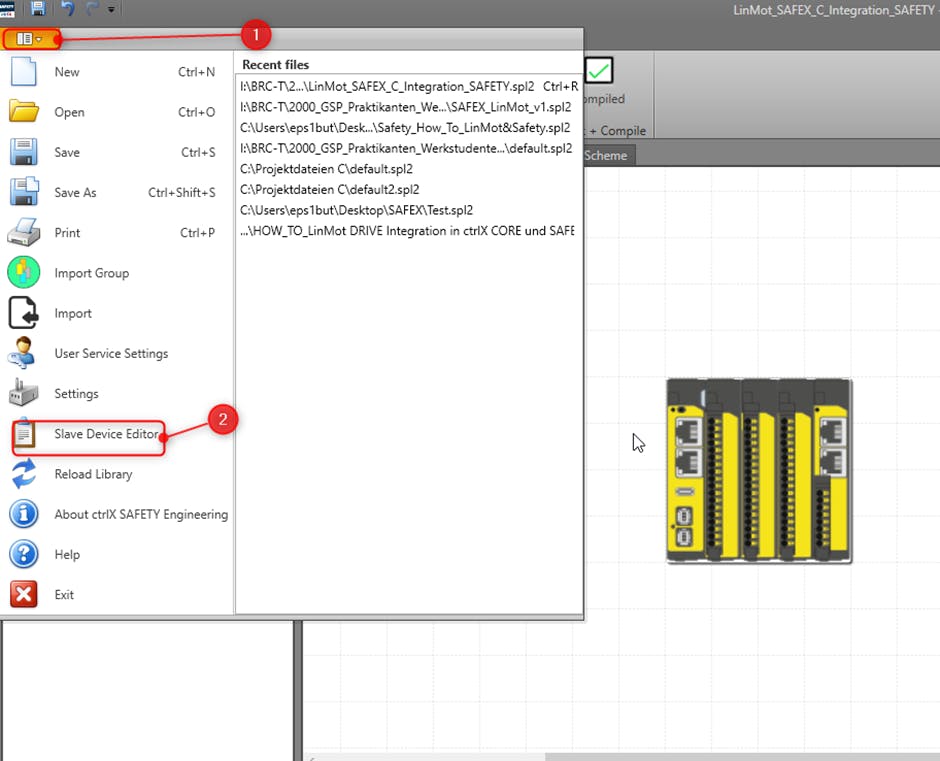
To add a slave device, open the File menu and select "Slave Device Editor".
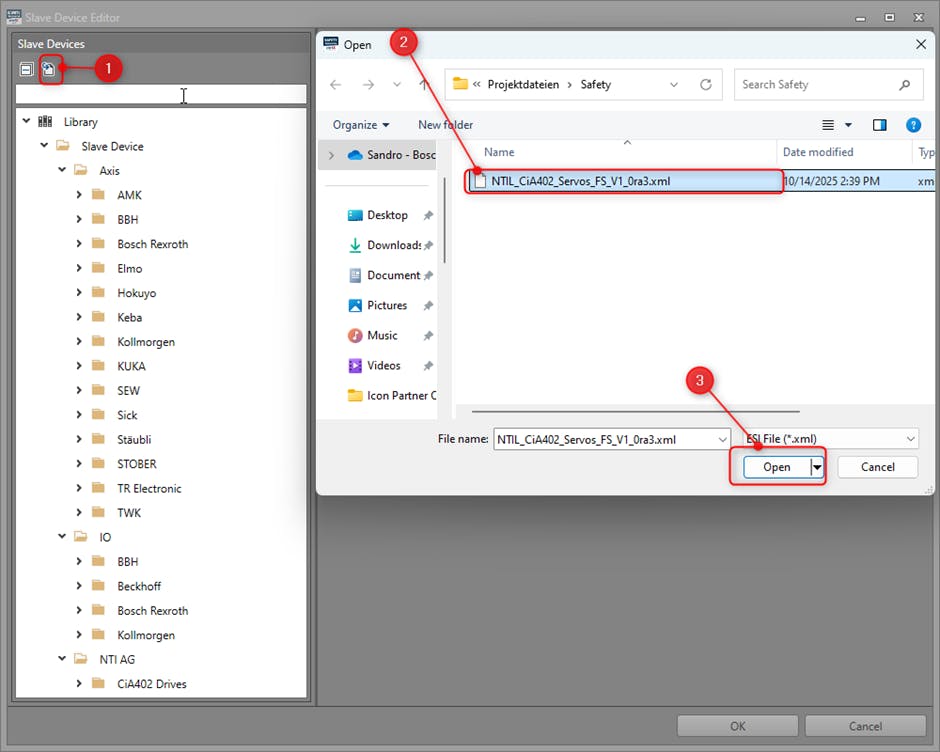
In the Slave Device Editor, click the "Import Slave Device" button, then select the file "NTIL_CiA402_Servos_FS_V1_0r3.xml" and open it
Default Location of the LinMot XML File:
C:\Program Files (x86)\\LinMot\0187-0001_SW_6V14_LinMot-Talk_6.14_Build_20250901\Firmware\Interfaces\EtherCat_NX\XML
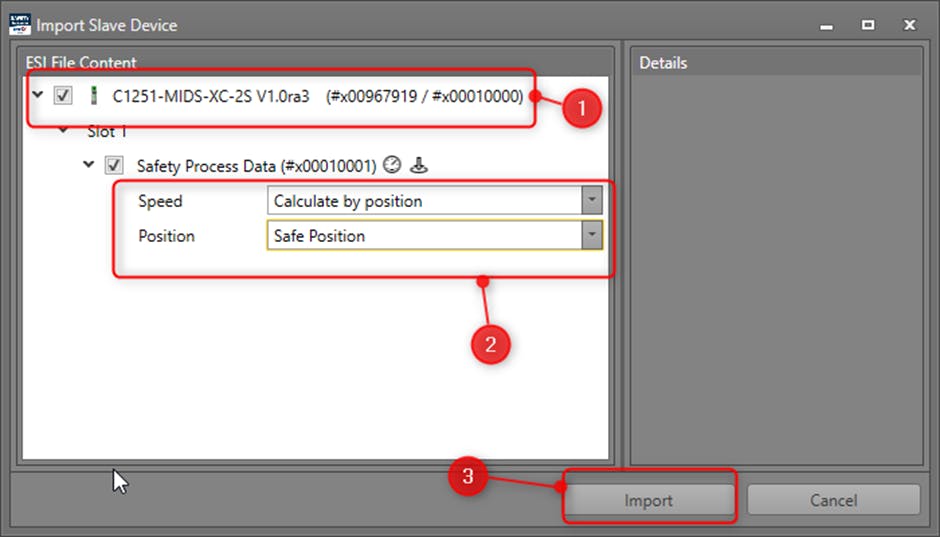
Select the file to be imported, then change the Speed setting to "Calculate by position" and the Position setting to 'Safe Position'. After making these changes, import the file into the library and close the Slave Device Manager by clicking "OK".
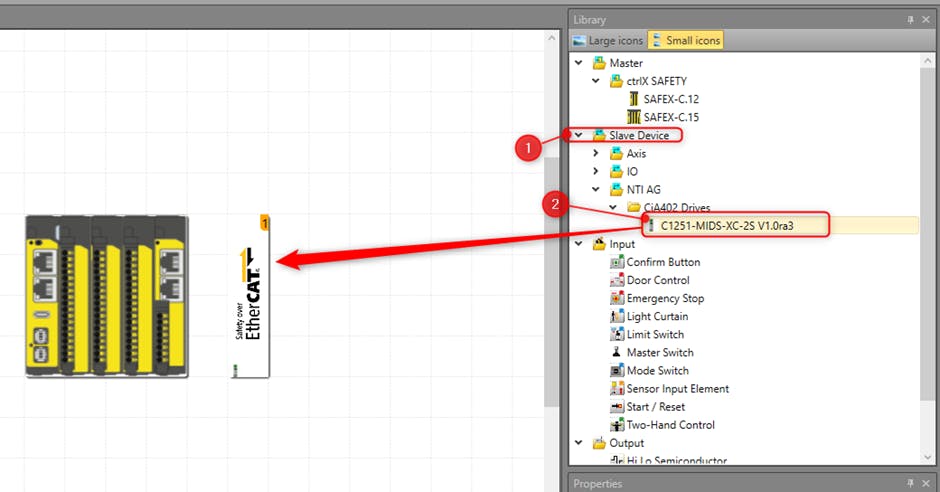
To insert the Slave Device, open the Library, navigate to the folder "NTI AG" and drag the Drive "C1251" into the Terminal Scheme.
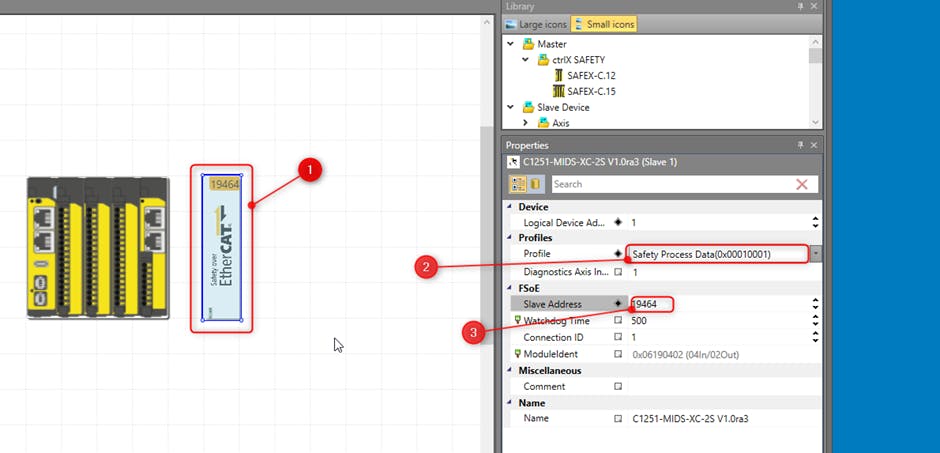
Select the Slave Device and change its Profile to “Safety Process Data”. Then, set the Slave Address to the LinMot FSoE address, which is "19464" in this example.
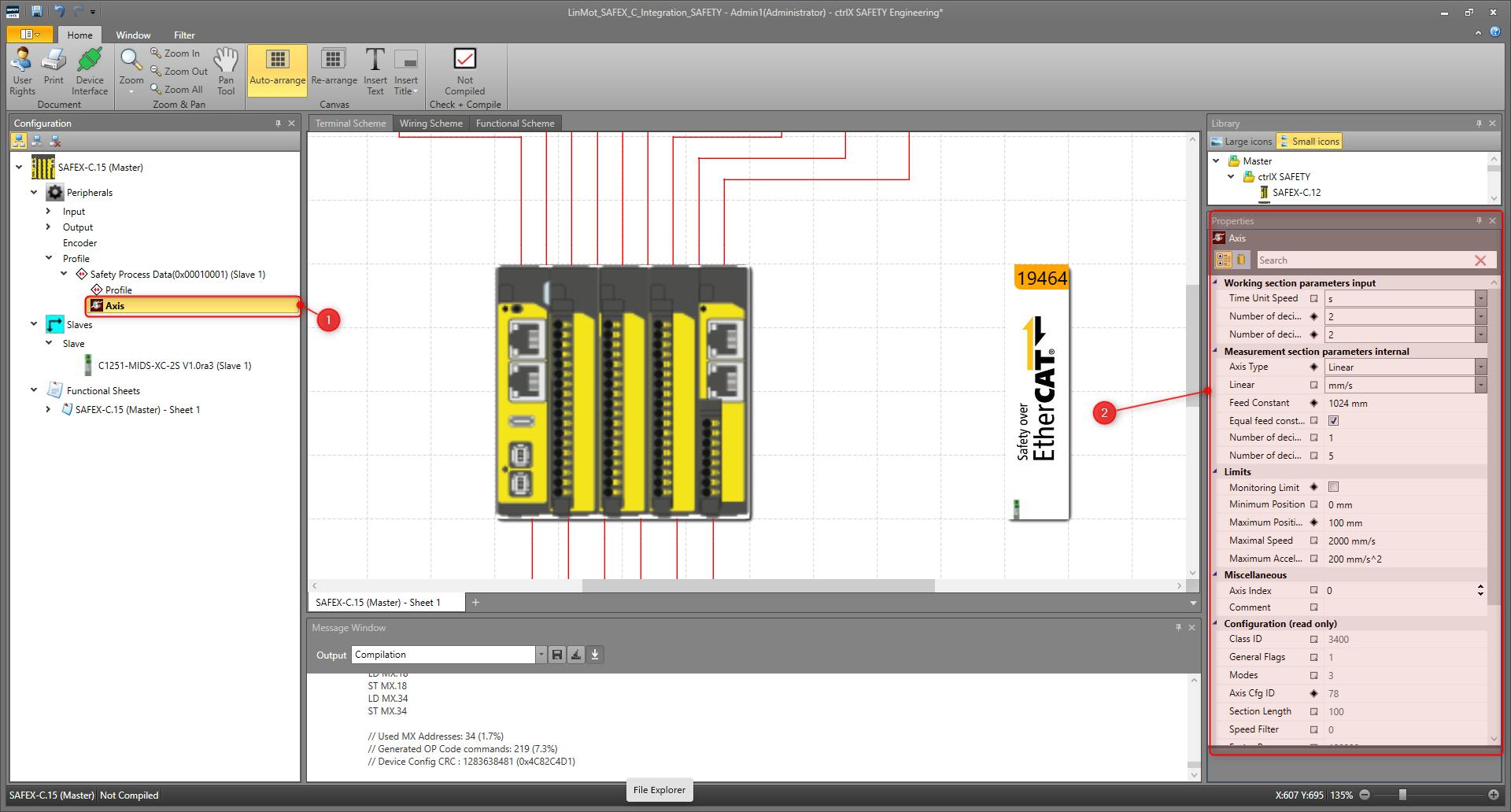
To change the Profile Settings of the Axis, select the "Axis" and then the "Properties" panel opens.
Fig. 23.: Navigation to the Axis Properties
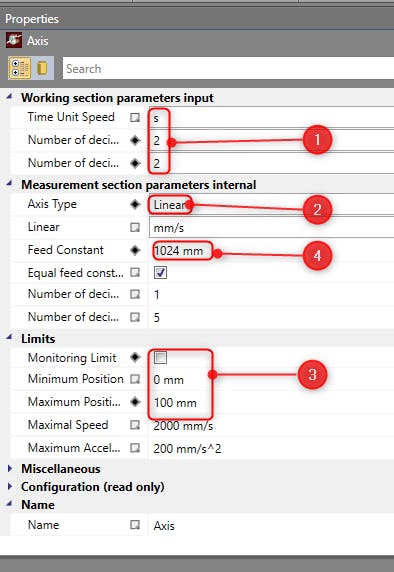
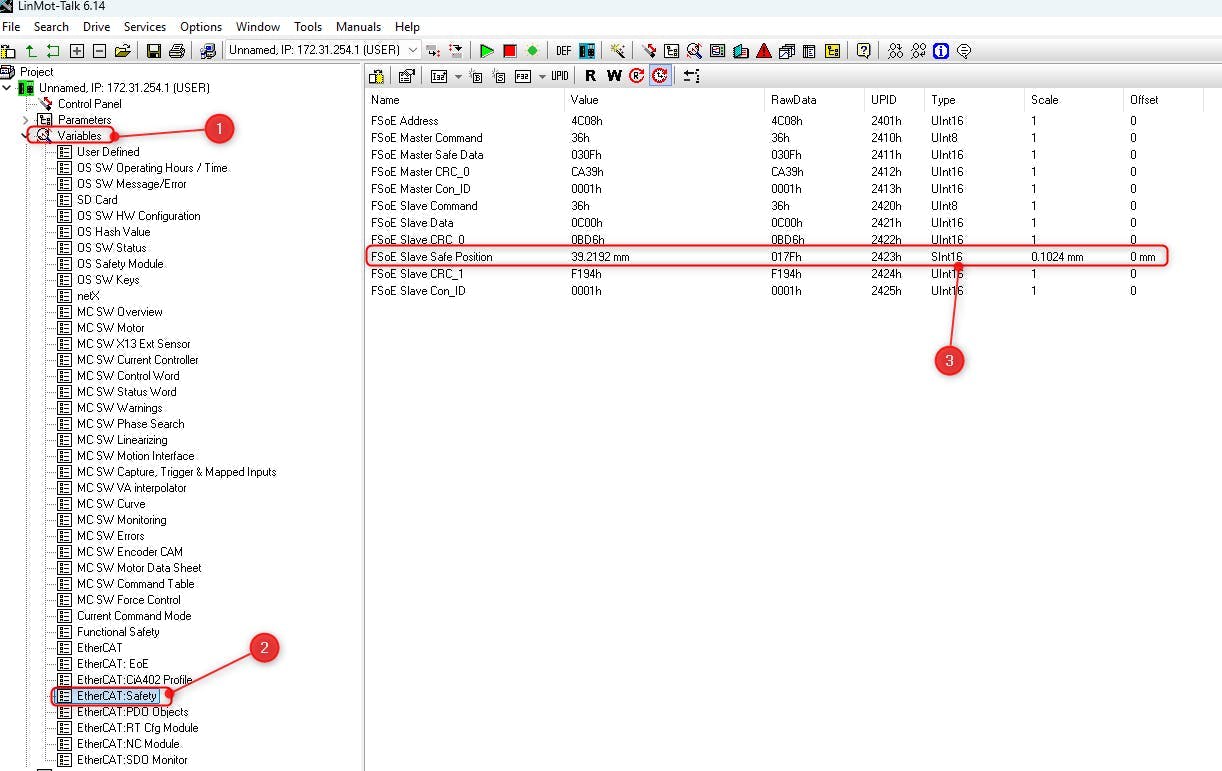
In the Properties panel ensure that the number of decimal places for both speed and position is set to 2. Change the axis type from rotary to linear. Once this is done, you can define the axis limits according to your mechanical setup or application requirements. Make sure the "Monitoring Limit" option is not checked. Next, you need to adjust the feed constant, which is a value provided by the LinMot system. To retrieve it, open LinMot Talk, navigate to "Variables", then go to "EtherCAT:Safety". Under the parameter "FSoE Slave Safe Position Scale", you will find the scaling information: 0.124 mm corresponds to 1024 units. Use this value to correctly set the feed constant for your axis.
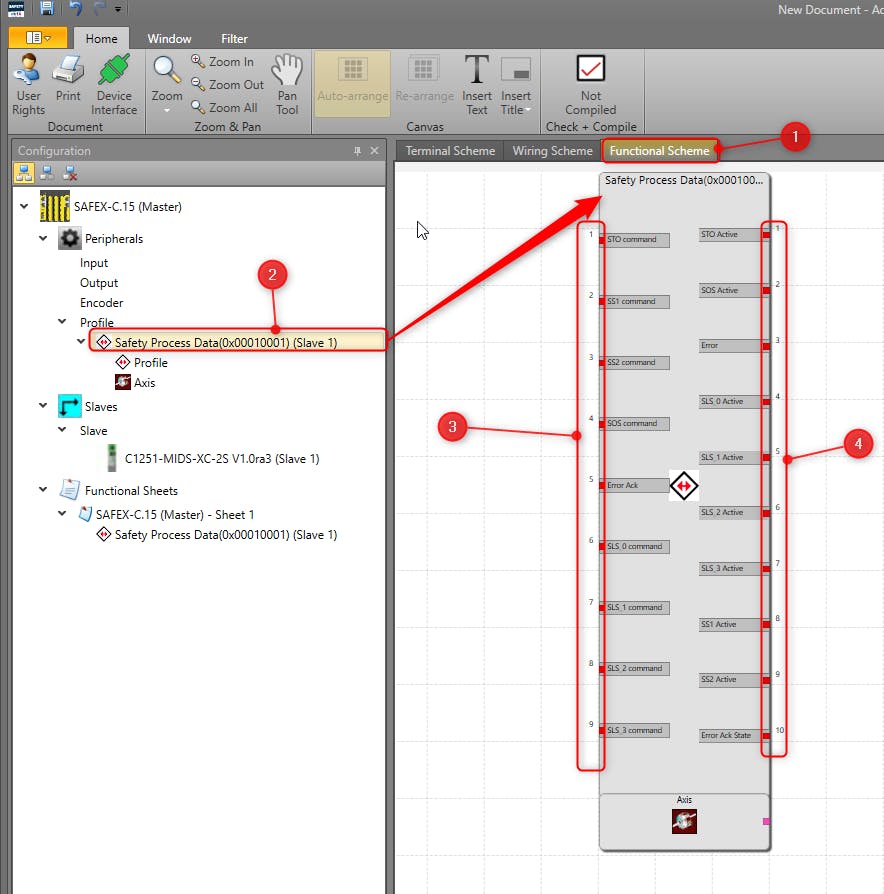
Fig. 24.: Axis Properties Fig. 25: LinMot Talk FSoE Slave Safe Position Scale To create the connections between the slave and the SAFEX-C.15, open the "Terminal Scheme". Drag the "Safety Process Data" into the scheme and connect the axis inputs and outputs according to your program logic
Fig. 26.: Creating the Program for the Slave in the Functional Scheme
Further Information:
After adding the connection, load the configuration to the SAFEX-C.15 controller. To do so, follow step 9 of the how-to "Create a Safety PLC Project with ctrlX SAFETY Engineering".
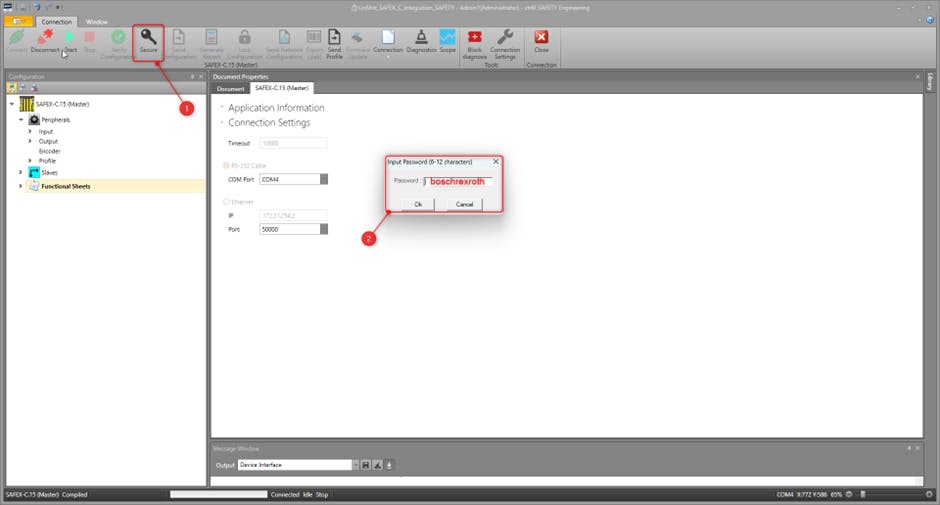
Then click the “Secure” button to unlock the configuration settings of the ctrlX SAFEX-C.15. Enter the Password “boschrexroth” to proceed.
Next, follow steps 10 to 12 from the how-to "Create a Safety PLC Project with ctrlX SAFETY Engineering" to complete the configuration.
Master Slave Connection
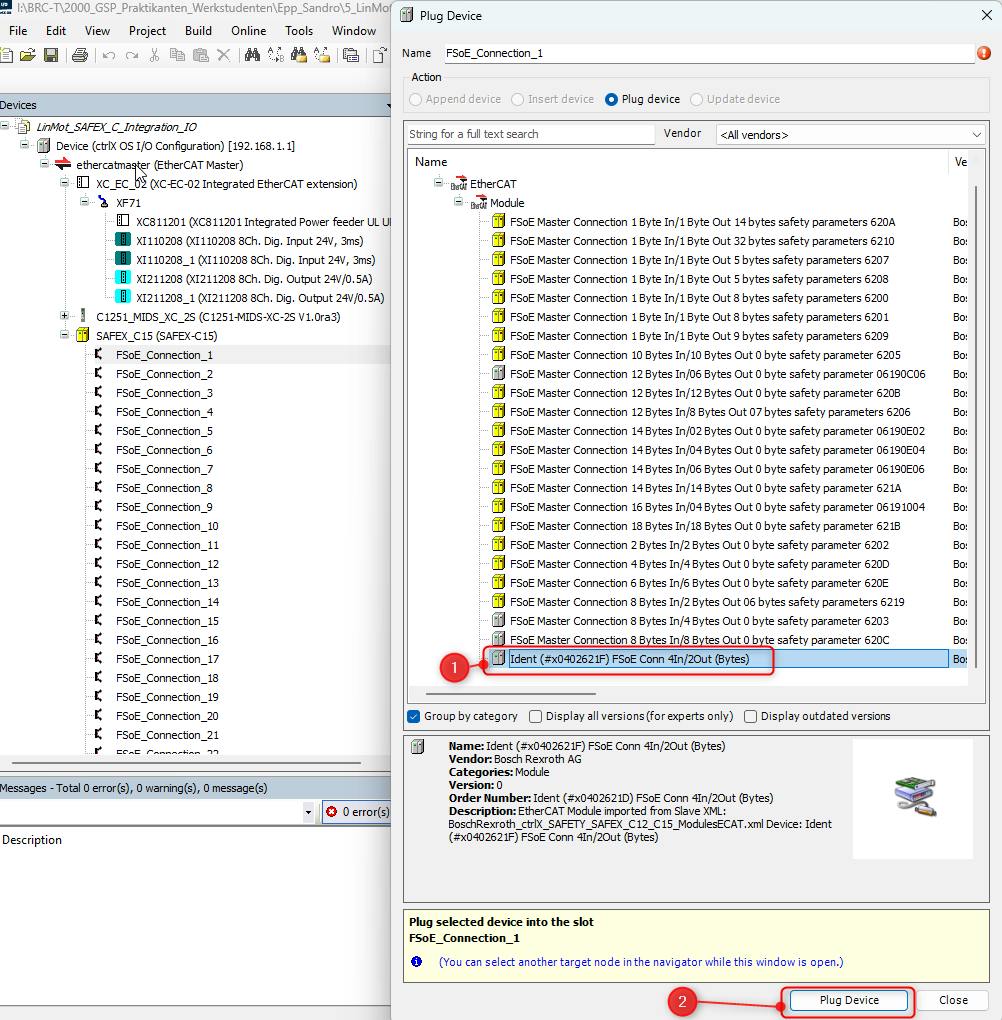
In ctrlX IO Engineering, select "FSoE_Connection_1"and click "Plug Device" to assign the safety connection.
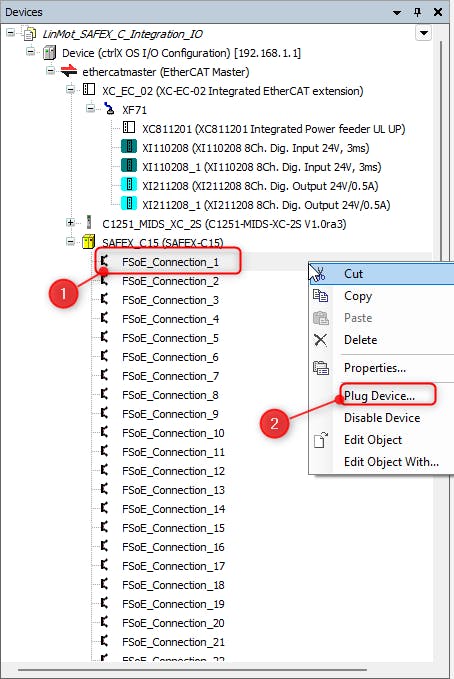
Select the Device "FSoE Conn 4In/2Out" and click the "Plug Device" button to add it to the configuration.
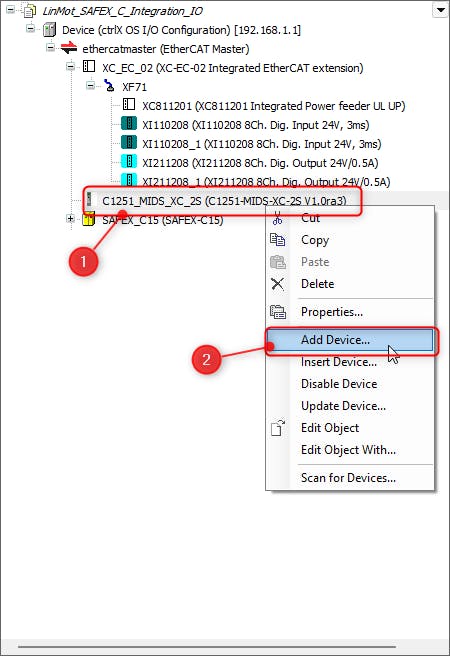
To add the "System Process Data" to the Drive, select the Drive "C1251_MIDS..." and then click "Add Device".
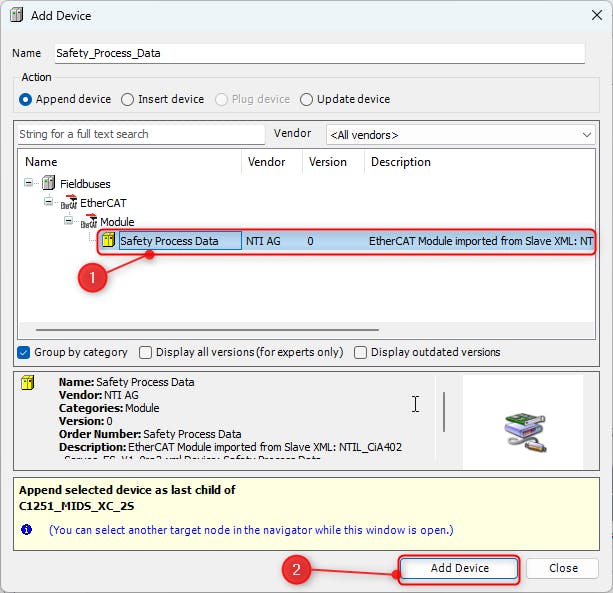
In the "Add Device" window, select " Safety Process Data". Then click the "Add Device" button to add it to the Drive C1251.
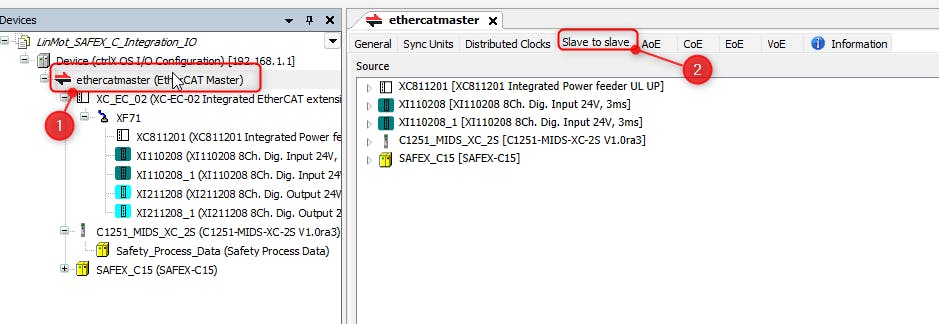
To configure the "Slave to Slave" connections, select the "ethercatmaster" and open "Slave to Slave" window.
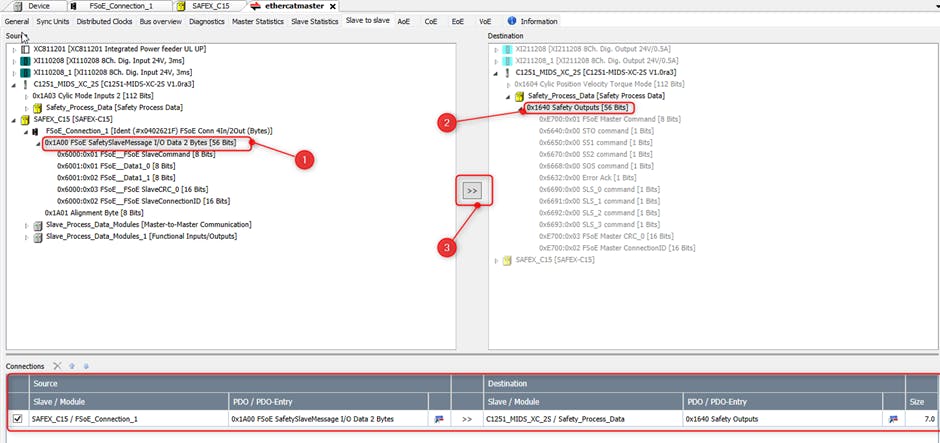
To establish the connection from the slave to the master, navigate to the Source Device "SAFEX_C15" and select the "0x1A00 – FSoE SafetySlaveMessage". Next, navigate to the "Safety_Process_Data" section, select "0x1640 Safety Outputs" and click the "Add connection" button to complete the setup.
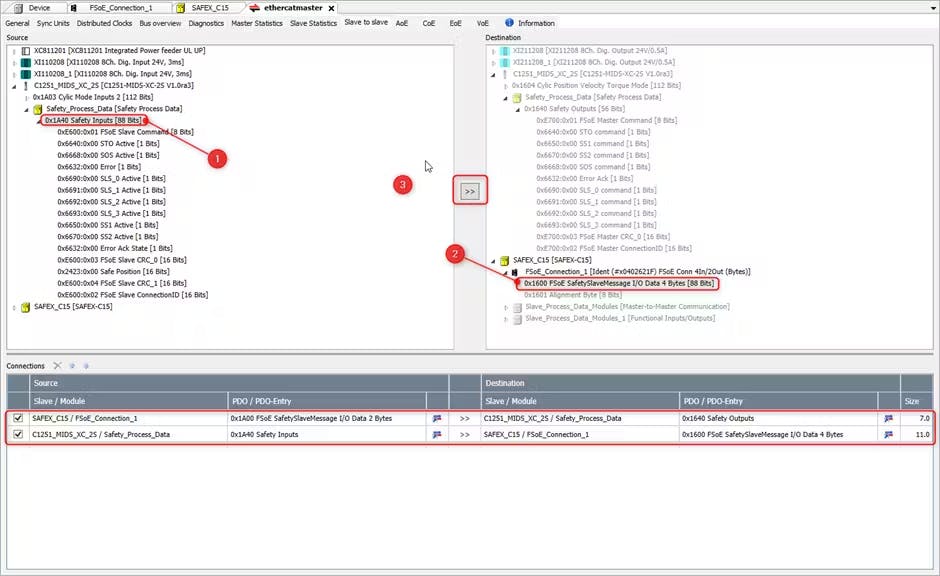
To establish the connection from the master to the slave, navigate to the source device "Safety_Process_Data" and select the message type "0x1A40 Safety inputs".
Next, navigate to the destination by selecting "0x1A40 Safety inputs", which belongs to the "SAFEX_C15" section, and click the 'Add Connection' button to complete the setup."
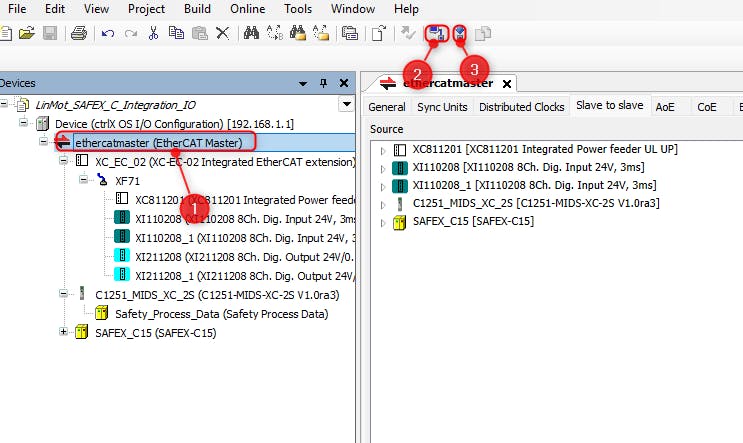
Now you can download the configuration to the ctrlX CORE. To do this, select the "ethercatmaster", ensure you are connected to the device, and then click the "Download" Button to transfer the configuration.
Fig. 35.: Transferring of the Slave to Slave connections
Motion Setup
Before testing the Motor, make sure to complete the Motion Setup as described in the how-to :"Interface LinMot C1250-MI-XC-1S Drive with ctrlX CORE via EtherCAT". Once the setup is complete, you can run the motor via the Motion window, including the "Axis" approval through the SAFEX-C.15.
The Company
NTI AG – Expertise in linear motion
LinMot & MagSpring- Industrial linear motors and systems
NTI AG is a global leader in the development and production of advanced linear motion technologies. Our portfolio includes high-performance tubular linear motors, linear rotary motors, axis systems, and modular solutions designed for demanding industrial automation environments.
Since 1993, and operating independently since 2000, NTI AG has combined Swiss engineering precision with innovative design to deliver direct-drive systems that ensure maximum dynamics, accuracy, and reliability. Our products support EtherCAT (CoE DS204) and integrate seamlessly into modern control platforms such as ctrlX OS, enabling fast commissioning and flexible application.
With production facilities in Switzerland and Slovakia and a global network of over 80 sales and support locations, we provide comprehensive solutions for packaging, robotics, medical technology, and machine building. Our brands LinMot® and MagSpring® set industry standards for wear-free operation, energy efficiency, and compact design.
NTI AG – Your trusted partner for high-performance linear motion systems worldwide