Introduction
UMC (Universal Machine Connector)
The main function of the UMC is acquiring and transfering data from a source (producer) to a target (consumer). A source is usually an industrial machine controller, e.g. Rexroth MTX, Siemens S7, etc.. A target can be an IT system on a higher level, a database, or even an another industrial controller.
Requirements
ctrlX CORE with the Bosch - IP Suite Universal Machine Connector is installed.
Step-by-Step Guide
Connection between XM42 (source) and ctrlX CORE datalayer (target).
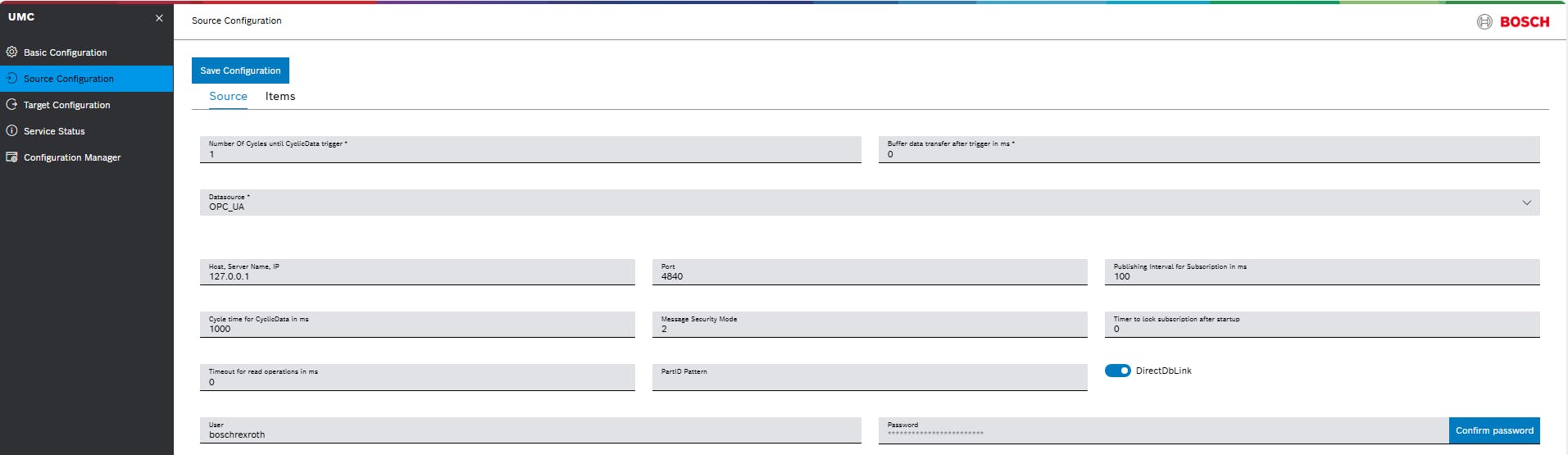
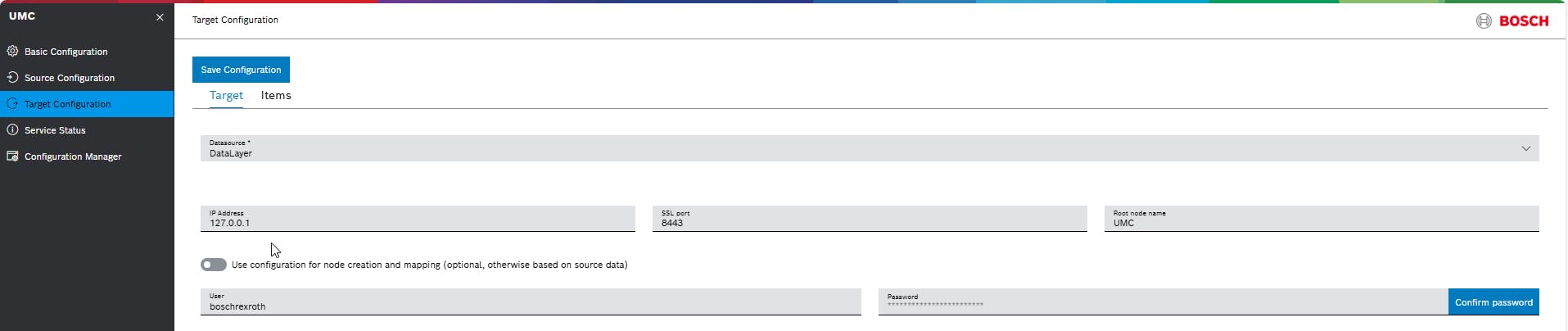
Info: After the initial installation, standard OPC-UA server items are created as source and target. Default configuration for ctrlX CORE virtual!
Default source configuration
Default items configuration

Default target configuration
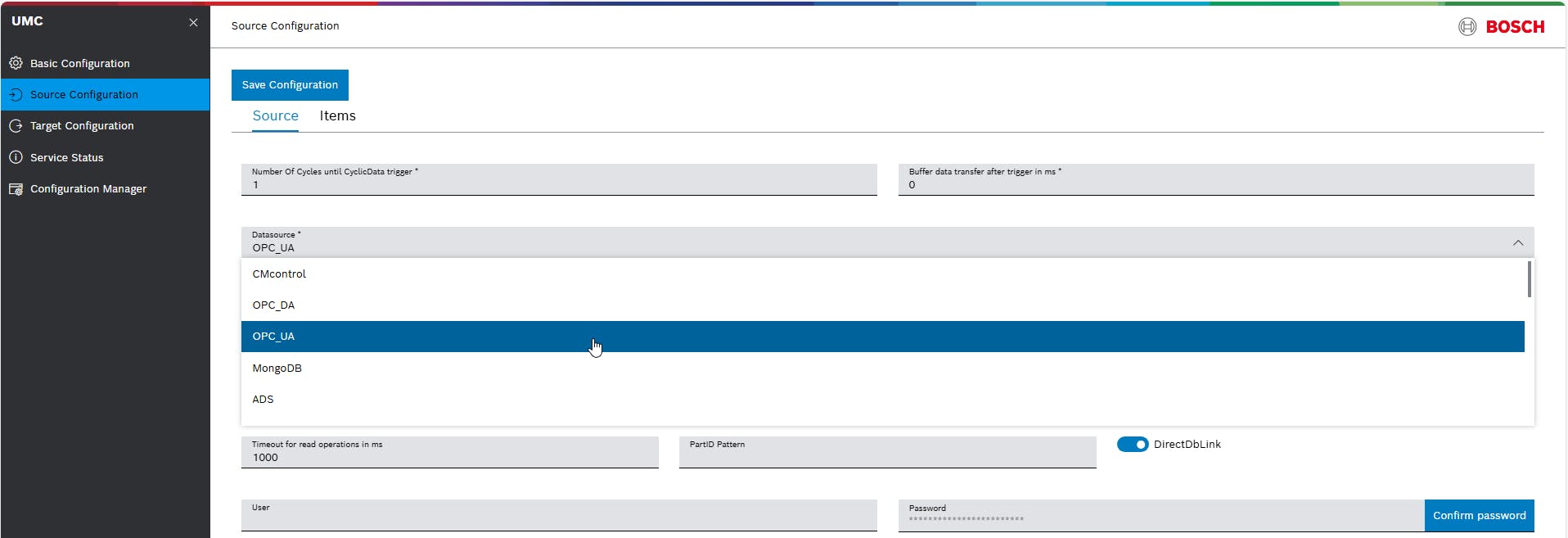
Step 1 (Source configuration)
Open UMC app (a new browser tap will be opened). Go to "Source configuration" and select OPC-UA in data source!
Enter IP-Address and port of your OPC-UA server. Standard OPC-UA-Port (4840)
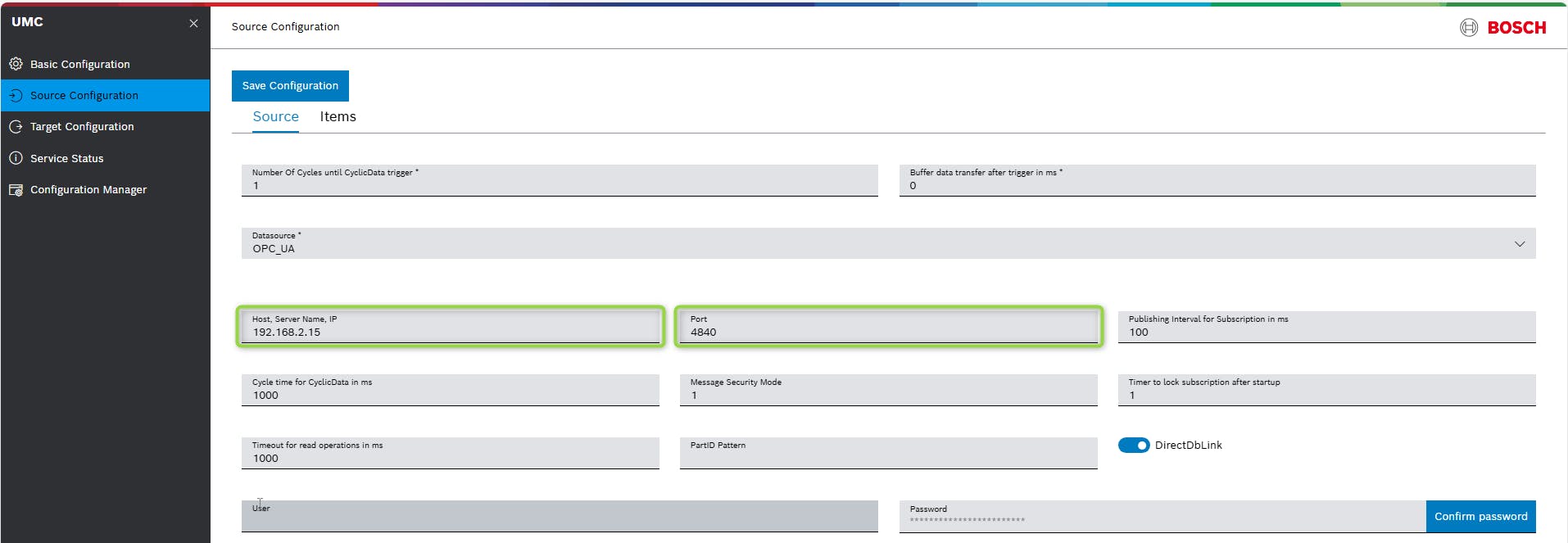
Cycle time for CyclicData in ms defines with which minimum cycle time CyclicData is written to the database in milliseconds. The actual sampling rate for each item can be set in the ControlSource, but it cannot be less than the time specified here.
Message Security Mode is set to 1 (There are no security measures in this mode. Communication is unencrypted and without authentication). 2 (Sign) 3 (Sign & Encrypt) Because of Message Security Mode 1 you do not need to enter a user and passwort!
Save configuration!
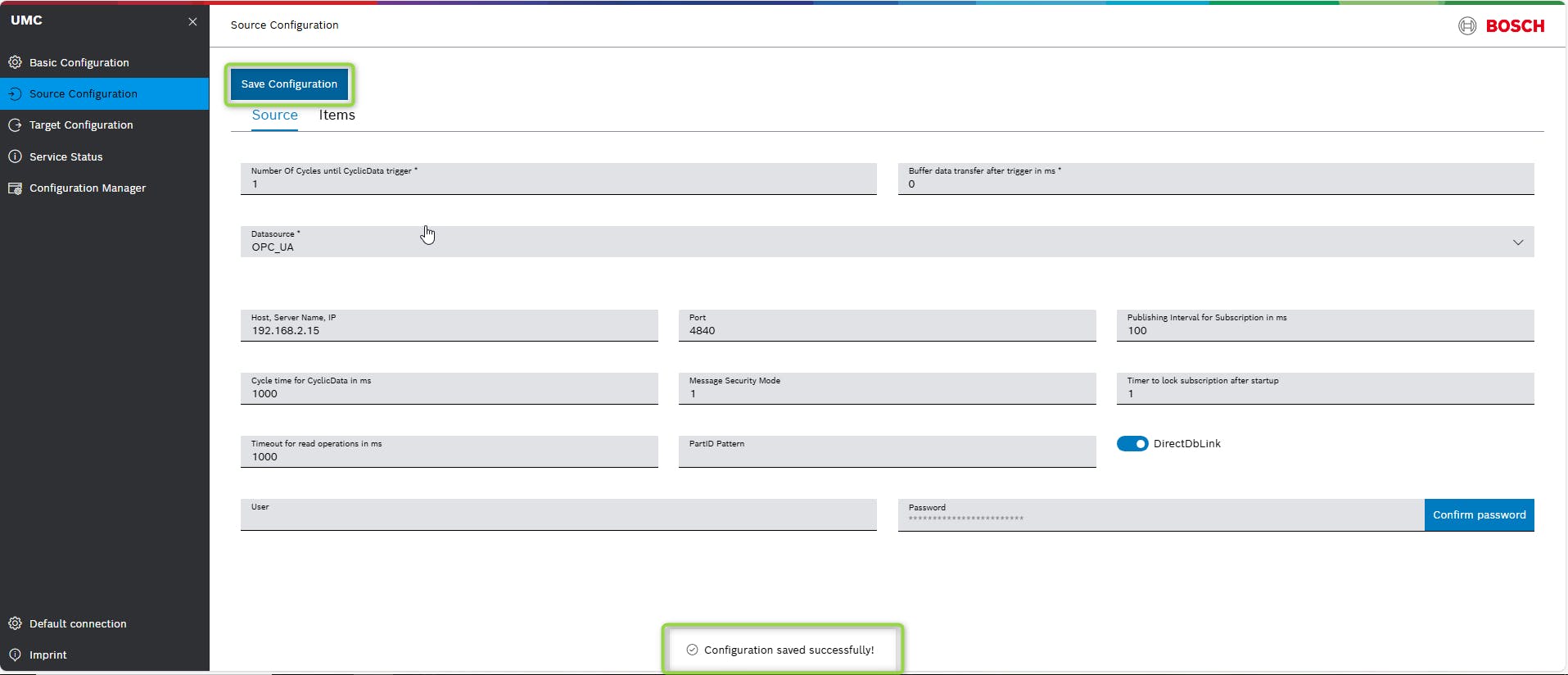
Step 2 ( Add items )
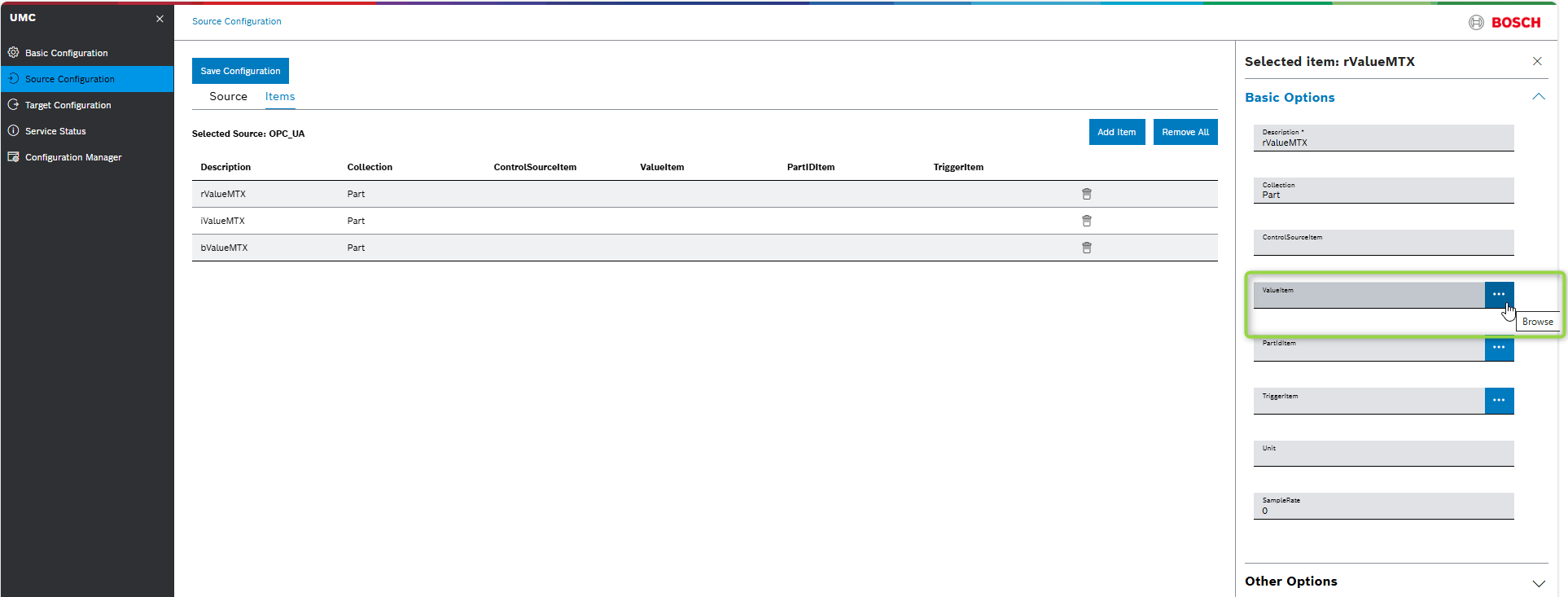
Once the source is configured, items can now be created. Therefor go to menu Items and then click on button "Add Item". A new window will be opended.

Type in a item name!
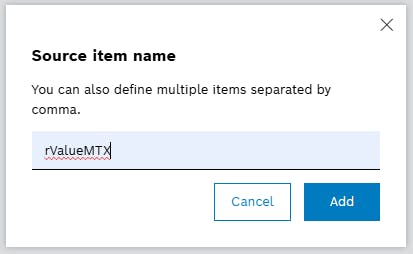
Info: It is also possible to place items in a folder structure by putting a slash before the item name.
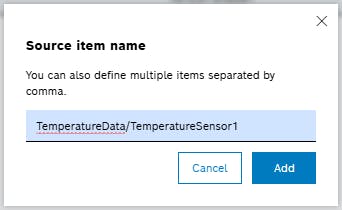
You can add several items, in that example three items are added.

After the items are added they need to be linked to a variable of the source! Click on "ValueItem", a new window will be opened!
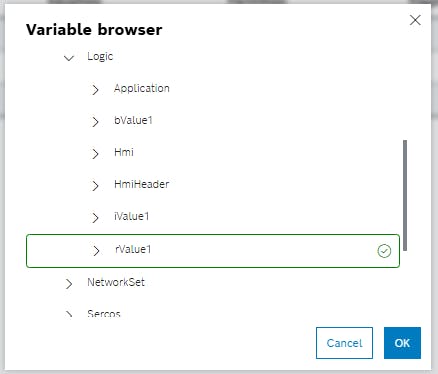
Selcet a variable from the source to link it to the item and click button "Ok".
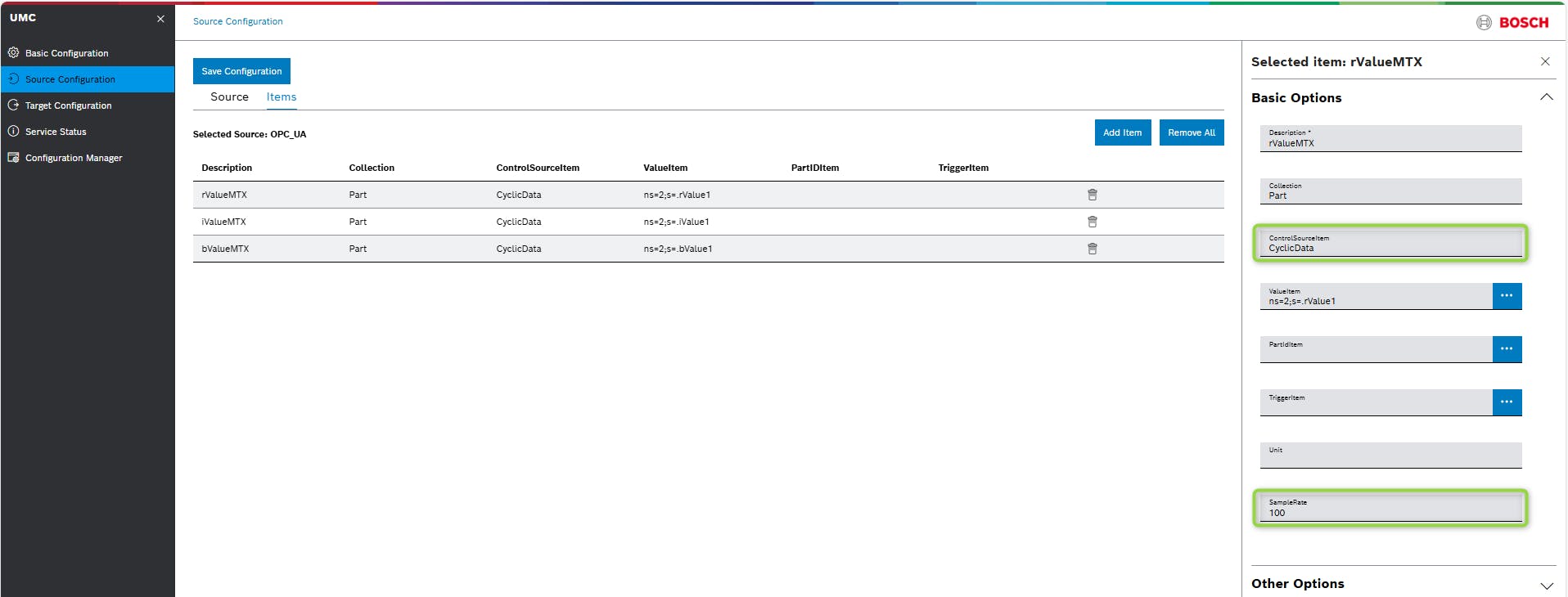
The following options can be entered under "ControlSourceItem" to define in which way the read variable value is structured and stored. In this HowTo we use the option CyclicData.
CyclicData -> values will be saved cyclically
EventData -> values will be saved event-triggered
Part-related: Bei Partrelated muss ein PartIdItem verwendet werden....
PartData -> Is used to read ANY variable values (bool, real, int, double, ...) from the controller. Usually, there items contain metadata about the processed part.
Example:
· Values: current value which is read from the control system (single value)
· DateTime: time (date, time in UTC), when the variable was recorded
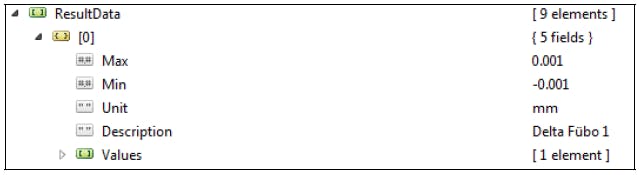
Example of PartData structure ResultData -> Is used to read and store one or more numerical values from the control system.
Example:
· Min: configured minimum of parameter (optional)
· Max: configured maximum of parameter (optional)
· Values: actual variable value which is read from the control system (single value or array)
· No DateTime element required
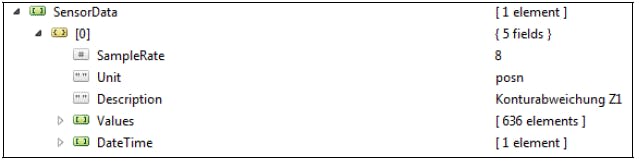
Example of ResultData structure SensorData -> Is used to read and save stored time series (arrays) from the control system.
Example:
· Values: variable value (arrays) which are read from the control system
· DateTime: sampling rate in ms at which the array was entered in the control system
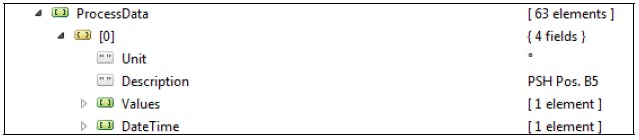
Example of SensorData structure ProcessData -> Is used to read and store one or more numerical values from the control system.
Example:
· Values: current variable value which is read from control system (single value or array)
· DateTime: time (date, time in UTC) when the variable was recorded
Example of ProcessData structure

Type in CyclicData to "ControlSourceItem" and a time to "Sample rate".
Sample rate -> Only mandatory for CyclicData: define minimum cycle time CyclicData is written to the database in milliseconds. The actual sampling rate for each item can be set in the ControlSource, but it cannot be less than the time specified here.
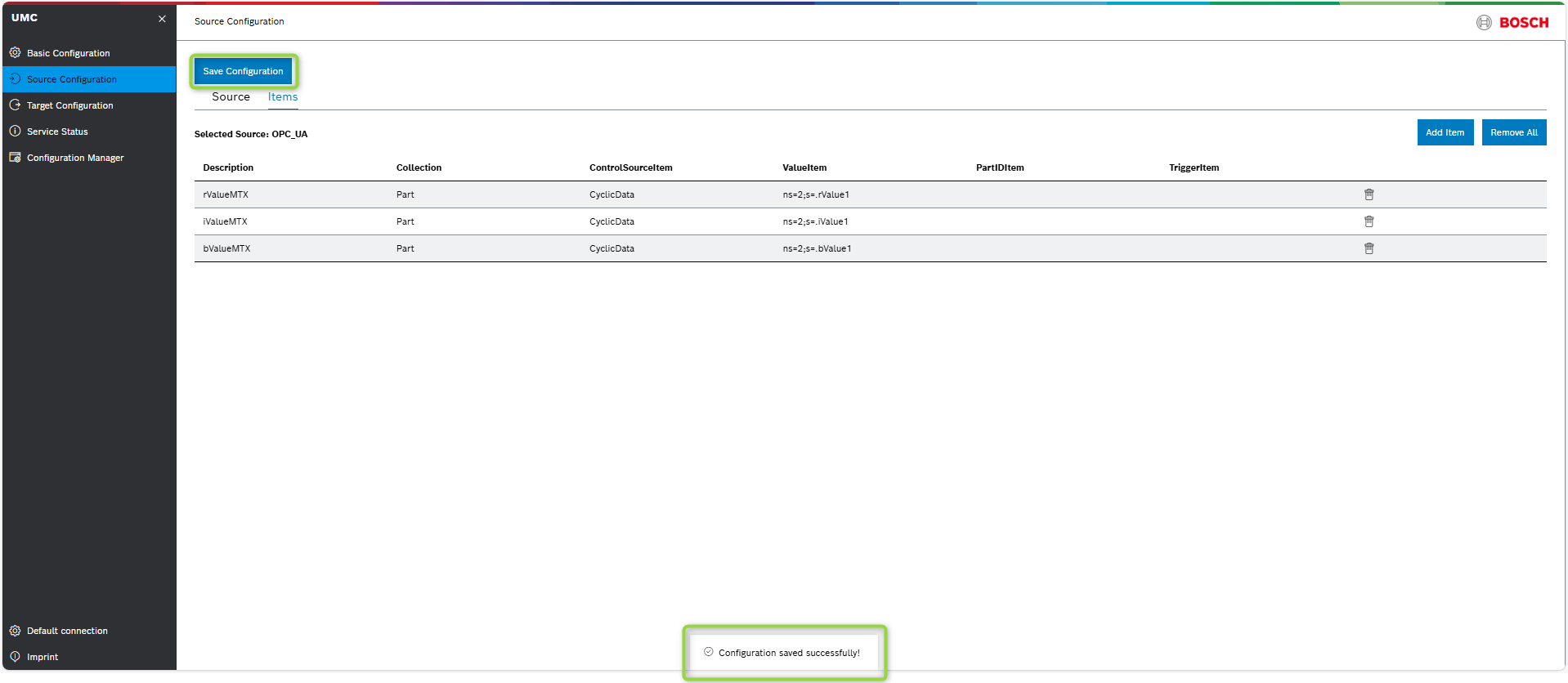
Perform these steps for all added items!
Save configuration
Step 3 ( Target configuration )
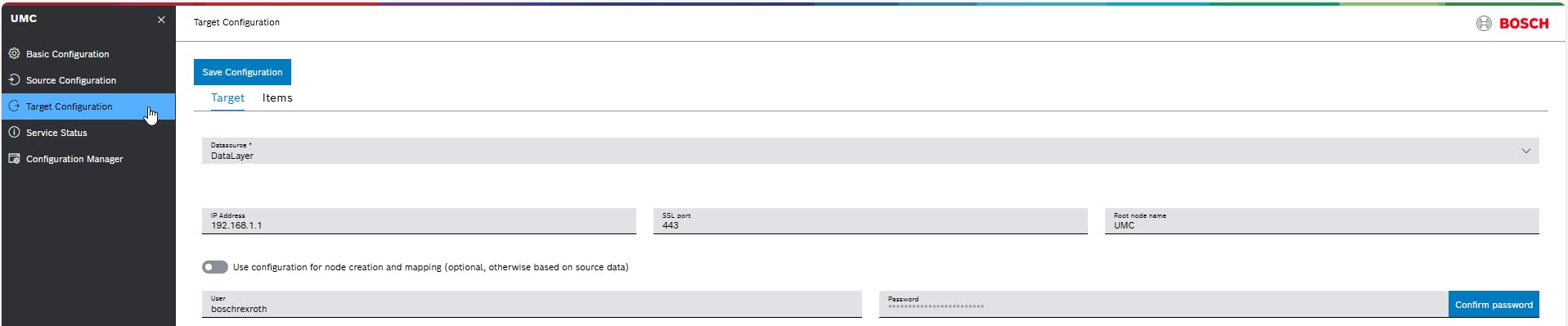
Configuration of target where the configured items are to be stored. In this example the items will be stored to the datalayer of the ctrlX CORE.
Select Datalayer for Datasource.
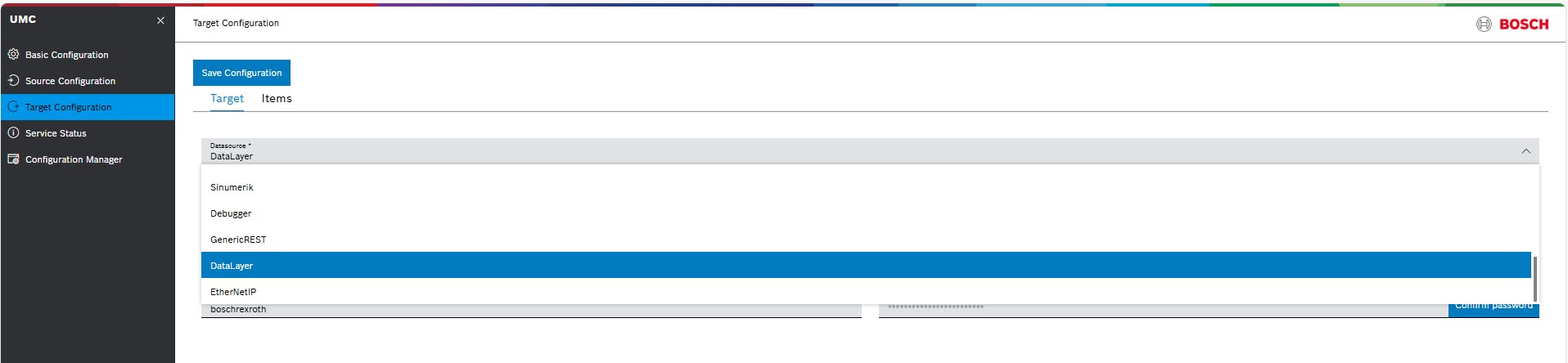
Type in the IP-address /SSL port / username and passwort of the target control system and save configuration.
Step 4 (Check status)
Go to menu "Service Status" and check if the connector is running.
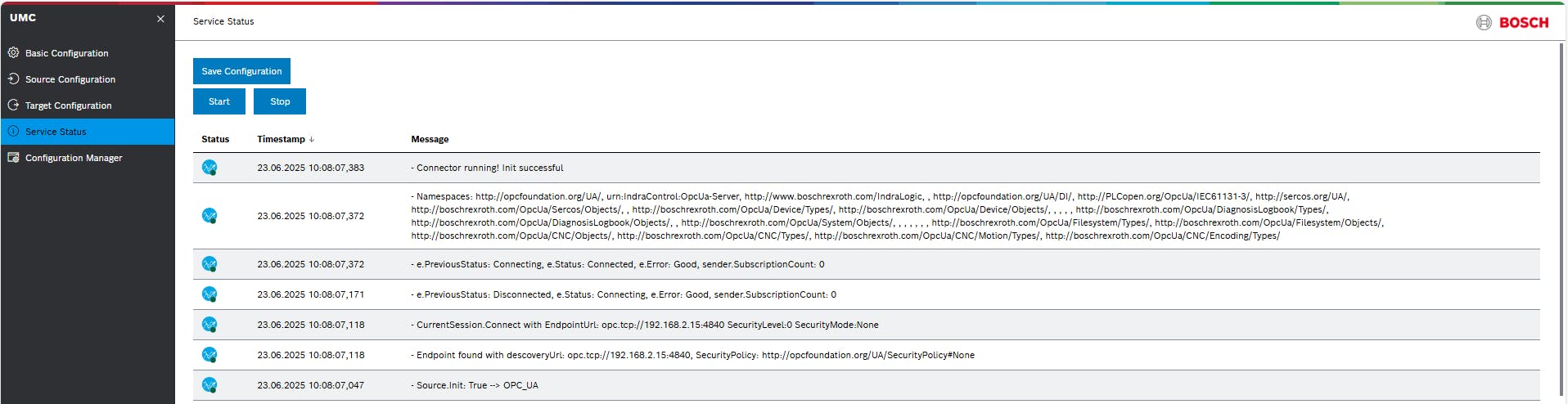
Initially, no window is opened. Only an icon in the Windows tray area shows the current status of the selected service.
The service has not been started yet or reports an error

The service has been started, but the instance is not running yet (pause) or is waiting for a trigger

The service runs without any errors and has successfully written one or more variables to the data target or, in the case of reverse communication, read from it

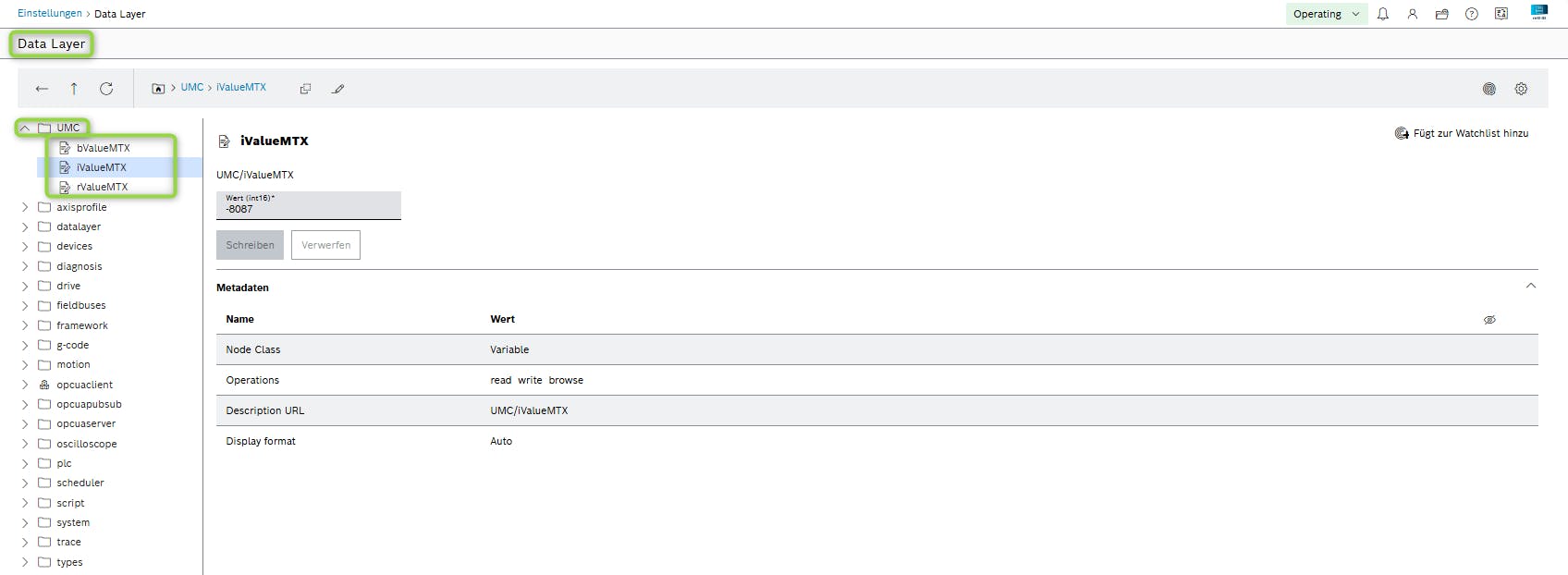
Go to Datalayer on ctrlX CORE and select folder UMC. All items that have been configured are now visible there.