IntroductionHardware Requirements & SetupInitial Raspberry Pi ConfigurationUptime KumaRequirements & InstallationSimple rsyslog & Advanced Elastic StackInfluxDB2 and GrafanaTelegraf for Procstat TransmissionPython Script for Resource Monitoring
Introduction
This document outlines several methods for monitoring a ctrlX CORE device and its log files using an external Raspberry Pi or PC. It provides a structured approach to setting up different monitoring solutions, from simple status checks to advanced log analysis and data visualization. The guide is divided into chapters, each focusing on a specific toolset.
Hardware Requirements & Setup
The fundamental setup involves a ctrlX CORE, a Raspberry Pi or PC a network switch to connect them.
Raspberry Pi (Any model with network connectivity)
ctrlX CORE
Network Switch and Ethernet Cables
PC (For setup and optional scripts)
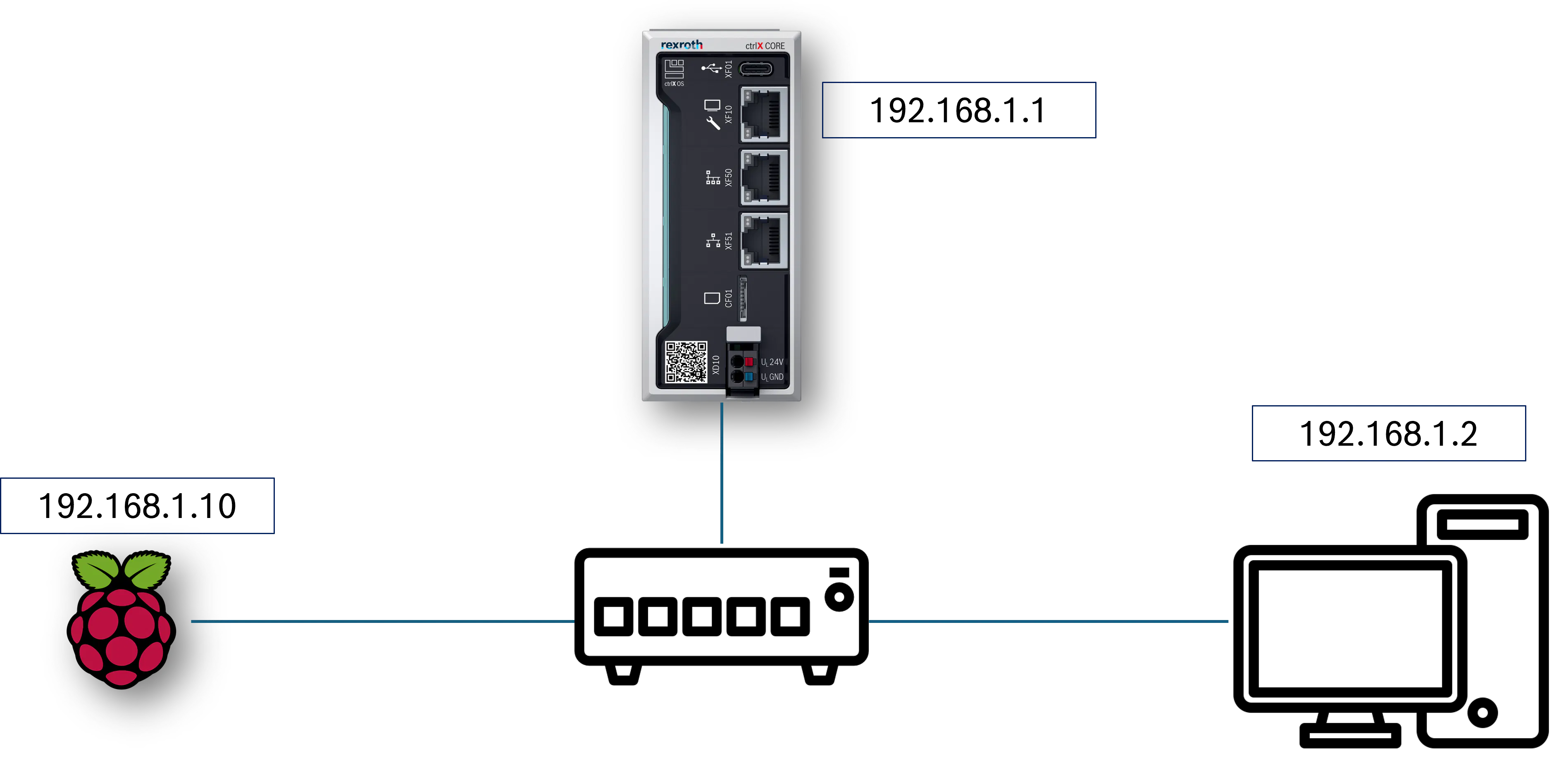
The hardware that was tested was connected as shown in the diagram below, with the devices on the same subnet (e.g., 192.168.1.x).
If you scroll to the bottom of the page, you can find a ZIP file where the templates (Grafana) and the scripts are available. These are only examples and will probably need some adjustments for your use case.
Initial Raspberry Pi Configuration
Before installing any monitoring tools, prepare your Raspberry Pi with the following steps.
Ensure you have an internet connection on the Raspberry Pi.
Update the system: Open a terminal and run the following commands to ensure your system is up-to-date.
sudo apt full-upgrade -y
sudo apt autoremove --purge -y
sudo reboot
Configure Firewall Settings: It is good practice to set up a firewall. We will use ufw (Uncomplicated Firewall) and open the necessary ports. Port 4200 is an example; you will need to open ports for each service you install (e.g., Uptime Kuma default is 3001, Grafana is 3000).
sudo apt install ufw
sudo ufw enable
sudo ufw allow 4200
sudo ufw status
Uptime Kuma
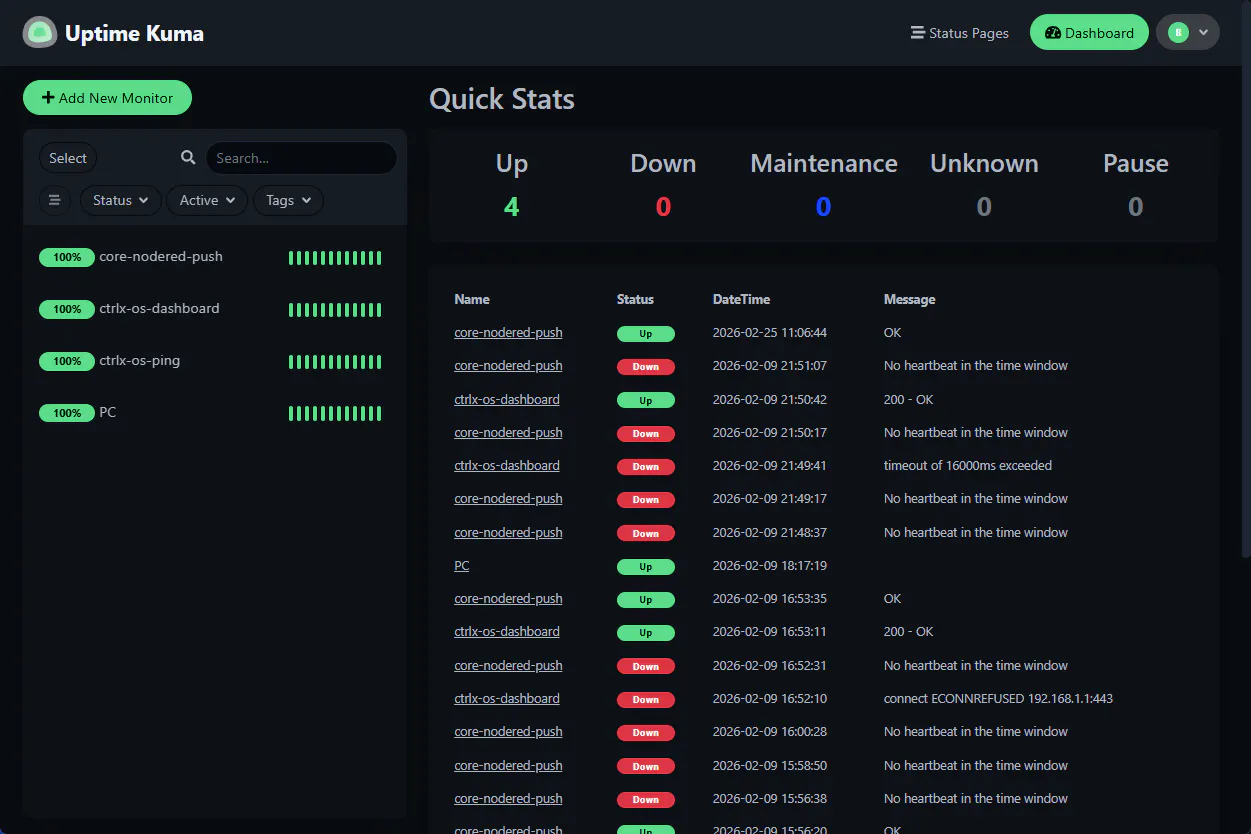
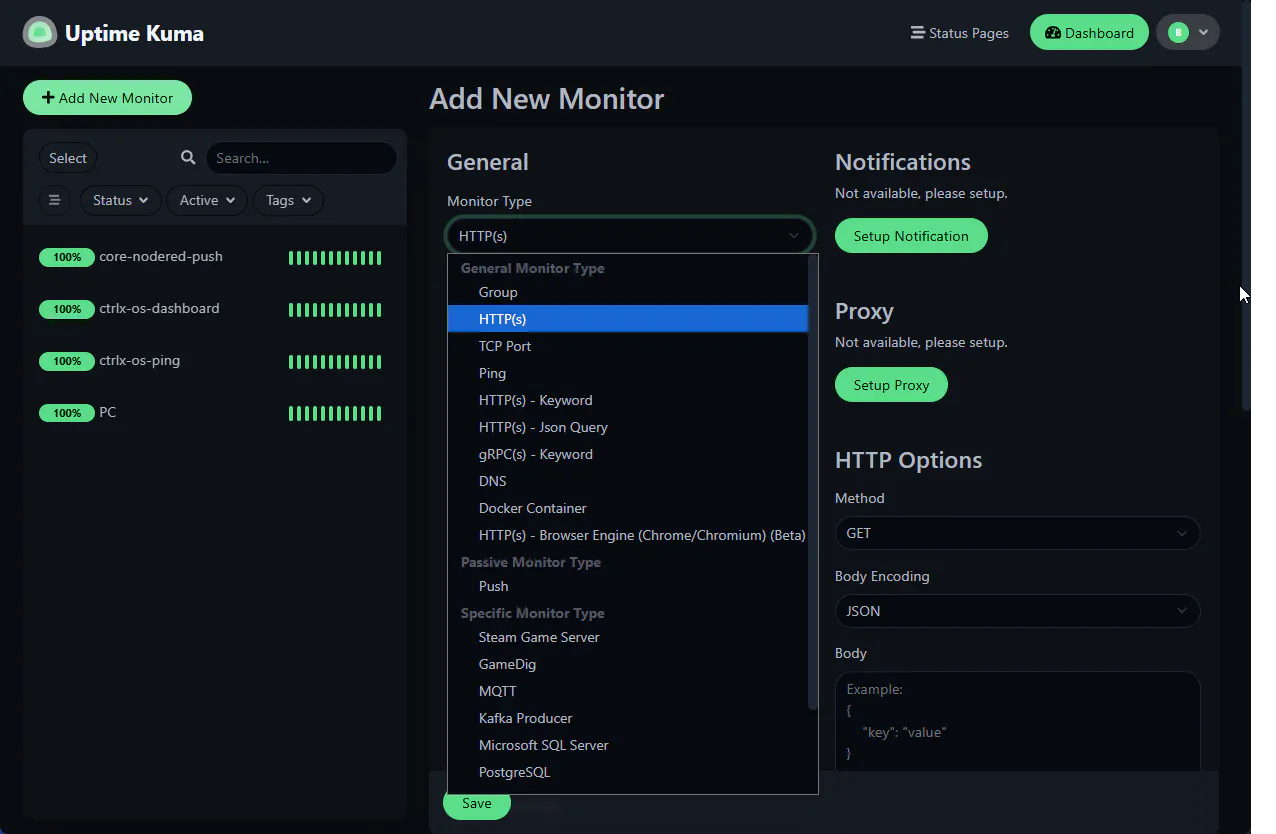
Uptime Kuma is a user-friendly, self-hosted monitoring tool. It is ideal for getting started with monitoring as it provides a simple and clean web interface to track the status of your services. You can monitor uptime for HTTP(S), TCP ports, DNS records, and more, making it perfect for checking if your ctrlX CORE and its services are online and responsive with a Raspberry Pi.
Requirements & Installation
Docker: Uptime Kuma runs in a Docker container, which simplifies its installation and management.
To install Docker: Link
Install Uptime Kuma: Follow the official instructions to deploy the Uptime Kuma container.
To install Uptime Kuma: Link
Simple rsyslog & Advanced Elastic Stack
This approach focuses on centralized log collection and analysis.
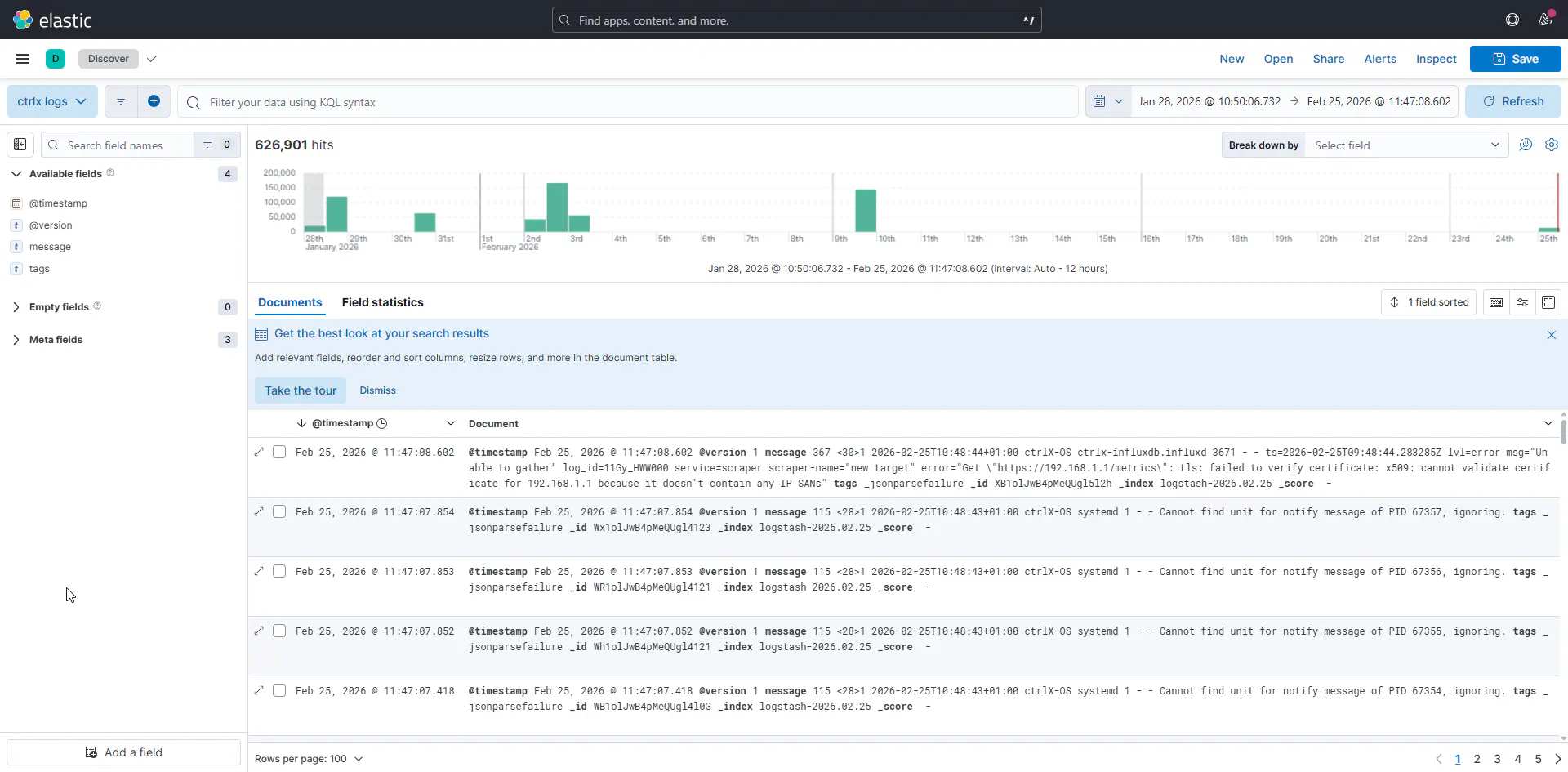
rsyslog is a powerful, high performance log processing system native to most Linux distributions, including Raspberry Pi OS. It can be configured to act as a central log server, receiving log messages (syslogs) from other devices on the network, such as your ctrlX CORE.
The Elastic Stack (ELK Stack) is an advanced, enterprise-grade solution for searching, analyzing, and visualizing log data in real-time.
To Install and Configure rsyslog/Elastic Stack: Link
InfluxDB2 and Grafana
This combination is excellent for collecting and visualizing time-series data, such as performance metrics, sensor readings, or any data point with a timestamp.
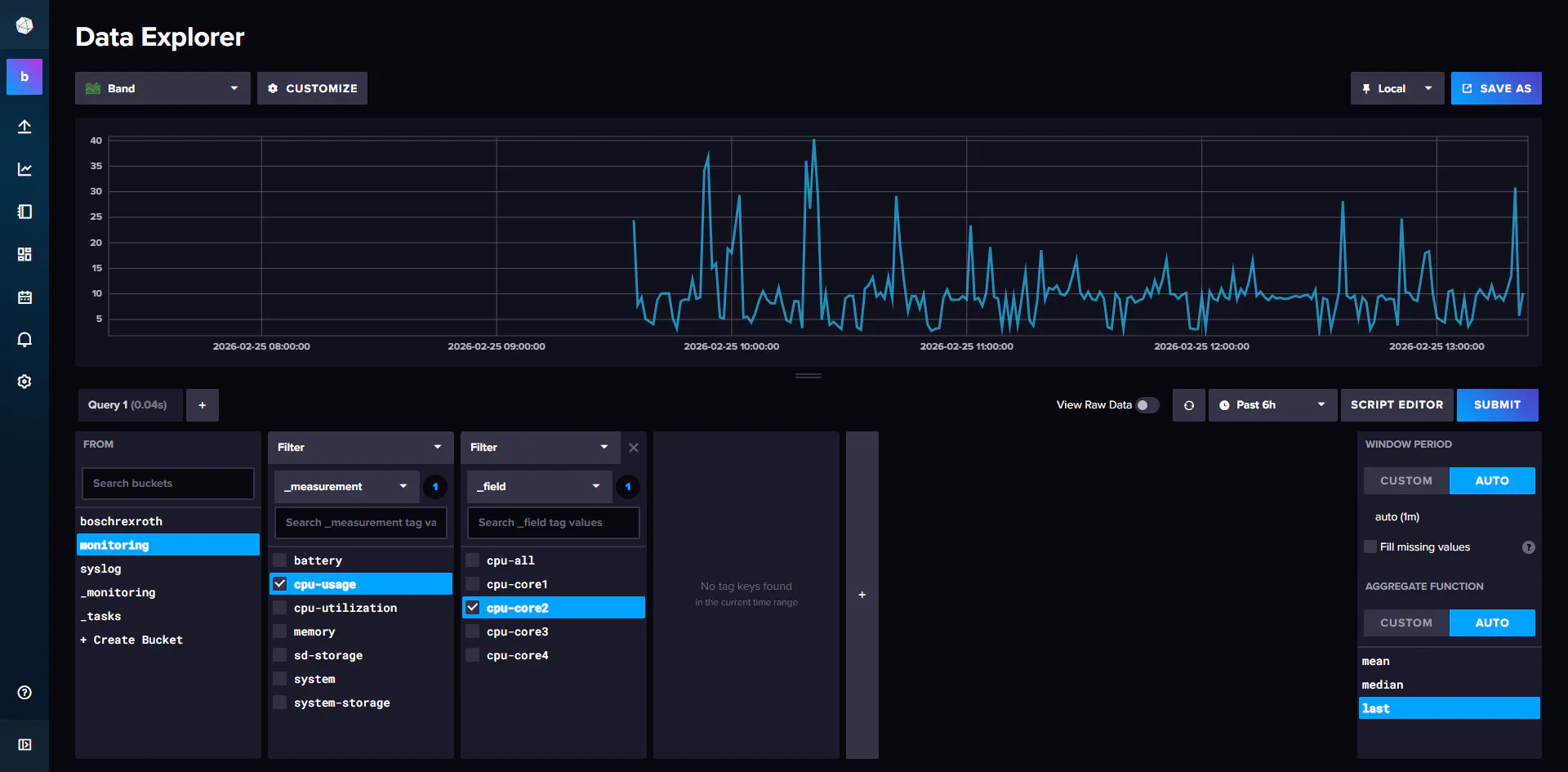
InfluxDB is a purpose built time series database. It is designed to handle high volumes of time stamped data efficiently, making it perfect for storing metrics from your ctrlX CORE and Raspberry Pi.
To install InfluxDB2 on Raspberry Pi: Link
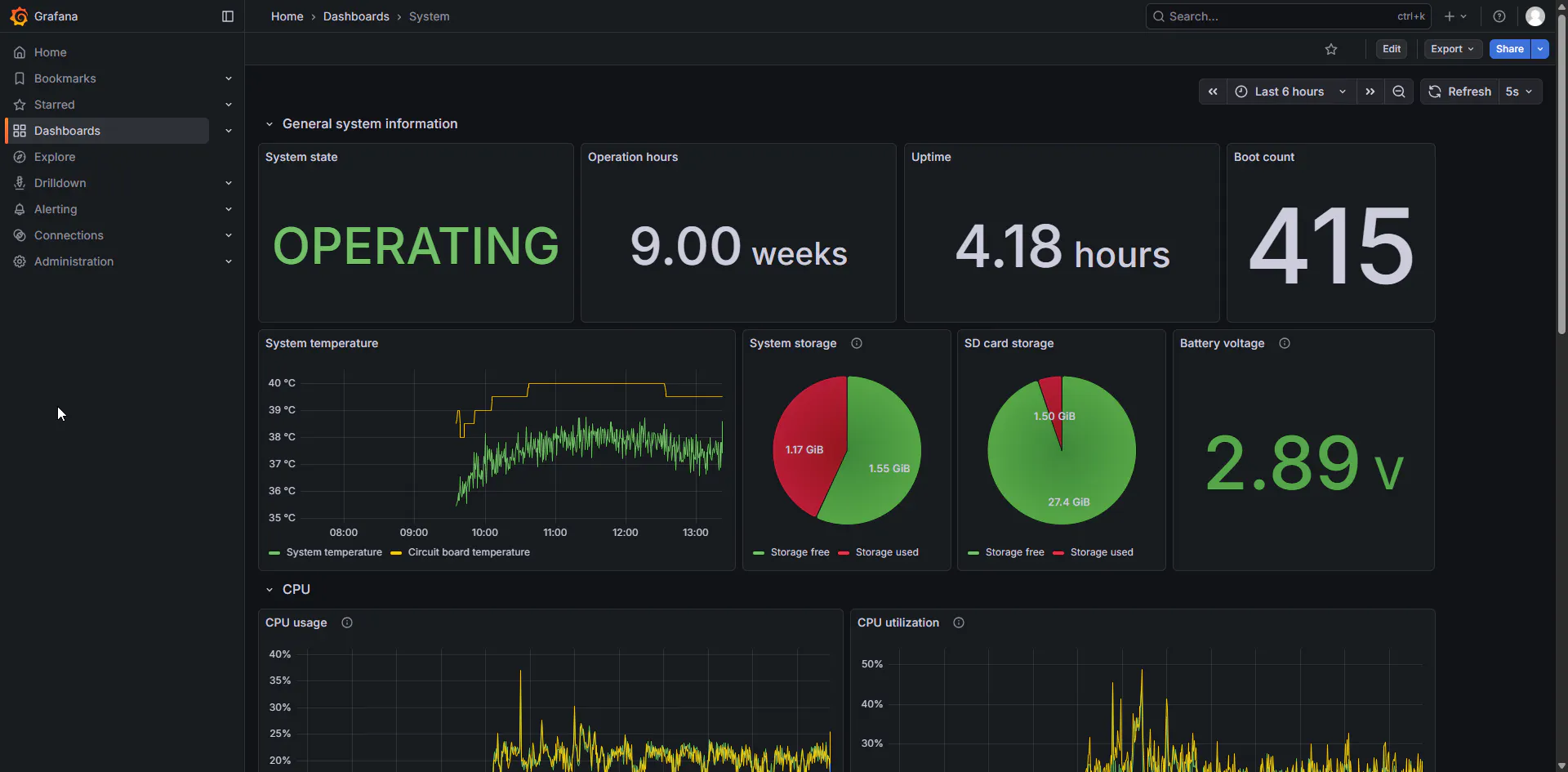
Grafana is an analytics and visualization platform. It connects to data sources like InfluxDB to create rich, interactive dashboards. With Grafana, you can build graphs, gauges, and alerts to monitor your system's health and performance in real-time.
Telegraf for Procstat Transmission
Telegraf is a lightweight, plugin-driven server agent for collecting and sending metrics and logs. It is part of the InfluxDB ecosystem (TICK stack) and is designed to have a minimal footprint. In this system, Telegraf acts as the bridge. It can be configured to listen for messages (the same ones being sent from the ctrlX CORE) and forward them into your InfluxDB database. This allows you for example to use the Grafana dashboard to visualize log events over time.
Software:
Using the Telegraf documentation and the InfluxDB Procstat you can create something like the examples shown in the pictures below. Additionally, you can run custom scripts with Telegraf.
[gallery]
Python Script for Resource Monitoring
For more customized monitoring, you can run a Python script to actively record the performance of different processes or instances. You can see the processes in the Core under Settings → System Performance → Processes. But they are not recorded. In Linux devices you can find the processes under htop but for this demonstration I used ps. In this chapter, I will show you how to record the 10 processes using the most RAM on the core.
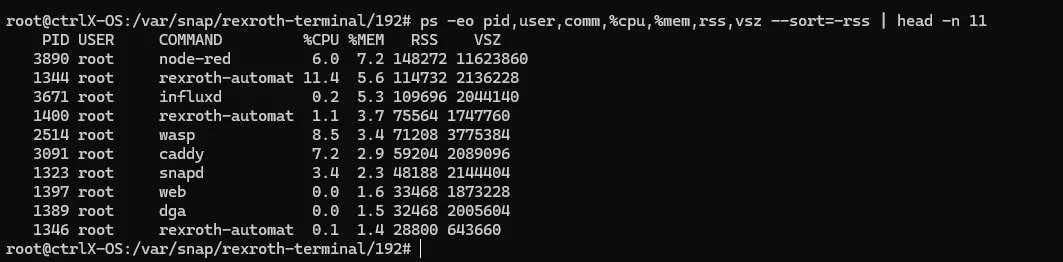
If you want to store these values, one solution is to use the script from the directory below, but for that you need the following app:
ctrlX OS - Terminal App
Using the documentation for this app and adapting the code to your use case, you can save the values to a CSV file. (If you want to learn more about Paramiko use this link)
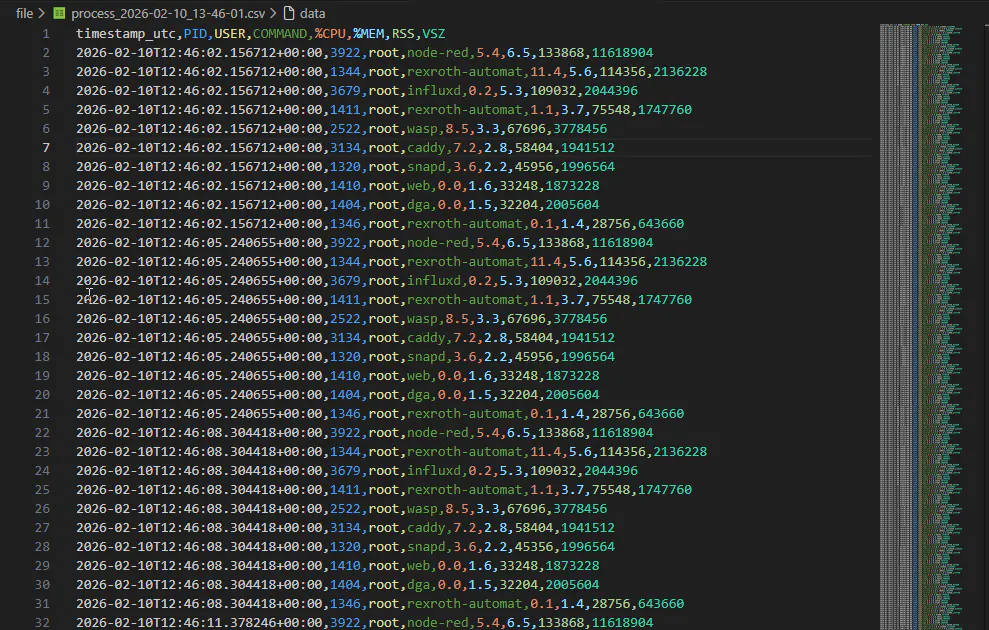
This script can be executed on either your PC, Raspberry Pi or locally on the ctrlX core (with adjustments). Its purpose is to connect to a target system, periodically check which processes are running, and log their CPU and RAM usage.
If you want to run it localy on the ctrlX Core (without any external device), you need on the following apps:
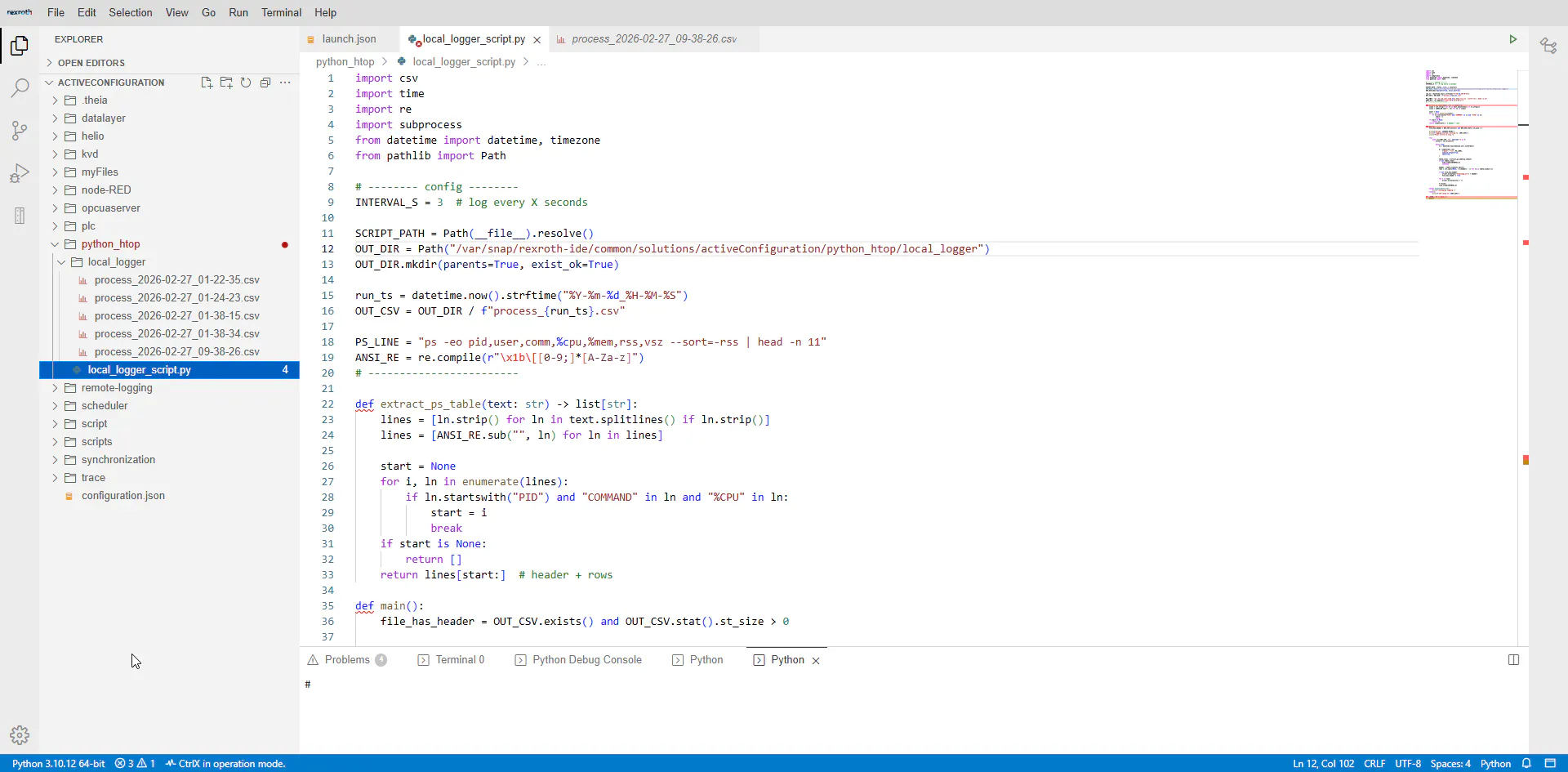
Additionally you need to adjust the code found in the directory and the path in the script. Than you can get something like this: