IntroductionPrerequisitesUsed HardwareUsed Versions and Required SoftwareDocumentationSetup Alarm ConfigurationCreate an AlarmAlarm Class ConfigurationError ClassWarning ClassInfo ClassVisualizationConfigurationRelated links
Introduction
This how-to focuses on the "Alarm Management" functionality provided by CODESYS within the ctrlX AUTOMATION platform. It covers setting up an alarm manager, defining alarm classes and groups, creating specific alarms, and displaying them in the HMI visualization.
Prerequisites
Used Hardware
ctrlX CORE X*-Serie or ctrlX COREvirtual
Used Versions and Required Software
ctrlX PLC Engineering v3.6.3+
ctrlX OS Apps from ctrlX OS Store
ctrlX OS - PLC v3.6.3+
Example project PLC:
Documentation
Setup Alarm Configuration
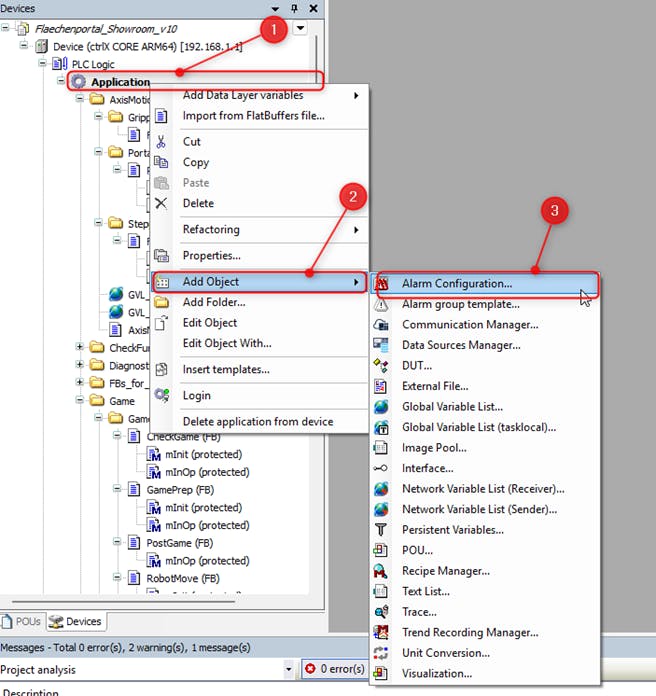
To add the Alarm Configuration in your PLC project, first open the "ctrlX PLC Engineering" and ensure your project is loaded. In the project tree, select the “Application” node. Then click on “Add Object..” and choose “Alarm Configuration..” from the list. Afterward, enter a name according to your preference and click “OK” to confirm.
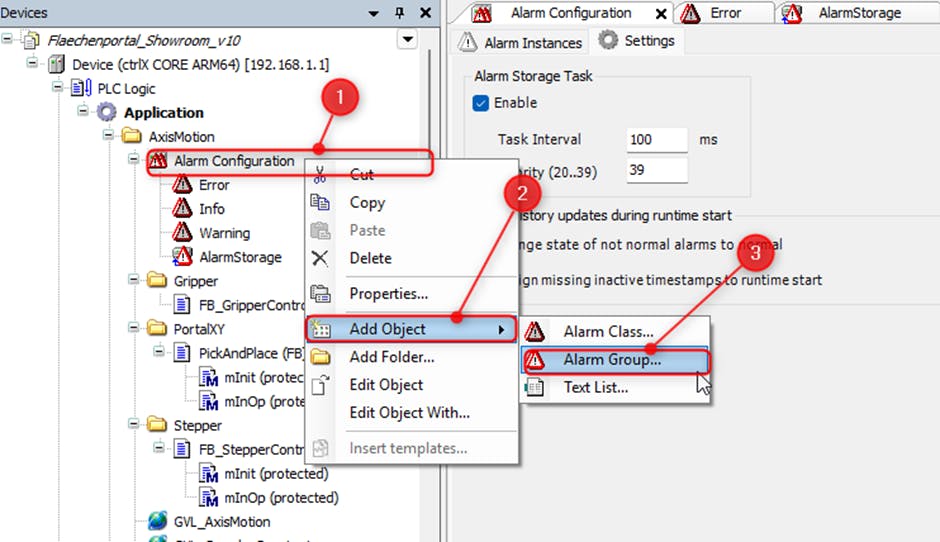
To add alarms and configure them we have to add an "Alarm Group". Therefore select the Alarm Configuration then navigate to "Add Object" there select the "Alarm Group" object.
Create an Alarm
In the following steps, we will configure an alarm for the Emergency Stop button. To create this alarm we have to navigate to the "Alarm Group" in the "Alarm Configuration".
In the "Alarm Group" choose the “Observation Type,” which defines the condition that triggers the alarm. In this example, we select “Digital”, because the Emergency Stop button provides a digital signal (TRUE/FALSE).
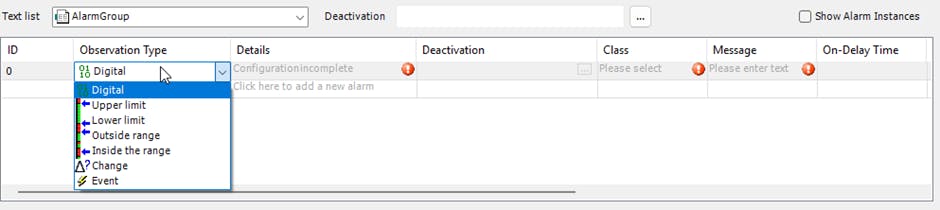
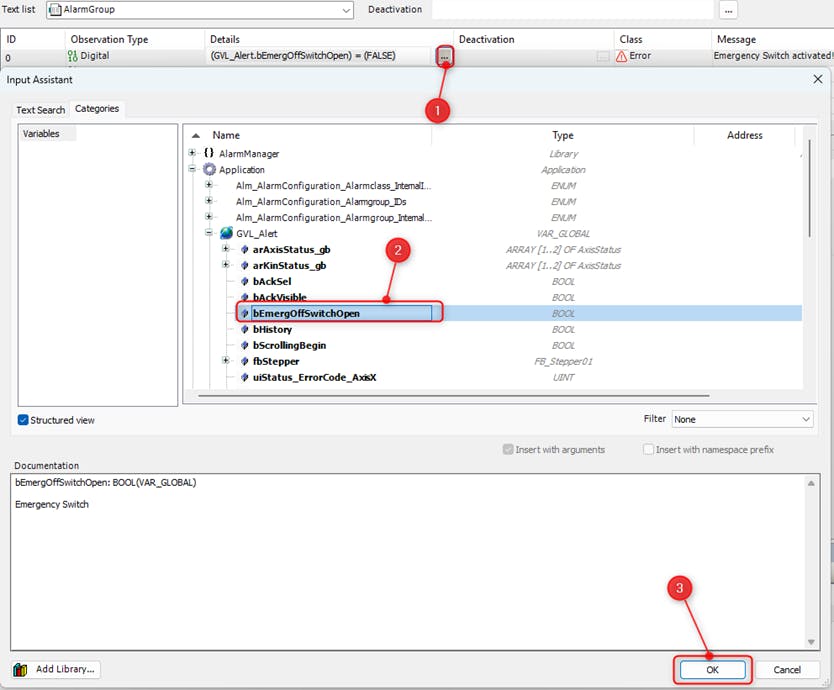
The "Details" is where the specific condition for the trigger of an alarm is set. Therefore Double-click on “Configuration incomplete”, then click the input assistant button "…". In the open window, select the “Application”, navigate to "GVL_Alert", choose the variable "bEmergOffSwitchOpen", and confirm by clicking "OK".
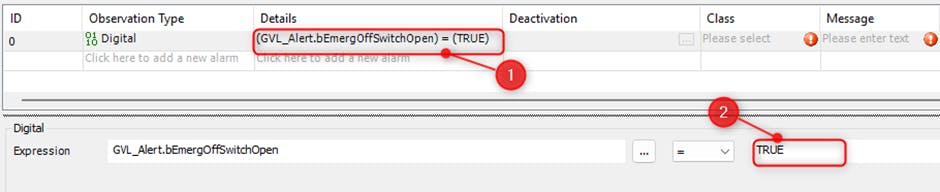
By default, the expression is set to TRUE. If necessary, you can change this in the expression field. In this example, we set it to FALSE because the emergency stop is considered active when the switch is OFF.
In "Deactivation" the condition under which the alarm will be reset or deactivated after it has been triggered is set. In this example, when the emergency stop button is released, the condition evaluates to FALSE, which deactivates the alarm. Therefore, we leave the "Deactivation" field empty because no additional condition is required.
The "Class" is used to categorize the alarms based on their severity or importance. There are three different classes:
Information – For non-critical or status updates.
Warning – Indicates a potential issue that requires attention but is not critical.
Error – Represents a fault or critical condition that needs immediate action.
For the emergency stop , we select the class “Error” because it indicates a critical event.

The "Message" field defines the text shown when the alarm is triggered. It should clearly state the problem and its location so the operator can understand it immediately. The "On-Delay Time" defines the time that an alarm condition must remain True before the alarm is activated. The "Off-Delay Time" defines the time that an alarm condition must remain False before the alarm is deactivated. In this example, On-Delay and Off-Delay times are not configured.

Message: Emergency Switch activated! Please reset it if the situation is Safe!!
Delay Time Notation:
T#5s = 5 seconds
T#5ms = 5 milliseconds
The "Latch Var" are used to extend alarm messages and filter alarm events. The "Higher Prio. Alarm" option allows an alarm to be acknowledged automatically when a higher-priority alarm is triggered.

Further Information:
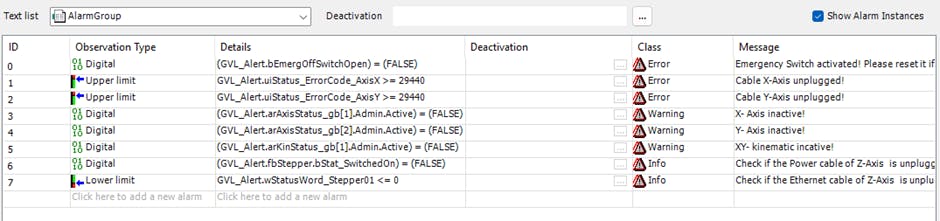
In our example, we have extended the alarm list by adding several new alarms to monitor critical system states and axis conditions.
Fig. 9.: Example Alarm Group with Digital and Limit Observations
Alarm Class Configuration
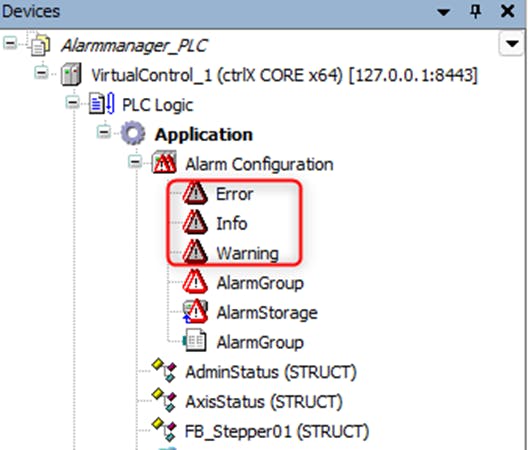
Under Alarm Configuration, you will find the predefined alarm classes: "Error", "Warning", and "Info". Select a class (e.g., "Error") to customize its behavior.
Within the "Error" class, you can define the "Priority", which is used to filter or restrict the displayed classes in the "Alarm Table". Enable the "Archiving" checkbox to ensure that alarms are logged in the "Alarm History". For the "Acknowledgment method", select "Rep_Ack". Additionally, configure the confirmation to use "Acknowledge instead of Confirm".
The "Notification Actions" are not used in this example.
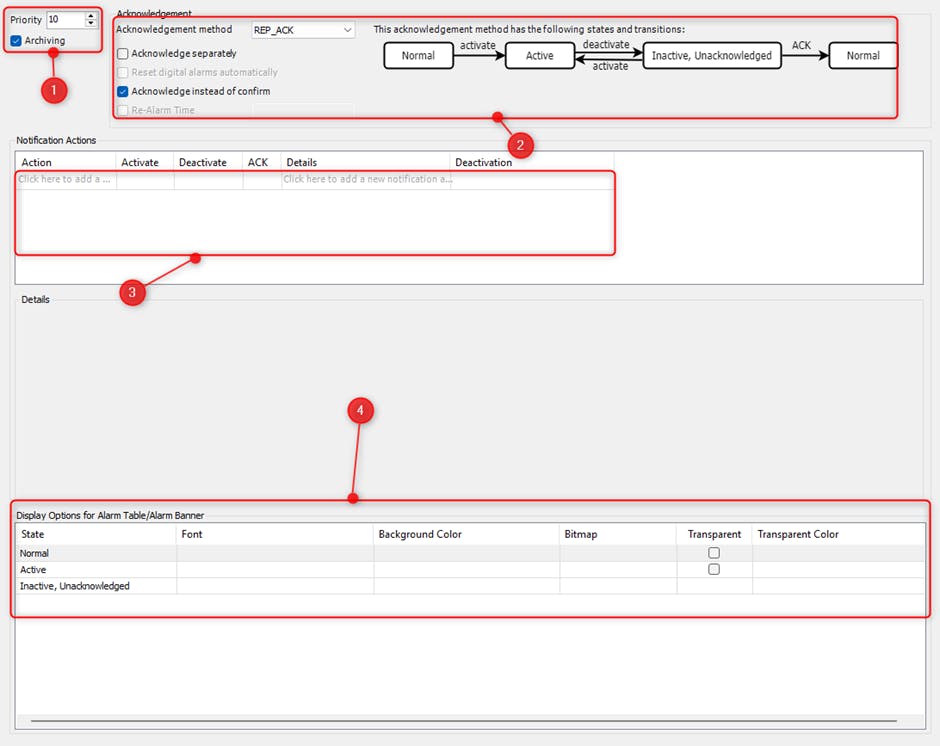
Further Information:
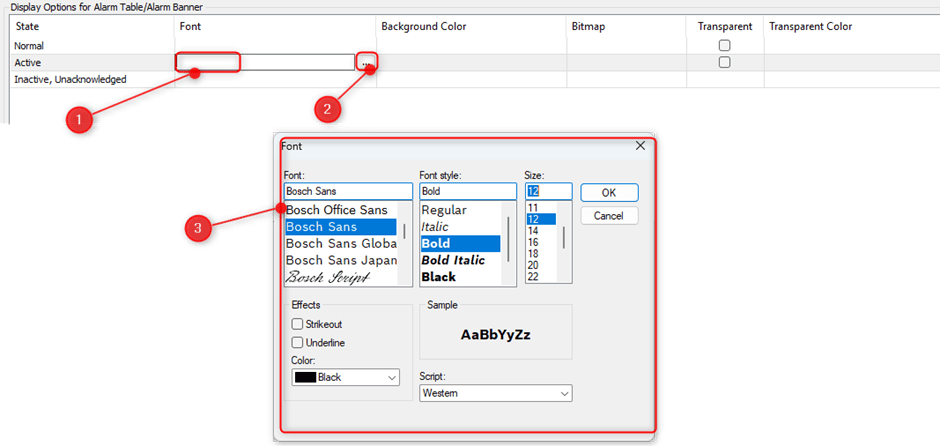
To change the Font, double-click the desired field and click the "..." button. A font window will appear where the adjustment of type, size, and style can be done. To change the Background Color use the same steps.
To create a custom "Bitmap" symbol, first enter your desired name and press "Enter". This will open an insert window where you can select your image file. After choosing the image, click "Open" to confirm.
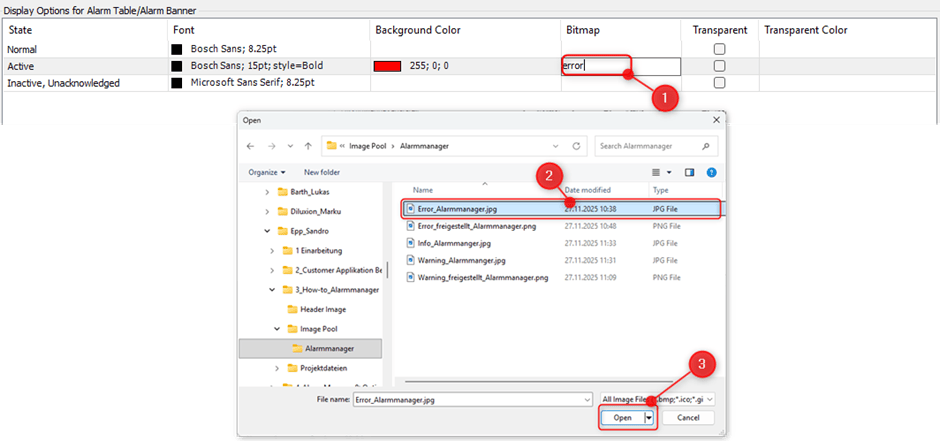
Bitmap Icon Error:
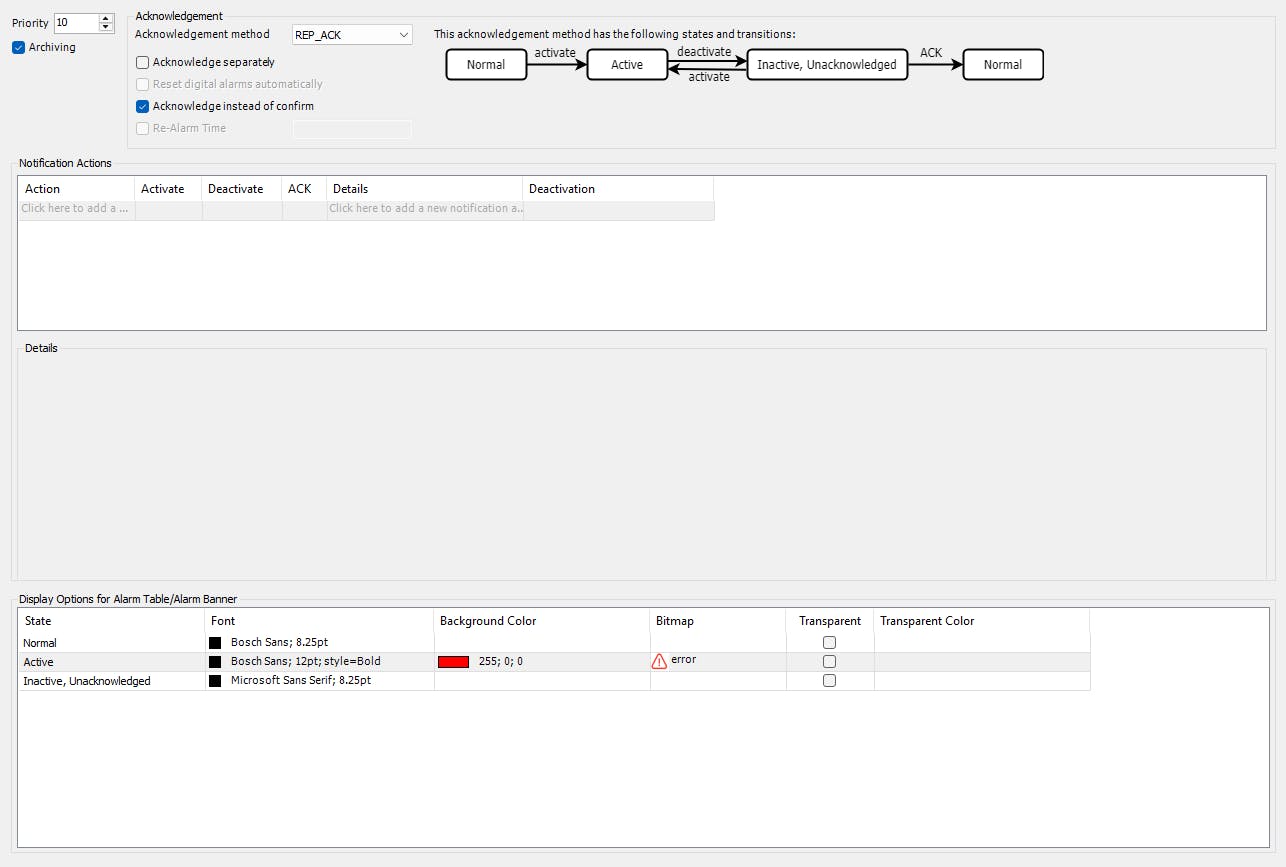
Error Class
All the configuration steps of the "Error" class which were described above—such as setting priority, acknowledgment method, state transitions, notification actions, details, and display options are visible in this view.
Warning Class
These are the configuration settings used for the "Warning" class in this example.
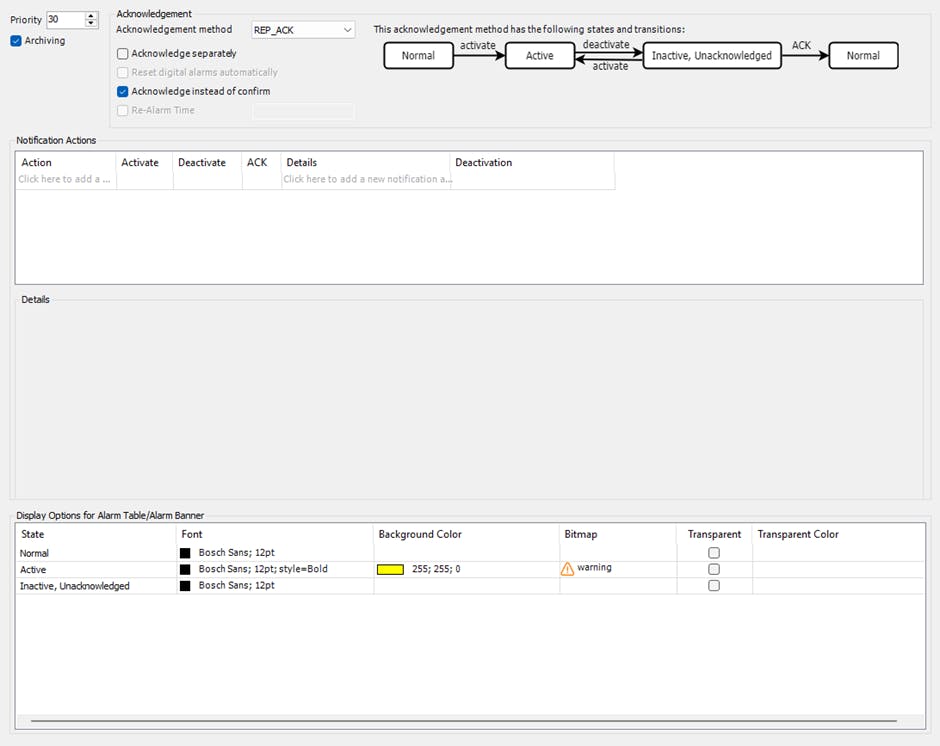
Bitmap Icon Warning:
Info Class
These are the configuration settings used for the "Info" class in this example.
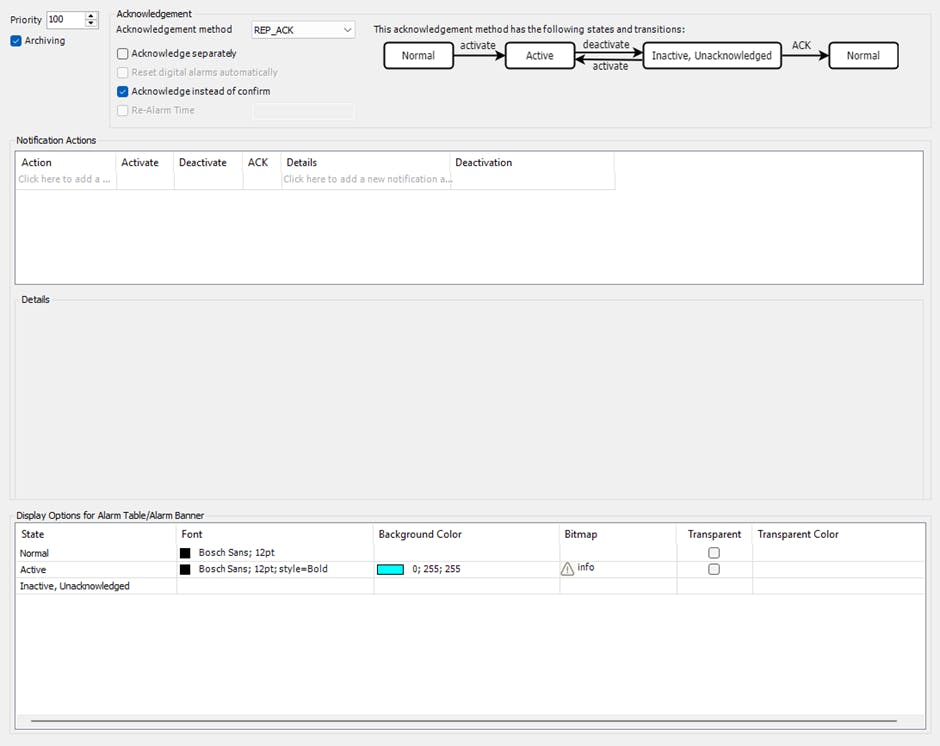
Bitmap Icon Info:
Visualization
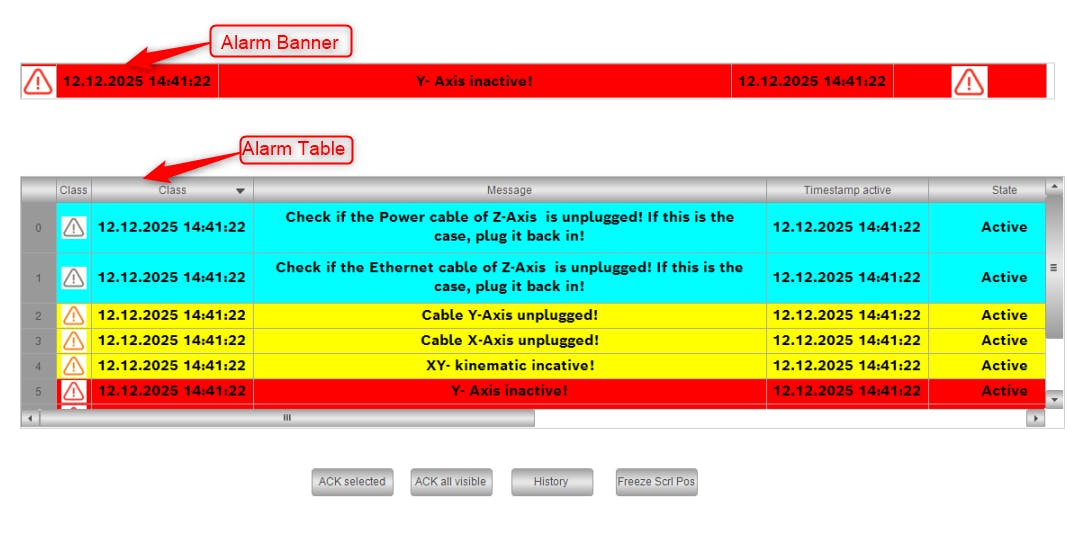
To visualize active alarms, you can use either the "Alarm Banner", which displays a single alarm, or the "Alarm Table", which lists multiple alarms. Below is a brief explanation of how to edit the table columns.
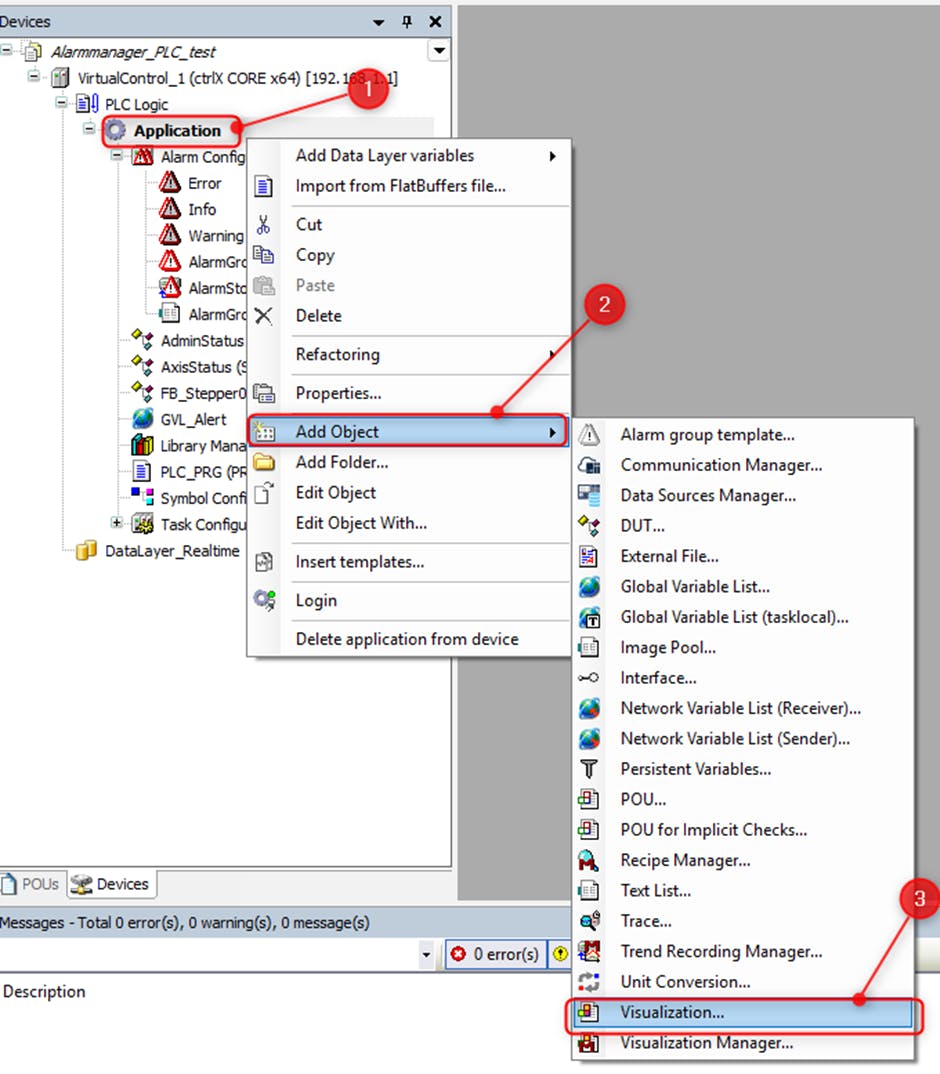
To add a visualization to your application, right-click on the Application node in the project tree, select "Add Object", and then choose "Visualization".
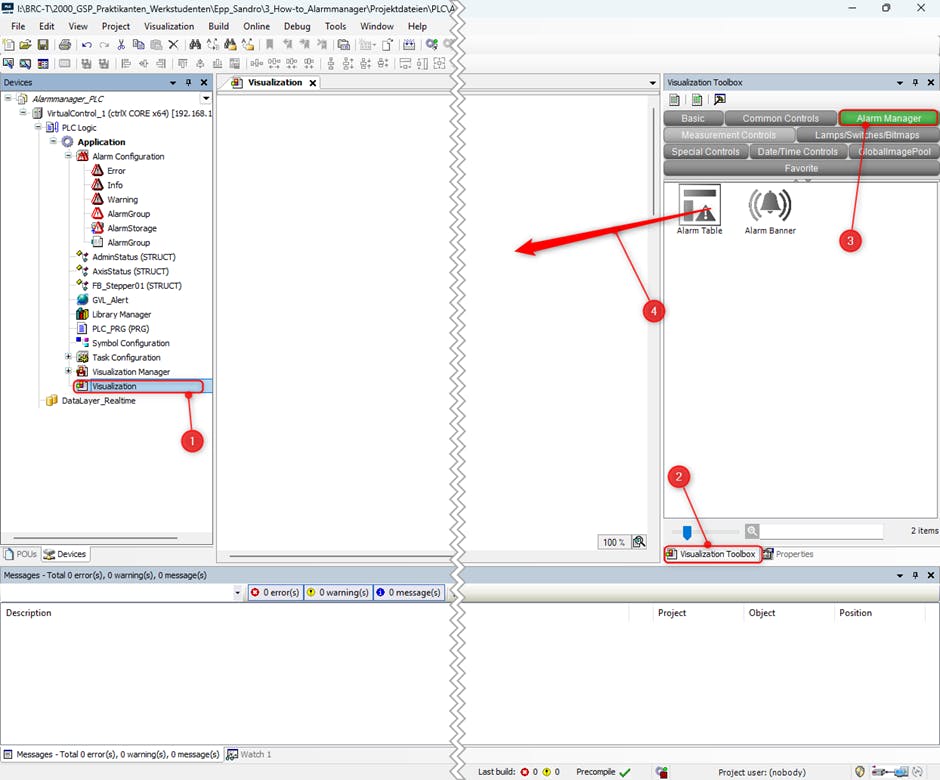
Open the visualization. In the "Visualization Toolbox", locate the "Alarm Manager" section and drag the "Alarm Table" onto the visualization canvas.
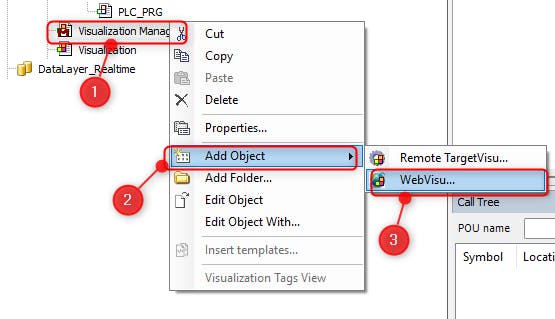
To view the visualization while the PLC is running, you need to add a "Web Visualization" to the "Visualization Manager". To do this, right-click the "Visualization Manager", select "Add Object", and then choose "Web Visu".
Fig. 19.: Adding an WebVisu to the Visualization Manager
Configuration
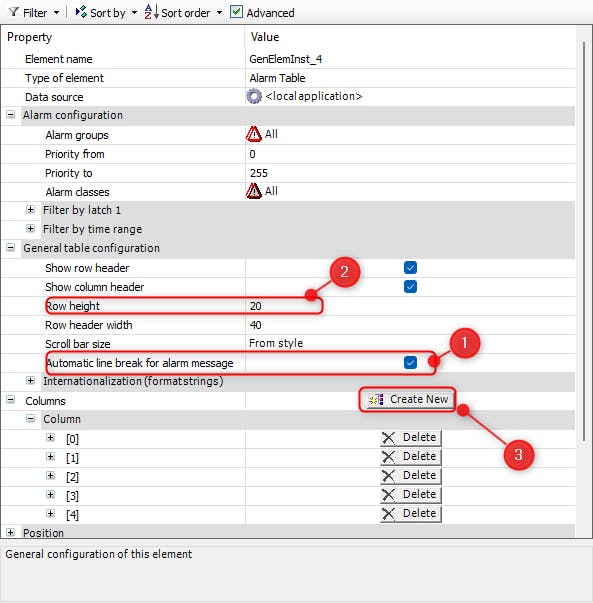
Select the "Alarm Table" on the canvas to open its Properties. Under "General table configuration", you can enable "Automatic line break for alarm message" to ensure long messages are fully visible. There it is also possible to change the Row height.
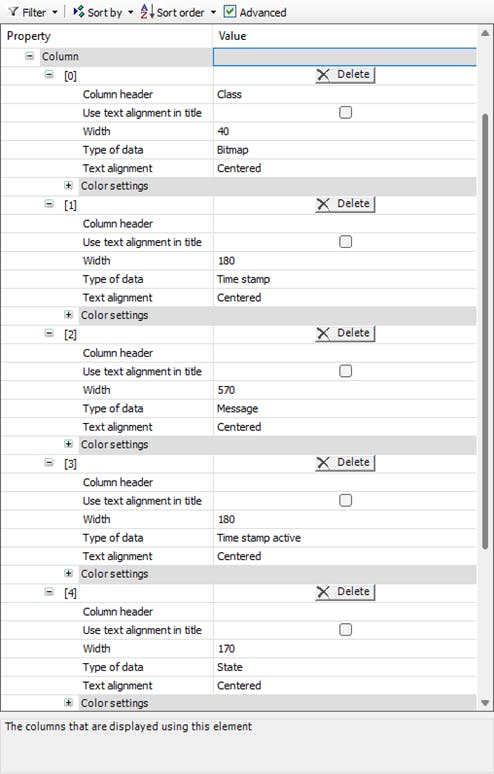
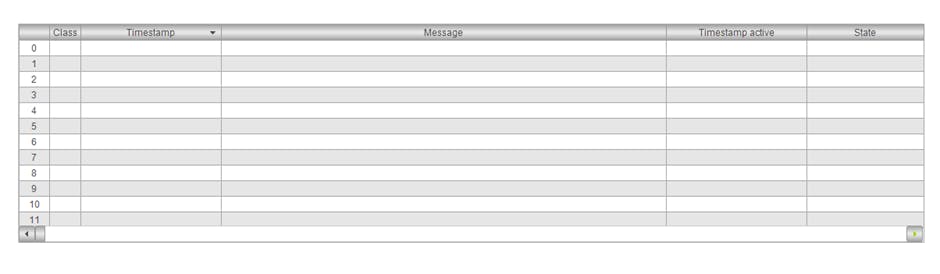
In the "Columns" property, you can configure what information is displayed .Click "Create New" to add columns for "Class", "Timestamp", "Message", "Timestamp active", and "State".
For each column, you can set the header text, width, type of data, and text alignment. The picture below shows the configuration of the columns in this example.
Fig. 21.: Alarm Table Column Configuration After doing the configuration the "Alarm Table" in this example look like this.
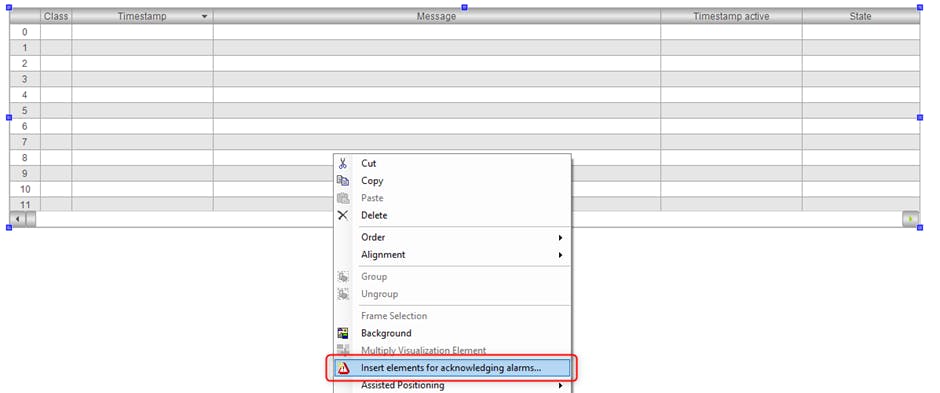
Fig. 22.: Alarm Table Column Overview To add acknowledgments Buttons right-click the "Alarm Table" in your visualization and select "Insert elements for acknowledging alarms...".
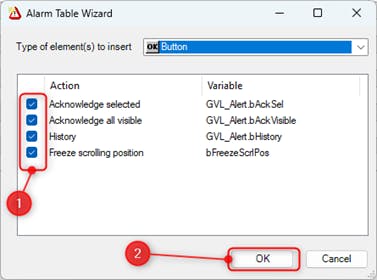
Fig. 23.: Adding Acknowledgment elements to the Alarm Table There it is possible to select the according “Actions” and to confirm your selection press “OK”.
Fig. 24.: Selection of Alarm Table Acknowledgment Buttons The visual difference between the "Alarm Banner" and the "Alarm Table" is clearly visible in the picture below.
Fig. 25.: Comparison between the Alarm Banner and Alarm Table