Interface ctrlX DRIVE via ctrlX CORE to ctrlX SAFETY SAFEX using FSoE
This guide explains step-by-step how to establish a safe communication interface between a SAFEX safety controller, a ctrlX DRIVE, and a ctrlX CORE using the FSoE (Fail Safe over EtherCAT) protocol.
Used Hardware
ctrlX CORE X*-Serie
ctrlX SAFETY SAFEX-C.1*
ctrlX DRIVEplus + ctrlX SAFETY SafeMotion
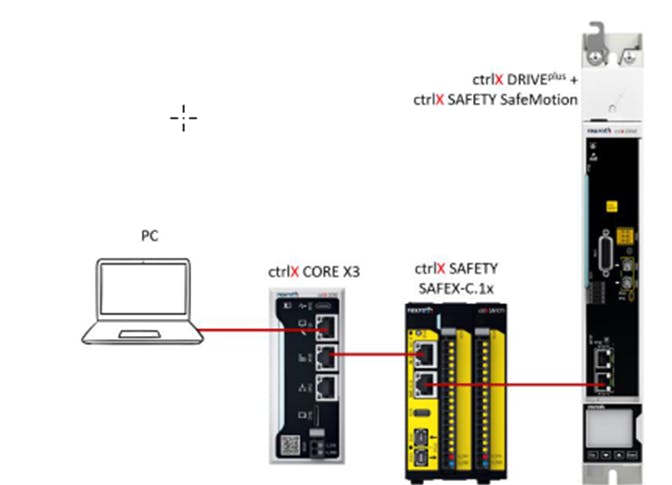
Versions Used and Required Software
ctrlX SAFETY Engineering v1.8.3.10207
ctrlX I/O Engineering v3.6.2+
ctrlX DRIVE Engineering 01V 34+
Apps from ctrlX OS Store
ctrlX OS - EtherCAT Master v3.6.0+
Documentation
ctrlX IO Engineering
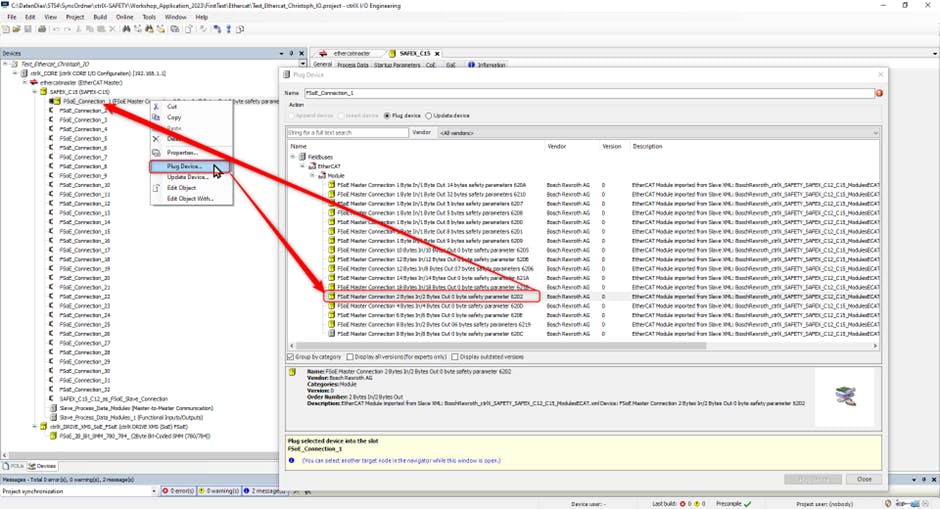
Once the hardware setup is complete, proceed to scan the EtherCAT master to identify all connected devices.
After the scan, configure the communication settings by selecting FSoE_connection_1. Then, choose “Plug Device” and assign “FSoE_Master_Connection (2 Bytes IN / 2 Bytes OUT)” to enable proper communication.
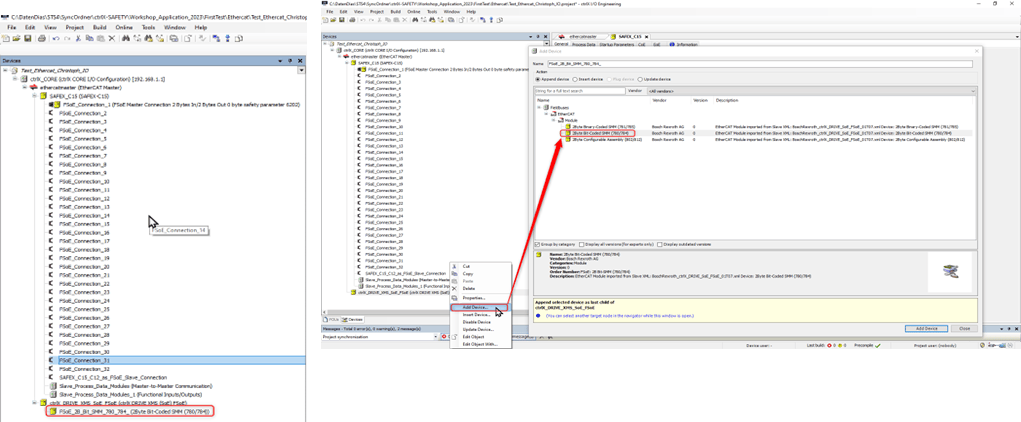
To add the “FSoE_2B_Bit…” safety module to the “ctrlX DRIVE”, open the drive in the configuration environment, select “Add Device”, choose “2-Byte Bit-Coded SMM (ID 780/784)”, and confirm with “Add Device”.
To enable data exchange between the drive and the safety system, configure a Slave-to-Slave connection. Connect the object “0x1A00 FSoE SafetySlave..” to “S-1-0024 Safety Master..”. Similarly, link “S-1-0016 Safety Slave..” to “0x1600 FSoE SafetyMaster..”.
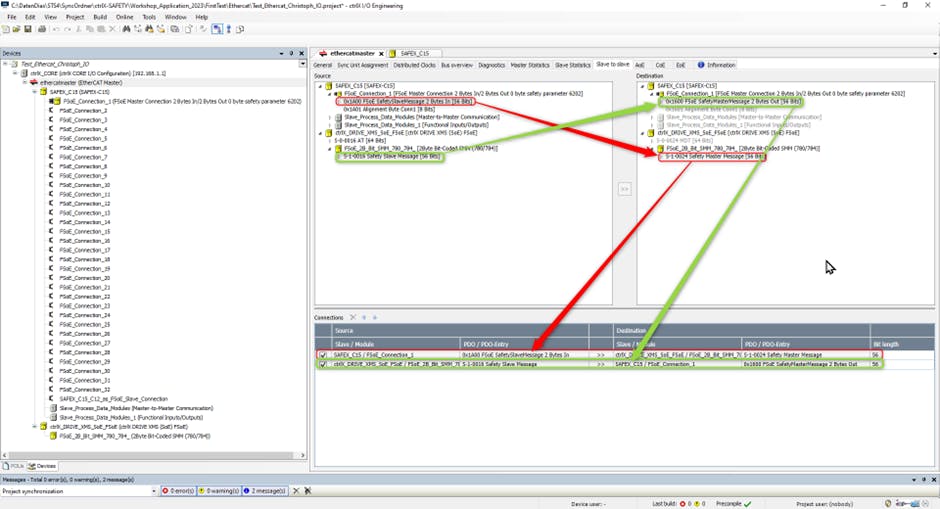
Verify the connection by ensuring that both the Drive and the SAFEX-C15 transition to Operational (OP) mode.
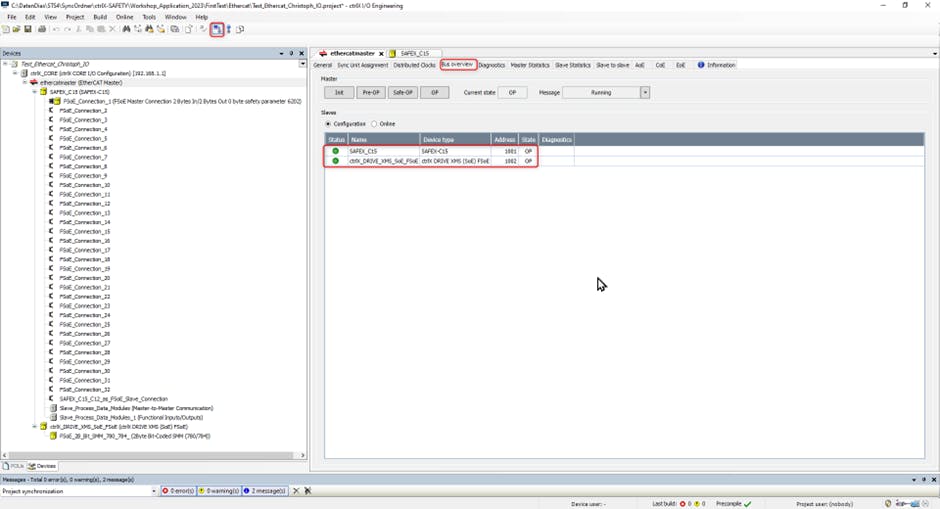
ctrlX DRIVE FSoE
Establish connection to ctrlX DRIVE via ctrlX CORE
The IP address is 198.168.1.1. Before doing the safe motion part, commission your drive!
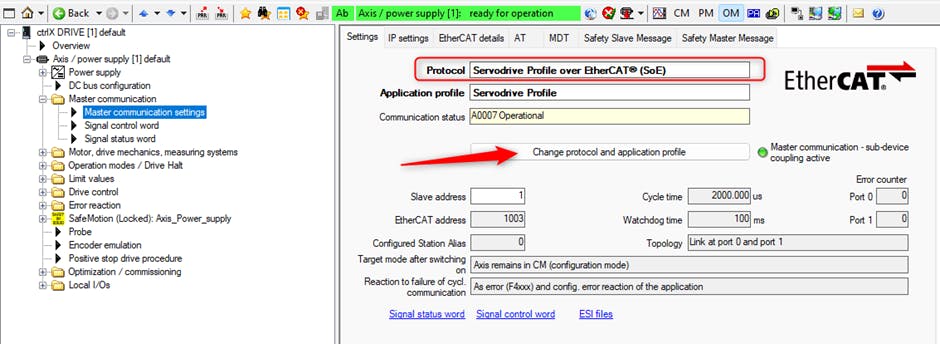
To check the protocol, open “ctrlX DRIVE Engineering”, then navigate to “Master Communication” and select “Master Communication Settings”. Next, choose “Change Protocol… “and verify that “Servodrive Profile over EtherCAT (SoE)” is selected. After that, set the “Application Profile” according to your requirements.
Safe Motion
The steps must be done, step by step, with the validation of each individual step. Depending on the application, the activation of specific functions will be required.
You must follow all the steps; see the video for all the steps. Below is a section with important points.
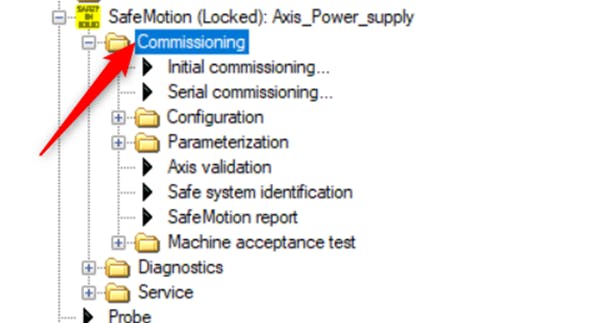
To start the commissioning navigate in “ctrlX DRIVE Engineering” to the “SafeMotion” and there select the “Initial commissioning...”.
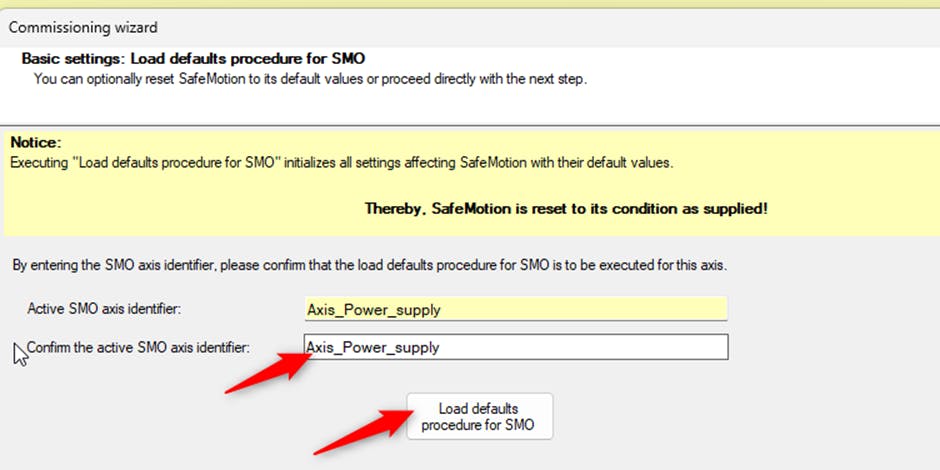
In the "Commissioning Wizard" window confirm the active SMO by copying the active one above. Then press the “Load defaults procedure for SMO” and press “Next”.
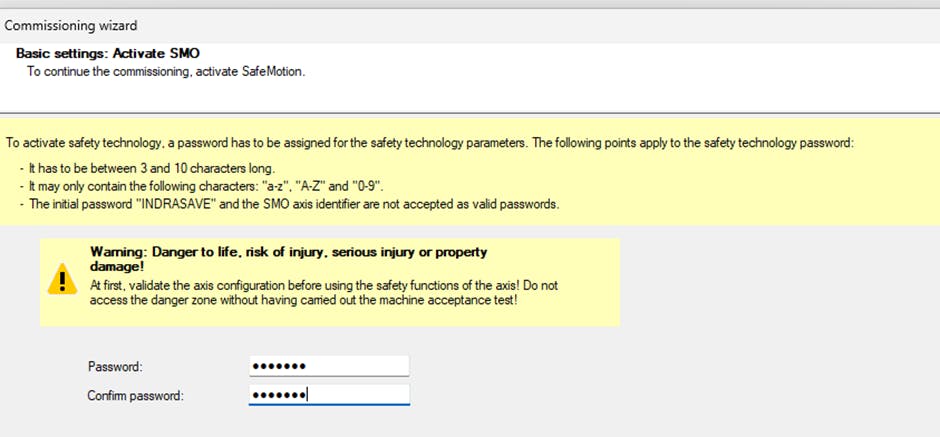
To activate the SMO, enter the password and confirm it. In this example the password is "rexroth", but it can be freely choosen.
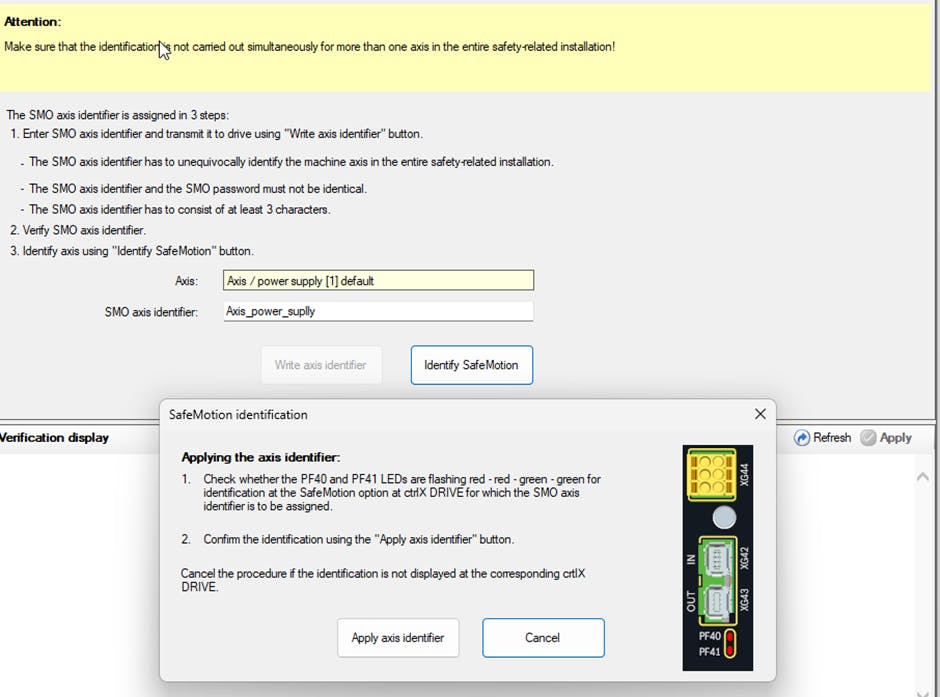
Enter an “SMO axis identifier” with any name you prefer. In this example, we use "Axis_power_supply" as the identifier. After entering the name, click “Write axis identifier”, then “Apply”. Next, select “Identify SafeMotion” and check whether the indicator lights are blinking as expected. If the lights blink correctly, confirm by clicking “Apply axis identifier”. When the identification is successful, click “OK”, then press “Next” to continue.
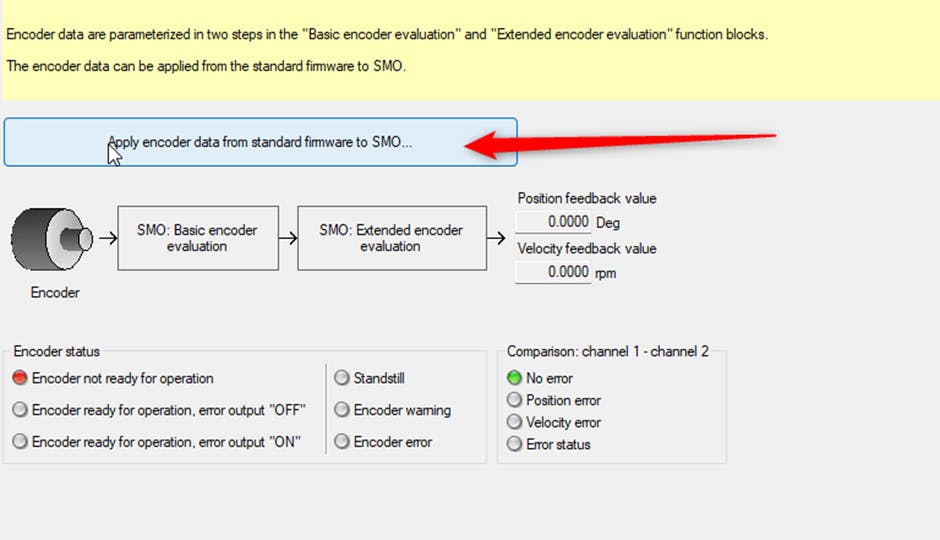
In "Encoder Settings", click “Apply encoder data…”, then select the connected encoder. After the command executes successfully, close both windows and click “Next” to proceed.
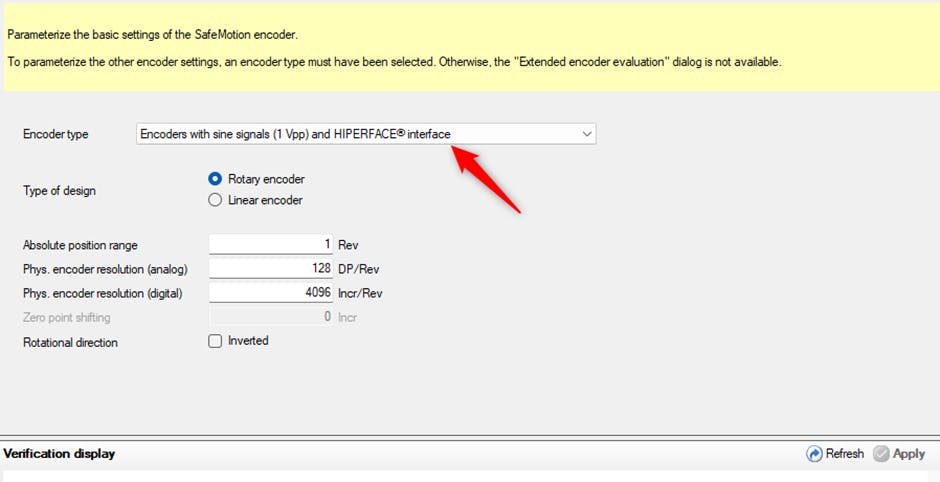
In "Encoder Type", select the appropriate encoder and adjust the parameters as shown in the image. Afterwards, click “Apply” to verify the changes.
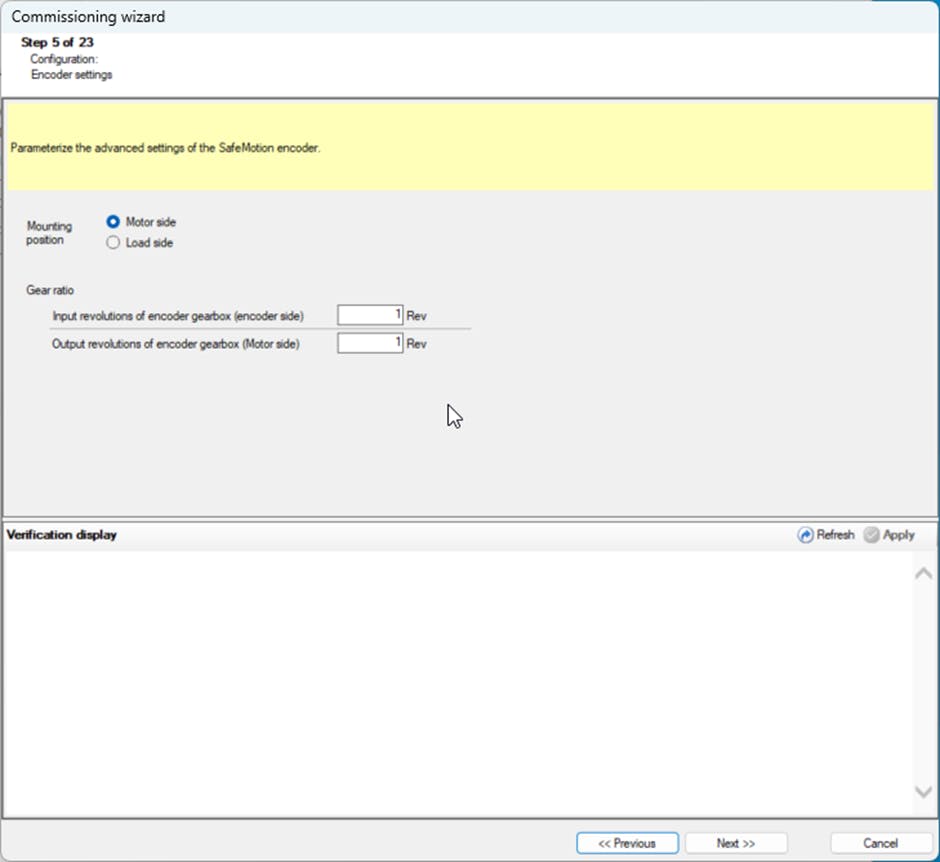
In this step make sure that the “Motor side” is selected, and the Ratios are 1.
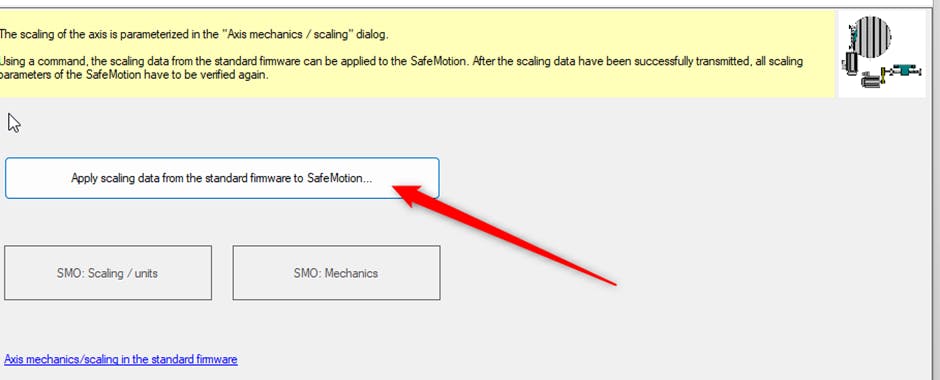
Press the “Apply scaling…” button there and select “Yes” to start the SMO scaling function. Then if command execution was successful close the window and press “Ok”.
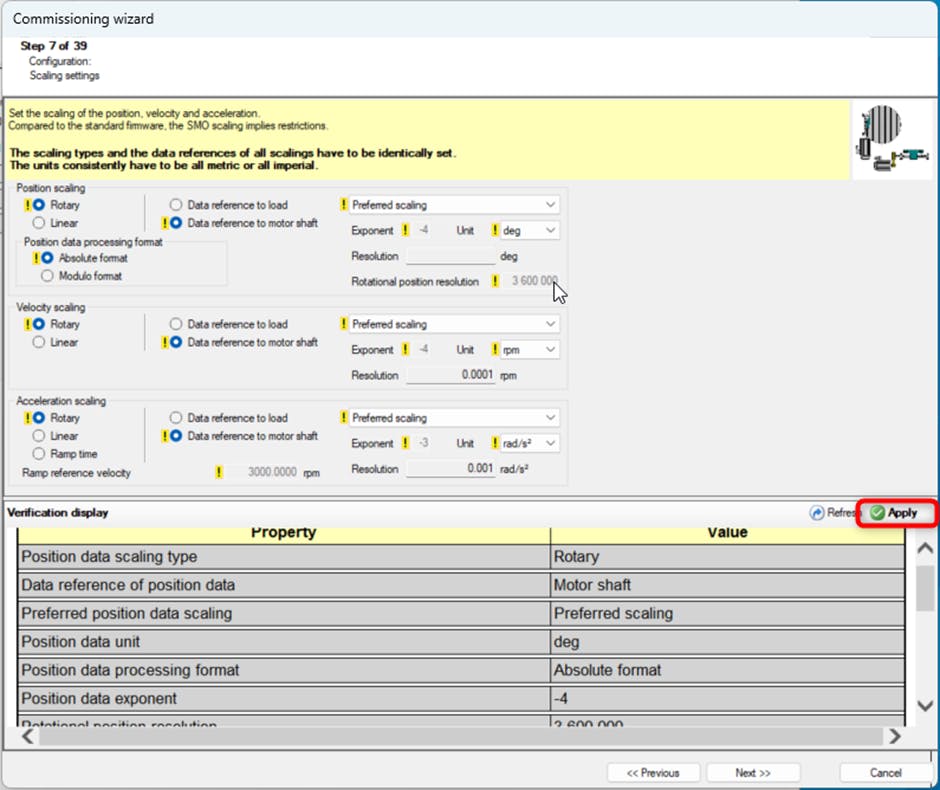
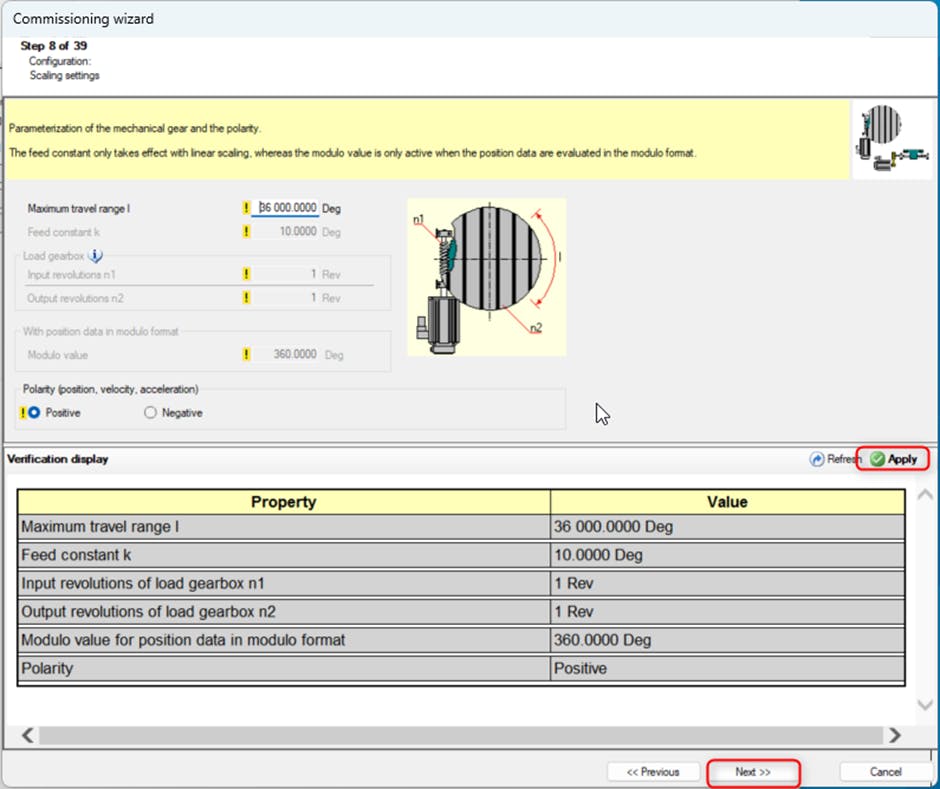
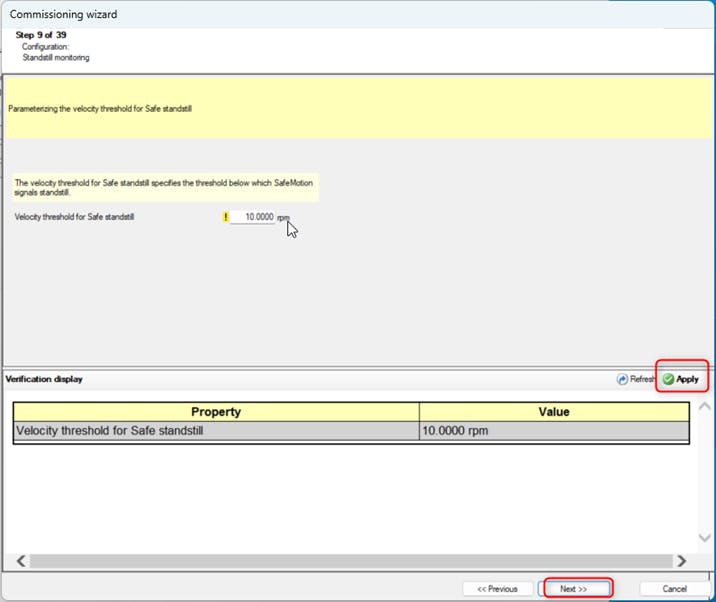
In this step, scroll down in the verification display and click “Apply” to confirm the preset settings. Repeat this for the following steps unless stated otherwise.
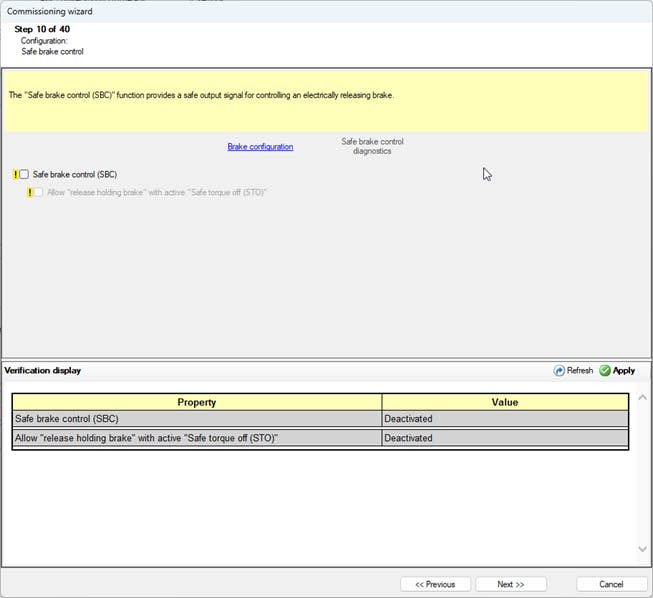
If your configuration does not include “Safe Brake Control (SBC)”, deselect this option. Then click “Apply” to confirm the change.
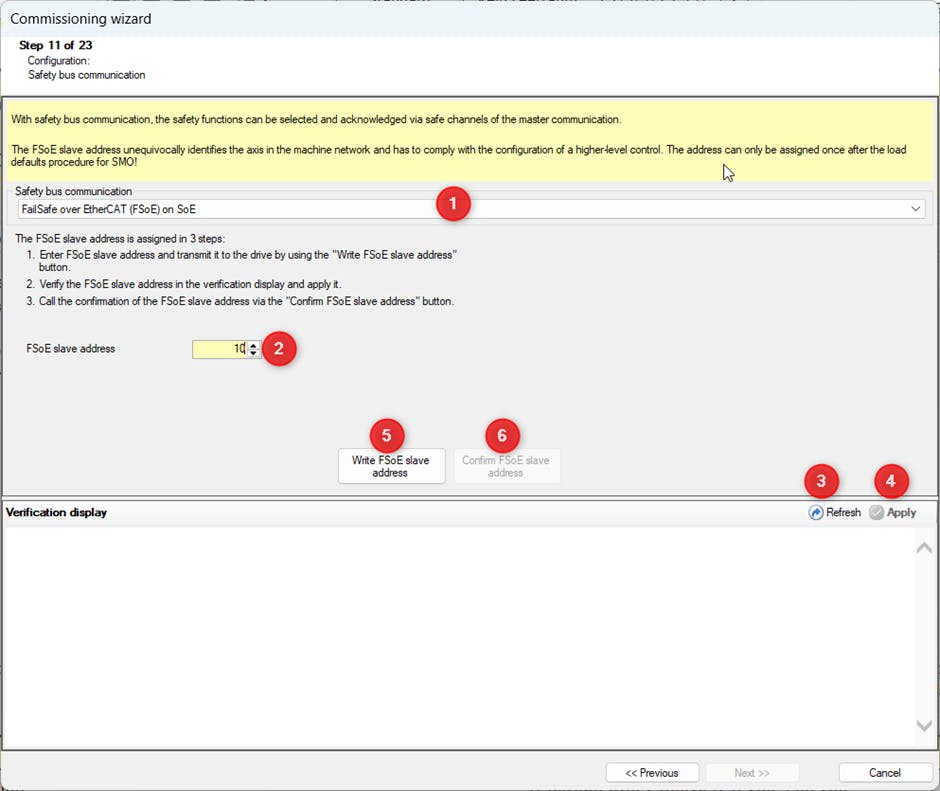
In the “Safety Bus Communication” settings, select “FailSafe over EtherCAT (FSoE) on SoE”. Change the “FSoE slave address” to 10, then click “Apply” to save the changes. Next, press “Write FSoE slave address”, click “Apply” again, and finally confirm by selecting “Confirm FSoE slave address“and choosing “Yes”.
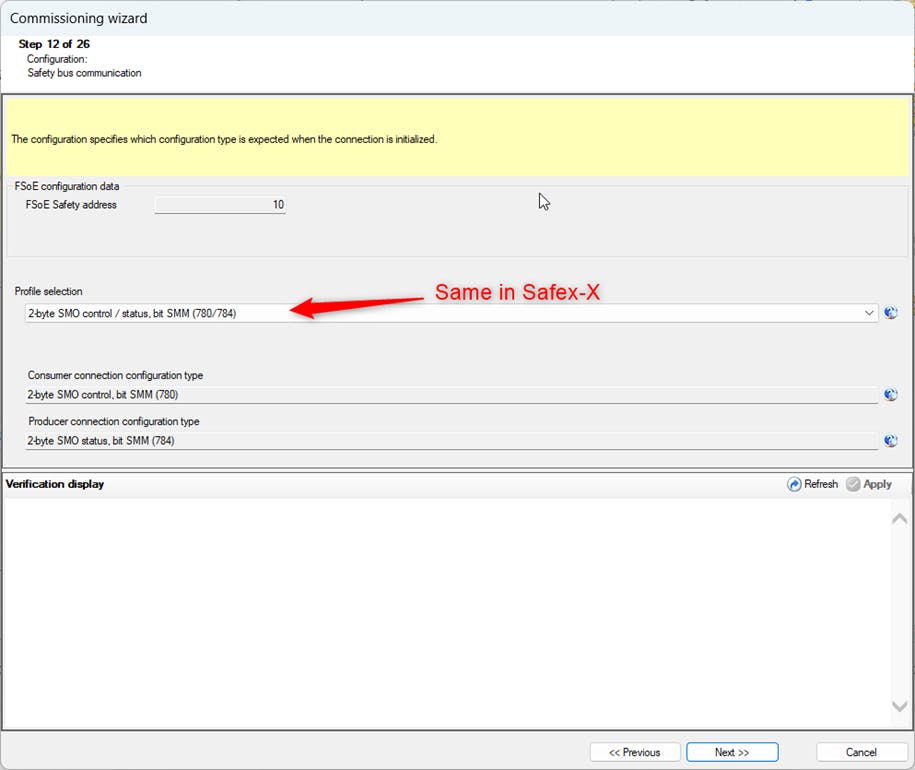
In this step, verify that the "Profile selection" matches the configuration set in SAFEX. The profile must be "2-byte SMO control /status, bit SMM (780/784)".
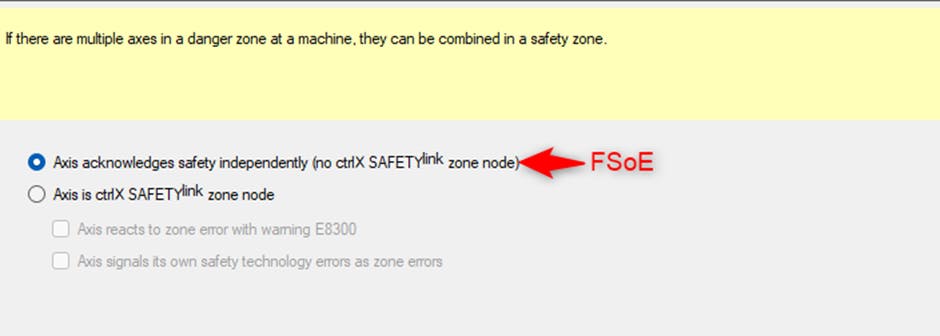
In the ctrlX SAFETYlink configuration select “Axis acknowledges safety independently..” for FSoE.
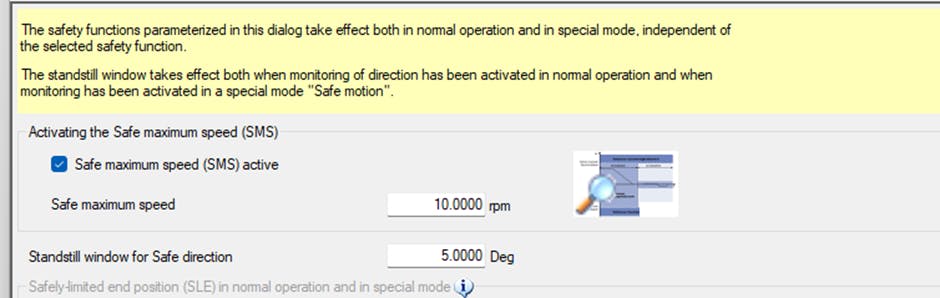
In the global monitoring functions, the “Safe maximum speed (SMS) active” has to be active.
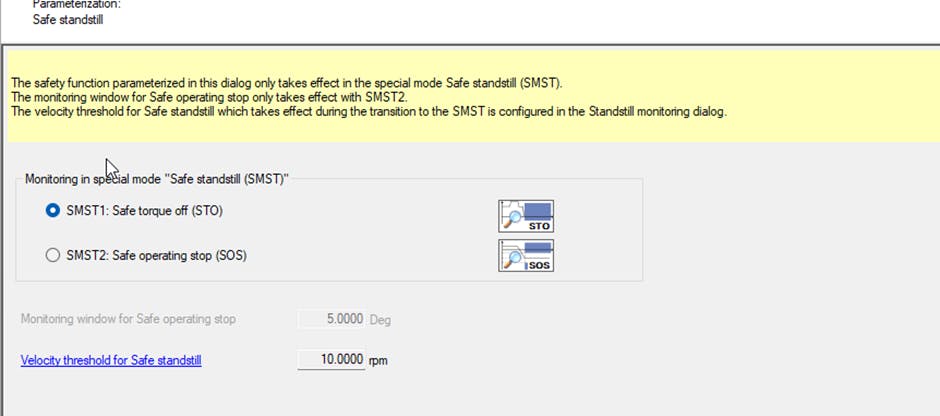
In the Safe standstill select “SMST1: Safe torque off (STO)”.
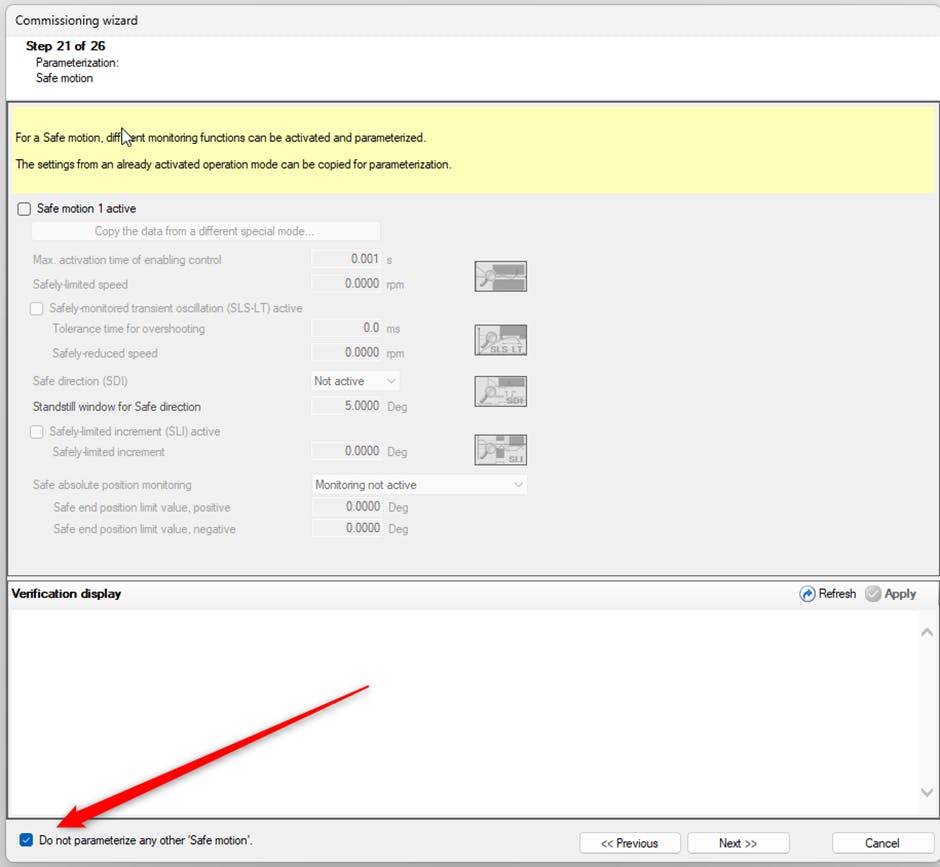
In the Safe motion parameterization select “Do not parameterize any other SafeMotion” to skip these steps.
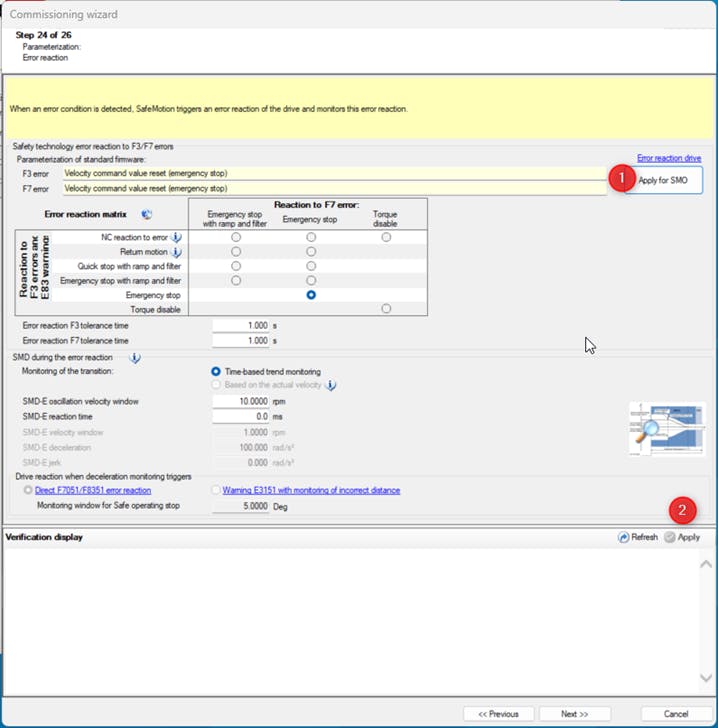
In the error reaction press “Apply for SMO” and then press “Apply” to validate the settings. The choice of tolerance time depends on your application.
SAFETY program
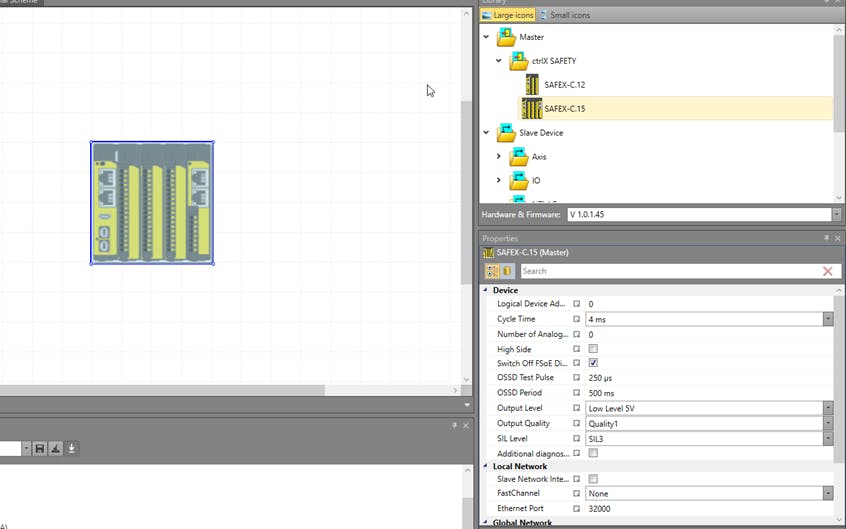
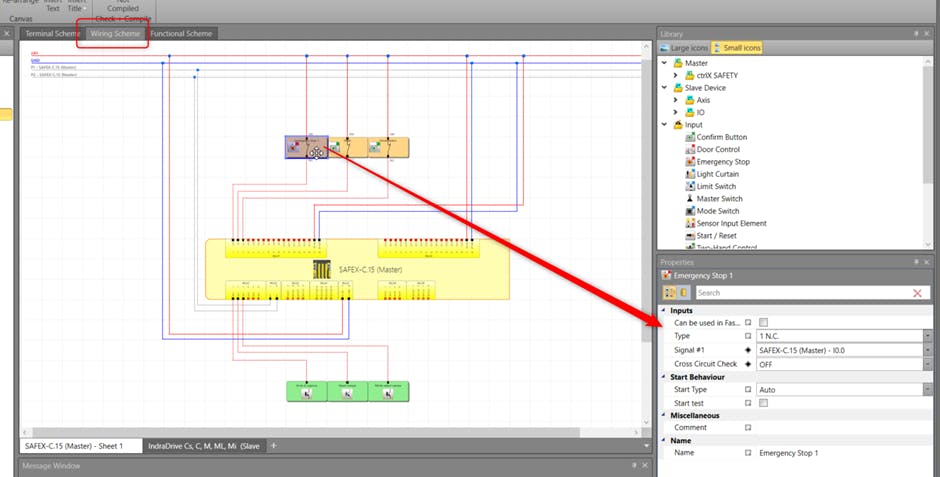
Drag the according ctrlX SAFETY SAFEX-C.1 into the Terminal Scheme. Check that the parameters are according to those in this How-to.
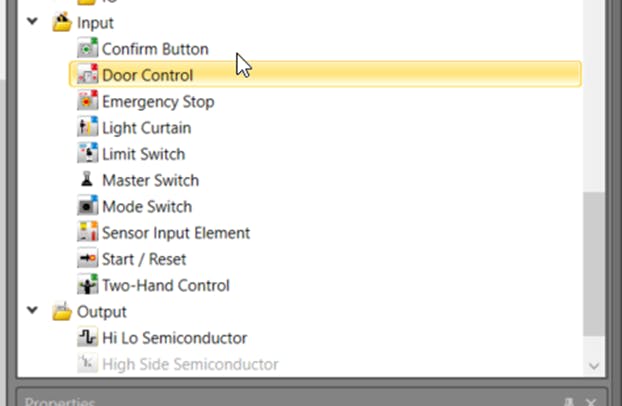
Next drag one “Emergency Stop” and 2 “Confirm Button” as well as 3 “Semiconductors” in the terminal scheme. Those elements can be taken from the library.
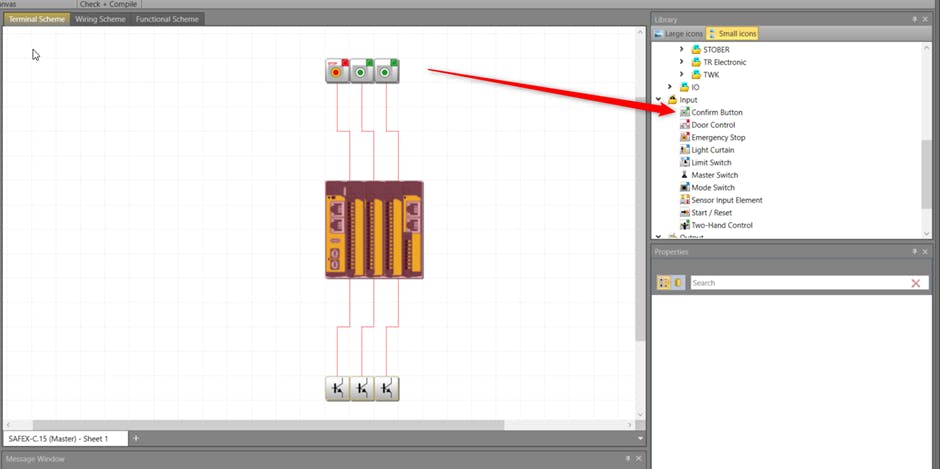
In the wiring scheme, you can choose the button function. For example, select whether the button uses 1 or 2 NC contacts, and decide if it should operate in pulse mode or not. Make these choices logically based on the application requirements.
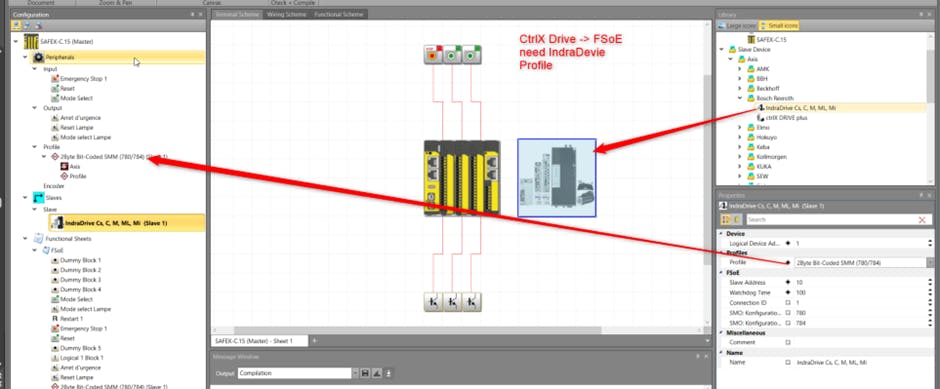
Insert the IndraDrive from the Library and Drag it into the Terminal Scheme. Select the Profile “2 Byte Bit Coded SMM(780/784)" and set the slave address to 10 and the watchdog time to 100. Even with ctrlX DRIVE you have to select the IndraDrive.
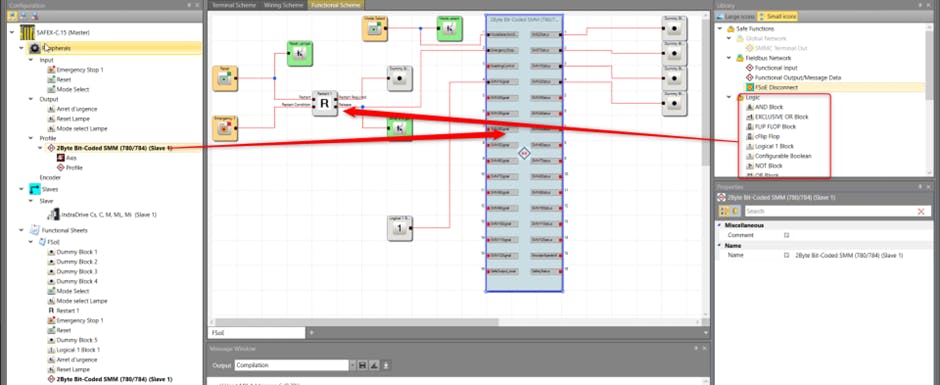
In the "Functional Scheme" window you can make your program according to your application.
Before connecting the computer to the SAFEX controller, first “Compile” the program. Once the compilation is successful, you can proceed to the “Device Interface” to establish the connection.
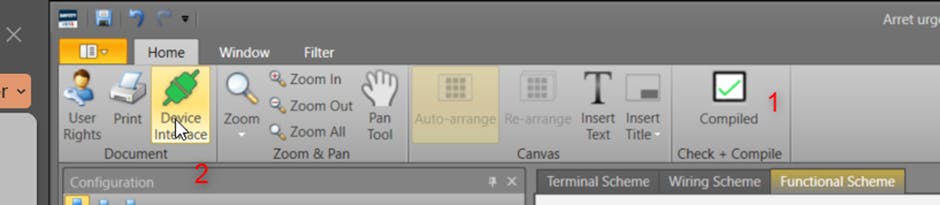
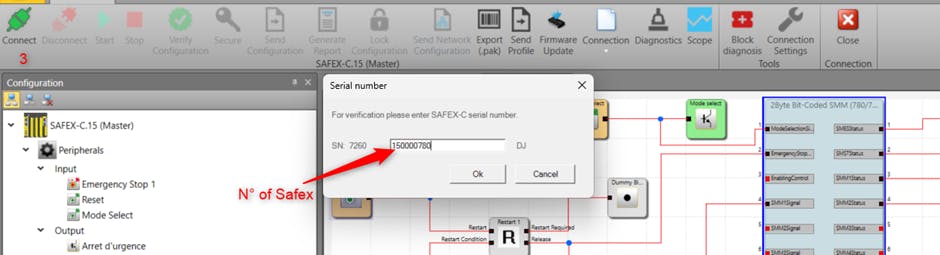
After opening the “Device Interface”, click the “Connect” button. Then, enter the SAFEX controller number (which you can find on the right side of the controller). Finally, press “OK” to establish the connection.
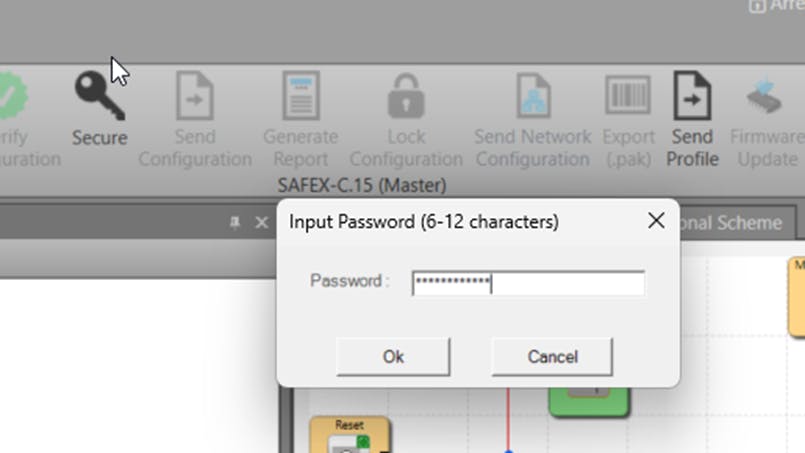
To send the configuration to the SAFEX controller, click the “Secure” button. When prompted, enter the password (boschrexroth) and confirm to complete the process
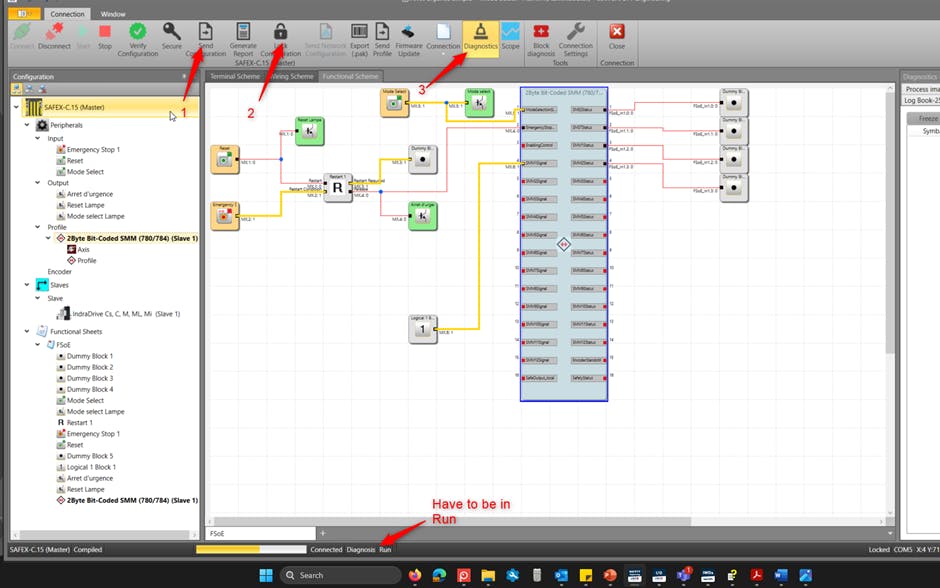
After securing the configuration, you can send it to the SAFEX controller by clicking “Send Configuration”. Once the configuration is successfully transferred, use “Lock Configuration” to prevent any further changes. After that, open “Diagnostics” to monitor the system status, such as which buttons are activated and other relevant details.
For proper communication, the controller must be in “Run” mode. If it is in “Runintern”, communication issues may occur due to programmed restrictions.
Signal checks between safety and drive
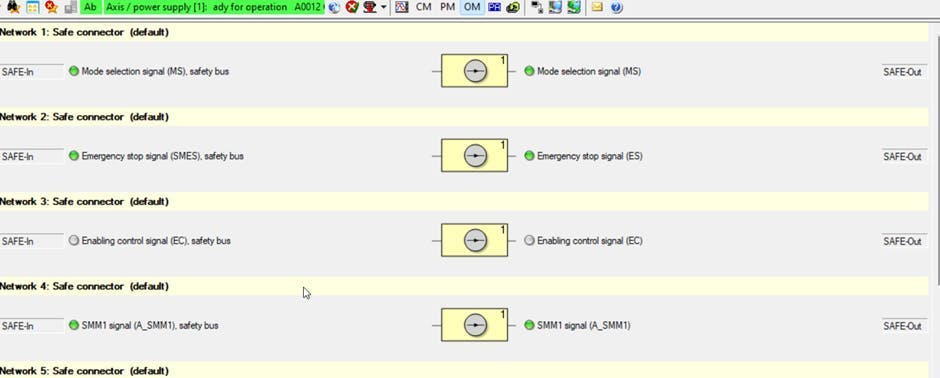
After the Safety Controller is switched to “RUN”, the axis must be validated; otherwise, a periodic message will appear indicating that validation is missing.
To perform the validation, navigate to “Safe Motion → Parametrization” and select “Axis Validation”.
In the Axis Validation section, choose “Easy Startup Mode”. This mode guides you through the necessary steps to confirm the axis for safe operation.