Content
ContentRequirementsInstall the nodeCreating CSV fileWriting data to CSV fileGetting ResultRelated Links
Requirements
ctrlX CORE X3/X5/X7, ctrlX OS device or ctrlX COREvirtual with internet connection
Node-RED app
PLC app (optionally)
Google account with 2-factor authentication
Install the node
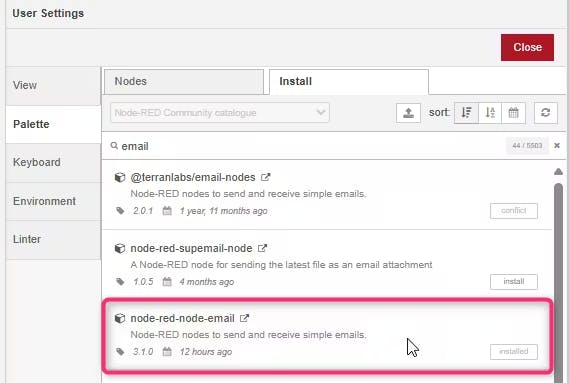
Before we start, you will need to add "node-red-node-email" to your palette, just open the palette, search for it and press install. Make sure your ctrlX CORE has connection to the internet. For more information about connecting to the internet and offline bundling of the nodes, please refer to the guides in Related links section.
Creating CSV file

In the example I use 3 columns, functions are used to set a column name.
After that you need a join function to join 3 massages into an array.
Add a csv node to set right properties of the file.
The last step would be a write file node to specify a path to the file and create a directory if it doesn't exist yet, I use the path - "/var/snap/rexroth-solutions/common/solutions/activeConfiguration/TEMP/temp2.csv".
Writing data to CSV file

I've created a Boolean variable in PLC app and three more integer variables for storing in our CSV file.
Function to check if value of the Boolean variable is changed to "true".
Collect data from three variables via Datalayer Request node.
Add a join function similar to the second step in "Creating CSV file".
Same as third step in "Creating CSV file".
Write a new line to our CSV file, instead of overwriting file, we choose option "append to file".
Now you need to read the file before processing it.
Add a function to insert the topic, payload and attachment to your email, also it's possible to add your current date.
In the last step you need to configure your email node, I'm using gmail account.
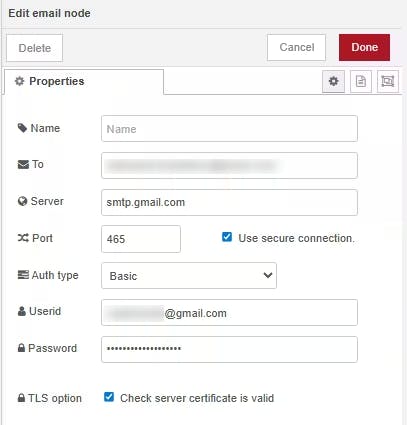
To make it work open your google account and navigate to Security settings and enable 2-Step Verification under "Singing in to Google".
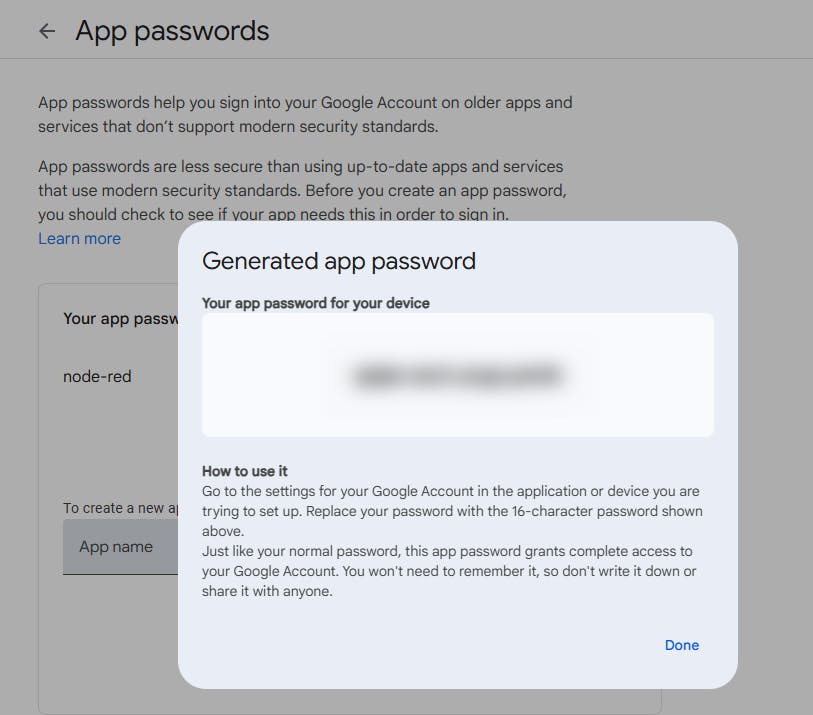
After 2-Step Verification is set, you need to create an app password to use in Node-red, open your app passwords and create new app, name it as you wish and get a password.
Getting Result
We are all set now, just activate the flow with "Enable Button" and get your report
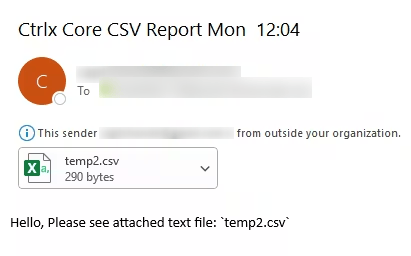
Flow is attached for your convenience!
