IntroductionPrerequisitesUsed HardwareUsed Versions and Required SoftwareProcedureCreate a PLC MethodEnable Symbol ConfigurationCall the Method with UA.TestClientRelated links
Introduction
This How-To explains how to expose PLC methods as OPC UA methods on ctrlX CORE and how to call them using the OPC UA Server App together with the UA.TestClient.
Prerequisites
Used Hardware
ctrlX CORE X*-Serie or ctrlX COREvirtual
Used Versions and Required Software
ctrlX PLC Engineering v3.6.3+
UA.TestClient v2.14.0
ctrlX OS Apps from ctrlX OS Store
Procedure
Create a PLC Method
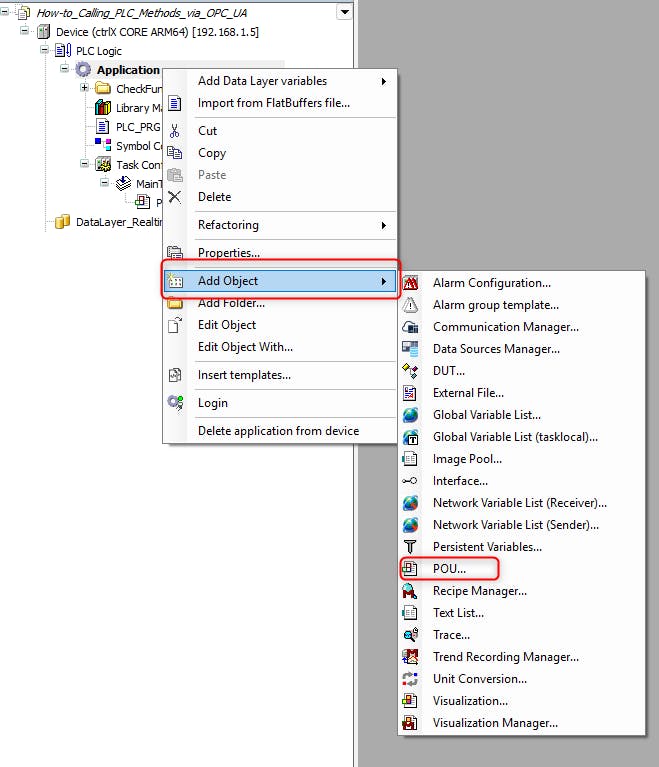
Open ctrlX PLC Engineering. To add a Function Block select the Application and there navigate to "Add object" and select "POU...". In the properties of the Function Block set the Name to "FB_Calc" and select the Type "Function Block".
Fig. 1.: Adding a POU
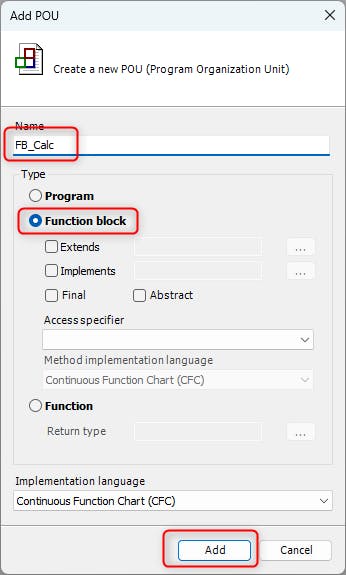
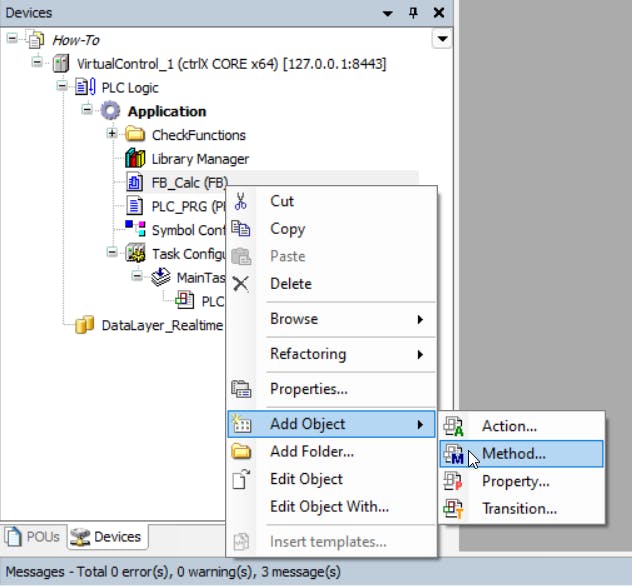
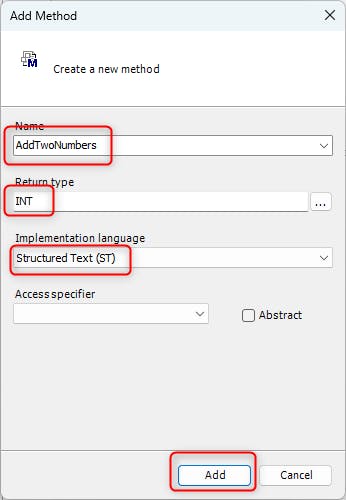
Inside the Function Block create a new method. To do this select the Function Block right click and navigate to "Add Object" and select "Method...". In the Method properties, set the Name to "AddTwoNumbers", the "Return Type" to "INT" and the "Implementation Language" to "ST".
In the method editor, add the declaration for two INT variables, "a" and "b" and add the implementation of the function "AddTwoNumbers" which returns the sum.
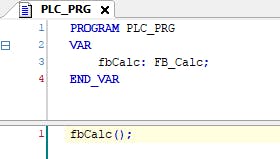
Fig. 5.: Declaration and implementation of FB //Declaration: METHOD AddTwoNumbers : INT VAR_INPUT a : INT; b : INT; END_VAR //Implementation: AddTwoNumbers := a + b;In "PLC_PRG", add the declaration of "FB_Calc". In the implementation, add the call of your Function Block. After this, build the Project.
Fig. 6.: Declaration and implementation of PLC_PRG //Declaration: PROGRAM PLC_PRG VAR fbCalc : FB_Calc; END_VAR //Implementation: fbCalc();

Enable Symbol Configuration
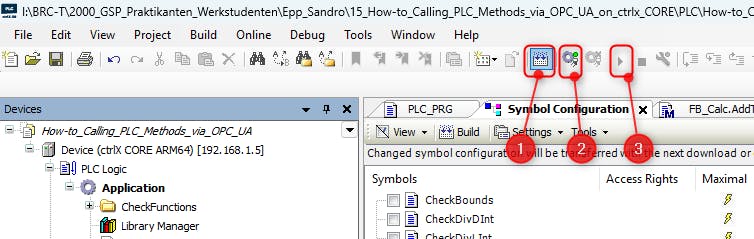
In PLC Engineering, open the symbol configuration.

In the "Symbol Configuration" window, expand the "PLC_PRG" symbols and then select "fbCalc". After that, select the "..." to define the "Members".
Fig. 8.: Symbol Configuration of "fbCalc" Select the method "AddTwoNumbers()". If possible, choose it directly, if it is marked with an asterik "*", you do not have to select it . In the Access Rights section, of the method set it to executable, which corresponds to the flash icon. Afterwards, select "OK".
Fig. 9.: Define Access Rights to AddTwoNumbers() Rebuild the project, log in to the ctrlX Core, and then start the application.
Fig. 10.: Steps to start the application


Call the Method with UA.TestClient
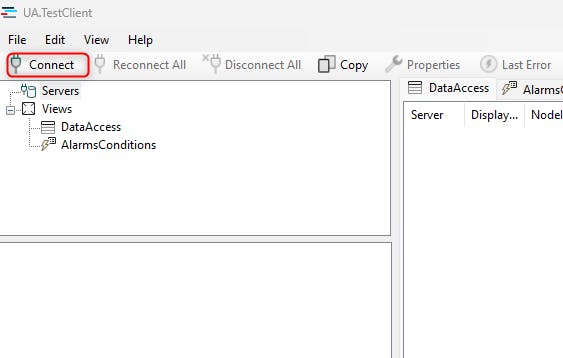
Open the UA.TestClient tool. Then select "Connect" to establish a connection to the local OPC UA server.
Insert the URL of your ctrlX Core in the format opc.tcp://<HostAddress>:4840 and provide the corresponding User credentials . Then press "Find" to display all available connections.
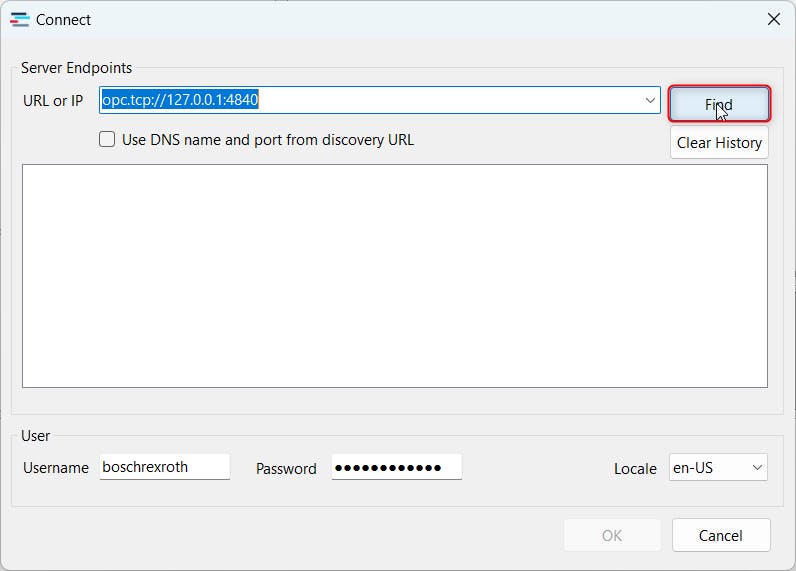
Default Settings
IP-Address:
Virtual Core: opc.tcp://127.0.0.1:4840
Core: opc.tcp://192.168.1.1:4840
User:
Username: boschrexroth
Password: boschrexroth
In the Connections dialog, select "Basic256Sha256" and confirm with "OK". If an certificate appears, choose "Trust" to continue.
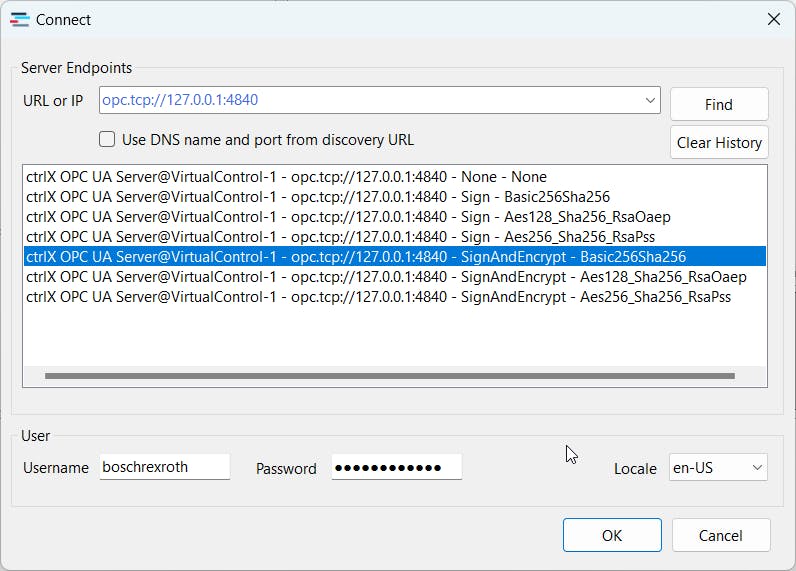
To complete the setup, you also need to trust the certificate on the ctrlX OS side. To do this, navigate to "Settings → Certificates & Keys" and select "OPC UA Server". In this view, locate the "UA.TestClient" certificate, open the "…" menu next to it, and select "Trust".
Fig. 14.: Trust UA.TestClient certificate on ctrlX OS side

Once the connection is established, navigate through the path /Objects/Datalayer/plc/app/Application/sym/PLC_PRG/fbCalc/ and locate the method "AddTwoNumbers". Select "AddTwoNumbers" and then choose "Call" to execute the method.
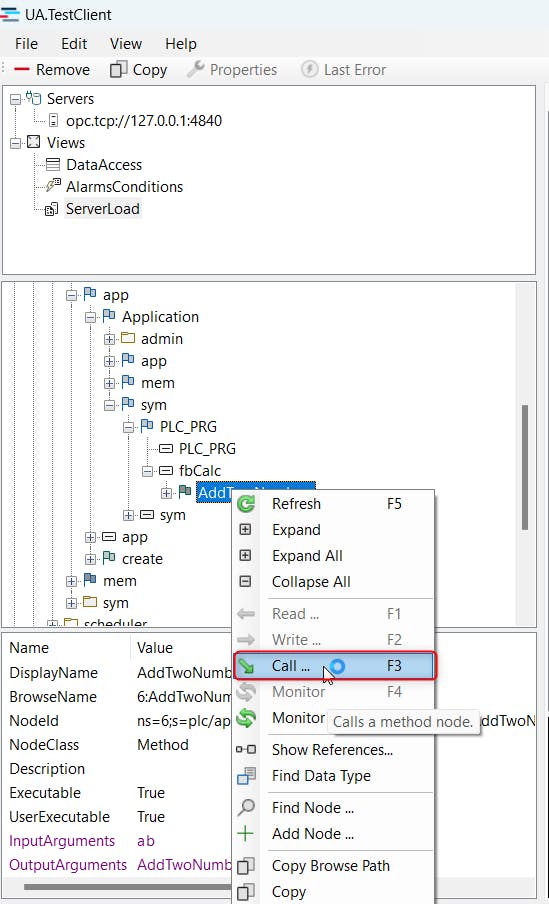
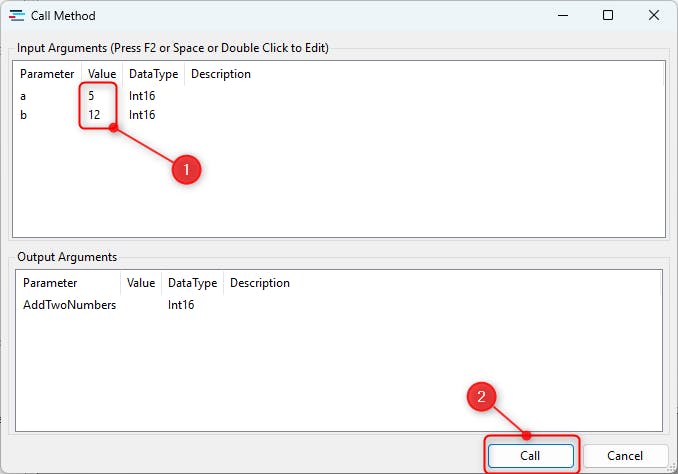
Enter input arguments in the Value column, then select "Call" to execute the method.
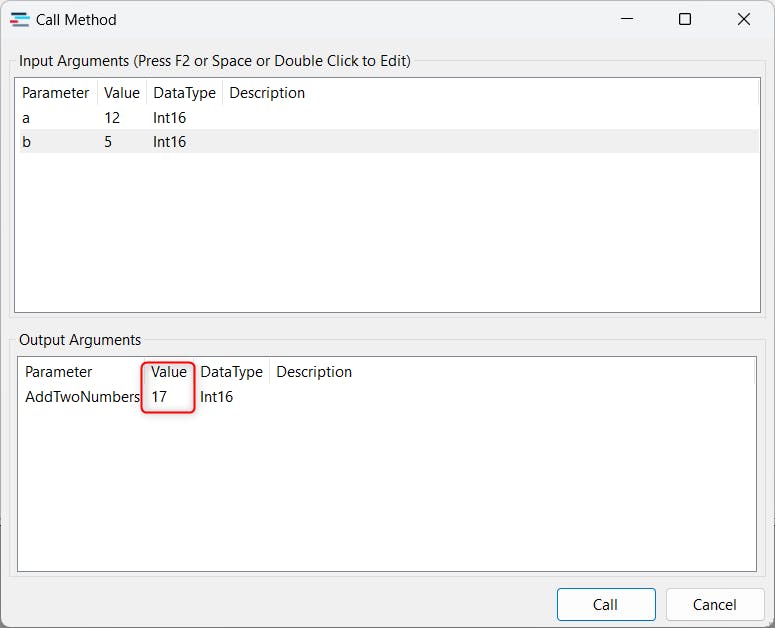
Fig. 16.: Entering values for the method AddTwoNumbers The result of the "AddTwoNumbers" method is shown in the Output Arguments under "Value" immediately after the call.
Related links
Method Object PLC Engineering
Symbol Configuration Object PLC Engineering (Symbol congfig... ->Symbol Table)