ℹ️ Info
This is part of our premium features: These premium features are currently in beta testing, to try out please contact your Sales Support partner or send an email to [email protected]
Introduction
The Backup & Restore feature allows you to securely save a device’s configuration and restore it when needed. This is especially useful for recovering devices, duplicating setups, or safeguarding important configurations.
All backup and restore actions are performed directly from the Device Details page.
Quick Guide
Create a Backup
Go to the Device details page
Open the Backup & Restore tab
Click Backup
Enter a secure password
Confirm the action
ℹ️ Info
Ensure the device is online for the backup to be created successfully.
The password is mandatory and cannot be recovered if forgotten.
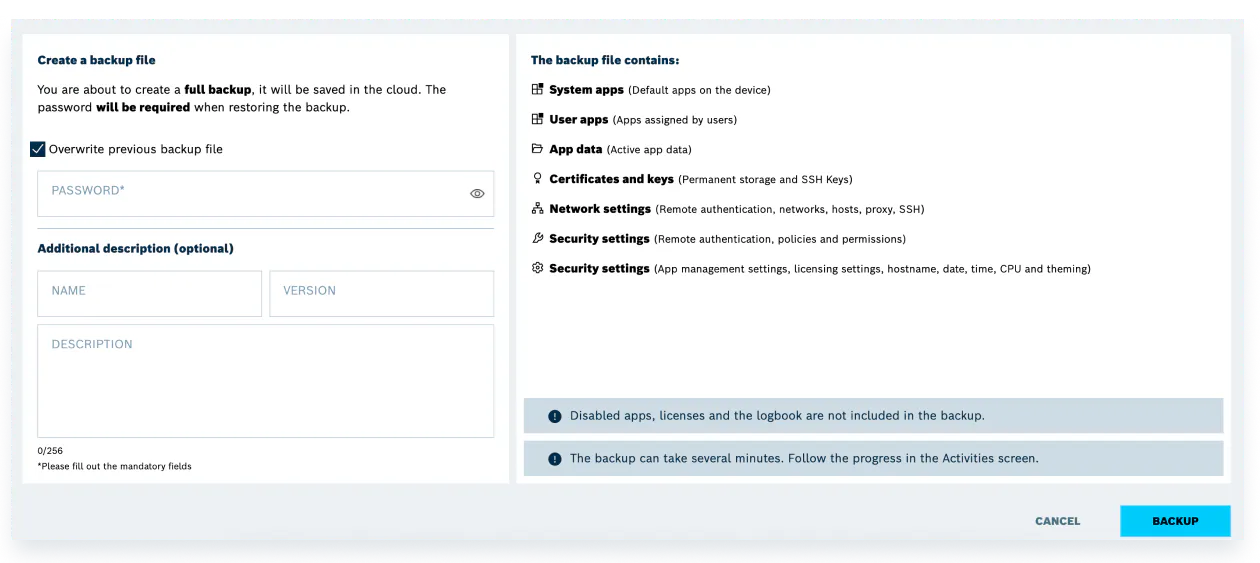
Image of Creating a Backup file
What Is Included in a Backup
A backup contains the following:
System apps (default apps on the device)
User apps (apps assigned by users)
App data (active app data)
Certificates and keys (permanent storage and SSH keys)
Network settings (remote authentication, networks, hosts, proxy, SSH)
Security settings (remote authentication, policies, permissions)
System configuration (app management settings, licensing settings, hostname, date, time, CPU, theming)
What Is NOT Included
The following are excluded from backups:
Disabled apps
Licenses
Logbook
Manage Backups
All created and uploaded backups are displayed in a table within the Backup & Restore tab.
From here, you can:
Restore a backup to the device
Download a backup file
Delete a backup
Upload a Backup
You can also upload a backup file created directly on a device:
Go to the Backup & Restore tab
Click Upload Backup
Select the backup file
Enter the required password
The uploaded backup will appear in the table and can be managed like any other backup.
Restore a Backup
Select a backup from the table
Click Restore
Enter the backup password
Confirm the action
The device will apply the saved configuration.
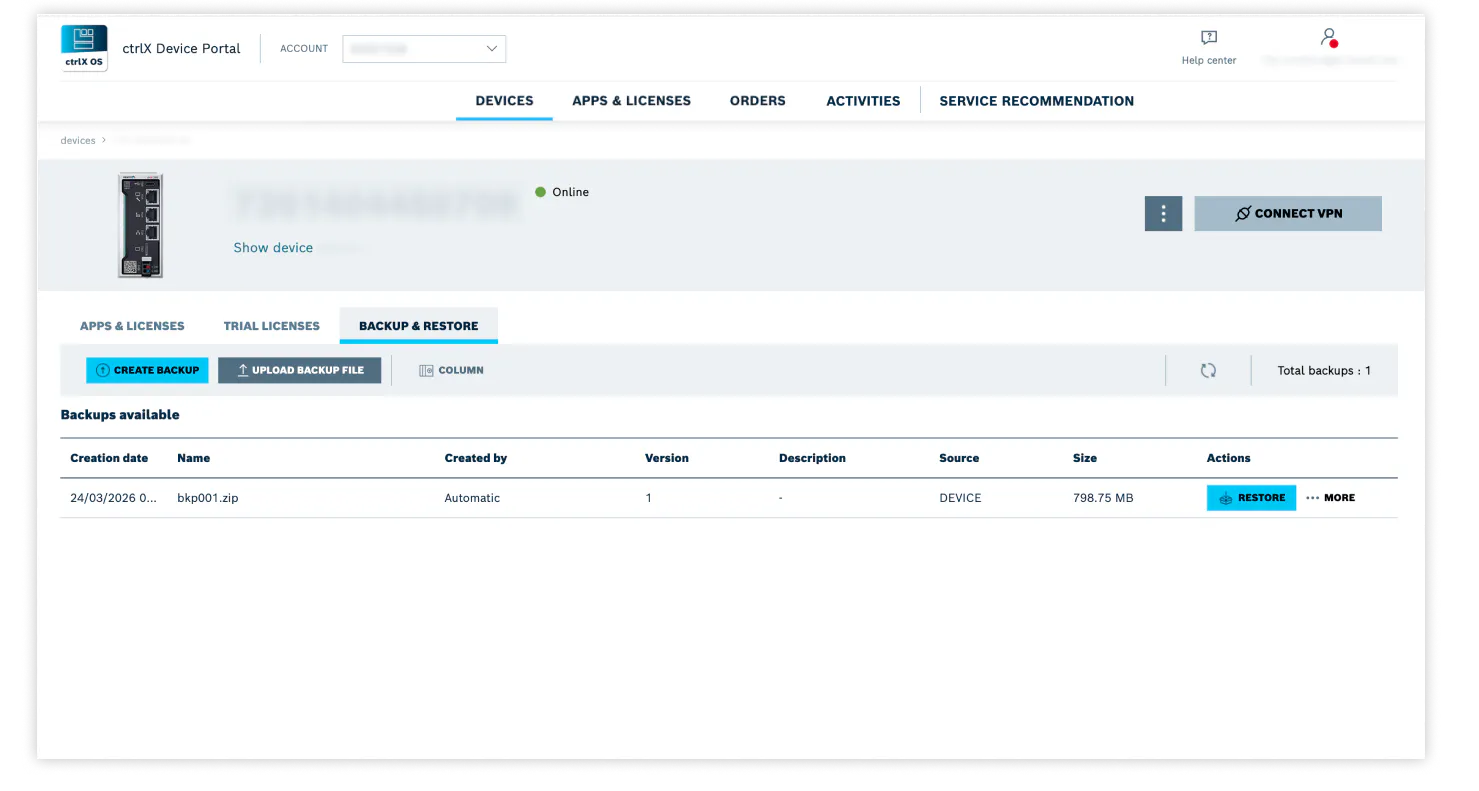
Image of device details - backup and restore section
Important Notes
The device must be online
The backup password is required for restore operations
If the password is lost, the backup cannot be used
Backups do not include licenses or certificates