Overview
This How-To will show you, how you can use Node-RED to visualize data from a CSV file, that is stored on the ctrlX CORE. The CSV file may have been created by your PLC program or another app, but for test purposes you can simply download the same CSV file I used at the end of the article and upload it to your ctrlX CORE. Also the entire Node-RED flow can be downloaded at the end of the article. It contains the configuration for a dashboard, that looks like the image below. On the dashboard you can specify the path to your CSV file and select which columns of the file should be visualized. In this example, the dashboard is pre-configured to handle five data columns.

Versions used
ctrlX CORE Runtime 3.6.0
Node-RED v4.0.9-ctrlx
Dashboard 2.0
Format of CSV File
The CSV file contains 6 columns. The first column represents the time scale in Unix time. The other 5 columns contain data from measurements of five signals recorded over a period of 1500 milliseconds. You can download the example file at the end of the article (in the ZIP folder).

Storage location
In this example, the CSV file is stored on the internal storage of a ctrlX CORE. Go to "Manage App Data" (1) and click "Open File View" (2).

There you can create a new folder by clicking on the "+" button (3) in the top right corner and name it "datalog". Then open the folder (4).
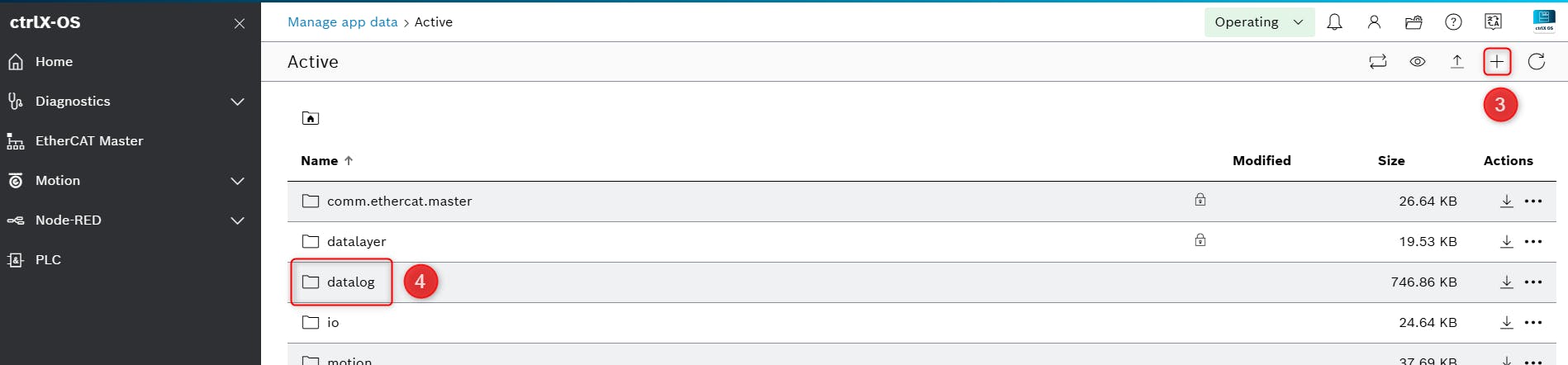
There you can upload the example CSV file with the arrow button in the upper right corner and should then be able to preview the file.

Node-RED flow
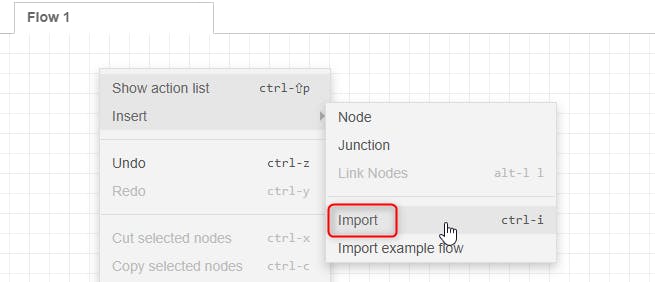
First download the file "CSV_Data_Visualization.json" attached in the end of the article (in the ZIP folder). Then open the Node-RED flow editor. There right click in the empty editor and go to "Insert" and click "Import".
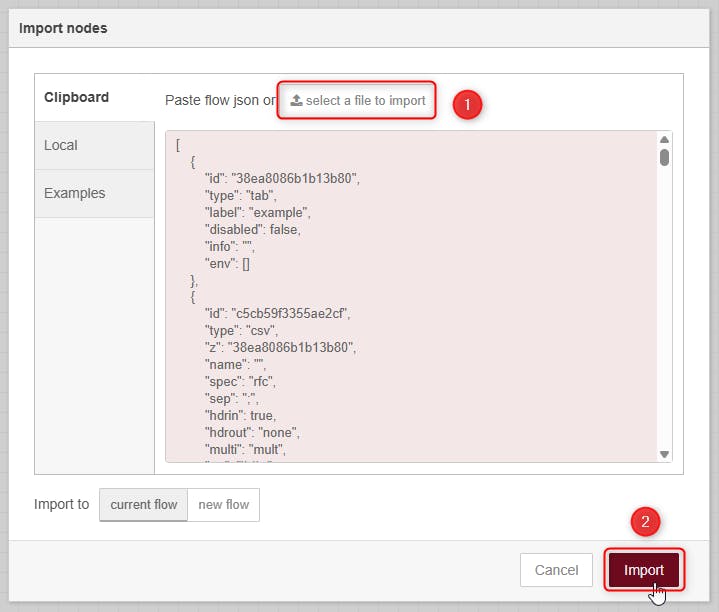
Select the file (1) you downloaded and click "Import" (2).
Now the following nodes should appear in your flow.
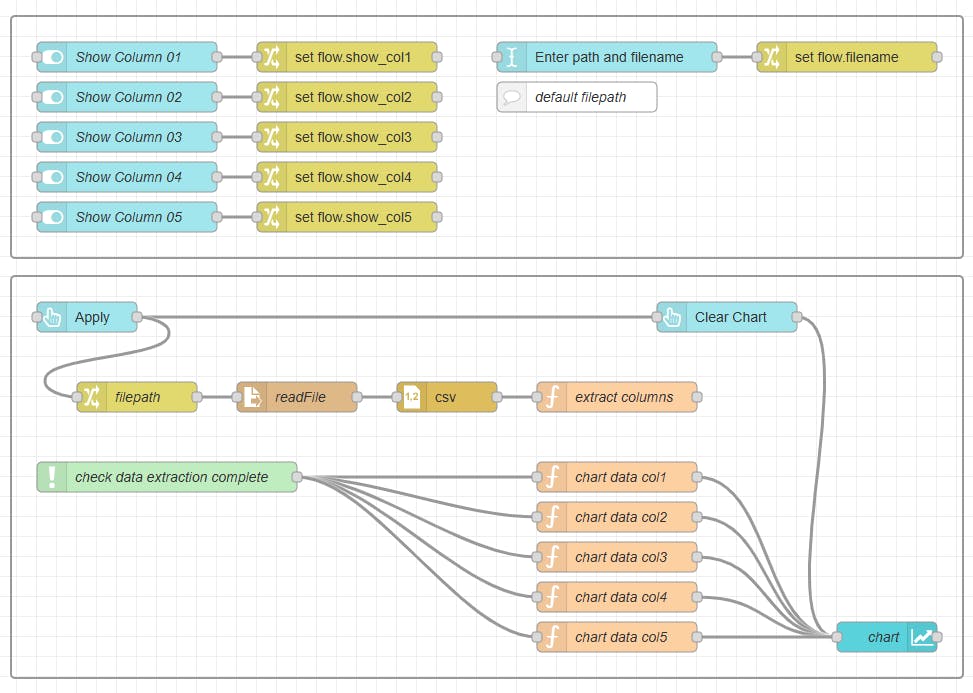
Let me explain, what these nodes do. In the upper section of the flow, you see five switch nodes, that are used for column selection, which data columns should be displayed on the dashboard. The boolean values are then stored as flow variables, so that the selections can be used later in the code. On the right you see a text input node, where you can input the path to your CSV file, also then saved to a flow variable. Note that the path to the CSV file, that you uploaded to the "datalog" folder earlier will be "/var/snap/rexroth-solutions/common/solutions/activeConfiguration/datalog/measurement_example.csv".
In the lower section of the code you first see the two buttons "Apply" and "Clear Chart". When "Clear Chart" will be clicked on the dashboard an empty msg.payload will be send to the chart node, which will then clear it. When "Apply" will be clicked the following four nodes will be triggered:
"filepath" reads the file path from the flow variable and sends it as
msg.payloadto"readFile", where the file will be read and outputted as a long string to the
"csv" node, where the file is interpreted: the column names will be read from the first row of the file and the time and data columns will be extracted.
"extract columns" is then a function node, where JavaScript Code will store the names of the data columns as an array in the flow context and also the time column and the five data columns as arrays in the flow context
Once this is completed the green node you see below will trigger the five function nodes that will send pairs of time and the corresponding data to the chart, depending on which data columns are selected to be displayed on the dashboard. The pairs of time and data value are passed via msg.payload and the name of the data series is passed via msg.topic. So it will look like this:
msg.payload = [	{"time":1747729470100,"value":0},
 		        {"time":1747729470101,"value":0.10036171},
 		        {"time":1747729470102,"value":0.19975310},
	            //...
	          ];
msg.topic   = "data1";
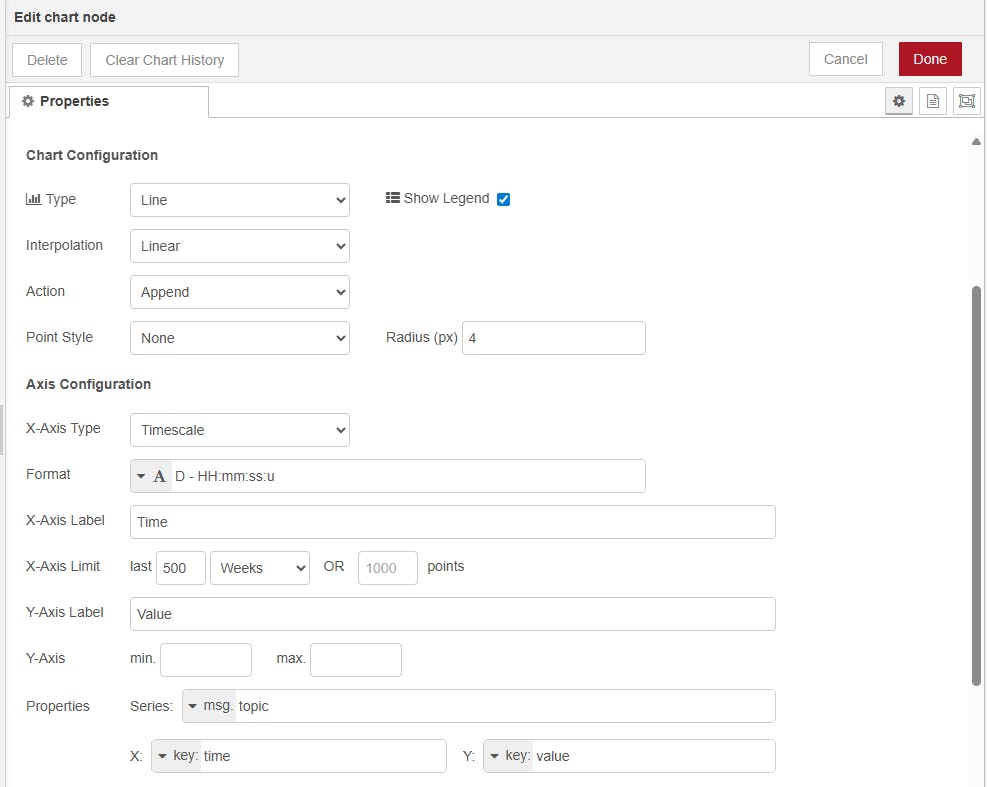
Finally, a chart node (ui-chart) displays the selected data curves. The chart node is configured in append mode, with the x-axis set to timescale. Ensure that the x-axis limit is set sufficiently high to display all data points from the CSV file. In the "Series" properties, msg.topic is used, and the X and Y value fields are configured to use "time" and "value", respectively, as sent in msg.payload from the preceding function nodes.