Overview
This is a fun little tutorial on how to use the operation mode 'Positioning Block Mode' to play the simple melody of 'Frère Jacques'. The attached video shows how it can sound.
What is Positioning Block Mode?
In this operation mode, it is possible to run up to 64 programmed positioning blocks. For each block the axis moves to the target position in position control, while maintaining velocity, acceleration, deceleration and jerk limits as defined. To enable Positioning Block Mode, the productivity package has to be activated on your ctrlX DRIVE.
Prerequisites
ctrlX DRIVE connected to a servo motor, that can rotate freely
Productivity package
ctrlX DRIVE Engineering
Step by step
Operation mode selection
Open up ctrlX DRIVE Engineering and connect to the ctrlX DRIVE.
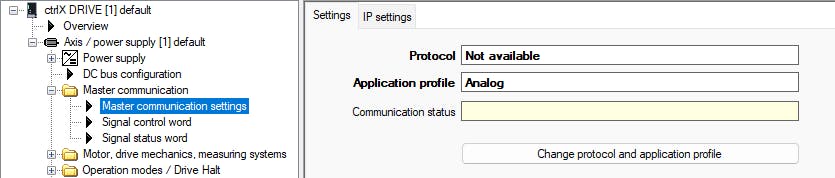
In this example use case a standalone ctrlX DRIVE is used with no control connected. So in the Master communication settings no protocol is selected and the application profile is set to 'Analog'.
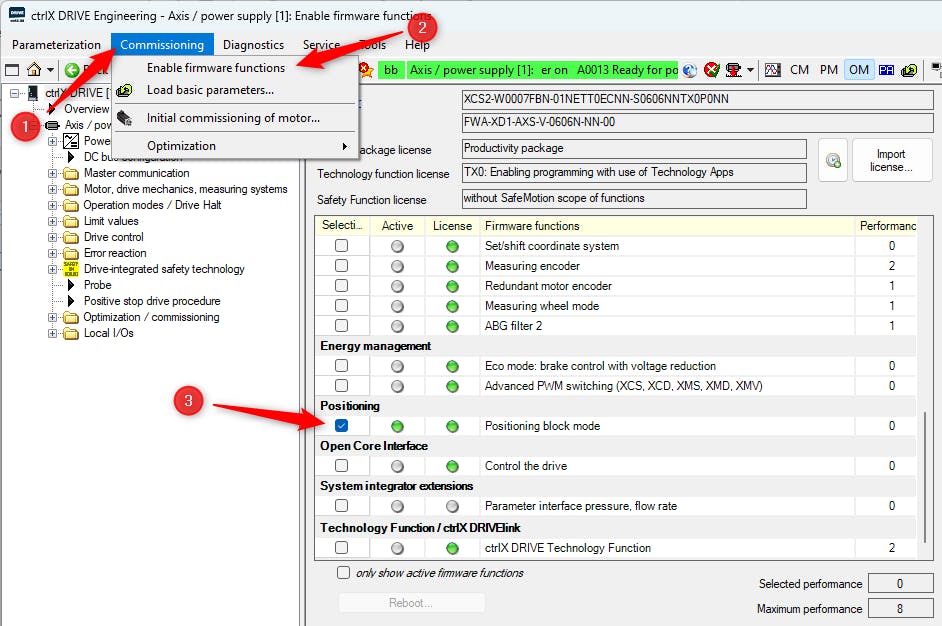
Go to Commissioning > Enable firmware functions, scroll down and select 'Positioning block mode'. Afterwards hit 'Reboot...'.
You should now be able to choose 'Positioning block mode' under Operation modes in the device tree. Set it as the primary operation mode.

Definition of the positioning blocks
In the device tree go to Operation modes > Configured operation modes > Positioning block mode > Positioning block program. Here you can define all the positioning blocks, that will later be activated one after the other.
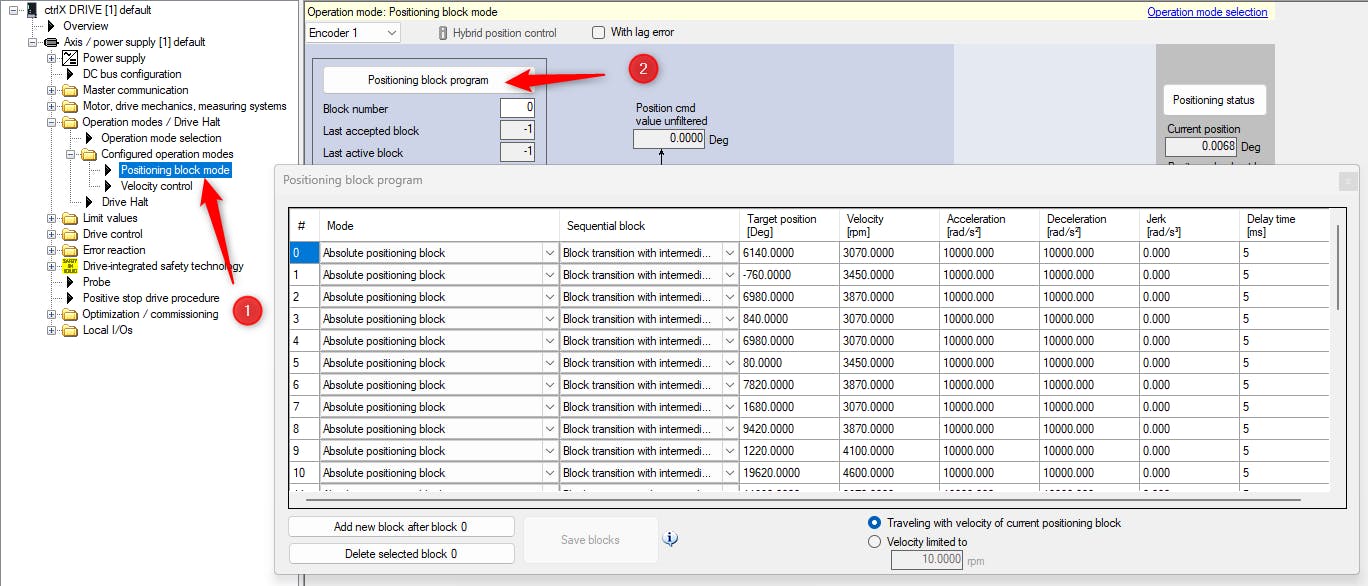
Each block represents one tone of the melody you want to play. The velocity defines, which tone you will hear. The lowest tone of the example song is at 2300 rpm, up to 5160 rpm for the highest tone. The duration of the tone can be defined by setting the target position. Here the standard duration is set to two times the velocity. Because of the maximum range of the encoder, the motor can not constantly rotate forward. The target position would reach values outside of the limit. That is why it is chosen to let each second tone rotate forward and each second tone rotate backwards. To help you calculate the speeds and target positions according to the desired melody, please use the attached Excel file.
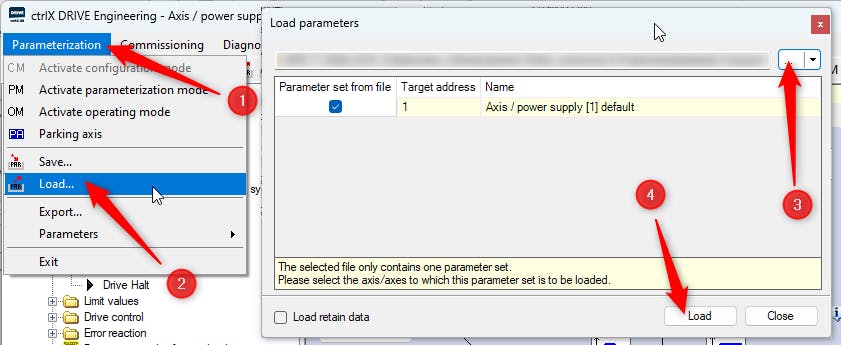
If you want to set the positioning blocks by yourself, edit the block program according to the image above. If you don't want to, just import the parameter file at the end of this article. It contains the 33 positioning blocks, that will play the melody of 'Frère Jacques'. The last positioning block is used to go back to target position 0° at low speed to be able to start the melody again. To import the parameter file, go to Parameterization > Load, then select the file by clicking on the three dots and then hit 'Load'.
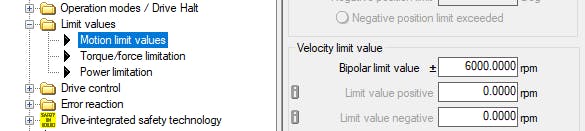
After you have set the positioning blocks, make sure that velocity and acceleration limits on your ctrlX DRIVE are sufficient for the defined tones. In this case the velocity limit is set to 6000 rpm.
I/O configuration to enable the positioning blocks
If you have physical switches or buttons connected to the digital inputs of the ctrlX DRIVE, you can set them to the relevant bits of the drive parameters at Local I/Os > XG31 in the device tree. Otherwise you could set the bits manually in ctrlX DRIVE Engineering or through a connected ctrlX CORE.
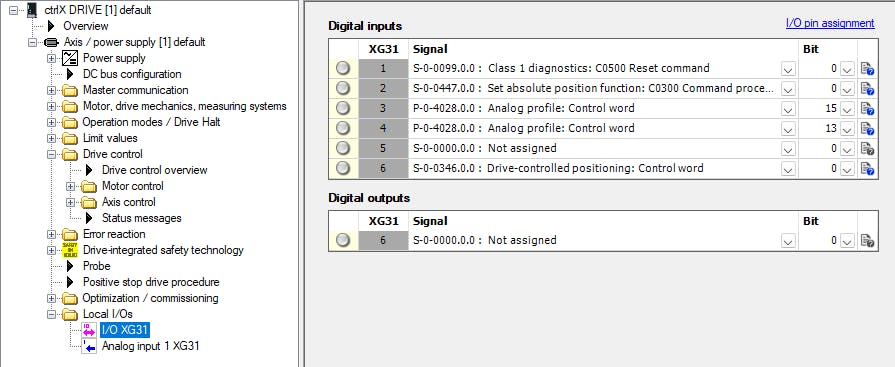
In this example case, six switches are connected to the ctrlX DRIVE and they are configured as following:
Switch 1: In case the ctrlX DRIVE has an error, the switch sets the 'C0500 Reset command' (S-0-0099) to delete the error.
Switch 2: In case the motor got turned while it was powered off, the absolute position of the encoder can be set with the 'C0300 command' (S-0-0447).
Switch 3 an 4: They set bit 13 and 15 of the 'Analog profile: Control word' (P-0-4028). They will put the ctrlX DRIVE from Ab into AH and AF.
If in your ctrlX DRIVE you have another application profile activated, you need to select the correct control word.Switch 6: Bit 0 of 'Drive-controlled positioning: Control word' (S-0-0346) starts the defined block program.
Let the music play
If you configured everything successfully according to the steps above, you can now
power up the ctrlX DRIVE (-> bb),
power on the motor (-> Ab),
set the absolute position with switch 2,
set bit 13 and 15 of the control word with switch 3 and 4 (-> AF),
set bit 0 of 'Drive-controlled positioning: Control word' with switch 6.
You should hear the well known melody 😀