Unity3D is a powerful Game Engine which is also widely used for different industrial applications. This guide will show you how to run Unity3D project on ctrlX CORE using WebGL build.
Prerequisites:
ctrlx CORE X5/X7/Virtual (2.6.X, 3.6.X)
Ubuntu 22.04 LTS build environment, either standalone Ubuntu, App build environment of ctrlX WORKS, QEMU or Virtual machine
ctrlX AUTOMATION SDK
Unity3D 2022.3.62f3 LTS (other versions not tested)
Unity3D basic knowledge
Optional Packages for Unity (Flutter Unity Widget, Rest Client, WebSocket)
1. Concept
You can use your existing Unity3D project, if you have one, but keep in mind that there will be limitations regarding Data exchange options when you are using WebGL. You cannot use standard TCP/UDP communication, options would be limited to:
Rest API (HTTP)
WebSocket
WebRTC (Web Real-Time Communication)
For ctrlX CORE the most convenient communication method is REST API, since you will have direct access to the Data Layer and won't need to do any additional programming for communicating with external apps. However, if you want to send frequent data, like position of your axis, REST API is not the best choice due to its speed limitations. In this case I am using PLC to send coordinates of the Cartesian robot through UDP and translate them to a Python WebSocket Server. After that Unity3d can access the data from the server in JSON format. You could also use web client from CODESYS IIoT libraries for direct communication with the WebSocket Server, but remember that neither the PLC nor Unity3D in a WebGL build run the server, so you need to use external solution, for example using Python in the same snap.
2. Preparing Unity Project
In this guide, we assume that you already know basics of Unity3D and have a sample project to use. To adapt your project for using with WebGL, please refer to REST client and WebSocket assets in the related links. For the building, I am using Flutter Unity Widget, but you could also use standard Unity WebGL build option.
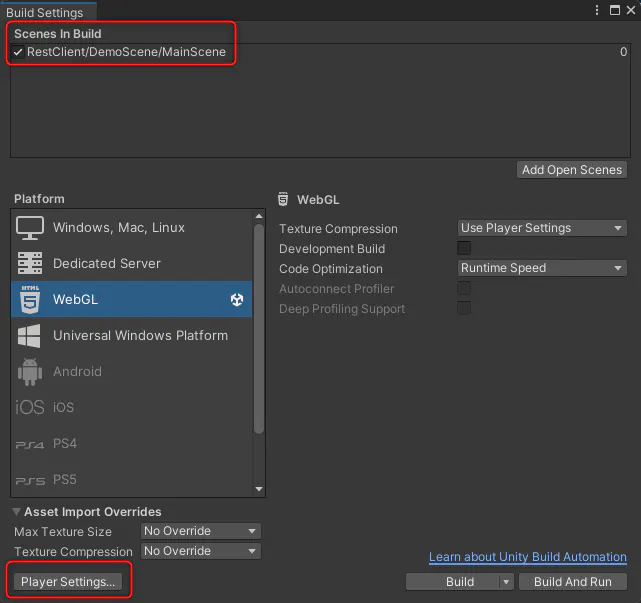
In your project window go to File > Build Settings, choose the scenes you want to add to your build and open Player Settings:
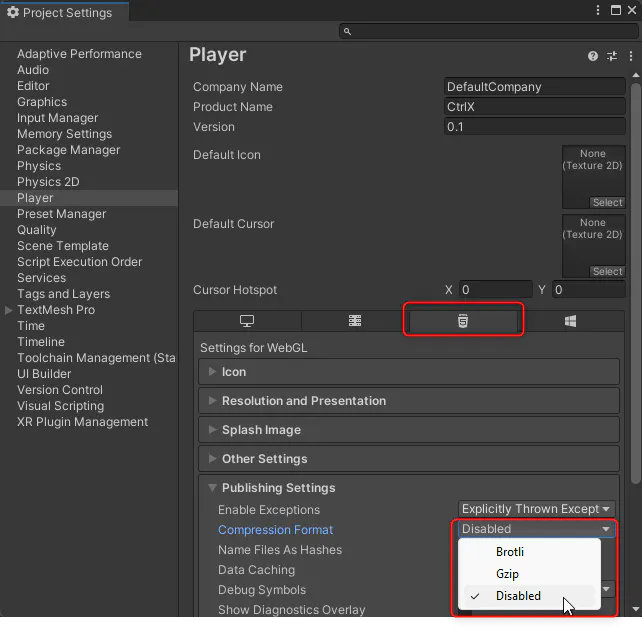
Switch to WebGL tab and Disable Compression Format:
At this point, you can press the Build button in the Unity Build Settings window, to make a standard WebGL build. It will ask you for desired location to save the result.
Another option, download Flutter Unity Widget from the related links and install fuw-2022.3.2.unitypackage. To do that, go back to Unity Editor, open Assets > Import Package > Custom Package and select the package.
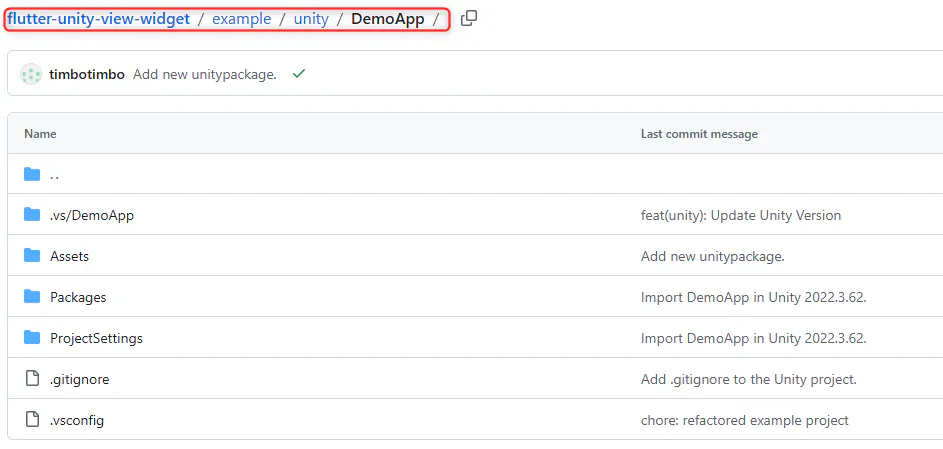
If you don't have your own Unity project, you can also use the example, otherwise just change the folder DemoApp with your Unity Source files:
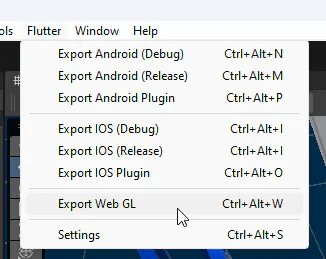
Now you can use the Widget to export as WebGL
After build is finished, you can access files in the folder web:
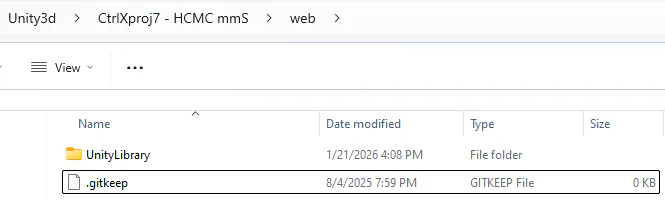
4. Packing project inside a Snap
That's it, now we can pack it into the snap!
The structure of the project:
snap/snapcraft.yaml
unity-build/"your unity WebGL build files"
server.py
setup.py
4.1 Snapcraft.yaml
In our snapcraft.yaml we define command to run server.py script and dump all unity3d build files, as well as specify websockets python package required to run the Server:
name: unity-snap
version: 0.4.3
summary: Unity WebGL app served on port 8080
description: Unity WebGL application served via Python HTTP server
confinement: strict
compression: lzo
grade: stable
base: core22

apps:
  unity-snap:
    command: bin/server.py
    daemon: simple
    install-mode: enable
    restart-delay: 3s
    restart-condition: always
    stop-timeout: 10s
    plugs:
      - network
      - network-bind
    environment:
      PYTHONPATH: "$SNAP/usr/lib/python3/dist-packages"

parts:
  server:
    plugin: python
    source: .
    build-environment:
      - PYTHONPATH: "$SNAPCRAFT_PART_INSTALL/usr/lib/python3/dist-packages"
    stage-packages:
      - python3
      - python3-dev
      - python3-wheel
    python-packages:
      - websockets

  unity-webgl:
    plugin: dump
    source: unity-build
    organize:
      '*': www/

architectures:
  - build-on: amd64
  - build-on: arm64
Optionally, you could also include package manifest for integration in the side bar of the ctrlX CORE.
4.2 Setup.py
In setup.py you can also define required python packages, as well as describe, which scripts should be copied into the snap:
# SPDX-FileCopyrightText: Bosch Rexroth AG
#
# SPDX-License-Identifier: MIT
from setuptools import setup

setup(name = 'unity-snap',
      version='0.4.3',
      description = 'Unity WebGL app served on port 8080',
      author = 'Akra',
      #install_requires=['websockets'],
      scripts = ['server.py'],
      license = 'MIT License'
)
4.3 Server.py
The most interesting part, is the server script, in my case it works as bridge for CODESYS PLC and Unity WebGL and consists of:
UDP server on port 5009 receives data from ctrlX PLC app
WebSocket server on port 8765 forwards data to Unity WebGL
HTTP server serves Unity files on port 8080
You can skip UDP and WebSocket parts and just serve HTTP server depending on your Unity3D Project:
#!/usr/bin/env python3

import sys
import signal
import http.server
import socketserver
import asyncio
import threading
import json
import struct
import socket
import traceback
import os
import websockets
import time

SNAP = os.environ.get('SNAP', os.path.dirname(os.path.abspath(__file__)))
WWW_ROOT = os.path.join(SNAP, 'www')
# Switch to www directory so HTTP server
os.chdir(WWW_ROOT)


# ============== DIAGNOSTICS ==============

def check_port_availability(port, protocol='tcp'):
    """Check if a port is available"""
    try:
        if protocol == 'tcp':
            sock = socket.socket(socket.AF_INET, socket.SOCK_STREAM)
        else:
            sock = socket.socket(socket.AF_INET, socket.SOCK_DGRAM)

        sock.setsockopt(socket.SOL_SOCKET, socket.SO_REUSEADDR, 1)
        sock.bind(('0.0.0.0', port))
        sock.close()
        return True, f"Port {port} is available"
    except OSError as e:
        return False, f"Port {port} is BUSY or BLOCKED: {e}"

HTTP_PORT = 8080
WS_PORT = 8765
UDP_PORT = 5009

# Store connected Unity clients
unity_clients = set()
latest_plc_data = None
data_lock = threading.Lock()
ws_loop = None

# ============== HTTP Server ==============

class MyHTTPRequestHandler(http.server.SimpleHTTPRequestHandler):
    def log_message(self, format, *args):
        pass

    def end_headers(self):
        self.send_header('Access-Control-Allow-Origin', '*')
        self.send_header('Access-Control-Allow-Methods', 'GET')
        self.send_header('Access-Control-Allow-Headers', 'Content-Type')

        if self.path.endswith('.wasm'):
            self.send_header('Content-Type', 'application/wasm')
        elif self.path.endswith('.data'):
            self.send_header('Content-Type', 'application/octet-stream')
        elif self.path.endswith('.js'):
            self.send_header('Content-Type', 'application/javascript')

        super().end_headers()

class ReusableTCPServer(socketserver.TCPServer):
    allow_reuse_address = True

# ============== WebSocket Server ==============

async def websocket_handler(websocket):
    """Handle WebSocket connections from Unity"""
    client_addr = websocket.remote_address
    print(f"\n{'='*60}")
    print(f"WebSocket CLIENT CONNECTED")
    print(f"    From: {client_addr}")

    try:
        headers = dict(websocket.request_headers)
        print(f"    Origin: {headers.get('Origin', 'N/A')}")
        print(f"    User-Agent: {headers.get('User-Agent', 'N/A')[:50]}")
    except:
        pass

    print(f"    Total clients: {len(unity_clients) + 1}")
    print(f"{'='*60}\n")

    unity_clients.add(websocket)

    try:
        # Send latest data immediately
        with data_lock:
            if latest_plc_data:
                await websocket.send(latest_plc_data)
                print(f"Sent data to client: {latest_plc_data}")
            else:
                # Send a test message
                test_msg = json.dumps({"status": "connected", "waiting": "for PLC data"})
                await websocket.send(test_msg)
                print(f"Sent connection confirmation (no PLC data yet)")

        # Keep connection alive
        async for message in websocket:
            print(f" Unity → Server: {message}")

    except websockets.exceptions.ConnectionClosed as e:
        print(f"Connection closed: {e.code} - {e.reason}")
    except Exception as e:
        print(f"WebSocket error: {e}")
        traceback.print_exc()
    finally:
        unity_clients.discard(websocket)
        print(f"Client disconnected: {client_addr}")

async def broadcast_to_unity(json_message):
    """Broadcast PLC data to all Unity clients"""
    if unity_clients:
        websockets.broadcast(unity_clients, json_message)
        return len(unity_clients)
    return 0

async def websocket_server_main():
    try:
        server = await websockets.serve(
            websocket_handler,
            "0.0.0.0",
            WS_PORT,
            ping_interval=20,
            ping_timeout=10
        )

        print(f" WebSocket Server RUNNING ")

        await asyncio.Future()  # Run forever

    except OSError as e:
        print(f"FATAL: WebSocket server FAILED TO START ")
        print(f"    Error: {e}")
        print(f"    Port {WS_PORT} might be in use by another process")
        traceback.print_exc()
    except Exception as e:
        print(f" WebSocket server error: {e}")
        traceback.print_exc()

def run_websocket_server():
    global ws_loop
    print("\n[Thread] Starting WebSocket thread...")
    loop = asyncio.new_event_loop()
    asyncio.set_event_loop(loop)
    ws_loop = loop
    print(f"[Thread] Event loop created: {id(ws_loop)}")
    loop.run_until_complete(websocket_server_main())

# ============== UDP Server ==============

def run_udp_server():
    """Run UDP server for PLC data"""
    global ws_loop


    print(f"STARTING UDP Server")


    udp_socket = socket.socket(socket.AF_INET, socket.SOCK_DGRAM)
    udp_socket.setsockopt(socket.SOL_SOCKET, socket.SO_REUSEADDR, 1)
    udp_socket.bind(('0.0.0.0', UDP_PORT))

    print(f"UDP Server RUNNING")


    packet_count = 0

    # Wait for websocket loop
    wait_count = 0
    while ws_loop is None and wait_count < 50:
        import time
        time.sleep(0.1)
        wait_count += 1

    if ws_loop:
        print(f"UDP server connected to WebSocket loop: {id(ws_loop)}\n")
    else:
        print(f"WARNING: WebSocket loop not ready after 5 seconds\n")

    while True:
        try:
            data, client_address = udp_socket.recvfrom(1024)

            if not data:
                continue

            packet_count += 1
            verbose = (packet_count % 20 == 0)

            if len(data) >= 16:
                values = struct.unpack('<ffff', data[:16])
                x, y, z, gripper = values

                json_message = json.dumps({
                    "x": round(x, 3),
                    "y": round(y, 3),
                    "z": round(z, 3),
                    "gripper": round(gripper, 3)
                })

                if verbose:
                    print(f" UDP #{packet_count}: X:{x:.2f} Y:{y:.2f} Z:{z:.2f} G:{gripper:.2f}")
                    print(f"   WebSocket clients connected: {len(unity_clients)}")

                with data_lock:
                    global latest_plc_data
                    latest_plc_data = json_message

                if ws_loop and unity_clients:
                    asyncio.run_coroutine_threadsafe(
                        broadcast_to_unity(json_message),
                        ws_loop
                    )
                    if verbose:
                        print(f"   → Broadcasted to WebSocket clients")

        except Exception as e:
            print(f"✗ UDP error: {e}")
            traceback.print_exc()

# ============== Main ==============

httpd = None

def shutdown_handler(signum, frame):
    print(f"\n\nShutting down...")
    if httpd:
        httpd.shutdown()
    sys.exit(0)

signal.signal(signal.SIGTERM, shutdown_handler)
signal.signal(signal.SIGINT, shutdown_handler)

if __name__ == "__main__":

    # Start WebSocket server
    ws_thread = threading.Thread(target=run_websocket_server, daemon=True)
    ws_thread.start()


    time.sleep(2.0)  # Delay for safety

    # Start UDP server
    udp_thread = threading.Thread(target=run_udp_server, daemon=True)
    udp_thread.start()

    # Start HTTP server
    Handler = MyHTTPRequestHandler
    with ReusableTCPServer(("0.0.0.0", HTTP_PORT), Handler) as httpd:
        httpd.serve_forever()
4.4 Build and install
That's all, now you can build you snap:
snapcraft --destructive-modeInstall it and access your WebGL served on the port 8080. Please see the full video of the Process and running of a Simple Digital Twin:
