AV with Profinet
Introduction
This HOW-TO describes the integration of a Emerson AVENTICS Profinet AV valve system into ctrlX OS. Other Emerson AVENTICS Profinet valve systems can also be commissioned in this way.
Step-by-Step guide
Step 1:
First, the PROFINET master must be installed and integrated into CODESYS. To do this, follow these instructions:
CODESYS fieldbus add-on installation guide for ctrlX AUTOMATION
Step 2:
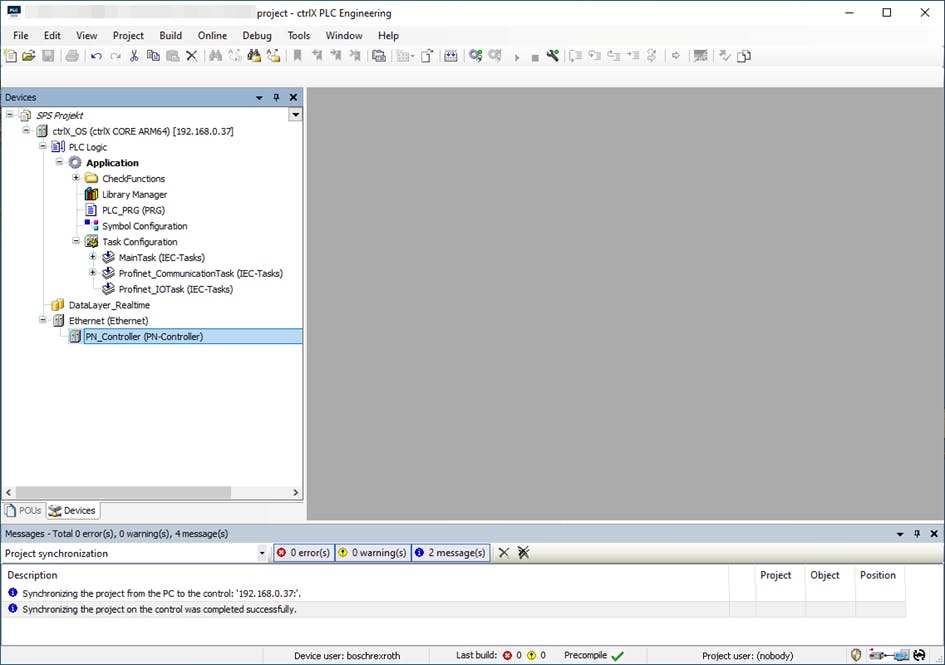
If the PROFINET Master is configured, the ctrlX PLC Engineering should look like this:
Step 3:
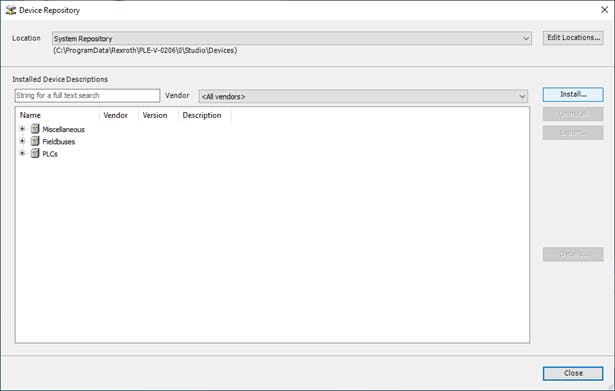
Install the description file (GSDML file) of the PROFINET AES unit, if you haven't already done so. See Tools->Device Repository... click.
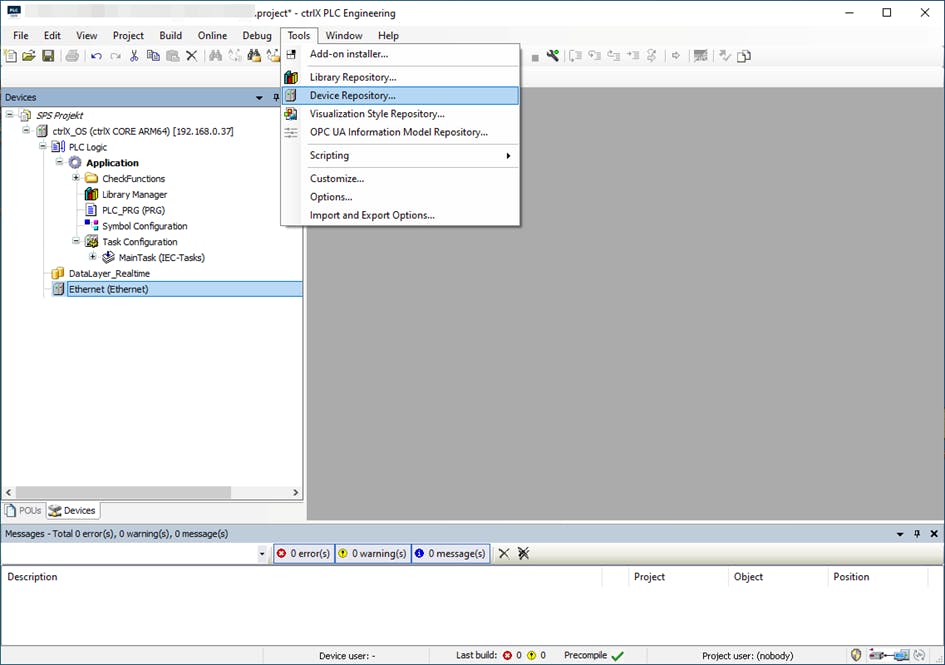
In the window that opens, click Install.. button, select the description file (GSDML file) of the AES PROFINET and install it
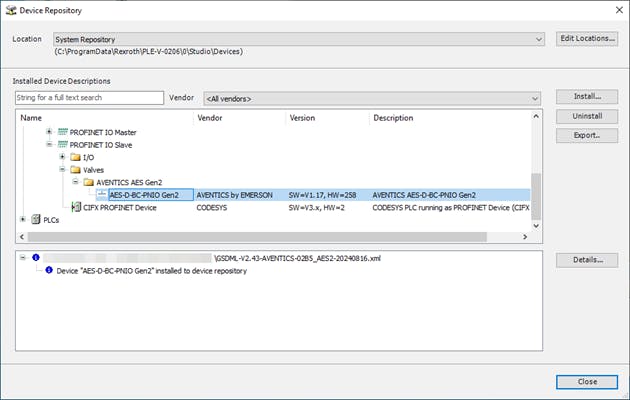
After installation, the window should look like this.
Step 4:
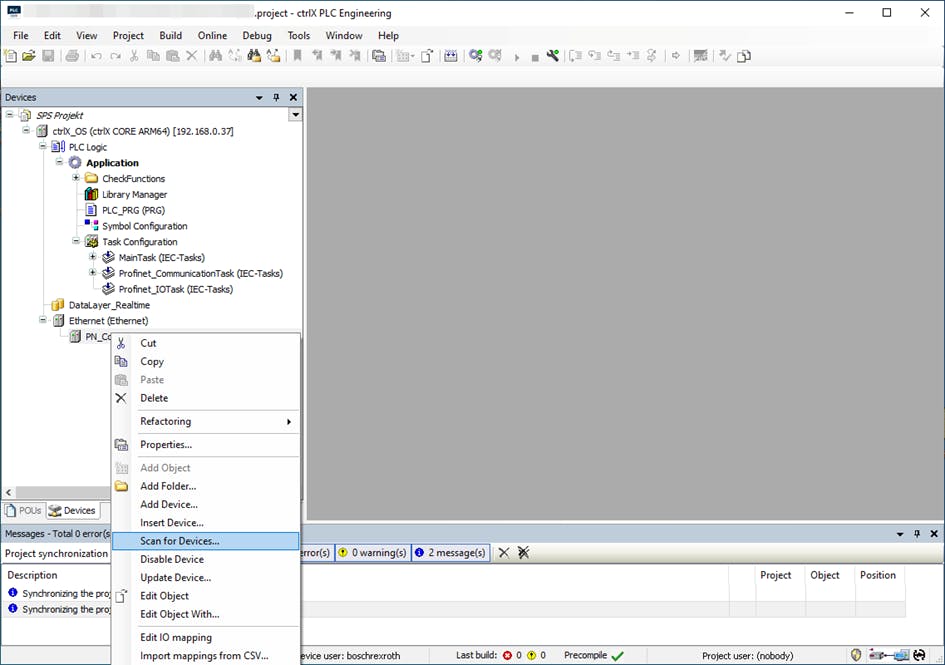
After installing the device description file, the device should be connected to the controller. Then the system can be scanned.
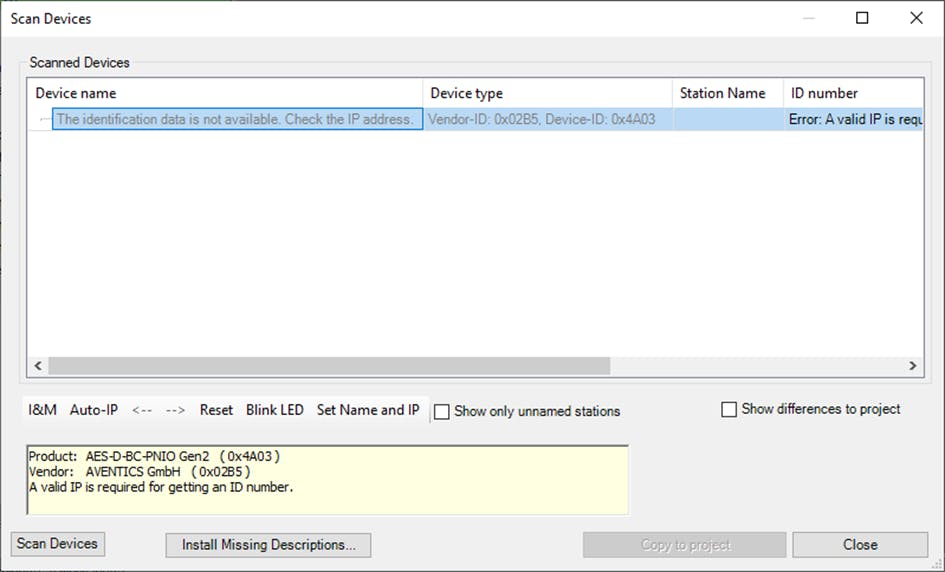
Once the device has been found, the name and an IP address from the appropriate subnet must first be assigned.
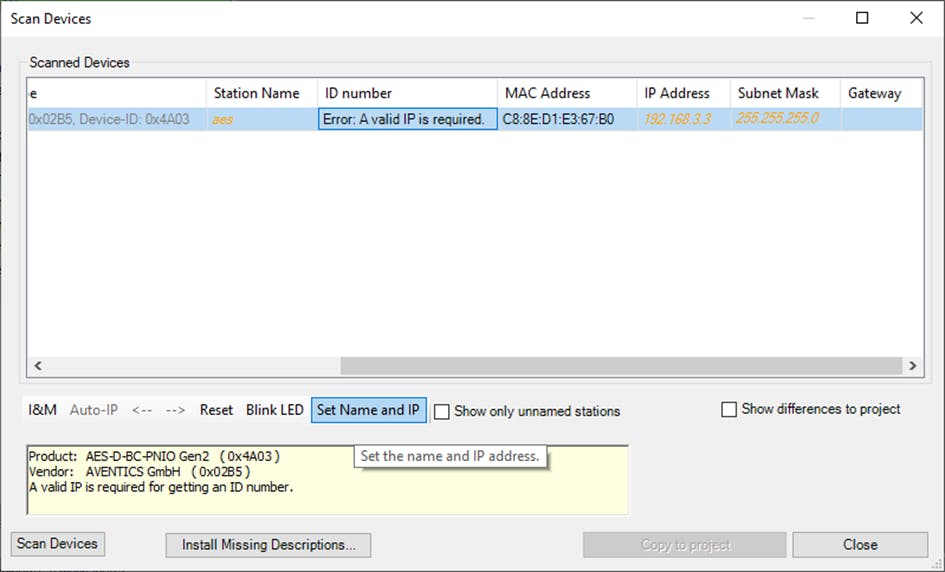
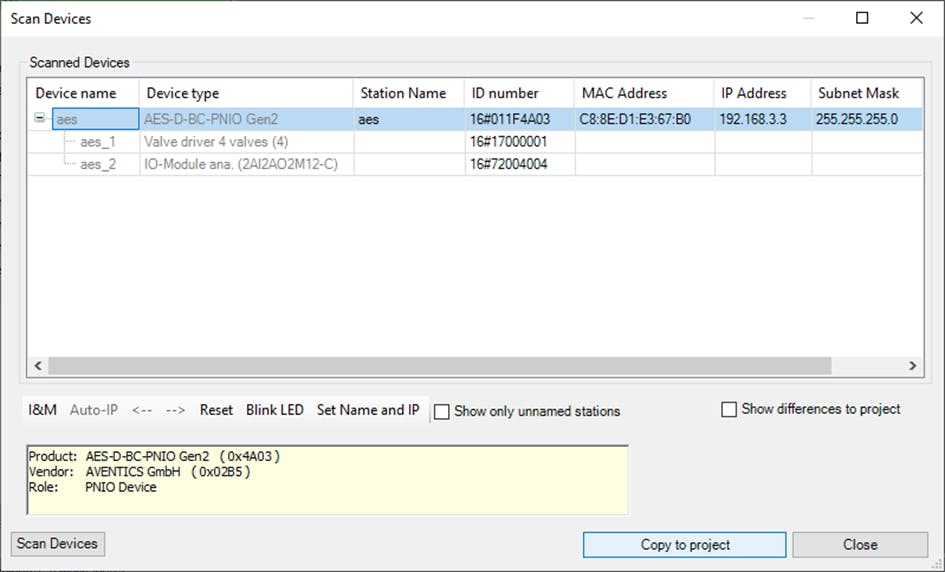
After that, the system can be scanned again and the AES devices can be transferred to the project with "Copy to project".
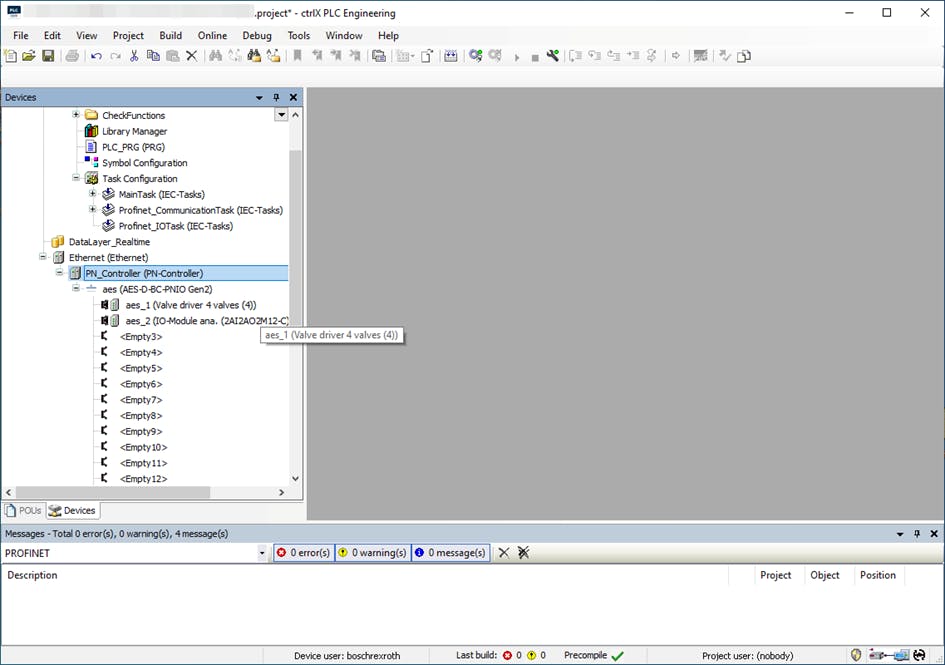
Step 5:
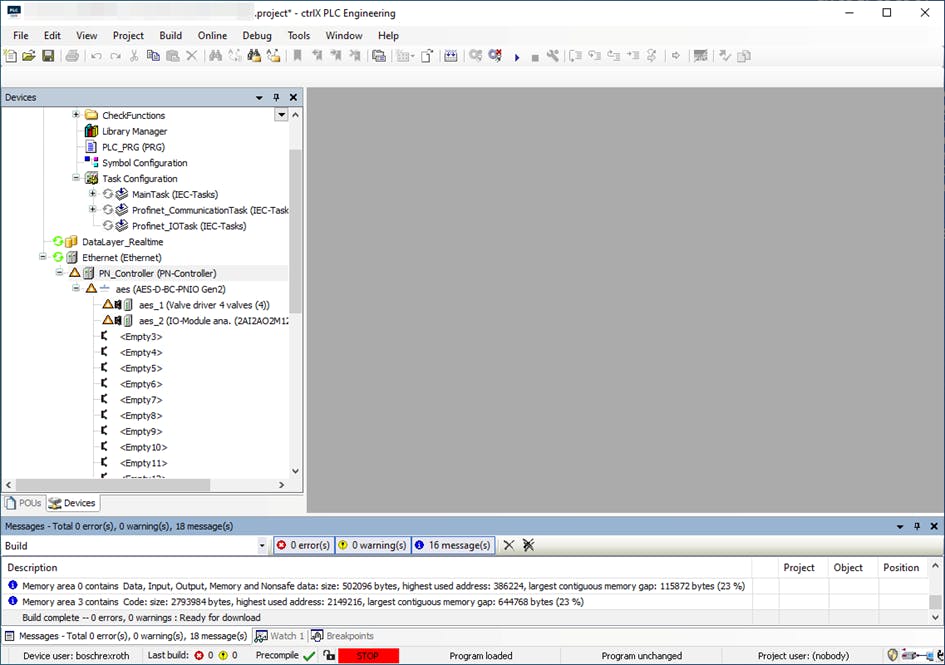
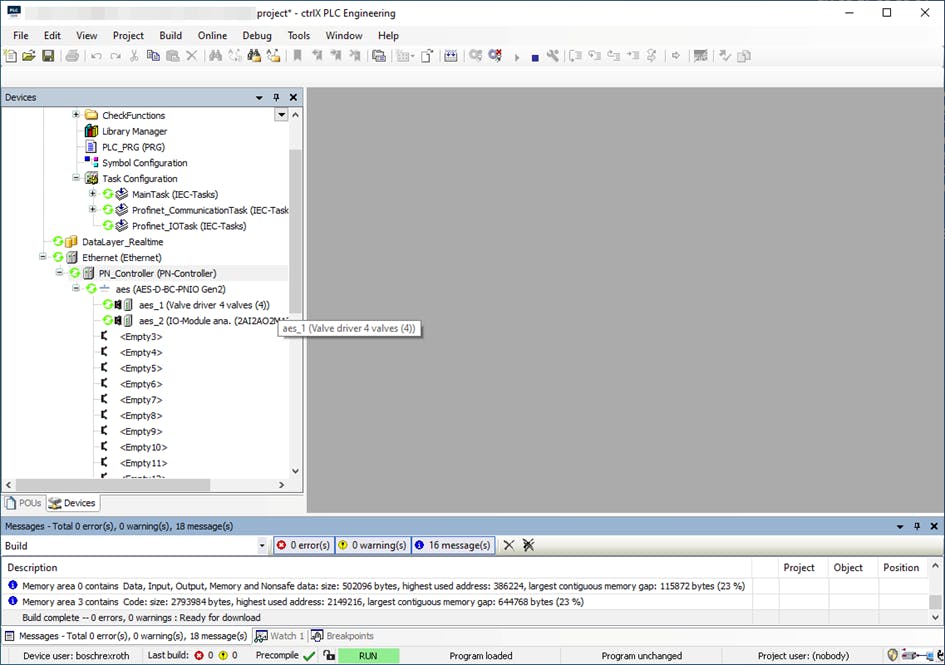
After the devices have been transferred to the offline configuration, this must be transferred to the online configuration and the PLC must be switched from STOP to RUN to check whether the communication is working correctly.