Overview
This article describes a validation test and example for operating a SAFEX-C.15 as an FSoE Master (FSoE MainInstance) together with the CODESYS EtherCAT Master (EtherCAT MainDevice, Softstack) on a ctrlX CORE. It covers all configuration and programming steps required to establish FSoE communication between the SAFEX-C.15 and the SAFEX-M.02 safety I/O module.
OverviewPrerequisitesHardware and software components usedTest setup (EtherCAT communication)Downloading and Installing the SW ComponentsStepsStep 1: Configure the Network Interface on ctrlX CORE X5Step 2: Install and add CODESYS EtherCAT to the PLC ProjectStep 3: Assign the XF12 Interface to the CODESYS EtherCAT MasterStep 4: Add EtherCAT DevicesStep 5: Add FSoE DevicesStep 6: Add FSoE Connection on the SAFEX-C.15 (FSoE MainInstance)Step 7: Map FSoE Frame Data in the PLC ProjectStep 8: Import SAFEX-M.02 into ctrlX SAFETY EngineeringStep 9: Configure the FSoE Object in the Safety ProjectConclusion
Prerequisites
Hardware and software components used
ctrlX CORE X5 with ctrlX OS 4.6.1
ctrlX PLC Engineering 4.6.1
CODESYS EtherCAT Master package 4.8.2.0
SAFEX-C.15 with FW 1.0.1.65 FPGA 227
ctrlX SAFETY Engineering 1.8.7.10917
EC-BK-12 bus coupler with I/O modules
SAFEX-M.02 safety I/O module
Test setup (EtherCAT communication)
ctrlX CORE X5 (XF12) >> SAFEX-C.15 >> EC bus coupler with IO modules and with SAFEX-M.02 safety IO module
Downloading and Installing the SW Components
All software components available via ctrlX OS Store or Collaboration Room.
For the "CODESYS EtherCAT Master" component, the "CODESYS EtherCAT 4.8.2.0.package" must be downloaded, installed and the "ctrlX OS License - CODESYS - EtherCAT Master (add-on)" license purchased and installed on the ctrlX CORE.
Steps
Step 1: Configure the Network Interface on ctrlX CORE X5
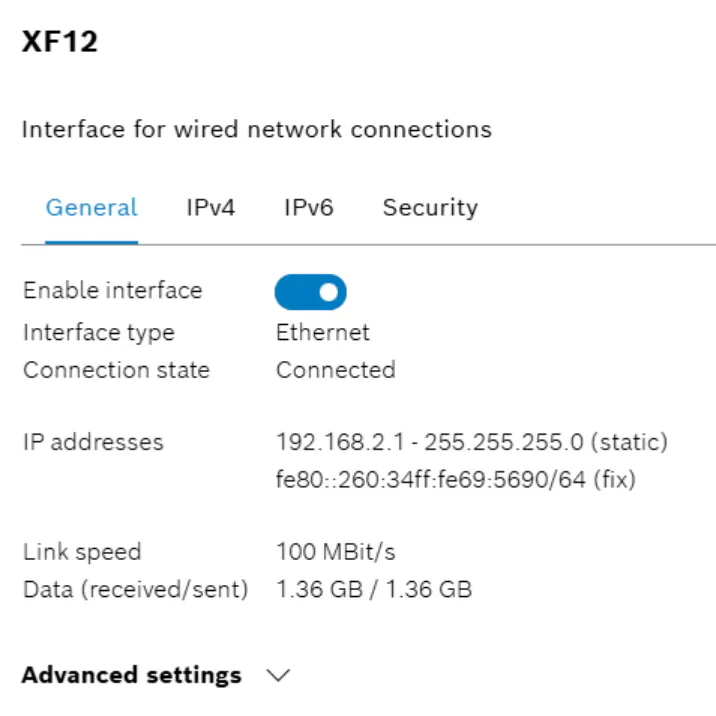
In the ctrlX OS WebUI, navigate to "Settings > Network Interfaces" and enable and configure a suitable interface for EtherCAT communication, for example XF12.
Step 2: Install and add CODESYS EtherCAT to the PLC Project
Note: A ctrlX I/O Engineering project is not required for this use case. The CODESYS EtherCAT Softstack is used instead of the ctrlX CORE's built-in EtherCAT Master.
Install the "CODESYS EtherCAT 4.8.2.0" package via "Tools > Add-on installer…" in ctrlX PLC Engineering. A detailed guide is available in the ctrlX AUTOMATION Community as a How-To: CODESYS fieldbus add-on installation guide for ctrlX AUTOMATION.
Note: Although that guide covers EtherNet/IP, the same procedure applies analogously to EtherCAT.
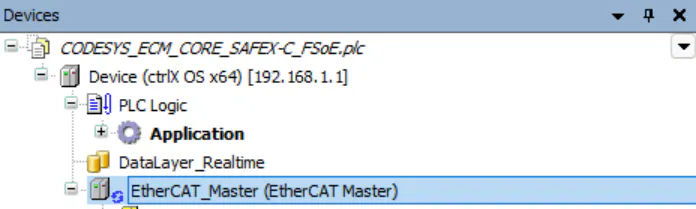
Afterward, the EtherCAT Master is added to the PLC project.
Step 3: Assign the XF12 Interface to the CODESYS EtherCAT Master
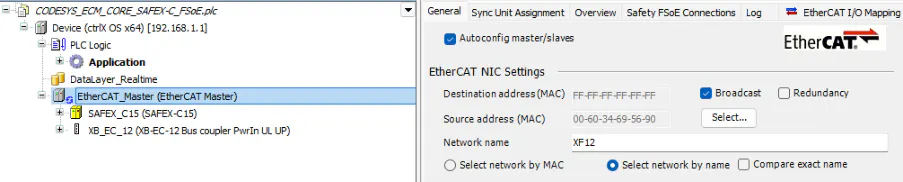
Assign the ctrlX CORE XF12 interface to the EtherCAT Master in the "General" settings tab of the EtherCAT Master. Use "Select…" if necessary to choose the correct interface.
Step 4: Add EtherCAT Devices
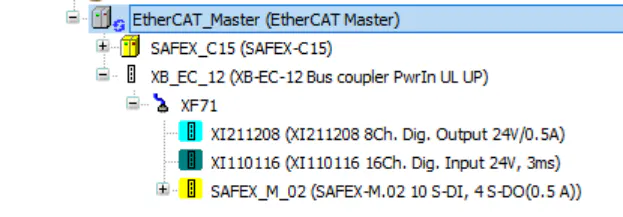
Add EtherCAT devices to the EtherCAT Master either manually or by using "Scan for Devices…". In this example, the SAFEX-C.15 and the EC bus coupler with I/O modules and the SAFEX-M.02 safety I/O module are added.
Note: If required, install missing EtherCAT device descriptions beforehand under "Tools > Device Repository…" (ESI files).
Step 5: Add FSoE Devices
The SAFEX-M.02 safety I/O module is an FSoE SubInstance (FSoE Slave). Its FSoE object is added automatically.
Note: The FSoE address of the I/O module must be set via the side rotary switch before installation into the I/O station. In this example, the SAFEX-M.02 module has address "1".
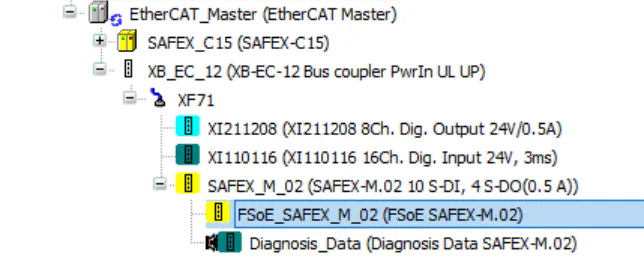
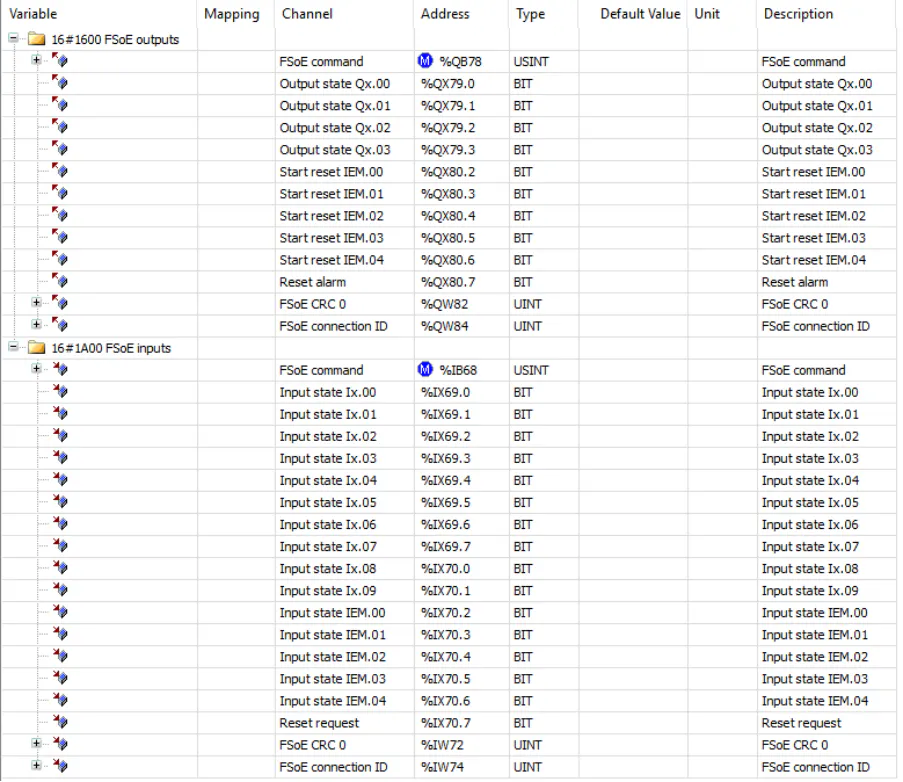
The SAFEX-M.02 has two bytes of safe data inputs and outputs.
Step 6: Add FSoE Connection on the SAFEX-C.15 (FSoE MainInstance)
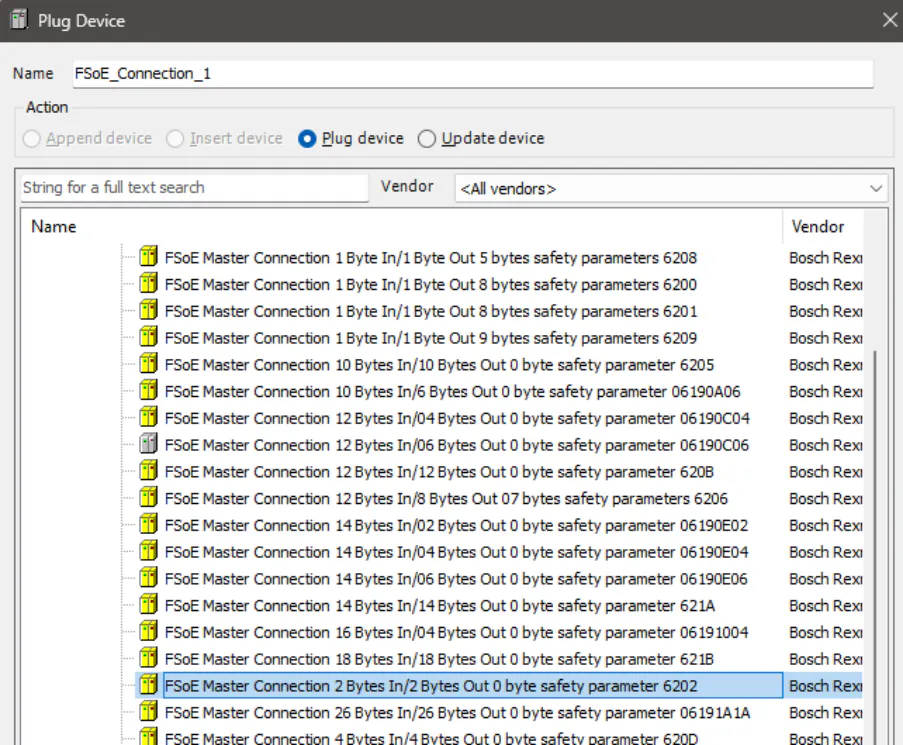
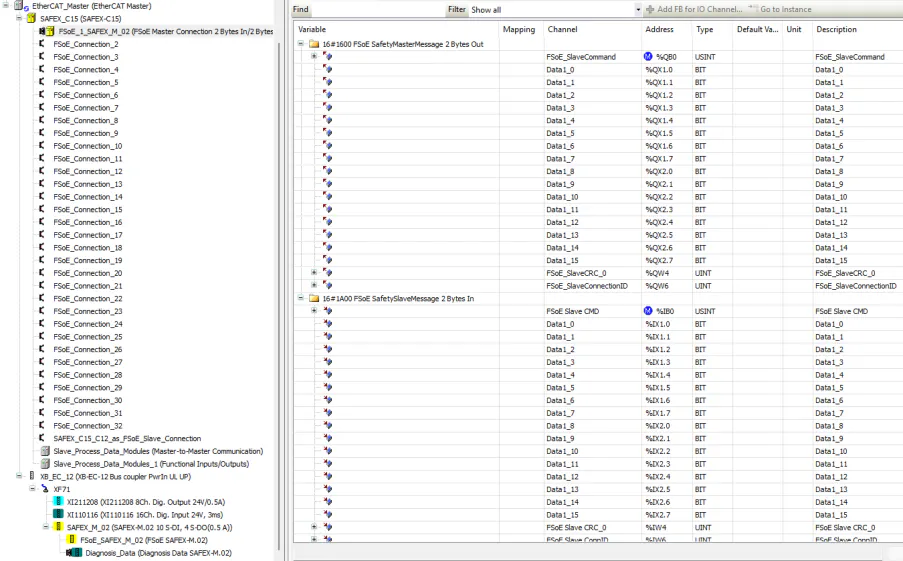
The SAFEX-C.15 safety controller is also the FSoE MainInstance (FSoE Master). An FSoE connection with "2 Bytes In/2 Bytes Out" for the SAFEX-M.02 must be added using "Plug Device…".
Step 7: Map FSoE Frame Data in the PLC Project
The mapping of input and output data of the FSoE frame between the FSoE Master and Slave is performed by two assignments within the PLC project.
_FSoE_MInst_SAFEX_C_Output := FSoESInst_SAFEX_M02_Input;— Mapping FSoE data from SInst to MInst_FSoE_SInst_SAFEX_M02_Output := FSoEMInst_SAFEX_C_Input;— Mapping FSoE data from MInst to SInst
Note: For the ctrlX CORE's EC Master, a simplified alternative is available via the "Slave to slave" dialog tab, which does not require explicit programming.
As a practical example, a new program "prECM_Slave2Slave_Copy" was created under the "EtherCAT_Task":
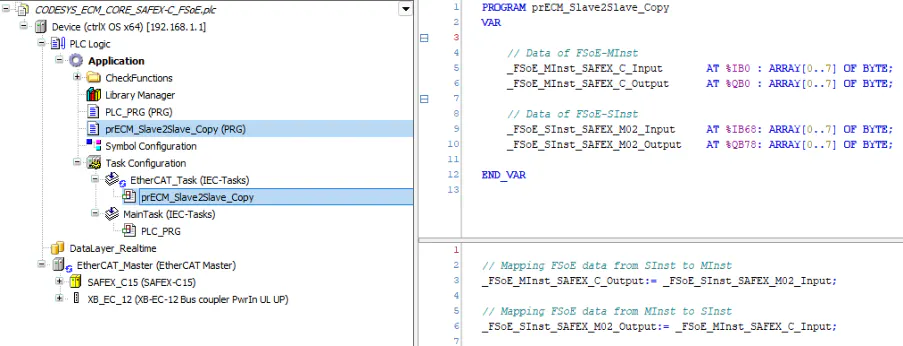
The correct hardware addresses for the respective inputs and outputs must be taken from the corresponding data areas (see screenshots above).
Note: In total, 8 bytes of data are exchanged for 2 bytes of safe data (+ 1 byte command, 2 bytes CRC, 2 bytes connection ID, 1 byte for byte alignment).
Step 8: Import SAFEX-M.02 into ctrlX SAFETY Engineering
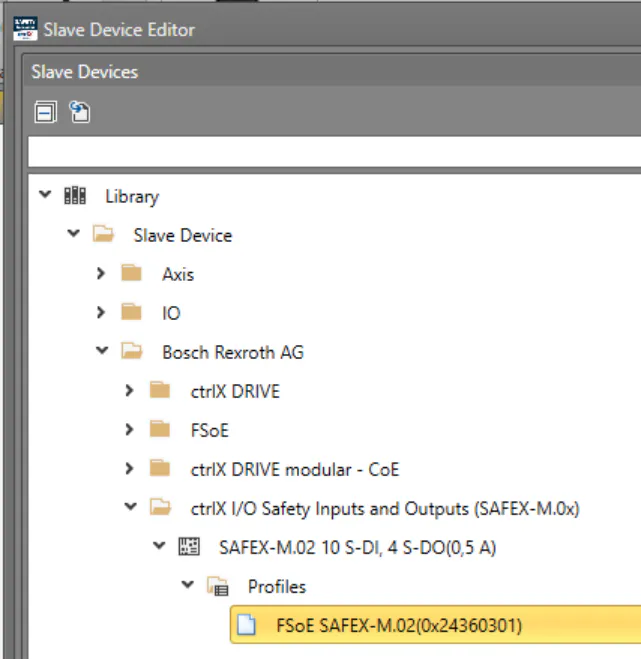
First, the SAFEX-M.02 must be added to ctrlX SAFETY Engineering via ESI import in the Slave Device Editor.
Step 9: Configure the FSoE Object in the Safety Project
In ctrlX SAFETY Engineering, add the FSoE module to the project in the "Terminal Scheme", configure the correct profile, and set the correct slave address.
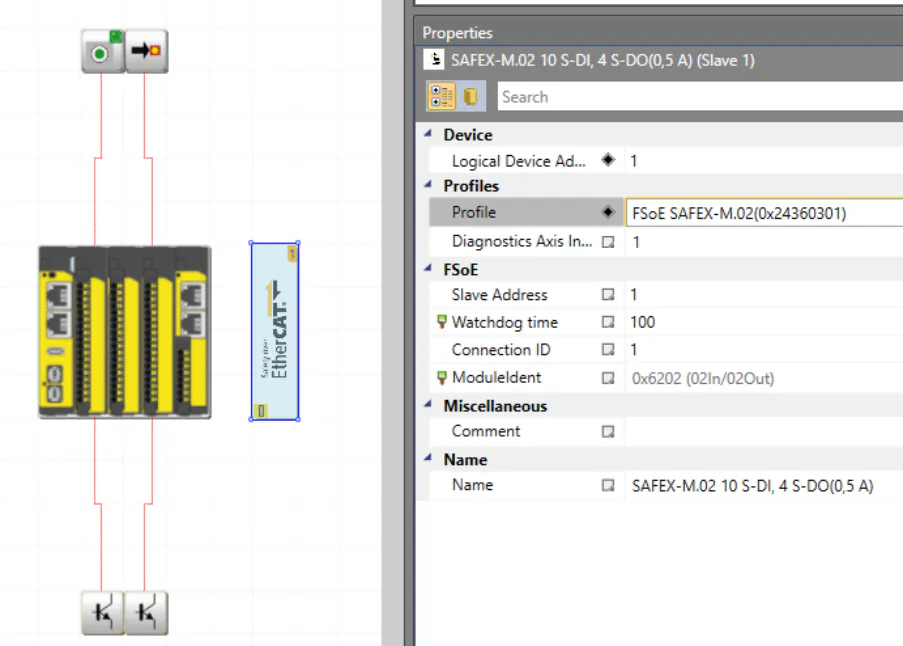
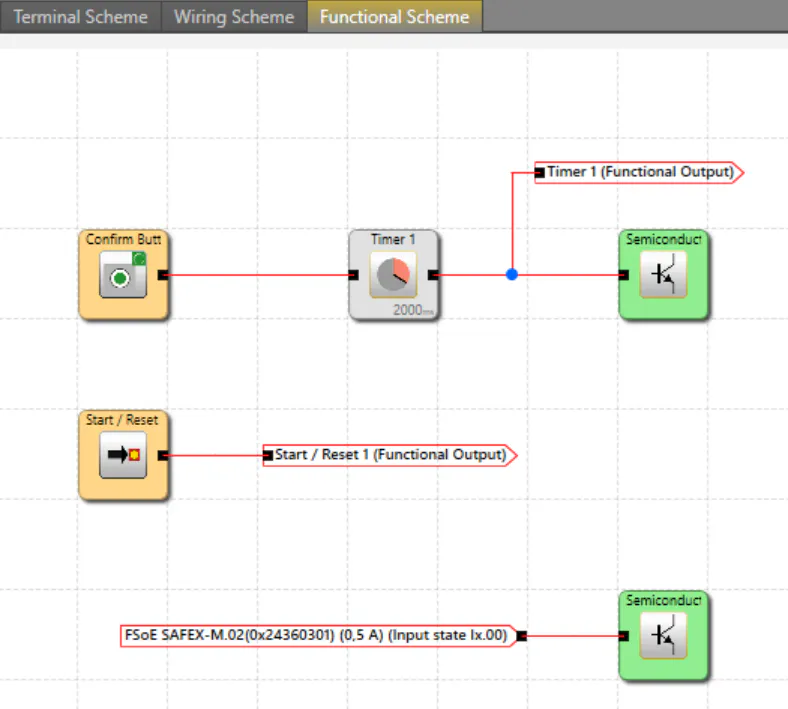
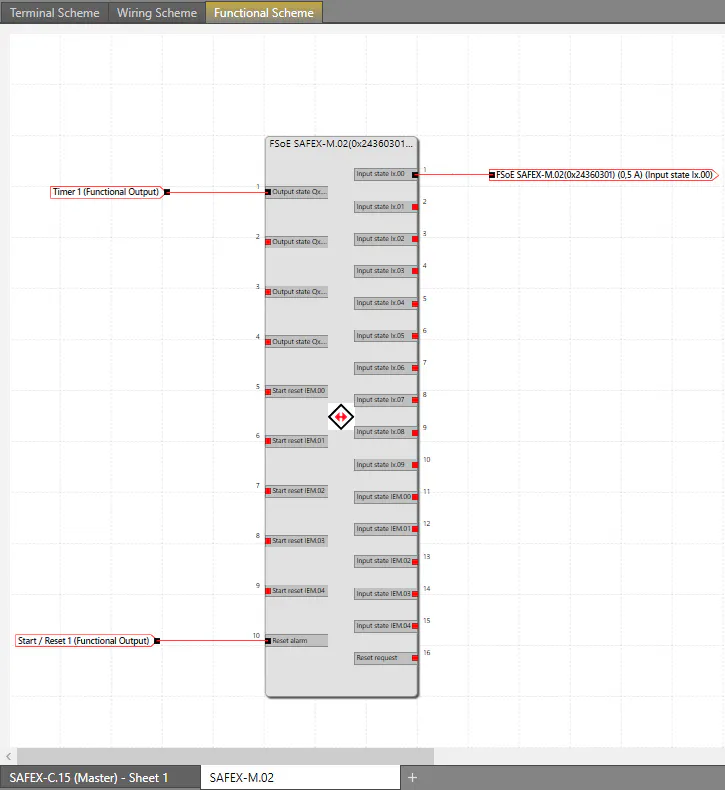
In the example, the hardware inputs and outputs are connected to the SAFEX-M.02 module both on the hardware and software side.
Conclusion
Following these steps, the SAFEX-C.15 operates as an FSoE Master using the CODESYS EtherCAT Softstack on the ctrlX CORE X5, with FSoE communication established to the SAFEX-M.02 safety I/O module via the EC bus coupler.
