Introduction
Mount network share (SMB)
This how-to describes the integration of a remote Windows file system into a ctrlX CORE environment using a Common Internet File System (CIFS) mount, which is based on the Server Message Block (SMB) protocol. This integration enables the ctrlX CORE to directly read and/or write data stored on a Windows host.
Requirements
ctrlX CORE and active connection to a windows system
Step-by-Step Guide
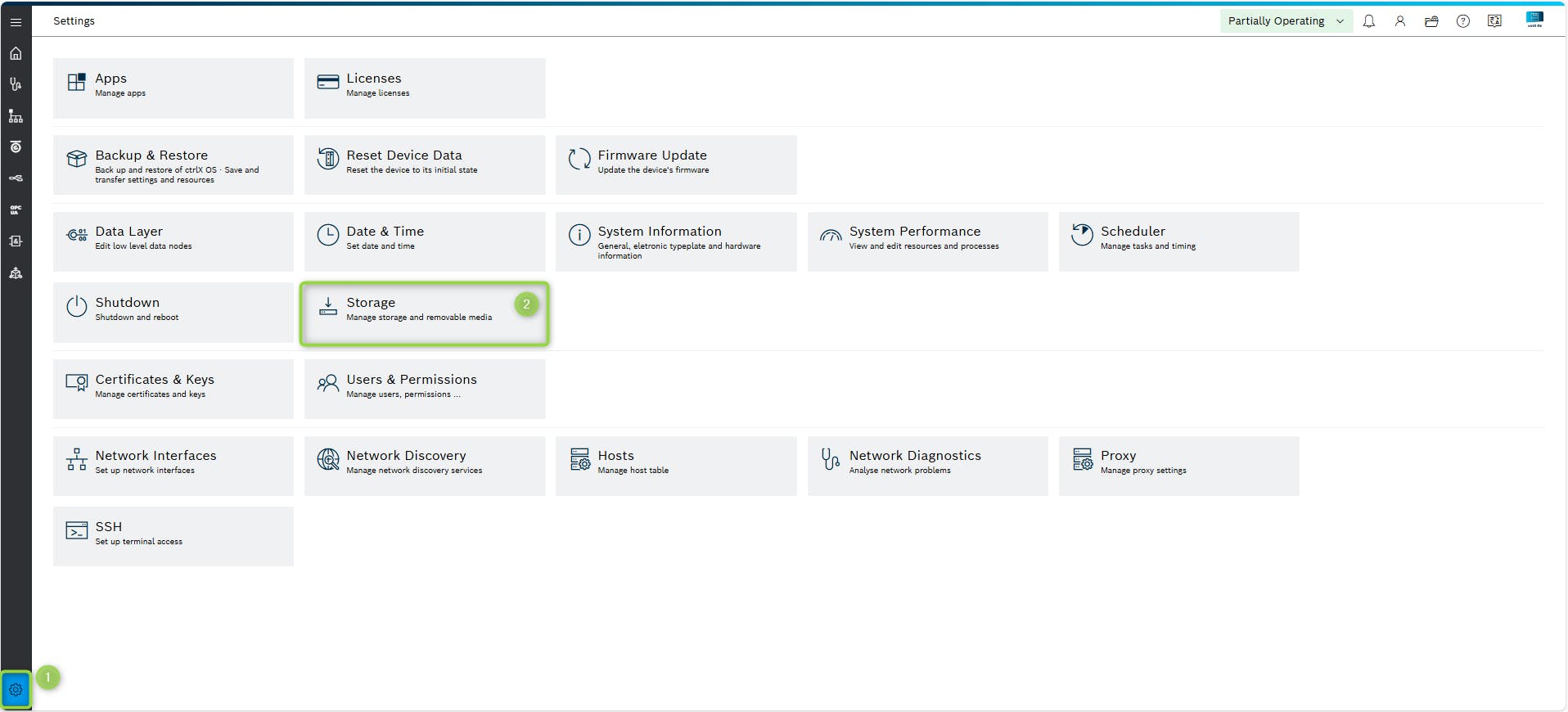
Go to settings (1) on ctrlX CORE and then to menu storage (2)
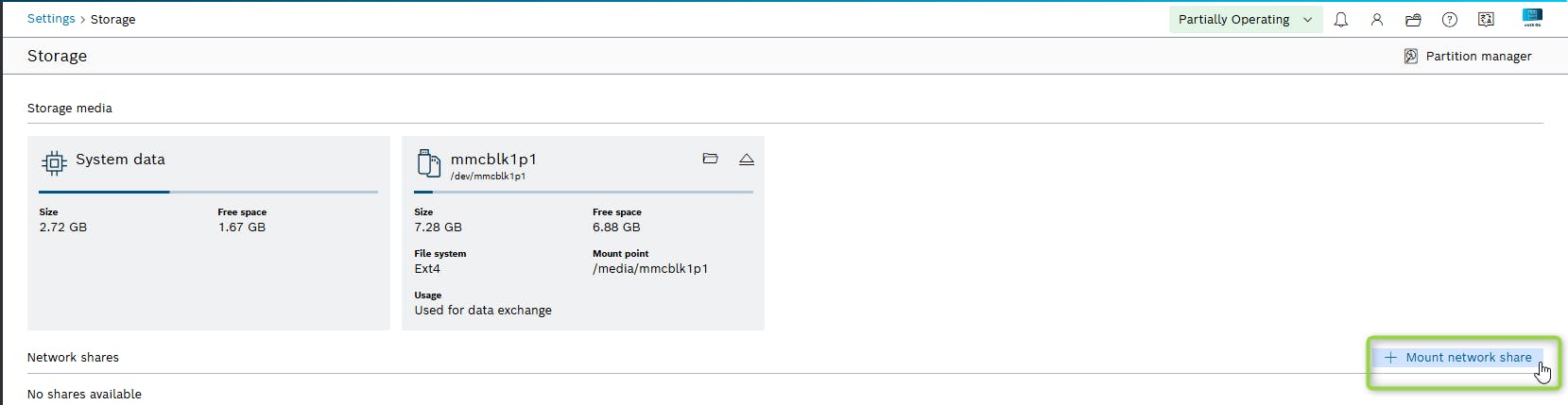
Add network folder
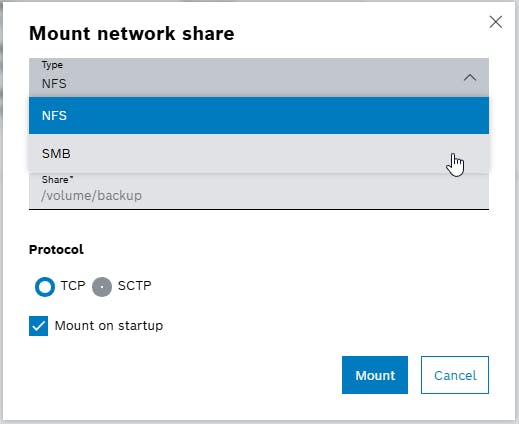
Select SMB
Make following adjustments
Server -> IP- address of Windows- host
Share -> Folder name on Windows you want to share
Username -> Window user name
Password -> Windows password from your windows user
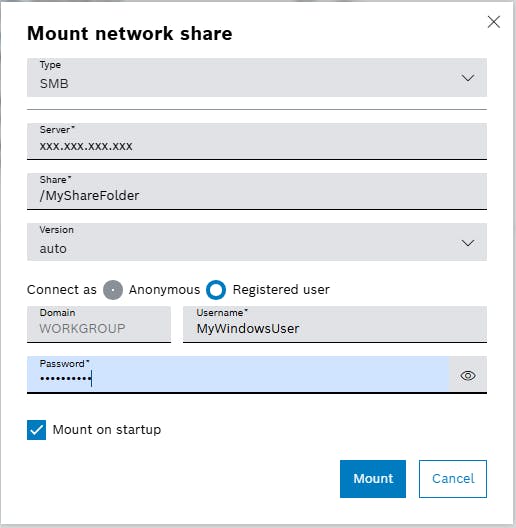
After you clicked on mount, the networkfolder will be visible on ctrlX CORE
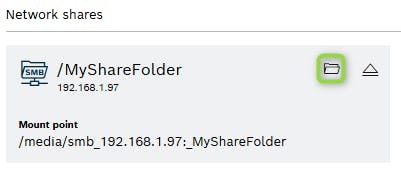
If you click on the small folder icon you will see the content of the Windows folder on ctrlX CORE

Windows adjustments
Adjustment of Windows folder you want to mount in ctrlX CORE.
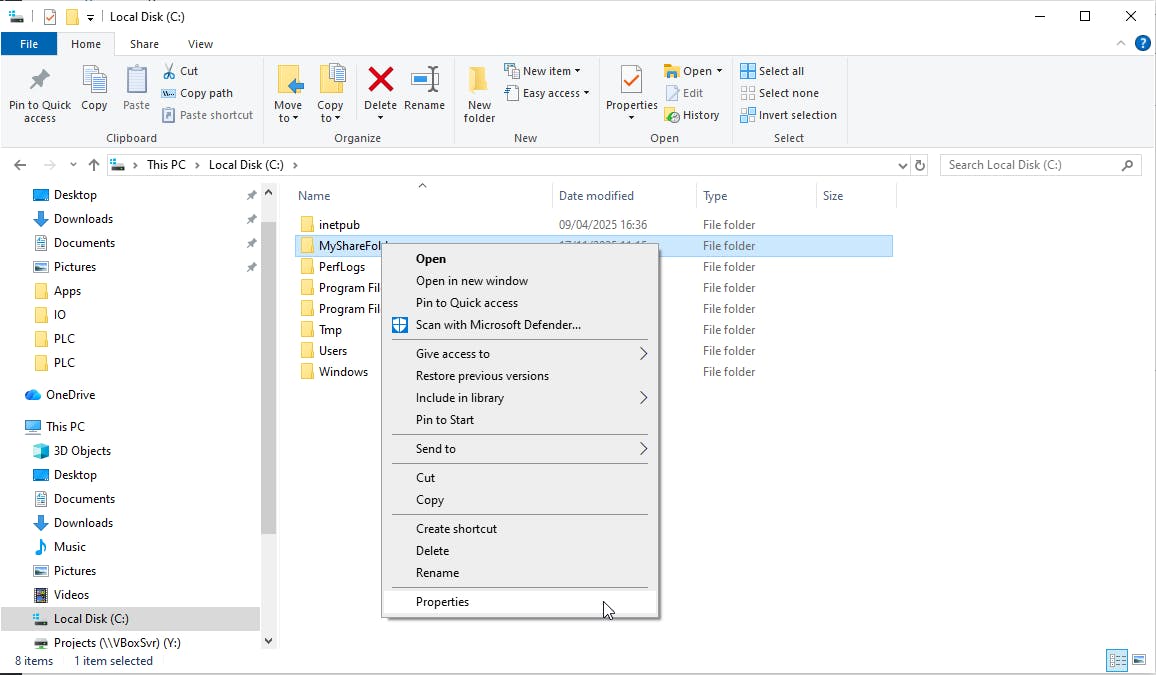
Select your folder, right click, select Properties
Go to menu "Sharing" then button "Share"
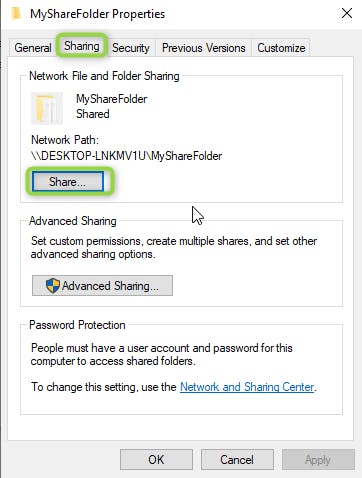
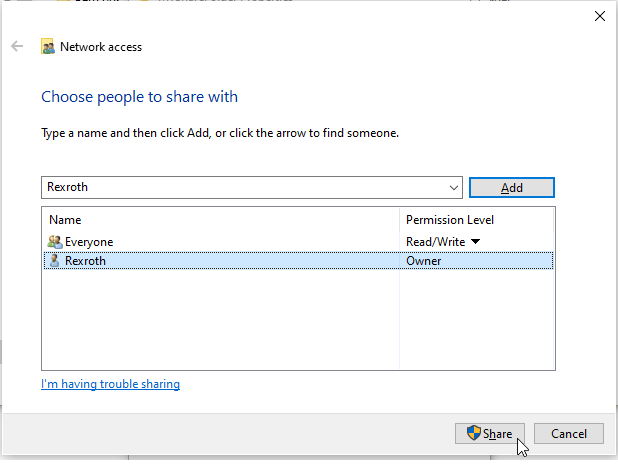
Select user