Introduction
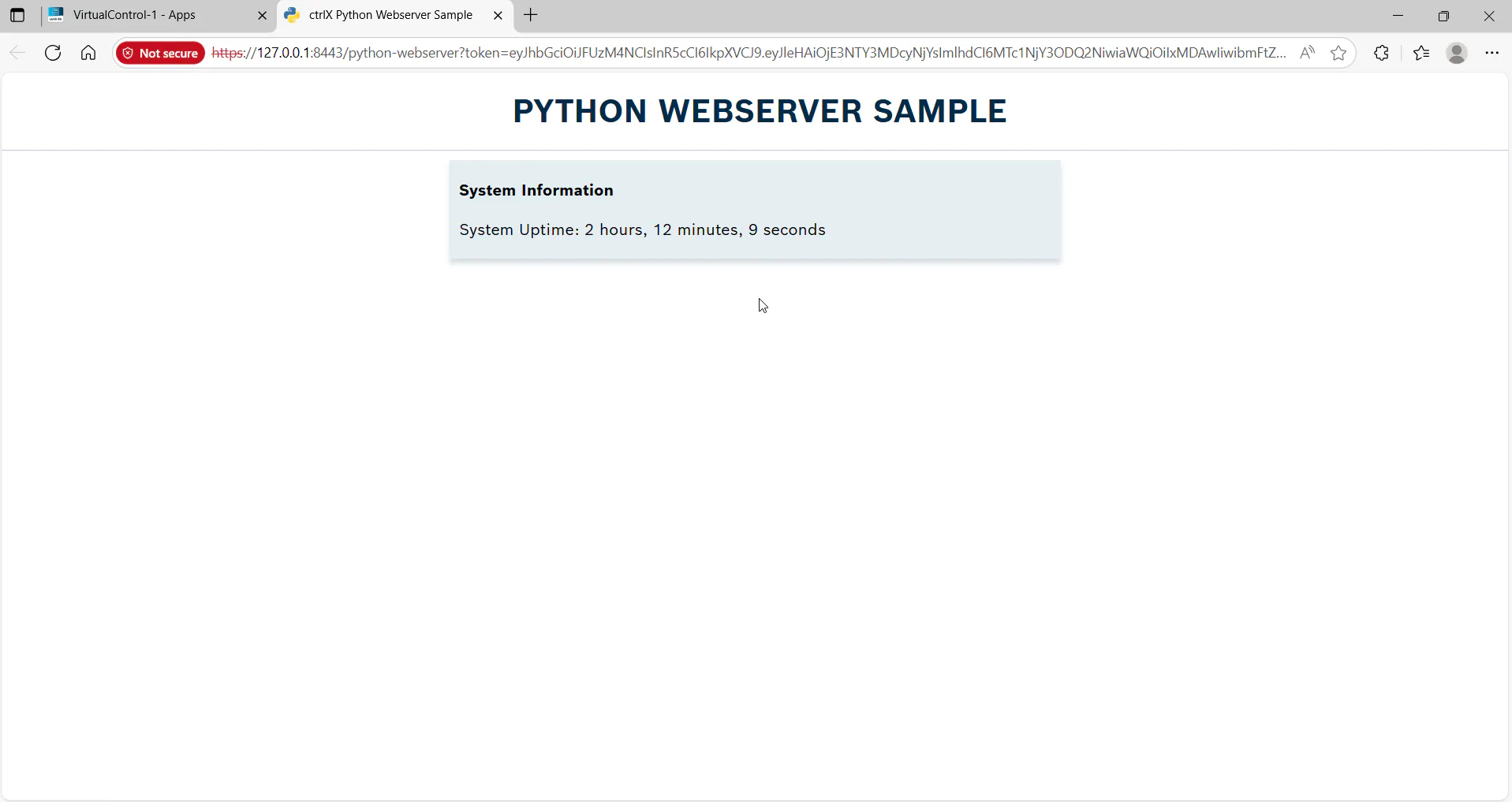
This guide shows you how to use GitHub Copilot (an AI-powered coding assistant) inside the ctrlX OS App Build Environment to create a snap application. As a practical example, you will build a small Python web server snap that reads the system uptime and displays it on a web page running on a ctrlX OS device.
Setup
Follow the official setup guide to install and configure the ctrlX OS App Build Environment.
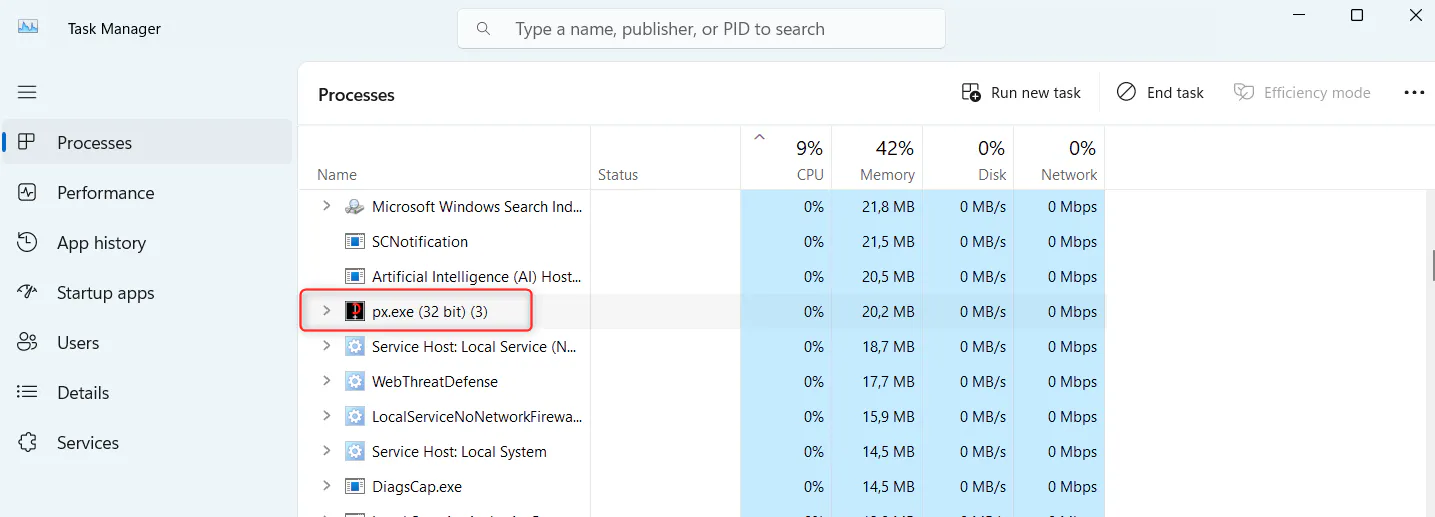
After completing the setup, start the proxy executable (px.exe) and verify that the process is running. You can confirm this by checking your system's Task Manager:
Clone the official ctrlX AUTOMATION SDK repository from GitHub:
wget https://raw.githubusercontent.com/boschrexroth/ctrlx-automation-sdk/main/scripts/clone-install-sdk.sh && chmod a+x *.sh && ./clone-install-sdk.sh 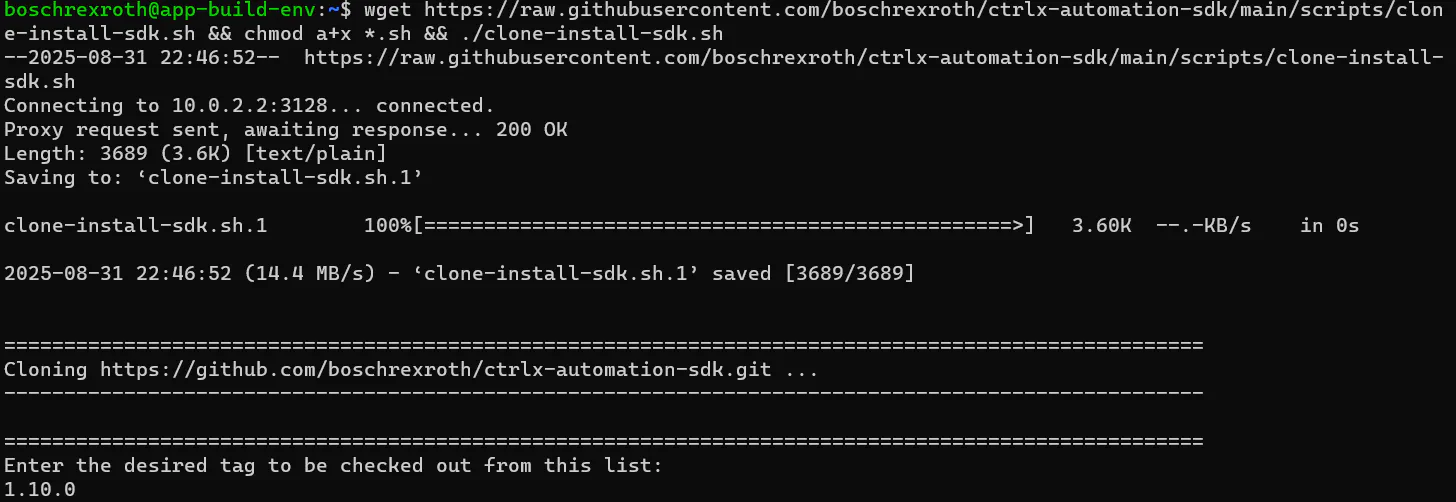
Install all required packages as described on GitHub.
ctrlx-automation-sdk/scripts/install-required-packages.sh
ctrlx-automation-sdk/scripts/install-required-packages.sh
ctrlx-automation-sdk/scripts/install-snapcraft.sh
Open VS Code and establish an SSH connection to the App Build Environment:
ssh -p 10022 [email protected]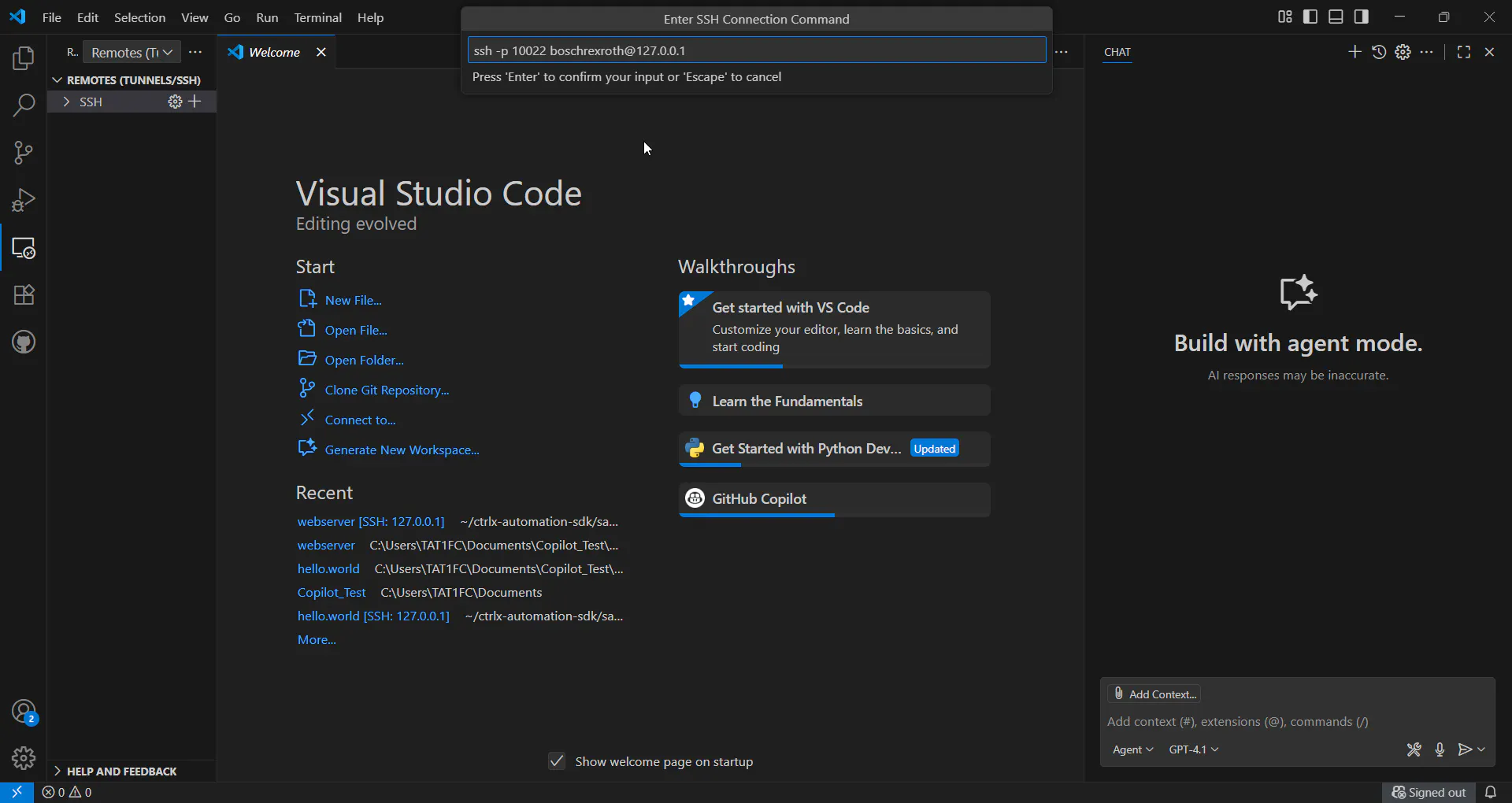
Enter the password when prompted.
Once connected, open the sample project folder: /home/boschrexroth/ctrlx-automation-sdk/samples-python/webserver/
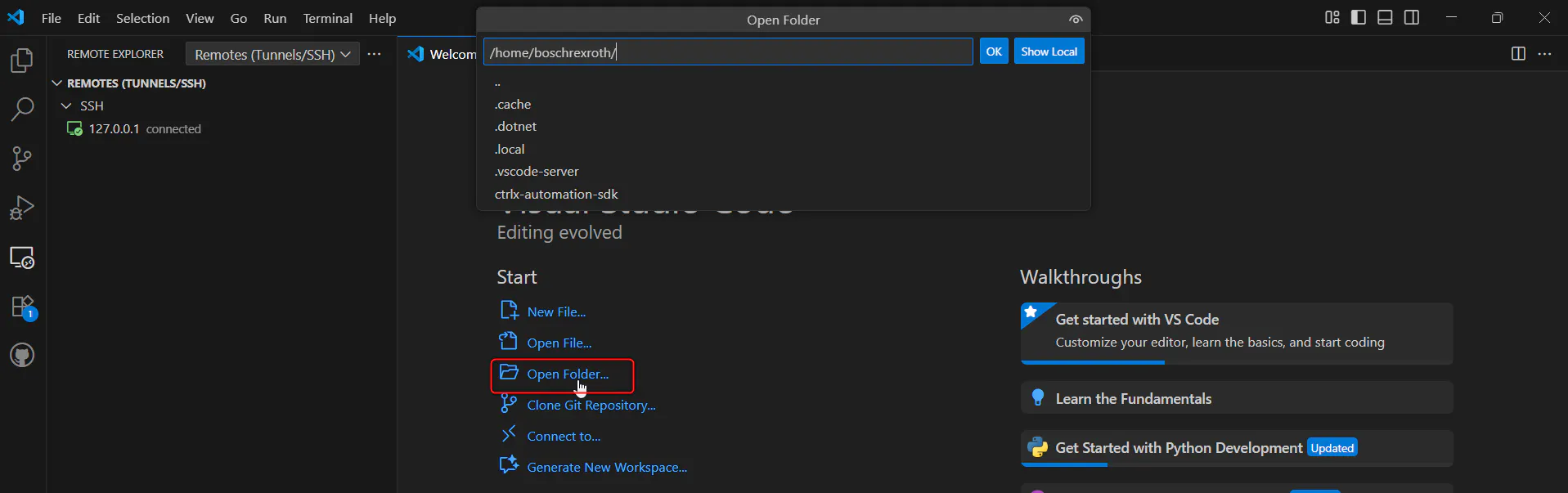
Click OK and re-enter your password if prompted. You should now see the sample project files in the VS Code Explorer panel.
In VS Code, open the GitHub Copilot panel and sign in to your GitHub account.
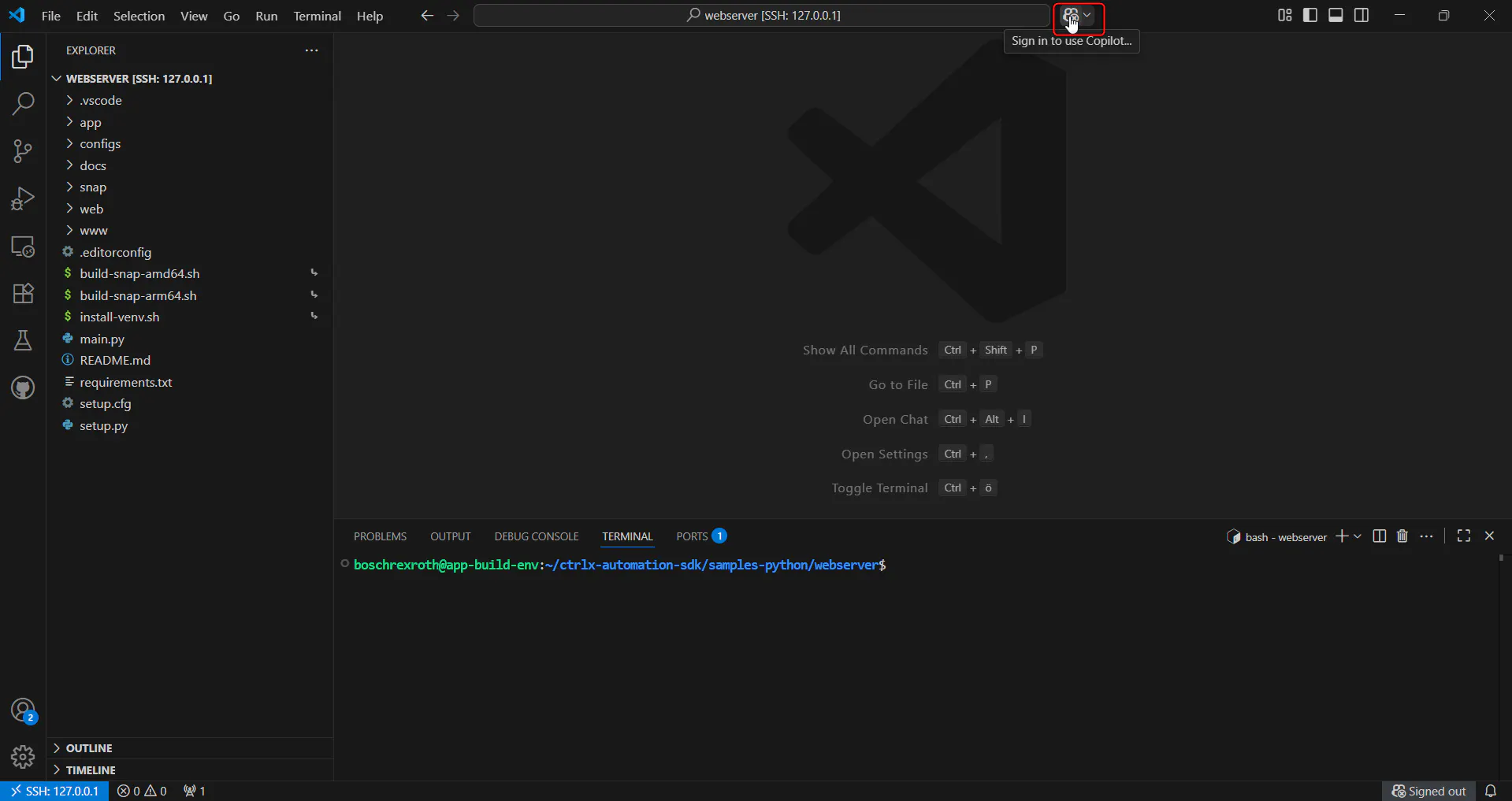
Once signed in, verify that Copilot is active. You should see the Copilot icon in the status bar. You are now ready to start.
Procedure
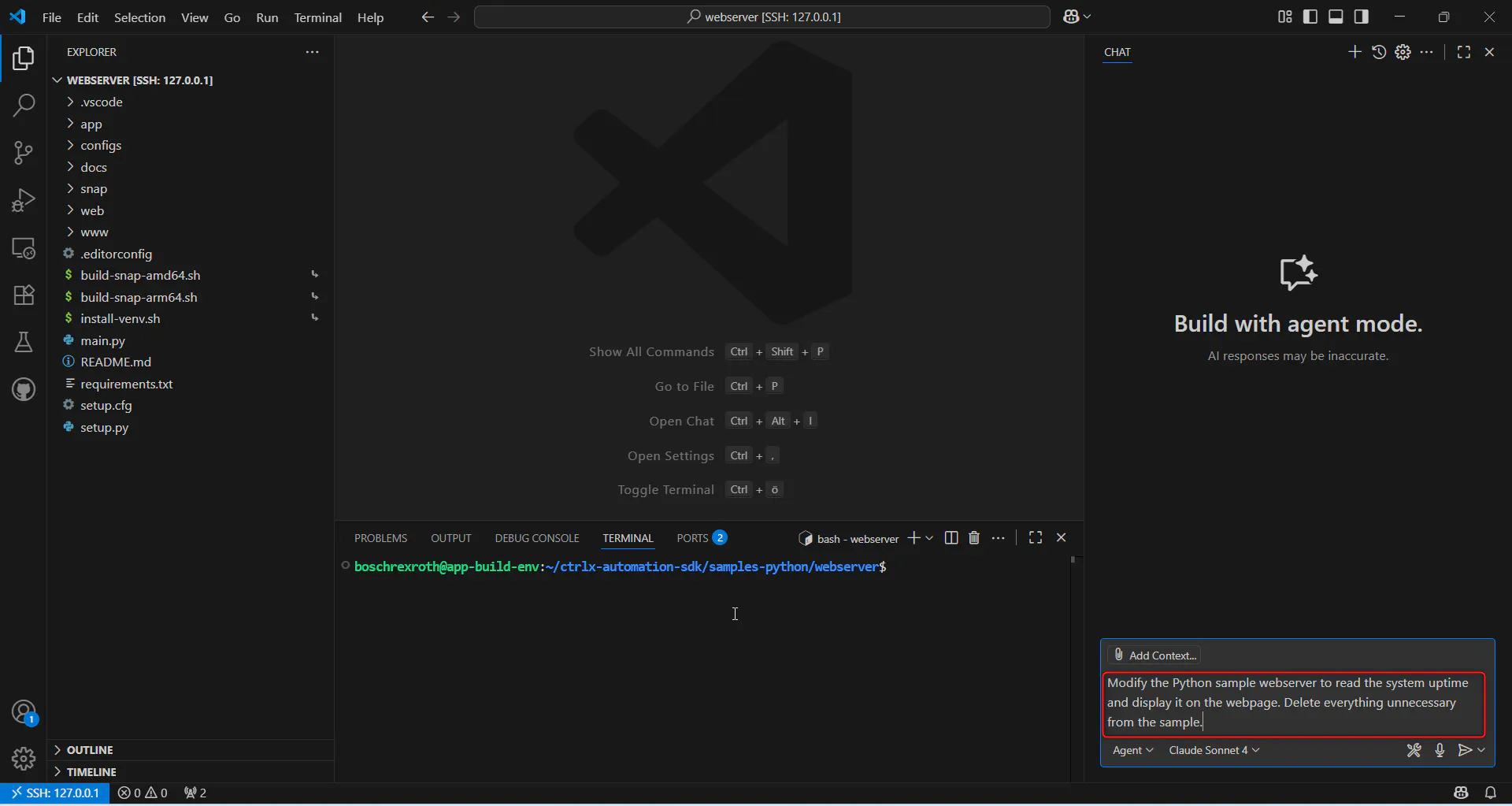
Open the Copilot Chat panel in VS Code and select your preferred AI model (for example, Claude Sonnet 4).
Enter the following prompt: "Modify the Python sample webserver to read the system uptime and display it on the webpage. Delete everything unnecessary from the sample." Review the changes that Copilot proposes and accept them.
After Copilot has made the code changes, build the snap package. In VS Code, open the terminal and press Ctrl + Shift + B to start the snap build process.
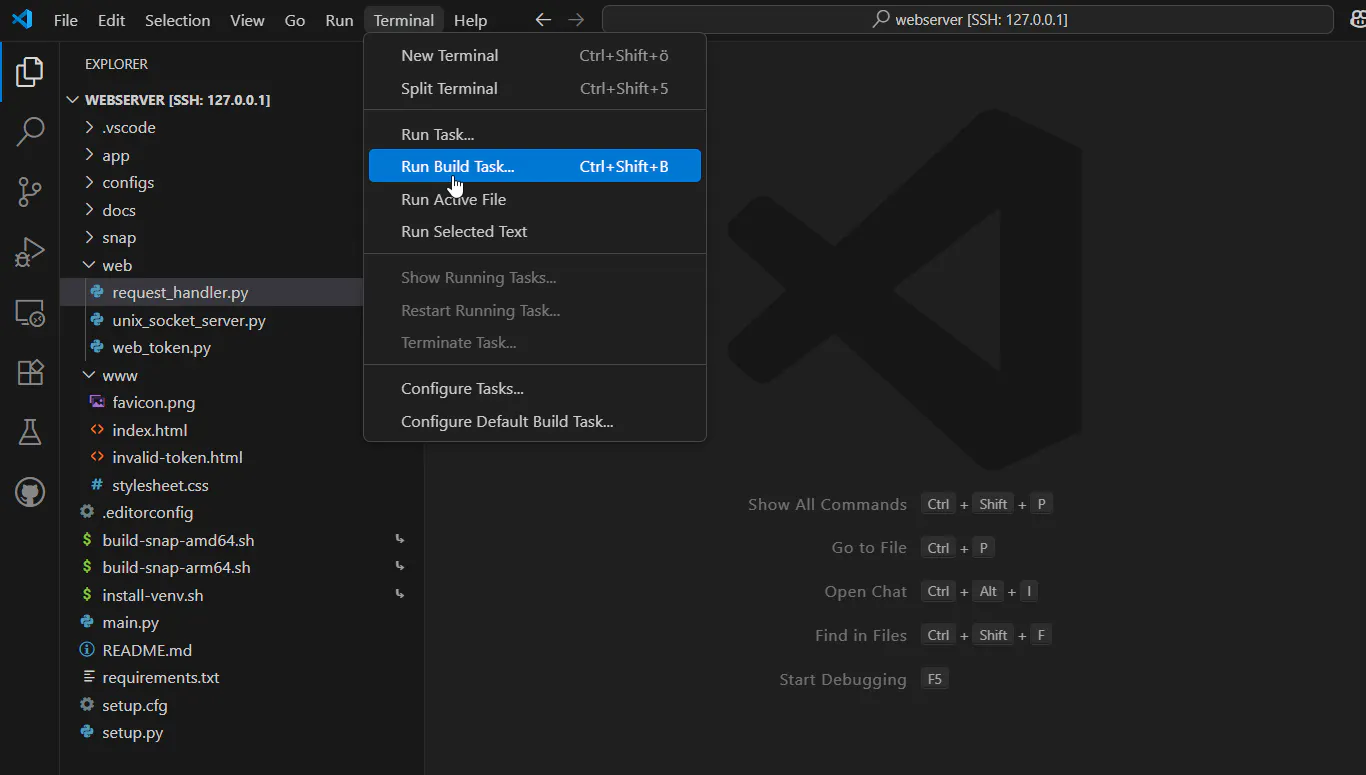
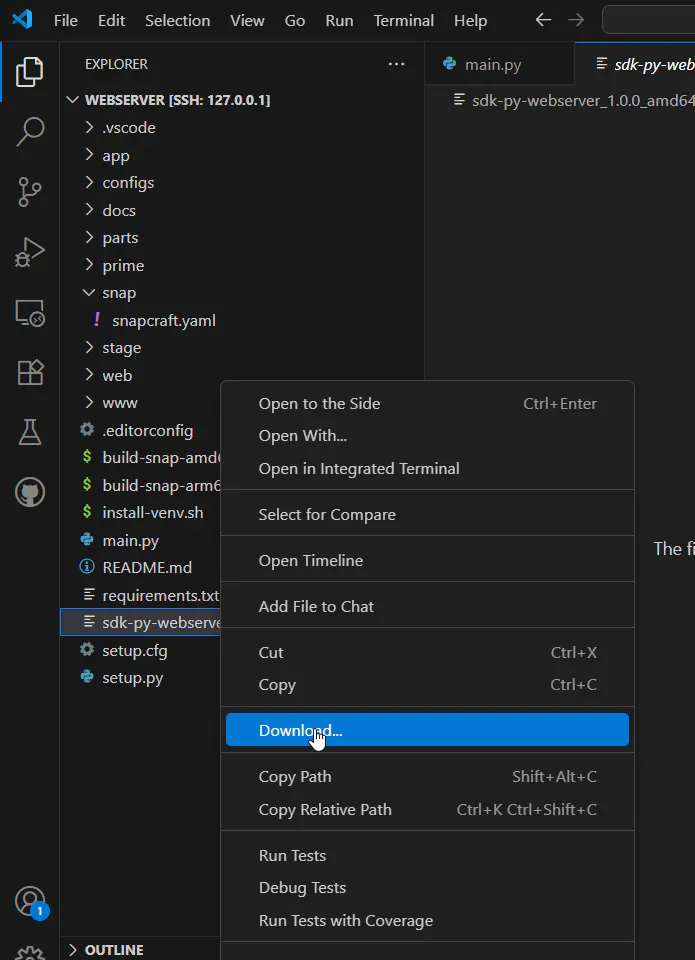
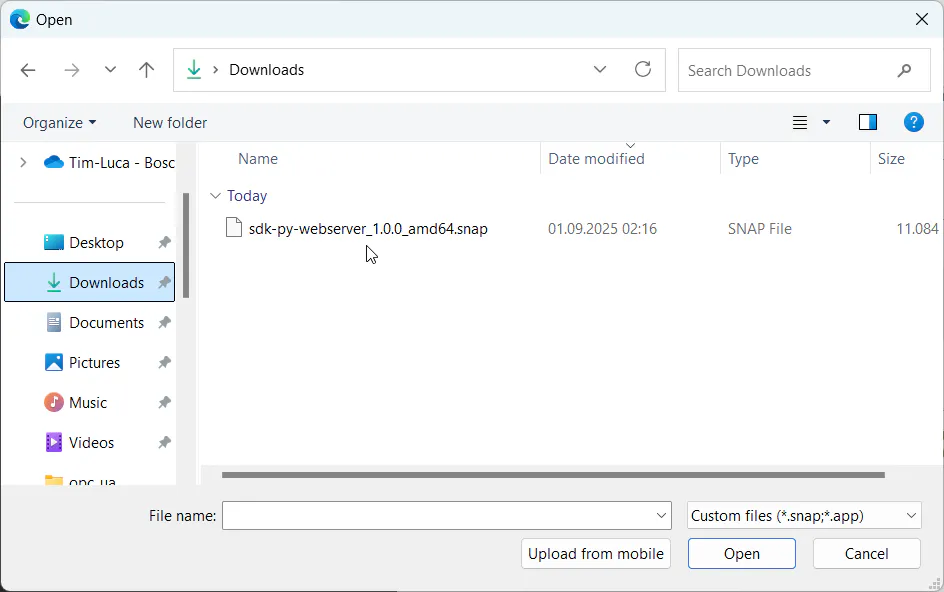
Wait for the build to complete. The output will be a .snap file (for example, sdk-py-webserver_1.0.0_amd64.snap). Download it.
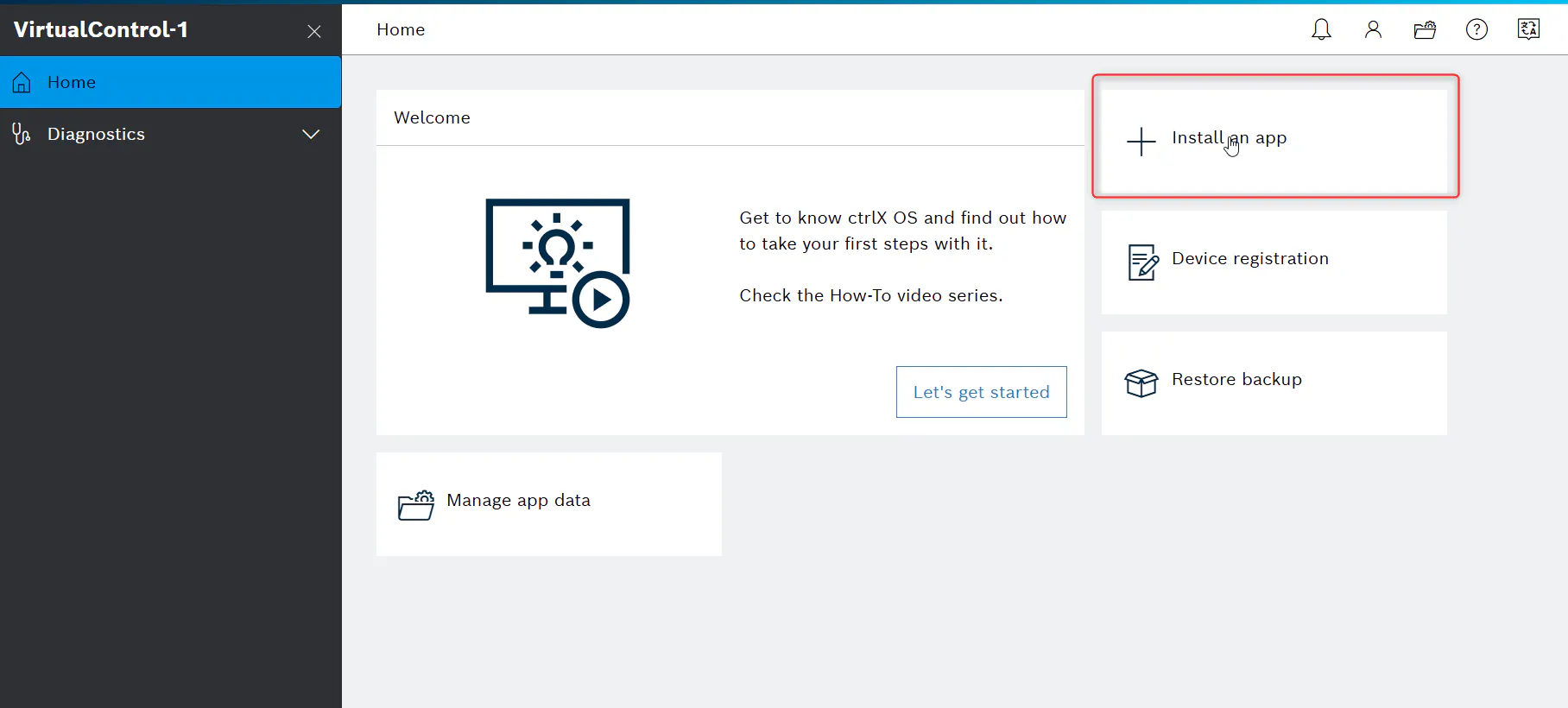
Open the ctrlX OS web interface, navigate to Apps, and click Install from file to upload the snap.
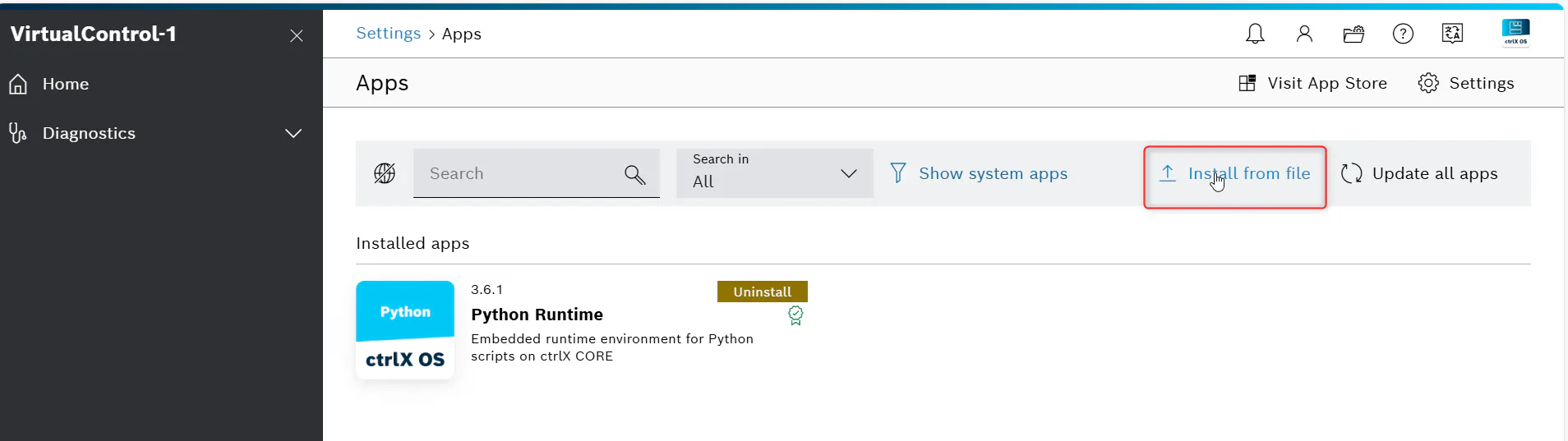
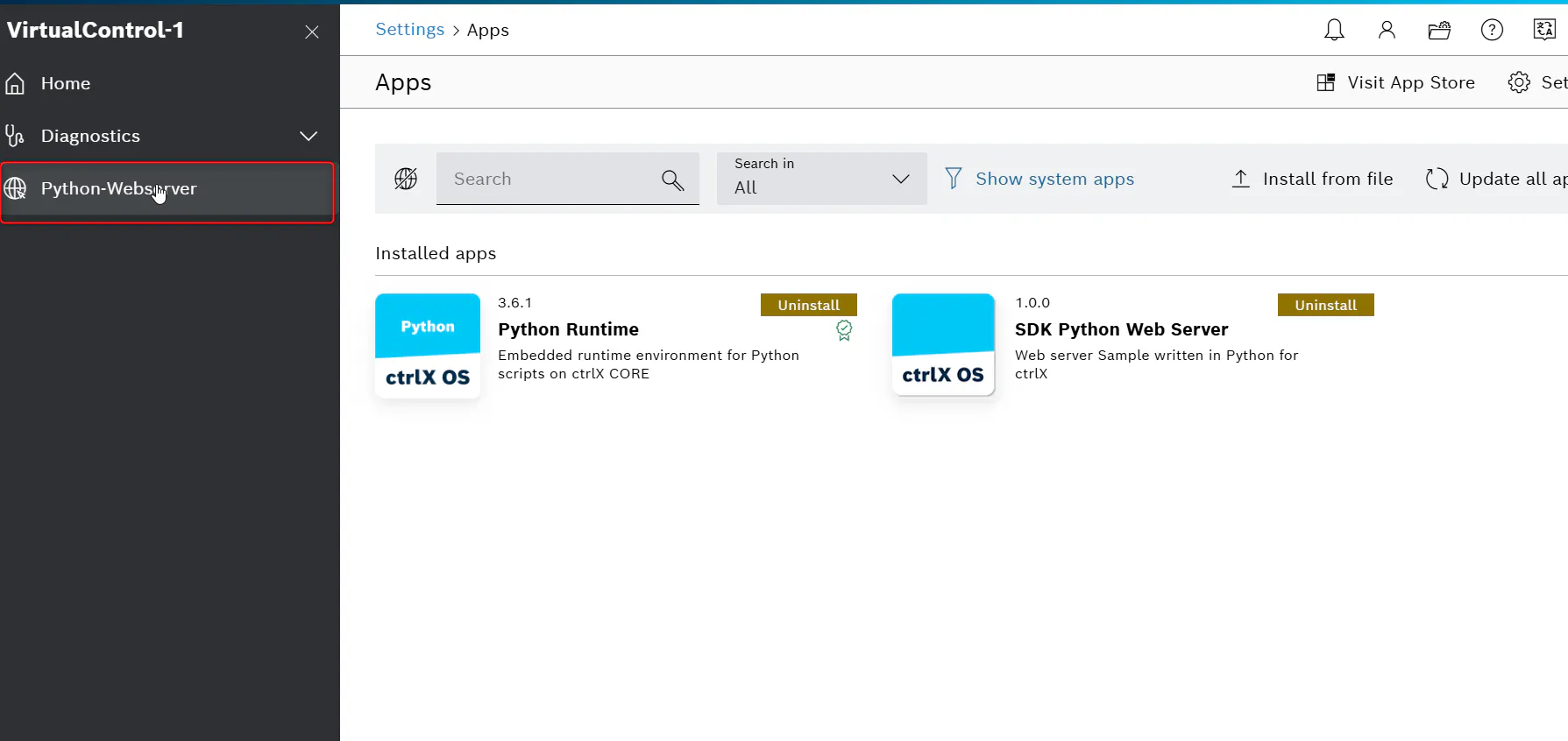
Wait for the installation to complete. The app should appear in the list of installed apps. Open the web server app and you should see a page displaying the system uptime. Congratulations! You have successfully used GitHub Copilot to build and deploy a ctrlX OS snap application.