HistoryIntroductionFull screen options1. Windows Kiosk Mode (Assigned Access)2. Windows Autostart function3. Windows shell4. Third party kiosk software
History
11 March 2026 initial version
Introduction
Requirements for a Machine HMI
The machine HMI fills the entire screen
The operator only has access to the machine HMI
Other programs or operating system functions are not available
Automatic start HMI without login
To achieve this, the following options are available:
Windows Kiosk Mode (Assigned Access)
Windows Autostart function
Windows shell
Third party kiosk software
Full screen options
1. Windows Kiosk Mode (Assigned Access)
Windows Kiosk Mode, also known as Assigned Access, is a Windows feature that allows you to configure a device to run only a single application or to provide access to a limited number of applications. This is particularly useful for public computer terminals, digital signage, or workplaces where users are intended to perform only specific tasks.
Advantages
Easy to configure if available in your Windows version
No access to windows desktop
Disadvantages
Only available in special Windows version
Windows Kiosk Mode is primarily designed for UWP apps
Edge is a UWP app => should be available
Chrome and Firefox are no UWP apps => not available
Command line parameter not supported
Result of test with VR4215.1 Edge is not available
In practical tests of Windows kiosk mode with a VR4215.1, Edge could not be configured, as this option was not offered despite updating to the newest Edge version.
However, testing with a test device of the VR*.2, which will be released soon, was successful. Edge can be selected here.
Command line parameters are not supported. (You can't run browser with --ignore-certificate-errors)
Setup (Windows 11 on VR*.2)
Press the Windows key + I
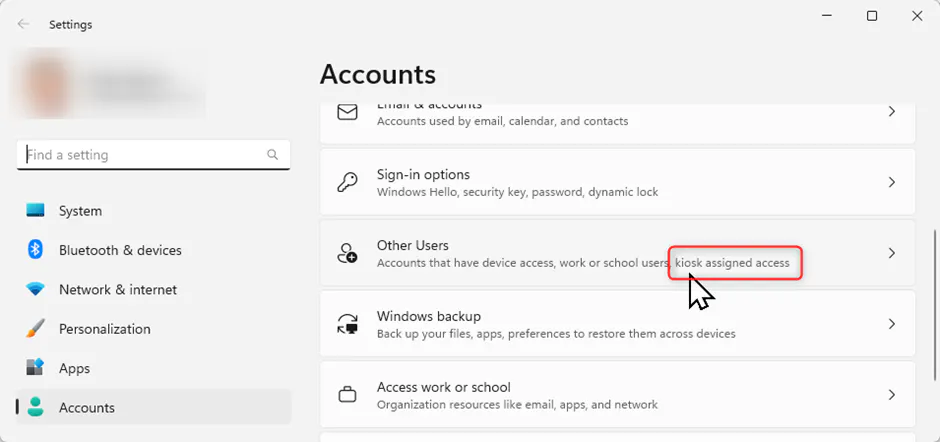
This will open the Settings screen. Click on “Accounts> Other Users”
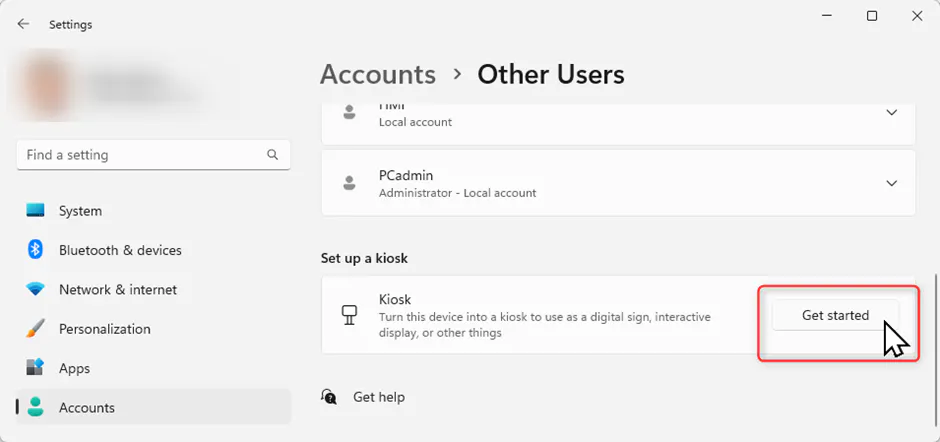
Click “Get started”
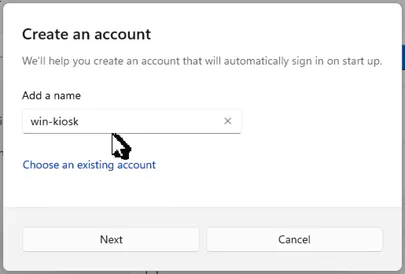
Enter “win-kiosk” and click “Next”
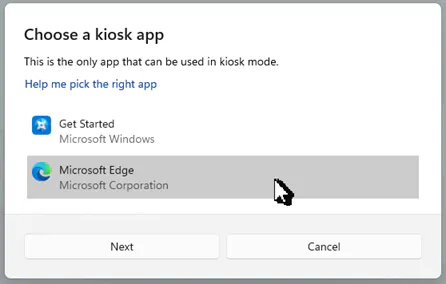
Select “Microsoft Edge”
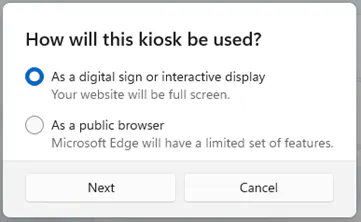
Select “As a digital sign…”
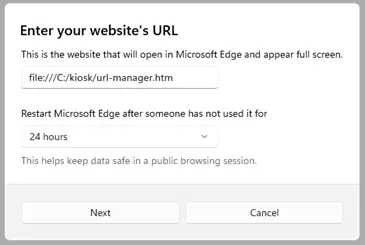
Enter URL: file:///C:/kiosk/url-manager.htm
Remember info, how to log out
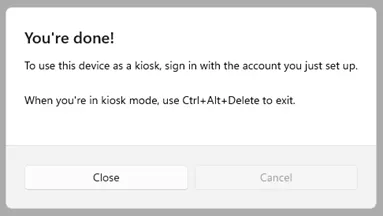
Reboot PC and log in user win-kiosk
2. Windows Autostart function
All programs, shortcuts, or scripts located in Windows Startup folder are automatically launched as soon as the user logs in. There is both a user-specific Startup directory and a Startup directory for all users.
Advantages:
Available for all Windows versions
Any program can be started
Command line parameter supported
Disadvantages:
Access to the Windows desktop during browser startup
When hardware keyboard is plugged in
The browser can be closed with Alt+F4
Task manager can be started with Ctrl+Shift+Esc
Windows Security Screen can be started with Ctrl+Alt+Del
Setup
Create a local user and login
Open Users Startup folder:
Press the Windows key + R to open the "Run" dialog box
Type shell:startup and press Enter.
This will open an Explorer window directly to your current user's Startup folder (e.g., C:\Users\<YourUser>\AppData\Roaming\Microsoft\Windows\Start Menu\Programs\Startup).
Copy a shortcut from Chrome, Edge, Firefox,… into this folder
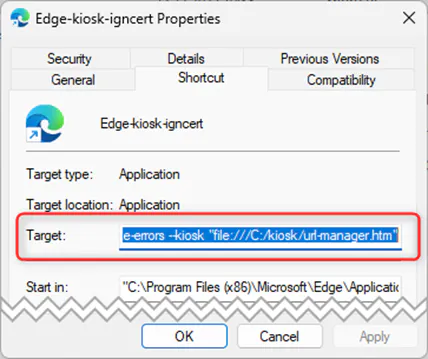
Right click shortcut, select Properties
Add your command line parameters to Target
Standard path to browsers
Chrome
"C:\Program Files\Google\Chrome\Application\chrome.exe"
Edge
"C:\Program Files (x86)\Microsoft\Edge\Application\msedge.exe"
Firefox
"C:\Program Files\Mozilla Firefox\firefox.exe”
Command line parameters
Chrome
--kiosk
--ignore-certificate-errors
Start browser in full screen mode Allow untrusted certificates
Edge
--kiosk
--ignore-certificate-errors
Start browser in full screen mode
Allow untrusted certificates
Firefox
--kiosk
--ignore-certificate-errors
Start browser in full screen mode
Not supported
NOTE:
The parameter “--ignore-certificate-errors” only works if no browser window is open yet.
3. Windows shell
The shell is the graphical user interface of Windows, including the desktop, taskbar, and start menu, which allows the user to interact with the operating system. Since these functionalities should be blocked in machine HMIs, only the browser can be loaded instead.
Instead of the Windows desktop, a batch file is started that specifies what should be started.
When the user machine_hmi logs in, the browser starts in kiosk mode.
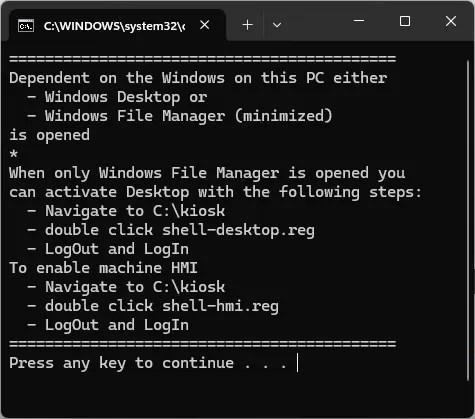
For all other users, the Windows desktop or File Explorer will start. This depends on the Windows version and cannot be changed.
In both cases, the following information is displayed, describing how to reactivate the desktop, for example to adjust Windows settings.
Advantages:
Any program can be started
Command line parameter are supported
Without keyboard, no access to windows desktop
Easy setup with batch files
Disadvantages:
When hardware keyboard is plugged in
The browser can be closed with Alt+F4
Windows Security Screen can be started with Ctrl+Alt+Del
Setup
Unzip setup.zip (see attachment at end of article) to root directory of a USB stick
Plug USB into HMI PC
Login as an admin user
Open USB in File explorer
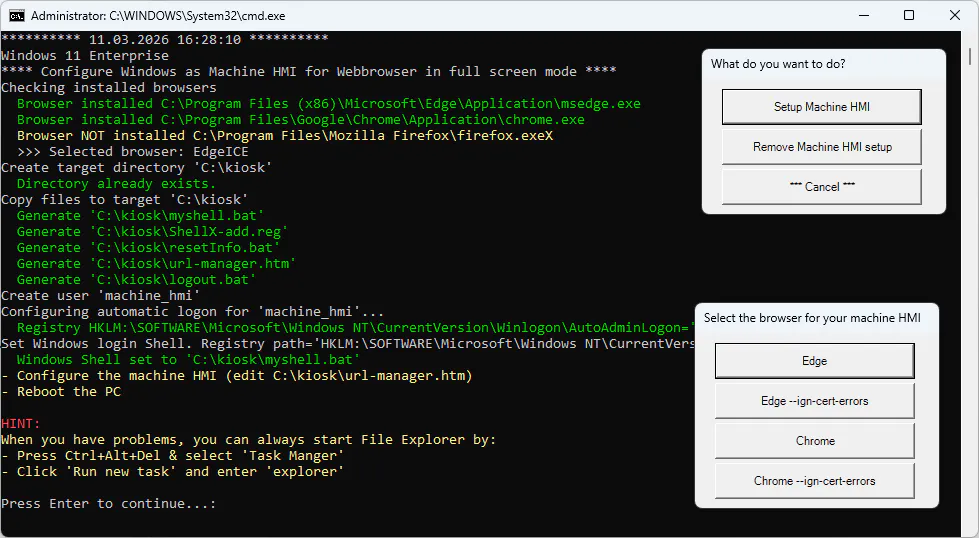
Execute \kiosk-setup\cfgshell.bat. The script performs the following tasks:
Copy mandatory files to C:\kiosk
Create local user machine_hmi
To verify: Press Windows key+R. Enter compmgmt.msc
In project tree select branch: System tools>Local Users and GroupsSet auto login for user machine_hmi
To verify: Press Windows key+R. Enter regedit and check the key
HKEY_LOCAL_MACHINE\SOFTWARE\Microsoft\Windows NT\CurrentVersion\Winlogon
DefaultPassword=”machine_hmi”
DefaultUserName=”machine_hmi”
AutoAdminLogon=1
Set Windows shell. See registry:
HKEY_LOCAL_MACHINE\SOFTWARE\Microsoft\Windows NT\CurrentVersion\Winlogon
Shell="C:\kiosk\myshell.bat"
To verify: Press Windows key+R. Enter regedit and look for the key
To display one or multiple HTML pages, the HTML file from the following article is used. How-to-display-multiple-machine-hmis-in-browser-with-kiosk-mode
The article describes how to set up the page(s) to be displayed.
Reboot and log in as user machine_hmi
At first login, you might have to configure some Windows settings and the browser
Change settings when machine_hmi is active
Start the PC. The user machine_hmi will be automatically logged in.
Press Ctrl+Alt+Del and select "Sign Out" to log out the active user
Log in as administrator user.
If the desktop is not active, double-click C:\kiosk\shell-desktop.reg.
Log out and back in as administrator. The desktop will now be active.
Configure your settings.
To enable machine HMI, double-click C:\kiosk\shell-hmi.reg.
Steps 5 and 7 are unnecessary if the desktop is displayed directly.
4. Third party kiosk software
There are also software providers specializing in kiosk solutions that offer additional features beyond what Windows provides natively. Since I have not tested any of the solutions available on the market, I cannot make a recommendation.
How it works:
This software is installed on the Windows 11 device and takes control of the system to create a highly customized kiosk environment. They often provide their own shell and a dashboard for management.
Advantages:
Advanced Customization: Often more comprehensive branding options, custom start screens, lock screens.
Specific Features: May offer features like printer management, payment options, advanced browser controls, or remote maintenance.
User-Friendly: Often intuitive interfaces for configuration and management.
Industry-Specific Solutions: Some are tailored to specific industries (e.g., retail, hospitality).
Disadvantages:
Cost: License fees per device per year/month. These can vary depending on the feature set.
Potential Compatibility Issues: May conflict with Windows updates or certain applications.
Additional Software Layer: Adds another layer of software that needs maintenance.
