What the TechApp "Process controller" is good for
The TechApp "Process controller" is used to control the torque or force (or any other value) of an axis according to a setpoint given over the fieldbus communication in evaluating an external sensor reflecting the actual value of the desired control signal.
The "process controller" function allows an external variable to be controlled in addition to the operation modes and control types already available in the drive. Thus, the drive can be used for direct, rapid process control. The possible options are, for example, force, pressure or distance control and many more, the feedback value being compensated by the ctrlX DRIVE TechApp directly in the drive. The command value can be preset by an external control, for example.
After "Process controller" control has been activated, the controller output is regulating and causes the process feedback value that was returned to reach the preset command value.
Test setup (typical torque test bench)
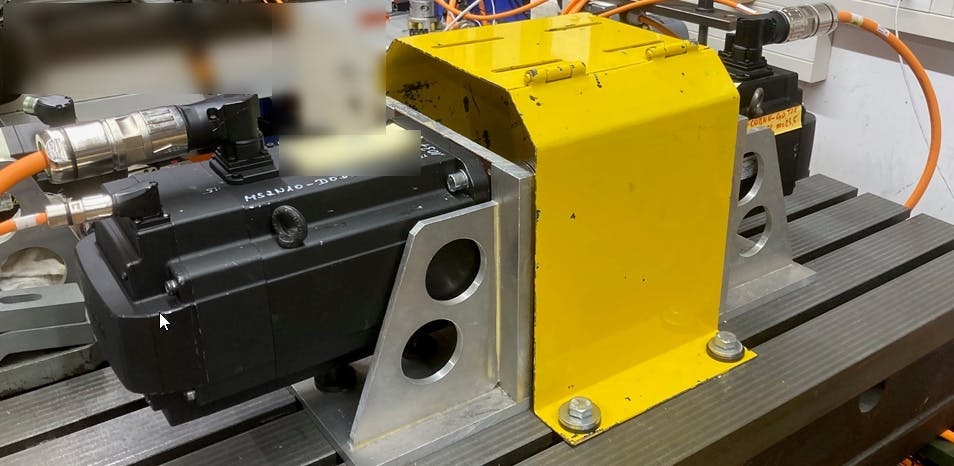
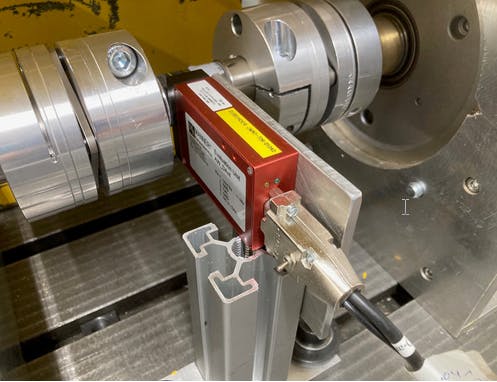
Components and firmware used
In here the following components and firmware are used:
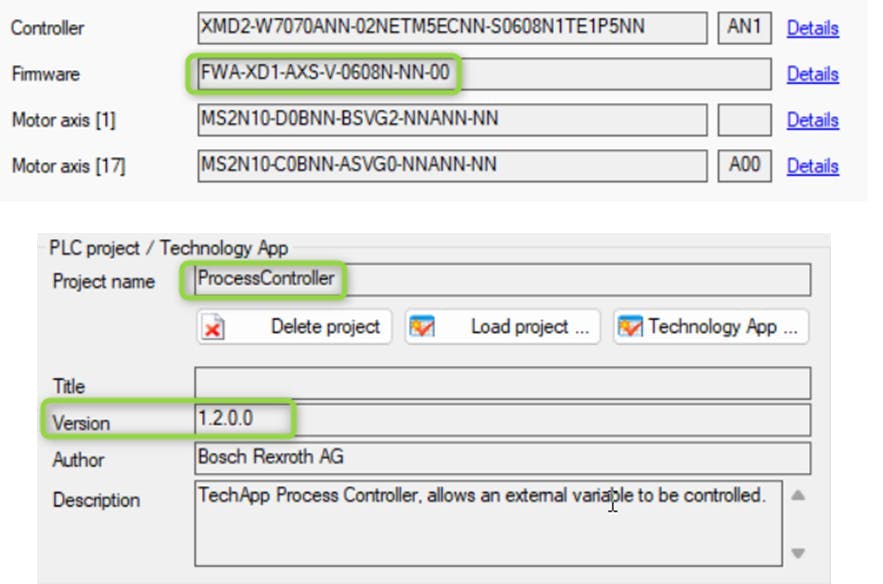
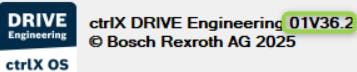
For Engineering the tool ctrlX DRIVE Engineering is used. In here version 01V36.2 is used.
Regulation settings
The regulation settings of both the load and test motor should be made in the usual way with PI gain in velocity loop and checked by means of frequency response diagrams. See as well: Link
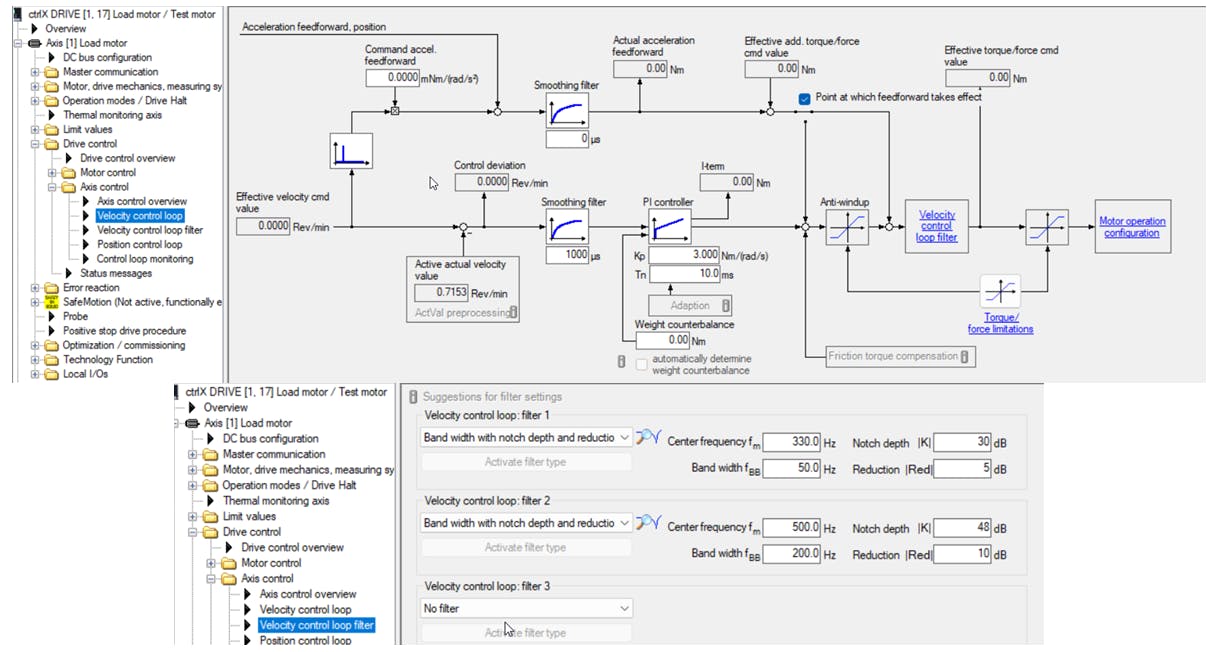
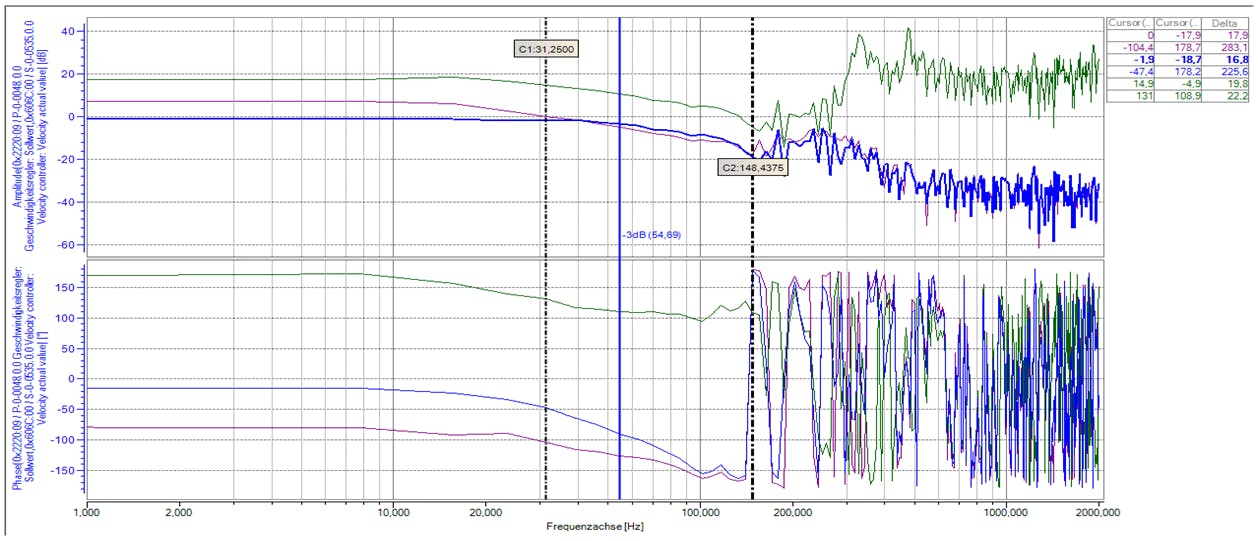
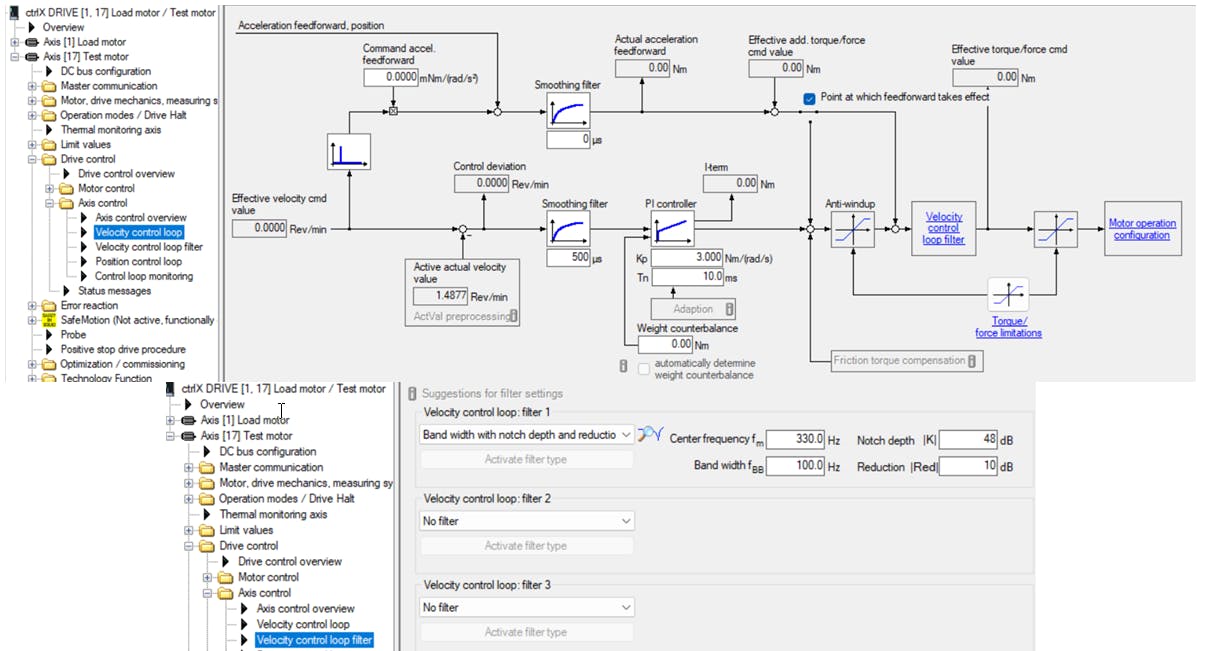
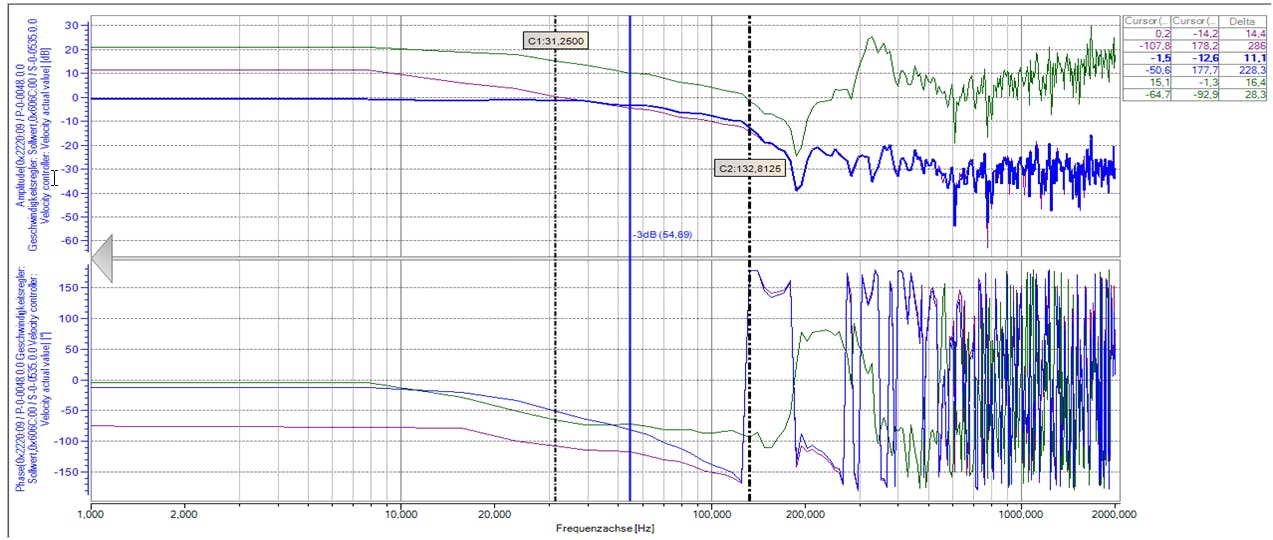
Installation and activation of TechApp “Process controller”
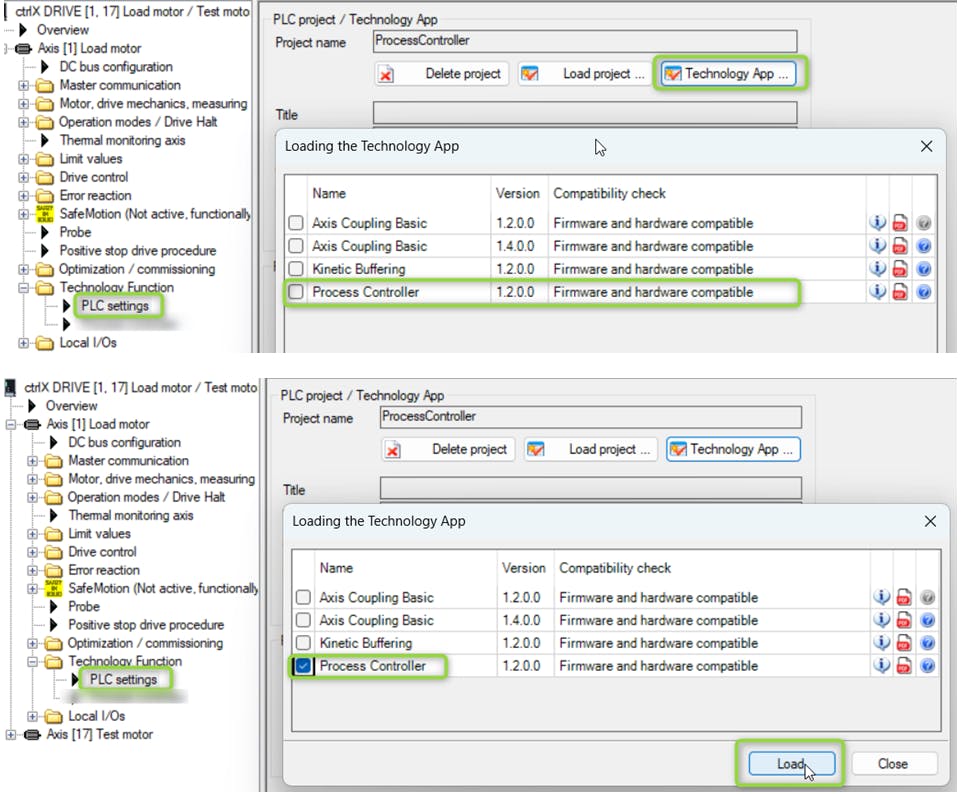
Go to Technology Function – PLC settings, search for Technology App, select “Process Controller” and load it.
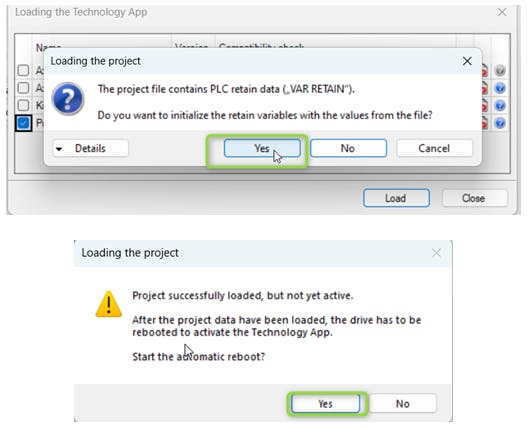
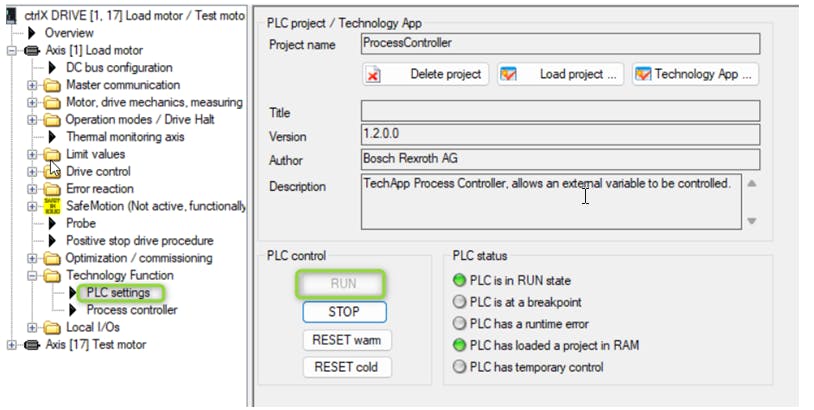
Run the Technology App “Process Controller”!
Parameterize Technology App “Process controller” for constant speed command
Use e.g. Easy Startup Mode to enable both load and test motor drive (set to AF).
First leave the process controller inactivated.
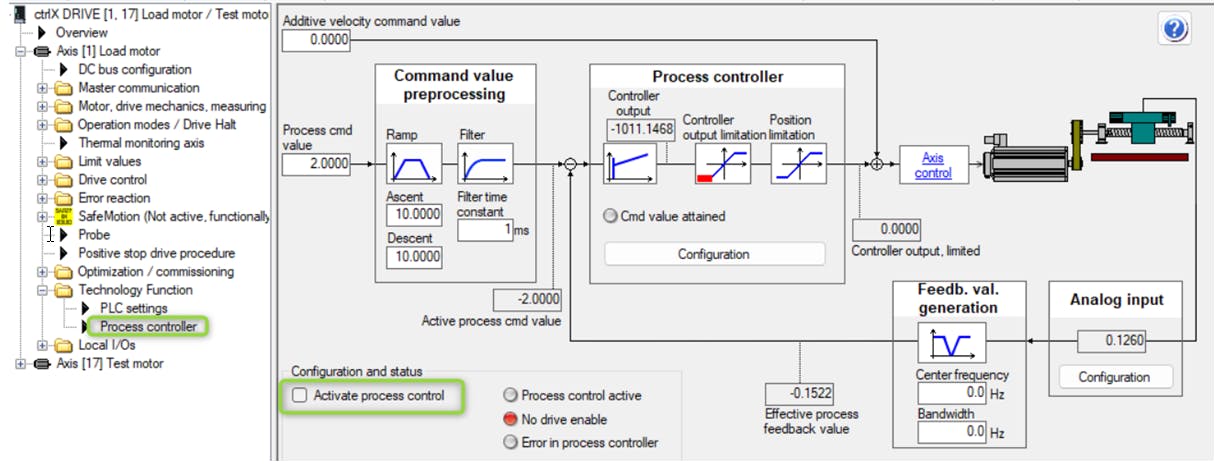
Use e.g. Easy Startup Mode to create a speed command in both the load and the test motor axis, in here it was set to e.g. constant 100 rpm.
Set the analog input and scale it to your needs. In our example 1V equals 10 Nm. Therefor 10 V on the analog input equals 100 Nm.
A small filter time constant of 2 ms is recommended.
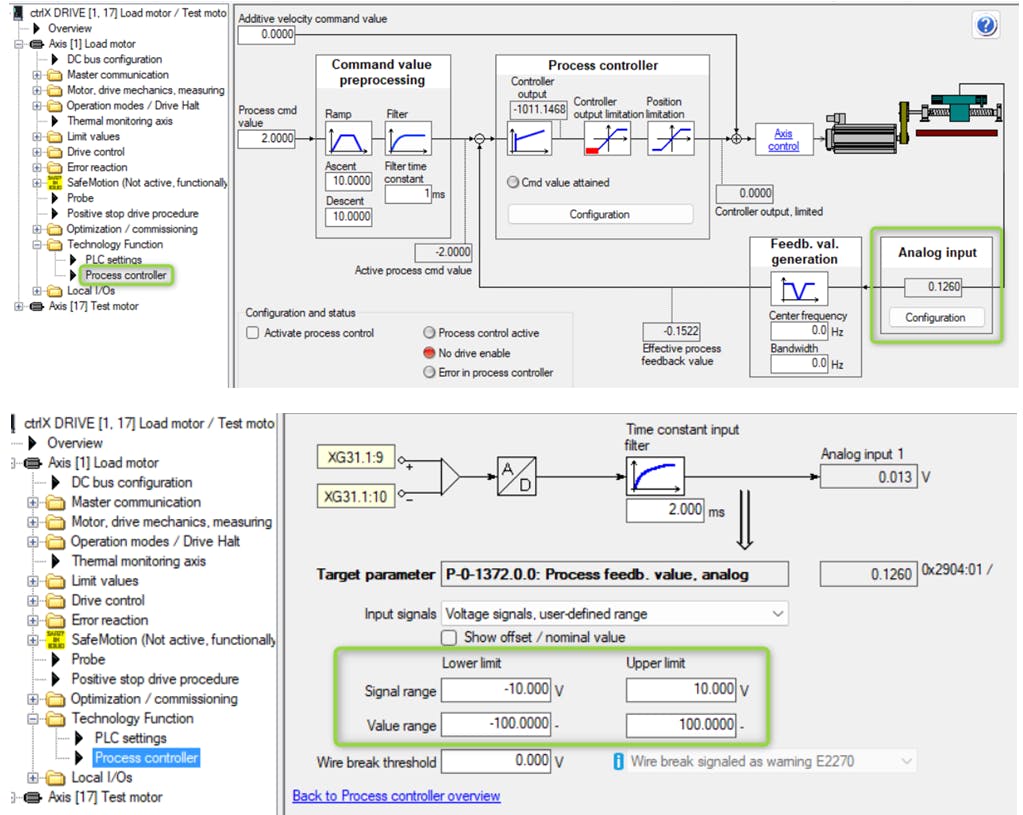
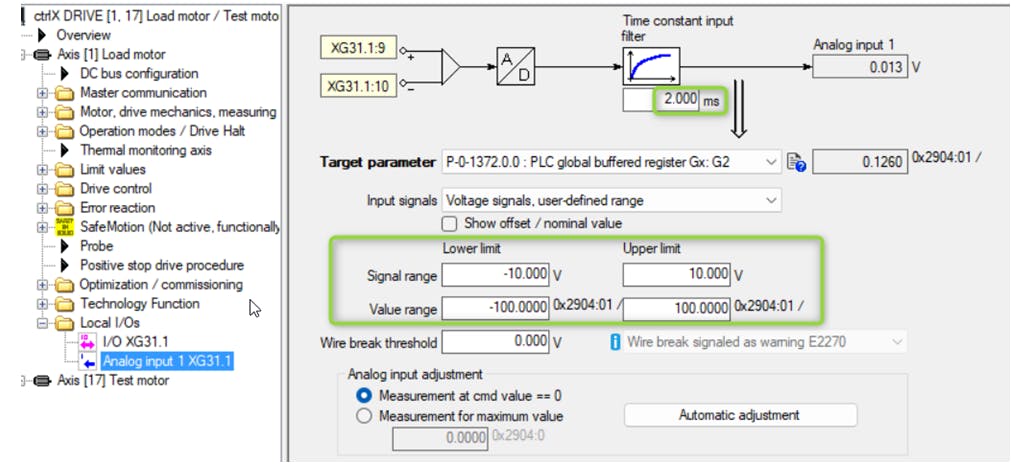
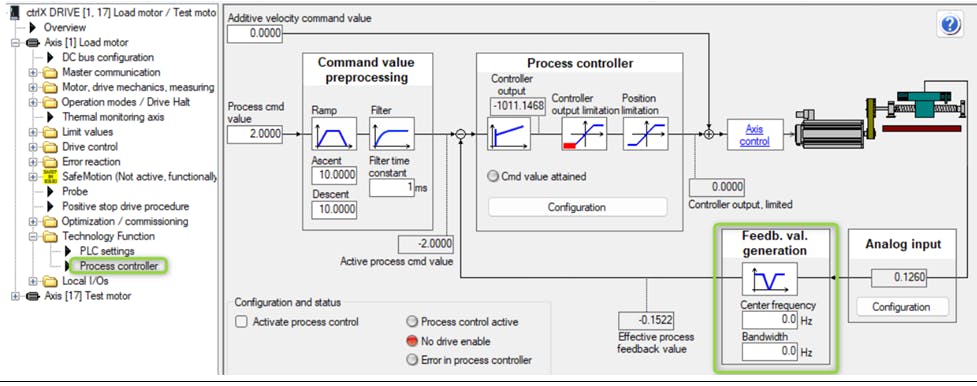
Leave the feedback value generation unfiltered.
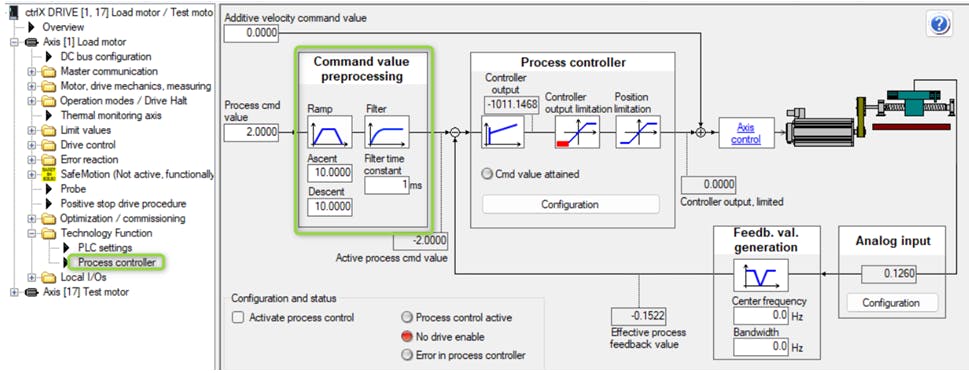
Set the command value pre-processing to a high ramp rate (in here e.g. to 10 Nm per ms).
Configure the “Process controller”!
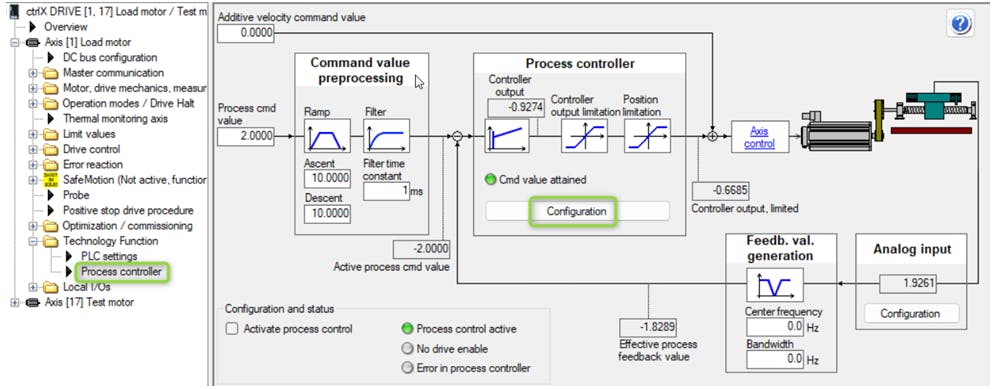
Set the Controller output limitation to proper values, in here 1000 rpm, to not restrict the controller but low enough to prohibit a too high set point. Set the tolerance window for control difference as well to a proper, usually small, window. The integral action time should first be set to a high value like 10000 ms.
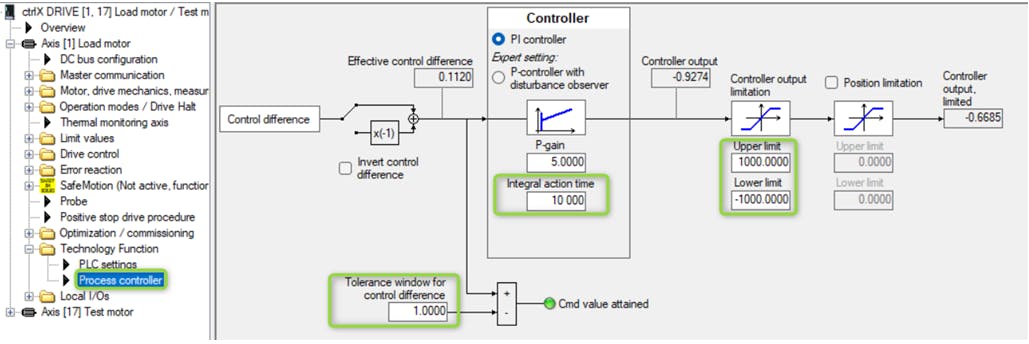
Now activate process control and set a process command (cmd) value, like in here 2.0000. If the analog input is approaching this set point, everything is fine, otherwise deactivate the process control.
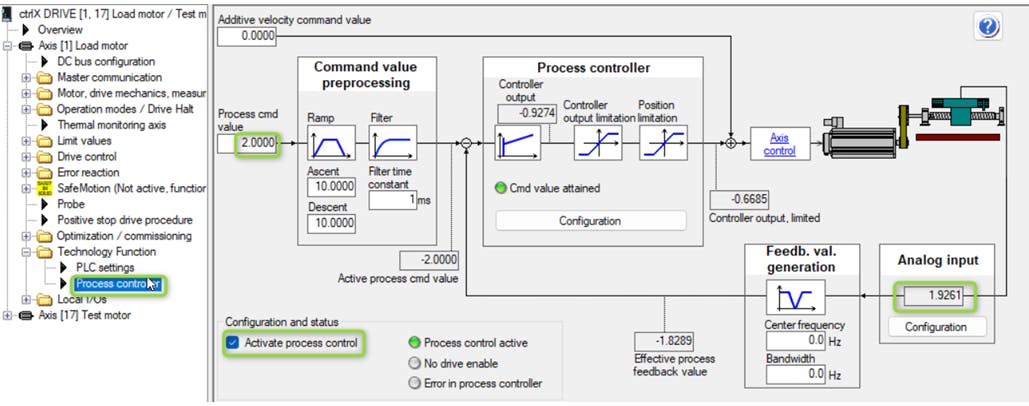
If set point is not achieved and thus counter-reacting, invert the control difference.
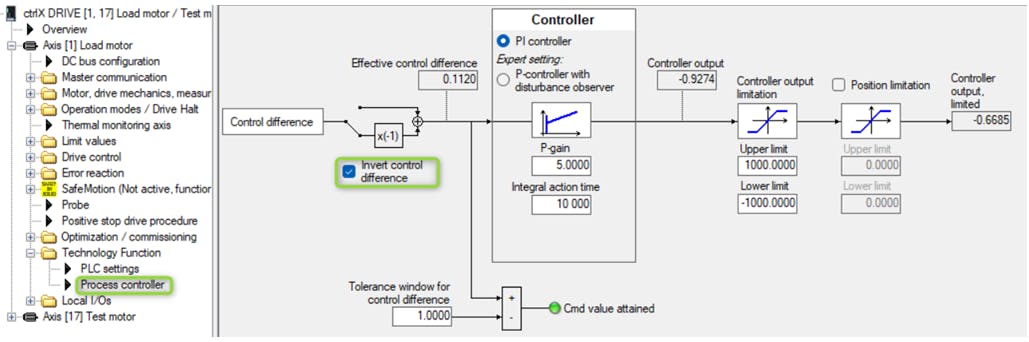
Now check the reaction in step response. Therefor set the command value from in here in before 2 Nm to 20 Nm (Setpoint 2.0000 to 20.0000).
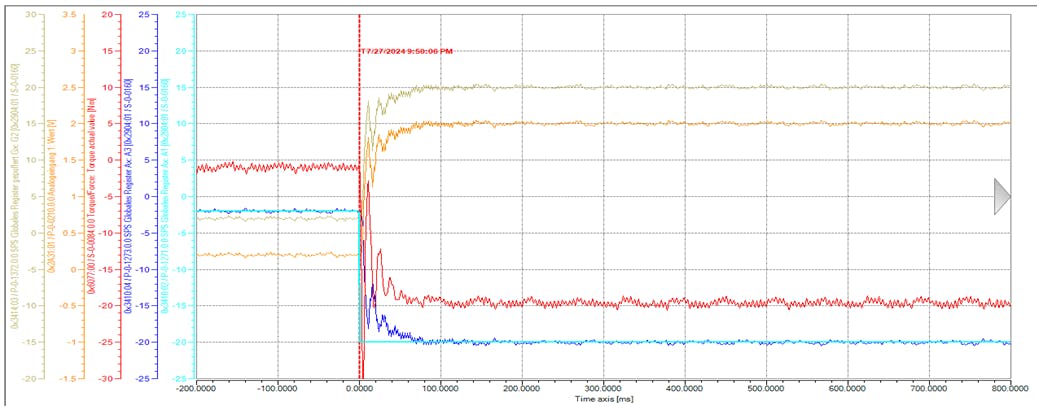
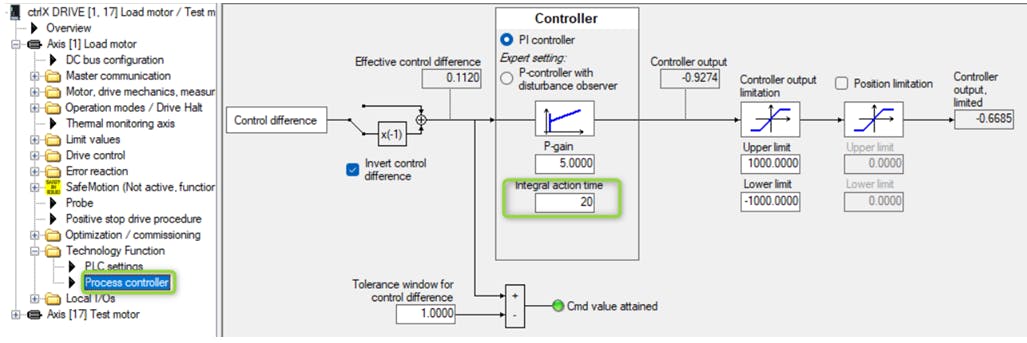
Change integral action time to medium small value like 20 ms and do step response (in here change command value from 2 to 20 Nm (Setpoint 2.0000 to 20.0000)) again.
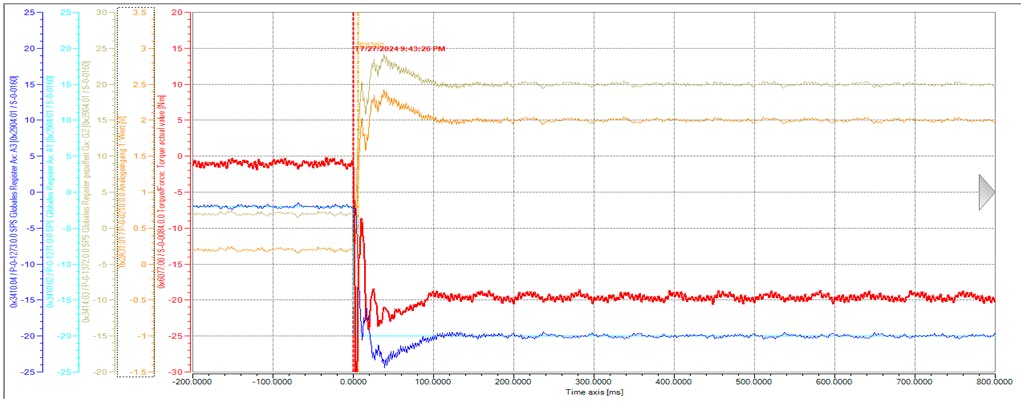
Change integral action time to smaller value like 10 ms and do step response (in here change command value from 2 to 20 Nm (Setpoint 2.0000 to 20.0000)) again.
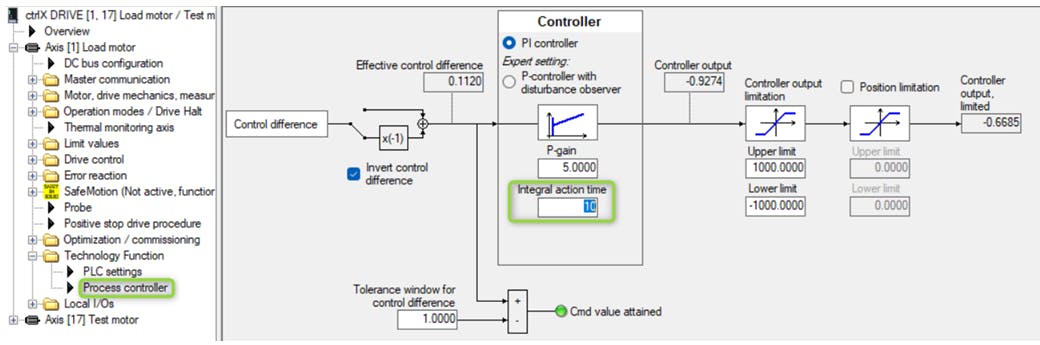
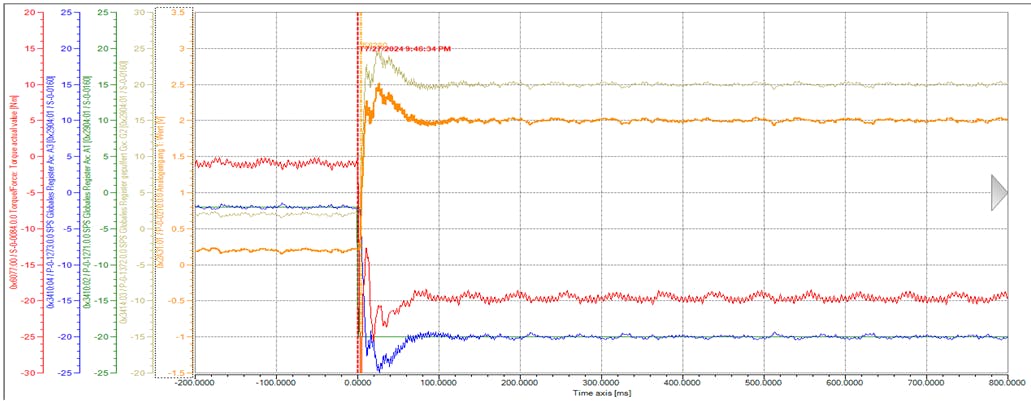
In here this is thought to be good enough from the settings.
Parameterize TechApp “Process controller” for changing speed command
If the speed command is no longer set stable but is changing, in order that no errors show up, the following recommendations should be applied.
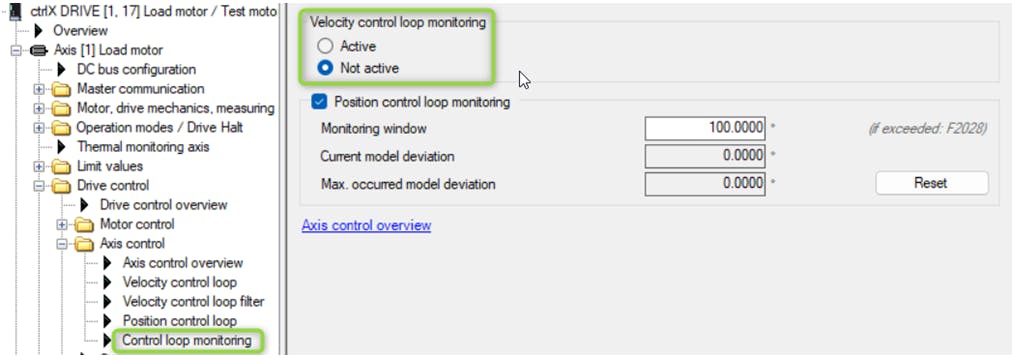
Now by means of e.g. Easy startup mode the test motor axis can be made run alternating in speed. But still the process controller should control the torque to keep on to the set point.
In here the setpoint is set to “12 Nm” (Setpoint 12.0000).
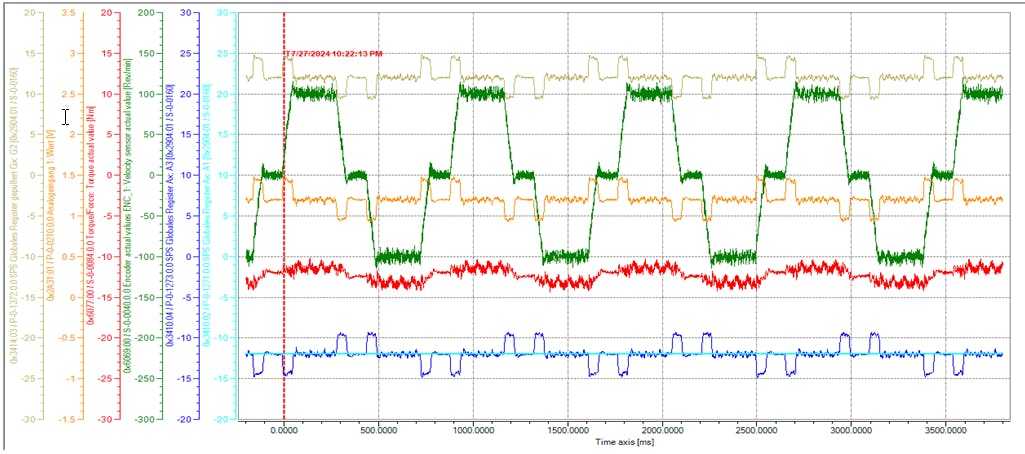
In order to get better results the process controller regulation settings were changed.
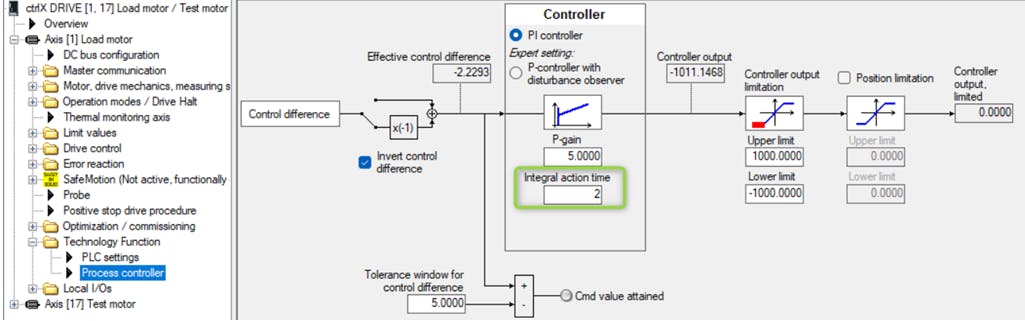
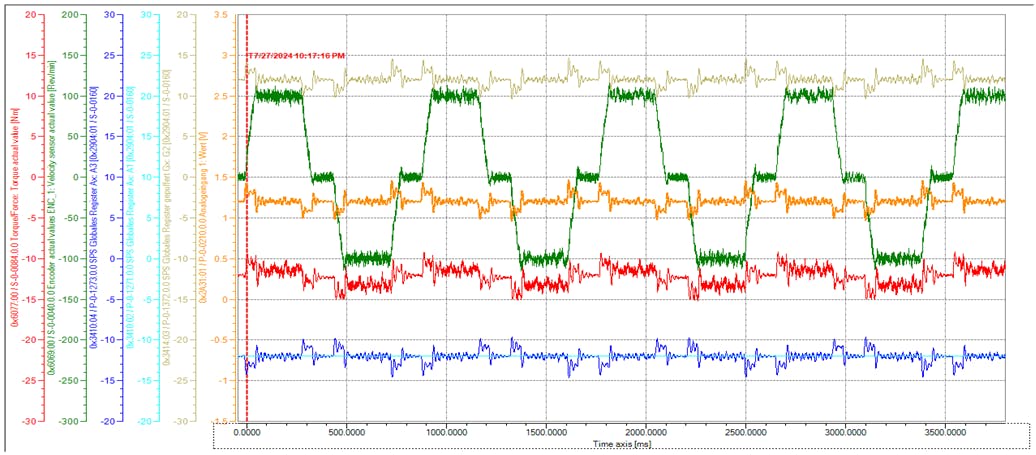
This behavior was acceptable for the process needed.