Introduction
You will learn to create an exact copy of a ctrlX CORE controller for serial commissioning or for replacing devices.
Requirements
ctrlX CORE
Micro SD- card (max. 32GB, FAT32 format)
ctrlX WORKS
Step-by-Step Guide
Create backup of your your ctrlx CORE
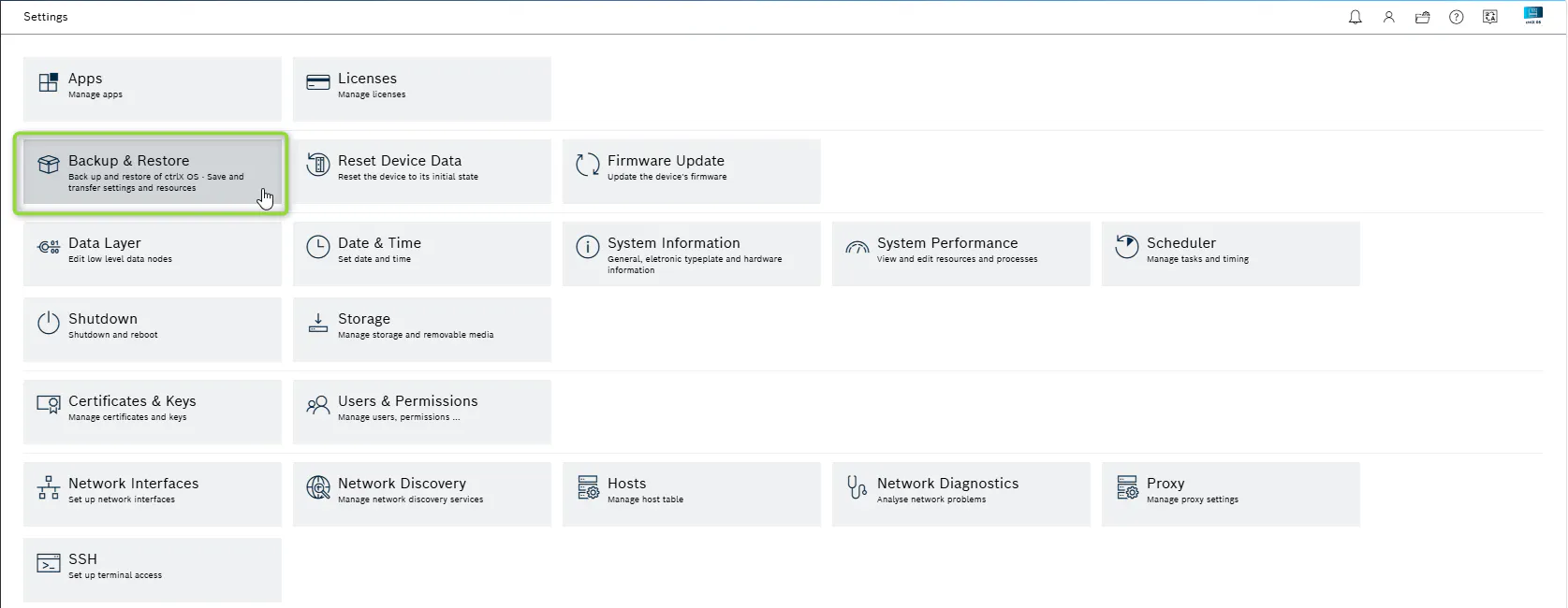
Menu Backup & Restore
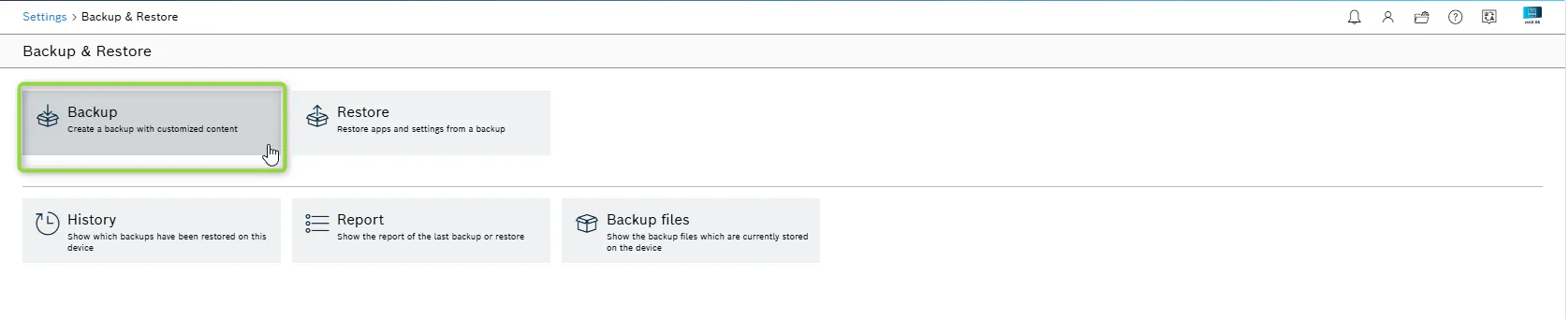
Menu Backup
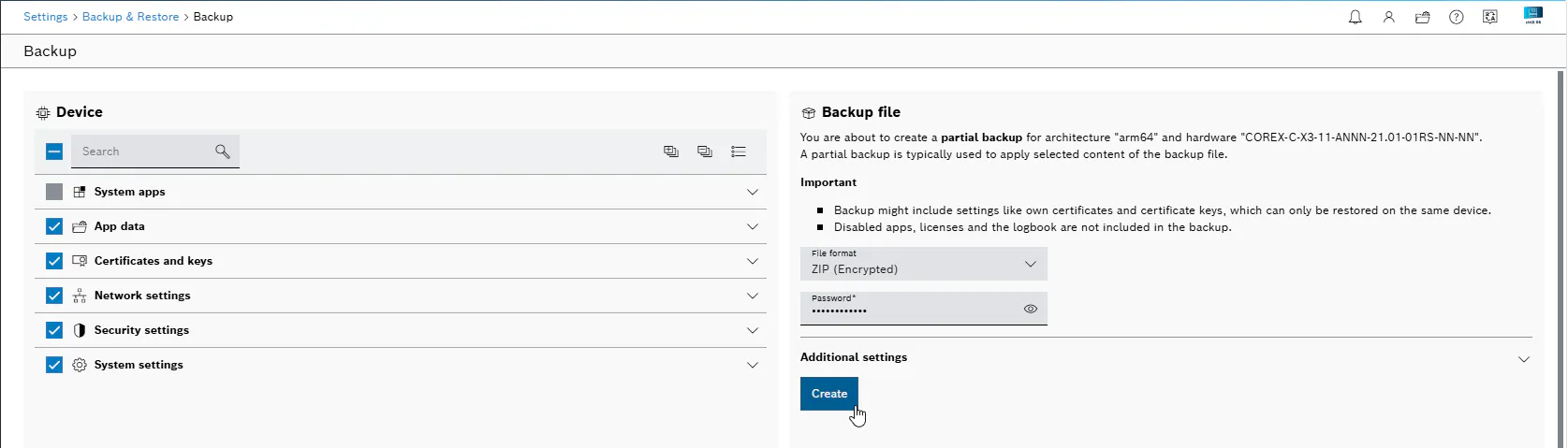
For creating this backup please deselect System apps, set a password for the backup file and click "Create". A backup of ctrlX CORE is being created. The backup file will be saved in the Downloads folder on your Windows computer.
Creating recovery disc (Micro SD- card)
Start ctrlX WORKS
Go to menu "Utilities" and then "ctrlX OS Recovery"

Select your target which to use as the recovery disk.
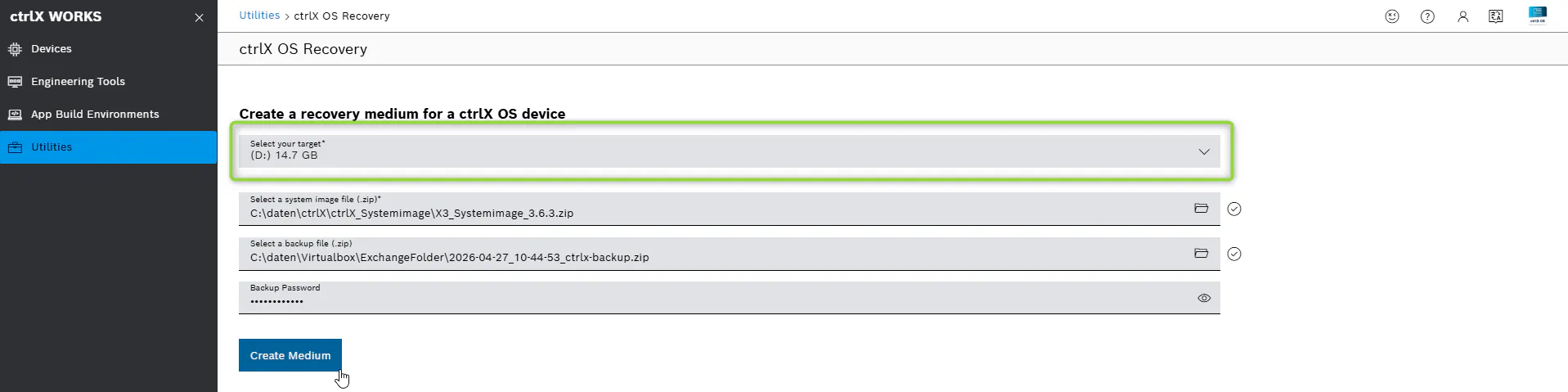
The system file should be selected in the same version as the ctrlX CORE on which the backup file was previously created. You can find the system image file in the collaboration room.
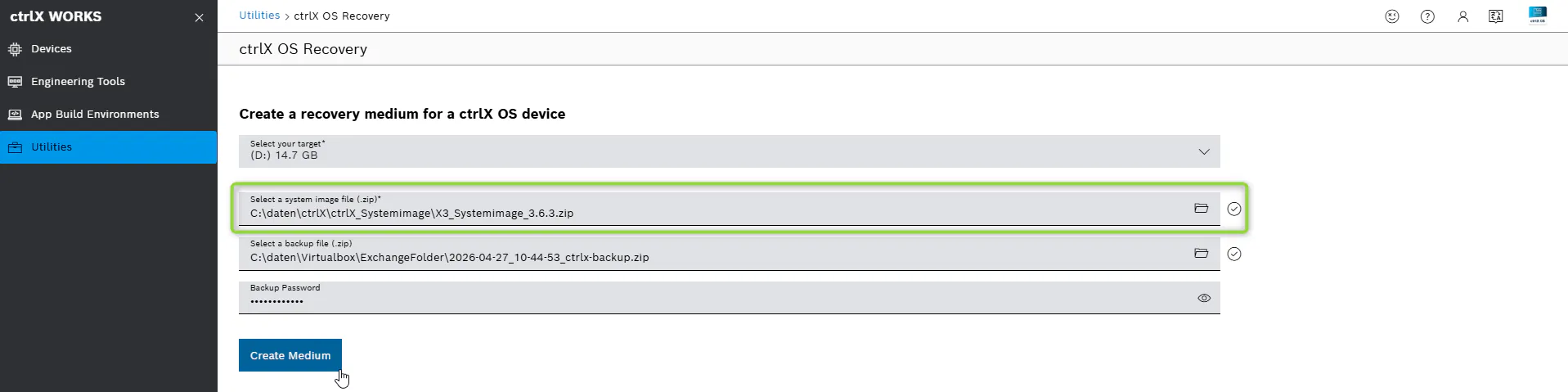
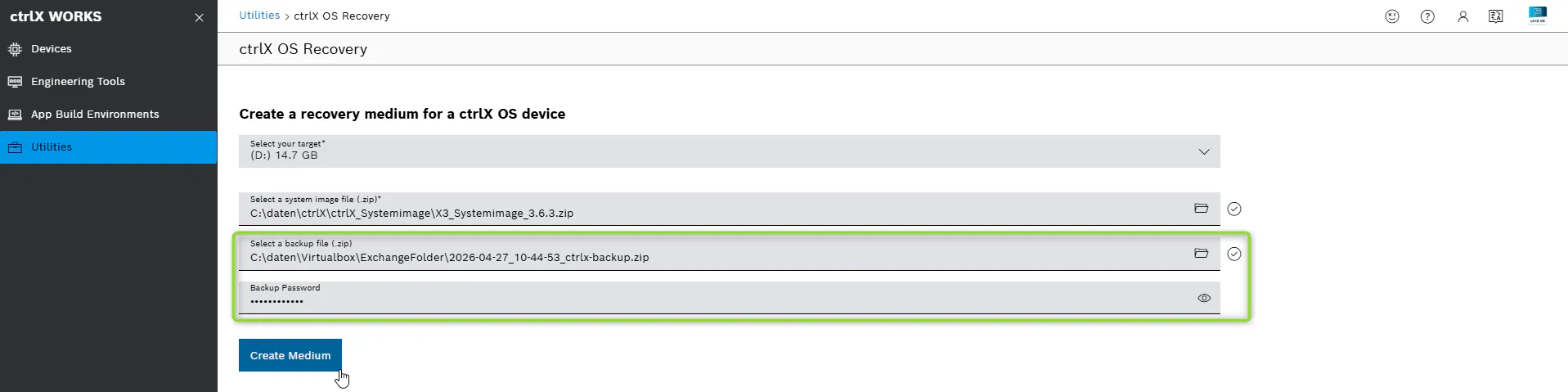
Select the backup file you previously created on the ctrlX CORE and enter the password you set.
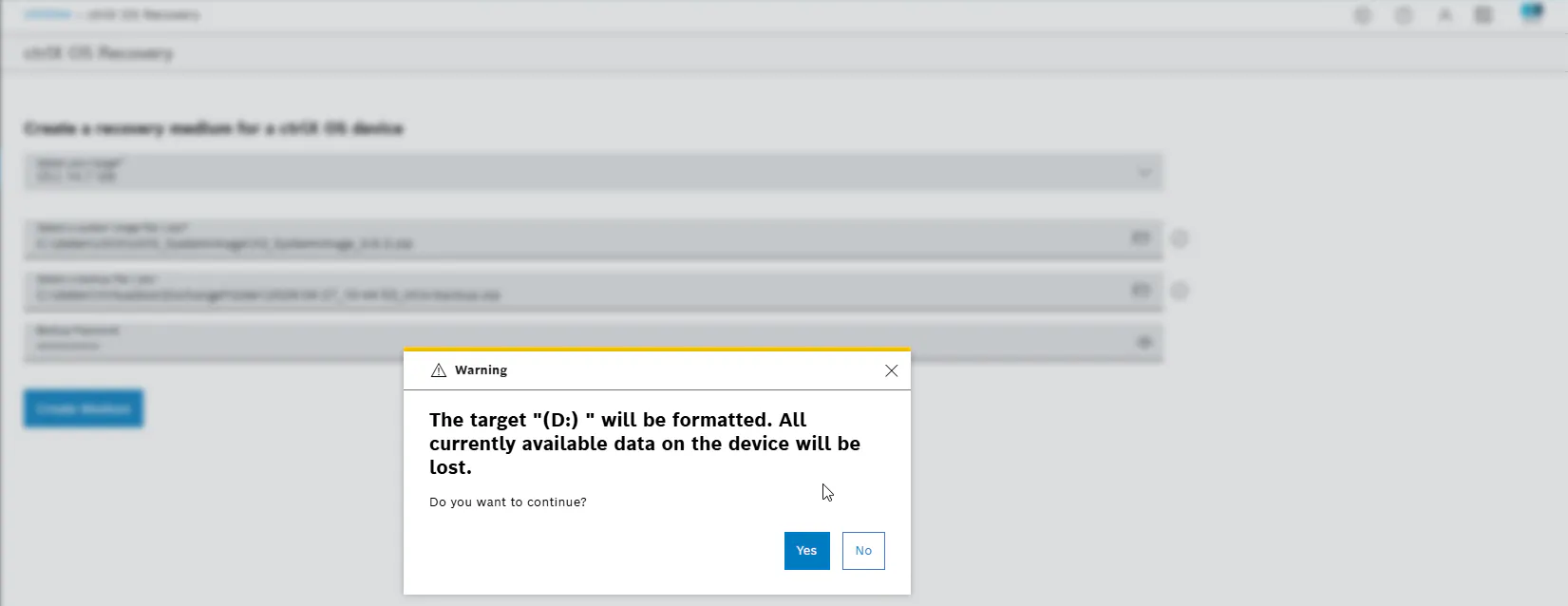
Click on button "Create Medium". -> Recovery medium is being created!
Restoring a ctrlX CORE using the recovery disc (SD- card)
Insert the micro SD card into the ctrlX CORE you wish to restore! Then switch on the power! The recovery process is starting. The time for recovering varies depending on the size of the backup. During the recovery process the ctrlX CORE will restart several times.
You can monitor the status of recovery progress by connecting to the ctrlX CORE via a web browser.