Objective of the documentTest equipment - hardware/firmware/softwarectrlX CORE – EtherCAT configurationStep 1 - EtherCAT configuration without FSoEStep 2 – Additional configuration for FSoEctrlX SAFETY-Engineering – project/configuration setupImportant note on re-initialization of the SFBSystemlayout ctrlX AUTOMATION with Safety FieldboxLinks
Objective of the document
Notes and instructions for operating the Schmersal “Safety Fieldbox - SFB” as FSoE slave on Bosch Rexroth Compact-Safety-Controller “SAFEX-C.1x” as FSoE master and Automation-Controller “ctrlX CORE X3” as EtherCAT master.
Test equipment - hardware/firmware/software
ctrlX CORE X3 with ctrlX OS system and apps release 3.6.3 (i.e. EtherCAT Master ECM-3.6.3.app, PLC PLC-3.6.3.app) and ctrlX IO-Engineering 3.6.3
SAFEX-C.15 with firmware 1.0.1.53 & FPGA 221 and ctrlX SAFETY-Engineering 1.8.3.10207
2* Safety Fieldbox (SFB-EC-8M12-IOP), item number: 103047531
[callout type="info" text="It also works in the same way for the other ctrlX CORE X5/X7 and for SAFEX-C.12."]
[callout type="info" text="All used Bosch Rexroth software belongs to LTS*) version V3.6. But LTS version V2.6 also supports it. -- *) LTS stands for “Long term support”, see here for more information:" link-label="Release cycle of ctrlX OS" link-href="https://community.boschrexroth.com/ctrlx-automation-how-tos-qmglrz33/post/release-cycle-of-ctrlx-os-XsM9NJAd4frd6hM"]
ctrlX CORE – EtherCAT configuration
Step 1 - EtherCAT configuration without FSoE
This is necessary in all cases and generally:
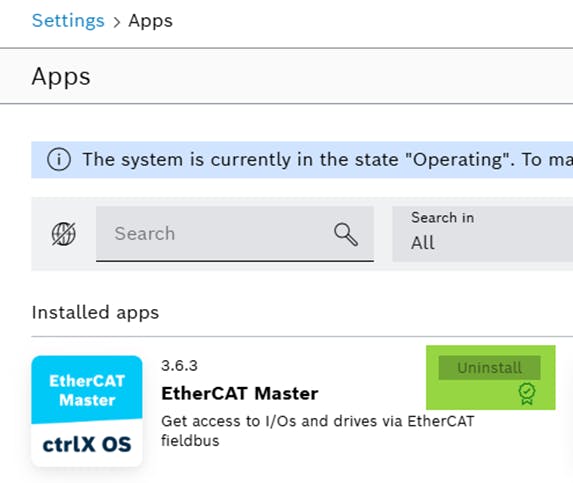
Connect to the ctrlX OS WebUI and ensure that the EtherCAT app is installed and licensed.
Fig. 1.: EtherCAT Master app installed and licensed
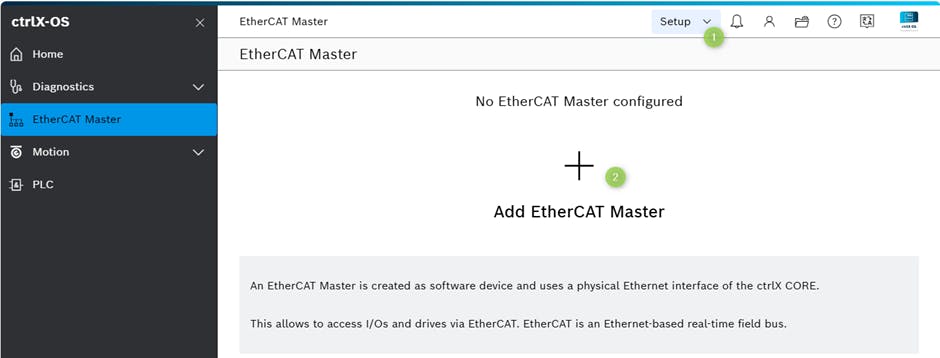
Navigate to the "EtherCAT Master" app area, switch the operation mode to "Setup" (1) and add an "EtherCAT Master" (2).
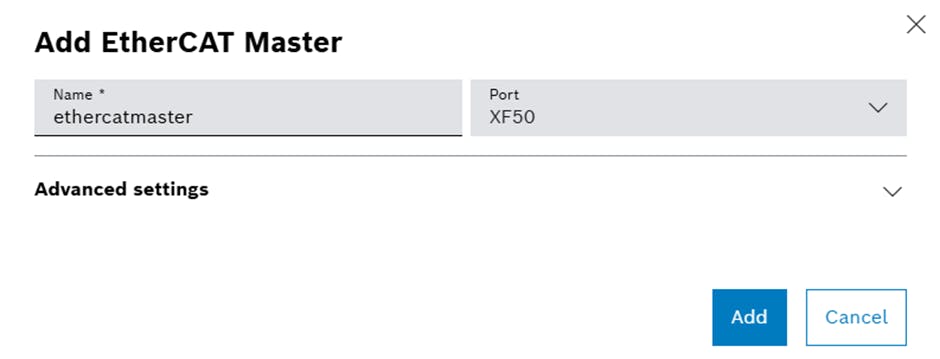
Then switch the operation mode back to "Operating" (this is not yet mandatory).
Start ctrlX I/O engineering - either via the icon at the top right of the "ethercatmaster" or separately from the PC.
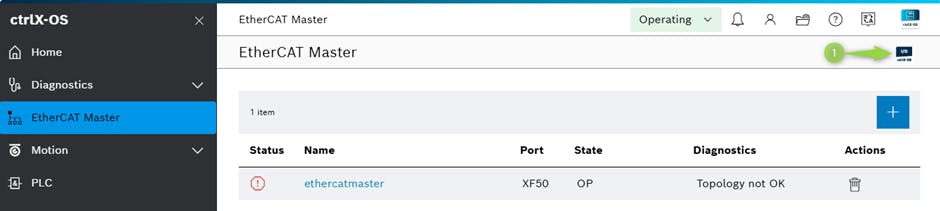
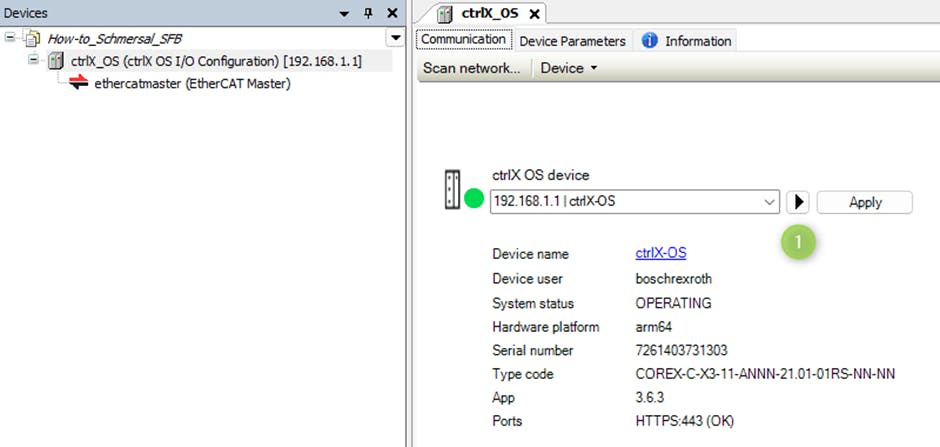
Create a new project (use the template ctrlX OS I/O" if asked) and check or establish the connection to the ctrlX OS device.
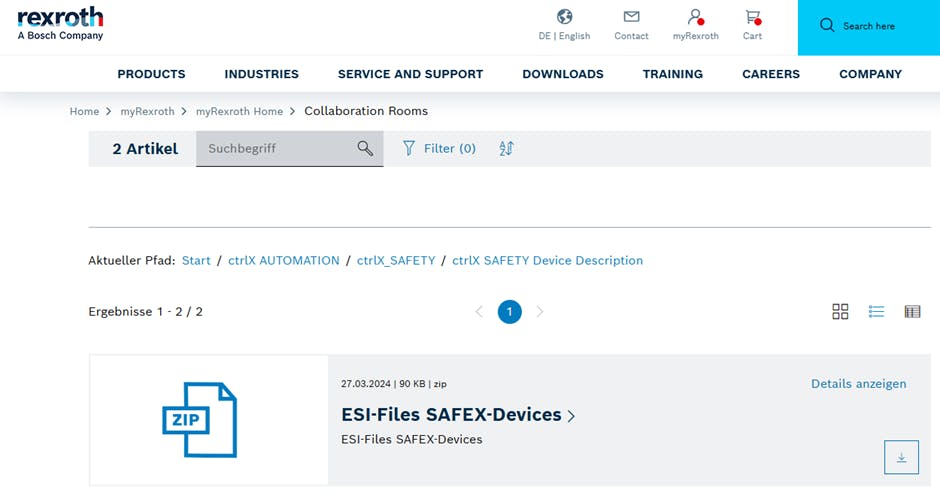
Download the appropriate device description files (ESI=EtherCAT Slave Information) from the Internet.
SAFEX-C.1x:
Download the zip-file from the Bosch Rexroth Collaboration Room:Fig. 6.: Download the ESI files for SAFEX-devices from the Collaboration Room Unzip the two files to any folder for later installation, see next step. Both files must be installed:
- BoschRexroth_ctrlX_SAFETY_SAFEX_C12_C15_ECAT.xml
- BoschRexroth_ctrlX_SAFETY_SAFEX_C12_C15_ModulesECAT.xmlSafety Fieldbox - SFB:
Download the zip-file from the Schmersal product site: SFB-EC-8M12-IOP - Schmersal > Documents > Device description files.
Unzip the file to any folder for later installation, see next step.
- SFB-EC-8M12-IOP-V1_0.xml[callout type="info" text="Last minute note: Latest ESI-file on website: Schmersal-SFB-EC.xml"]
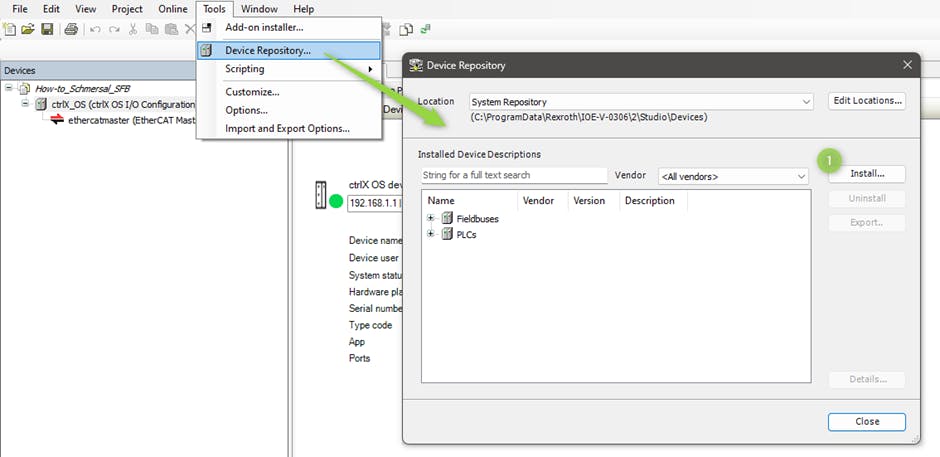
Install the device description files (ESI) for SAFEX-C.1x (two files) and SFB (one file) once in “Tools > Device Repository ... ".
Fig. 7.: Install the ESI files for SAFEX-C.1x and SFB Select the "ethercatmaster" in the project tree and start the "Scan for Devices ... " dialog using right-click.
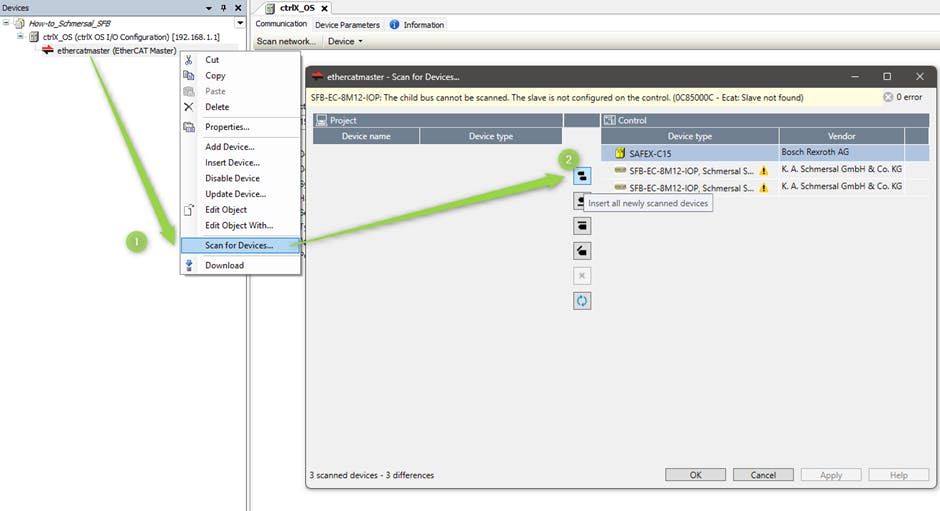
Takeover (1) the detected devices to the project using the OK button and close the dialog:
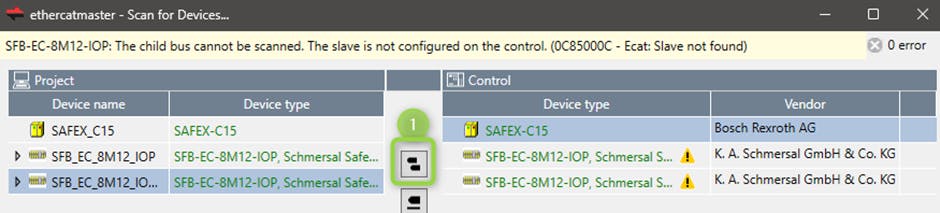
[callout type="info" text="If no or not the correct number and order of devices are displayed, check the EtherCAT connections. If a device is detected but the text "ESI file not installed" is displayed, then please repeat step 6 or check the connected device."]
Step 2 – Additional configuration for FSoE
This is necessary for the SAFEX-C.1x as FSoE master for all devices as FSoE slaves:
If not known, check how many safe data inputs and outputs bytes the EtherCAT FSoE slave has and exchange with the FSoE master.
[callout type="hint" text="The terms 'input' and 'output' refer to the view from the SAFEX-C!"]
To do this, open the display for the FSoE module (view: I/O variables) and count the number of FSoE outputs and input bytes (do not count FSoE_Command, all FSoE_CRC_x (x=0, 1, 2, ...), FSoE_Connection_ID)!
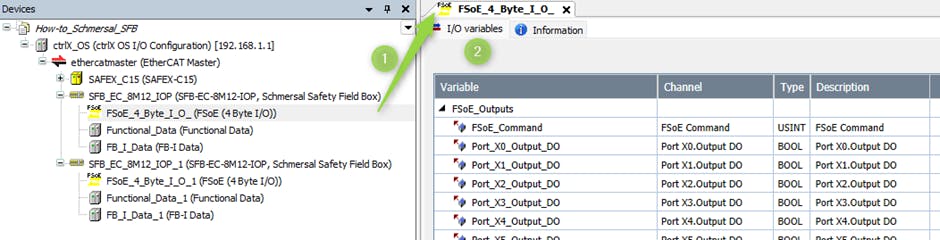
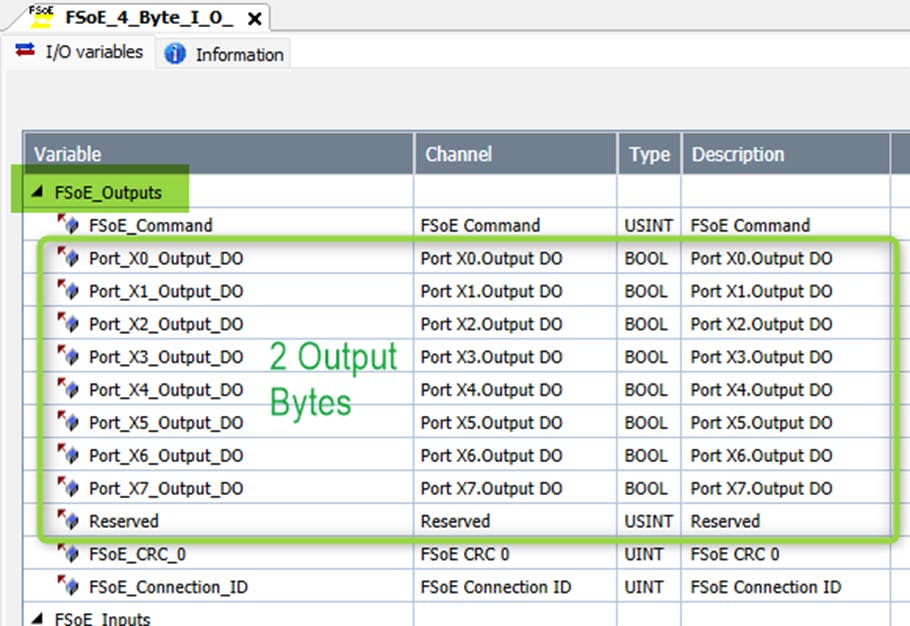
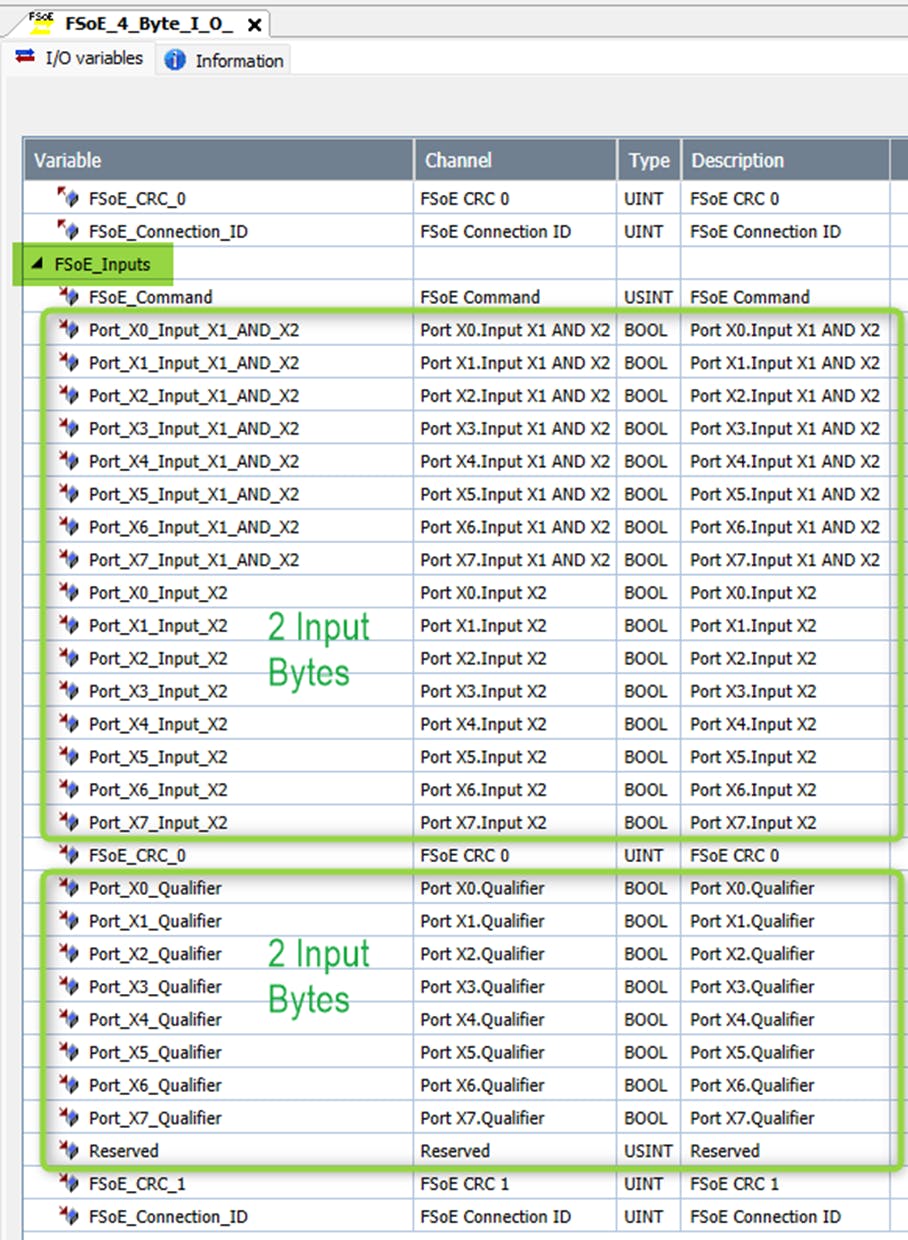
The SFB as FSoE slave has 4 bytes In and 2 bytes Out of safe data.
Add the "FSoE master connection" to the FSoE slave for the "SAFEX-C15". Open the "Plug Device" dialog on the first "FSoE_Connection_1" with a right mouse click on "Plug Device...".
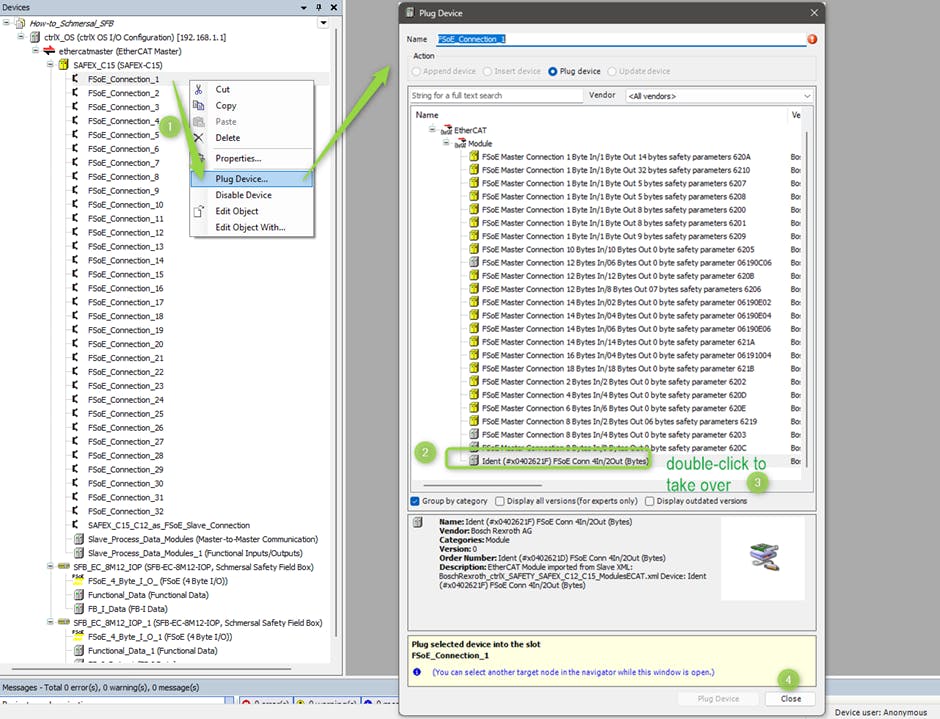
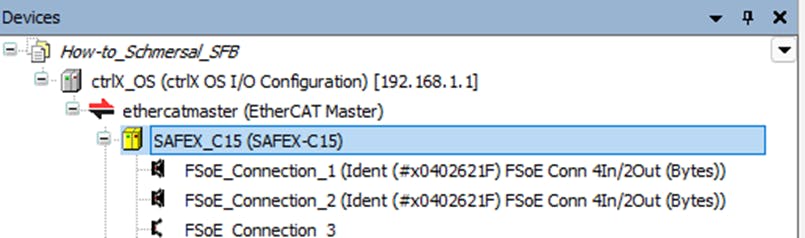
Do the same for the second SFB or - tip: Select the second connection in the tree and then click "Close".
Result:
Double-click on "ethercatmaster" in the project tree and select the tag "Slave to slave".
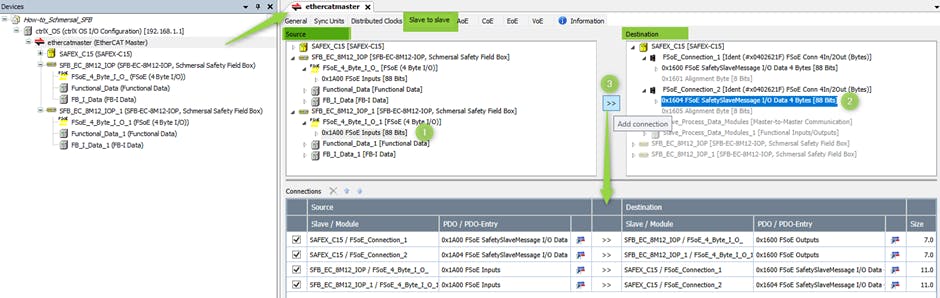
The specific assignment of the FSoE data exchange between the FSoE master and the slaves must be configured here. So two (source-destination or output-input) for each FSoE master/slave connection.
Note: The order of the connections does not matter.Example - first connection from the FSoE master to the first slave:
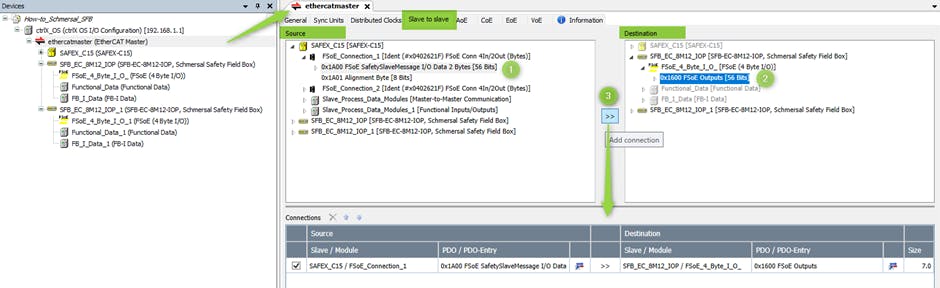
Example - fourth (last) connection from the second FSoE slave to the master:
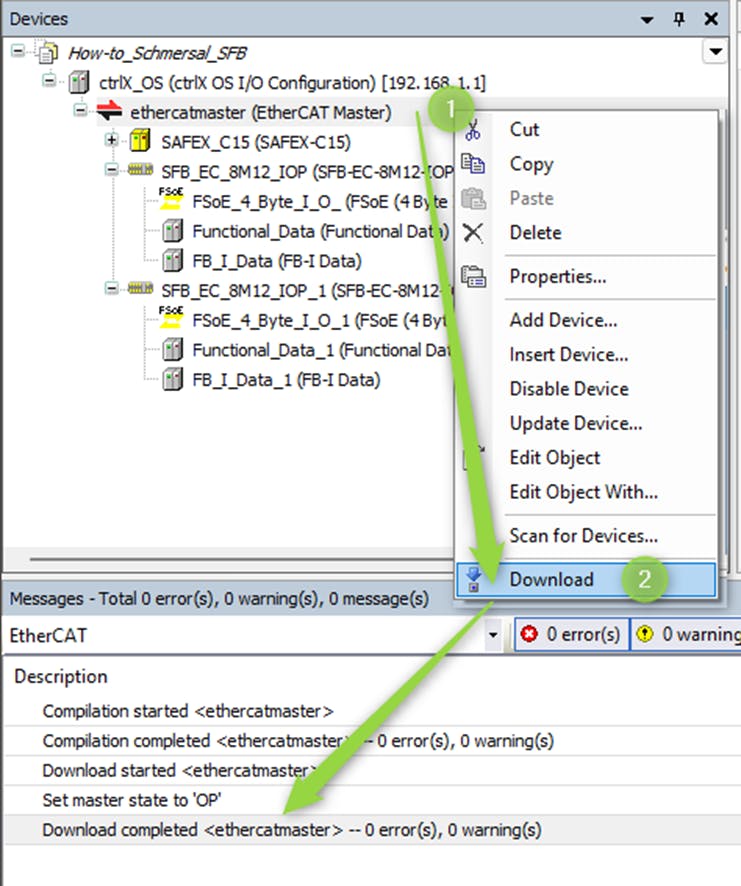
Select the "ethercatmaster" in the project tree again and start downloading the configuration to the controller using "Download". Allow the necessary switchover to the "State Init" by confirming the dialog prompt (not in the screenshot).
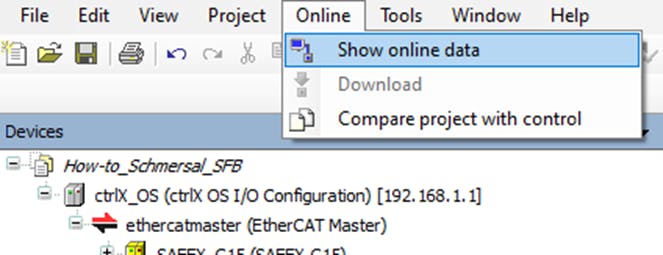
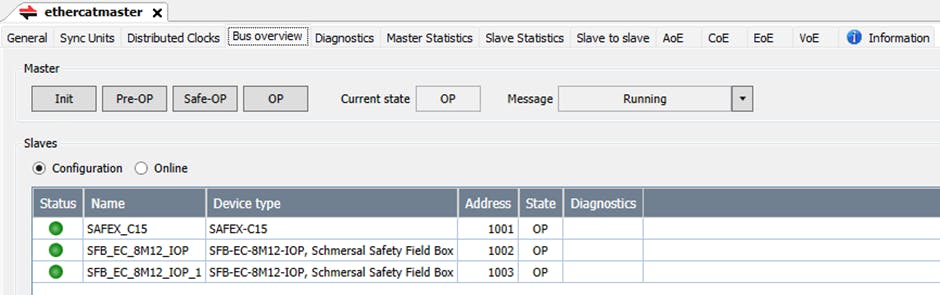
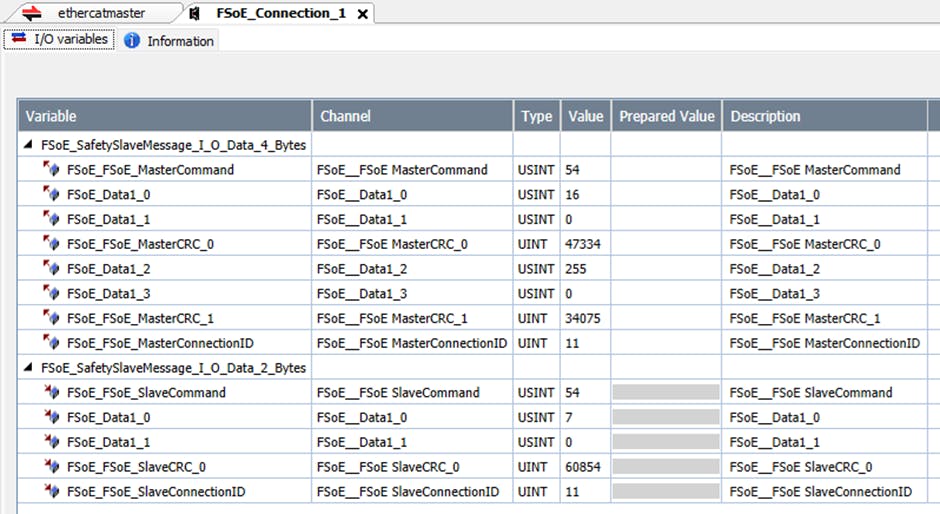
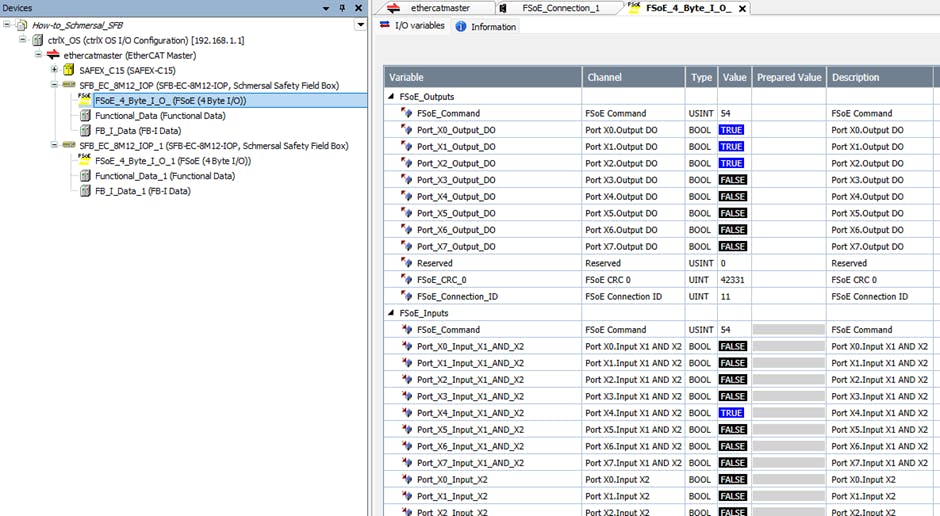
Fig. 17.: Download of the EtherCAT-configuration into ctrlX CORE Optional: Switch to „Show online data” to get the actual data of the configuration.
Fig. 18.: „Show online data” of the EtherCAT-configuration
ctrlX SAFETY-Engineering – project/configuration setup
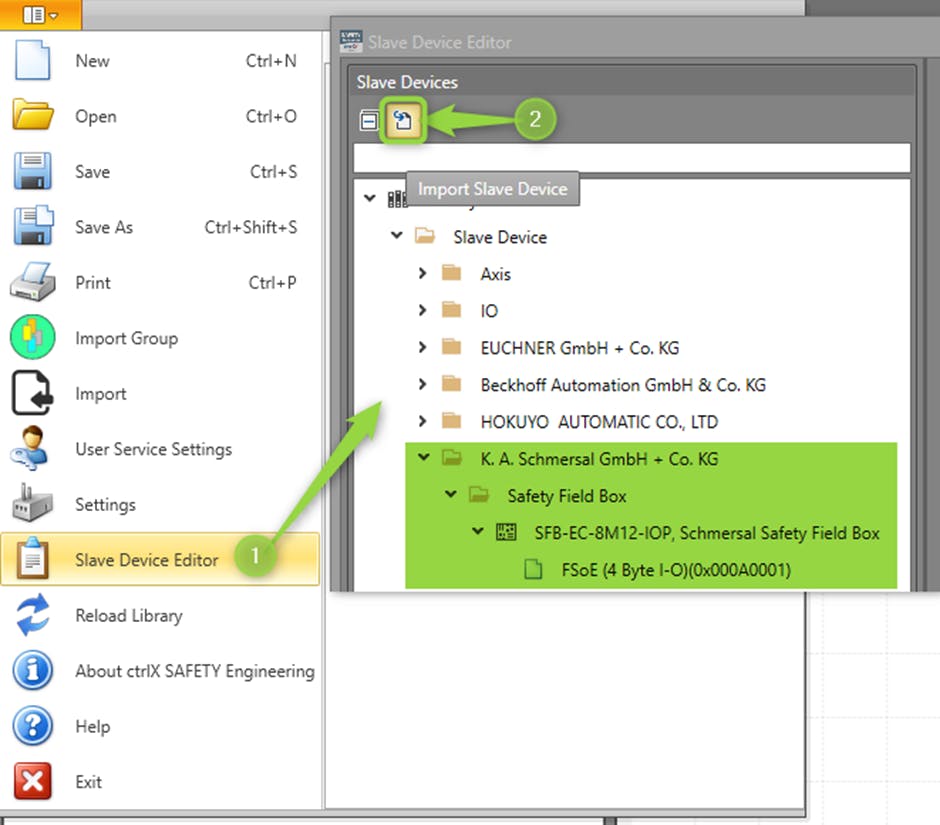
Import the SFB-ESI-file (as before in ctrlX I/O-Eng.) via "Slave Device Editor" in the ctrlX SAFETY Engineering.
Create a new Safety-project “configuration” and drag and drop a SAFEX-C.15 and both SFBs in the “Terminal Scheme”.
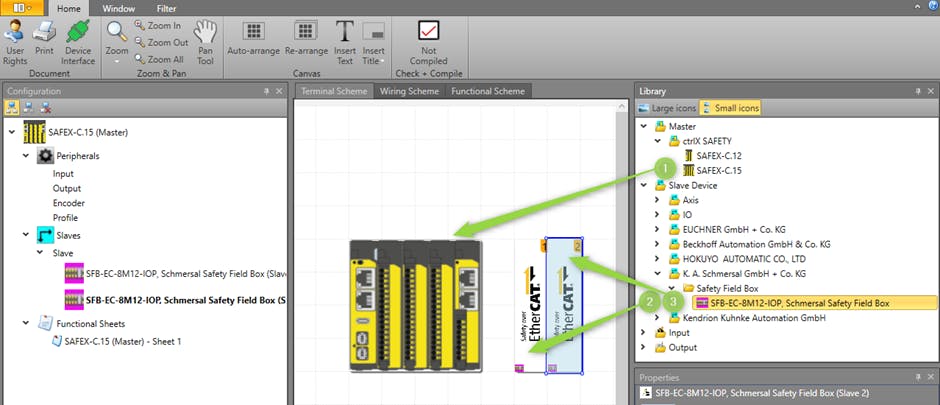
Set the properties of the SFB-devices to the appropriate values, example see figure:
Note: The default values of SAFEX-C.15 do not (initially) have to be changed.
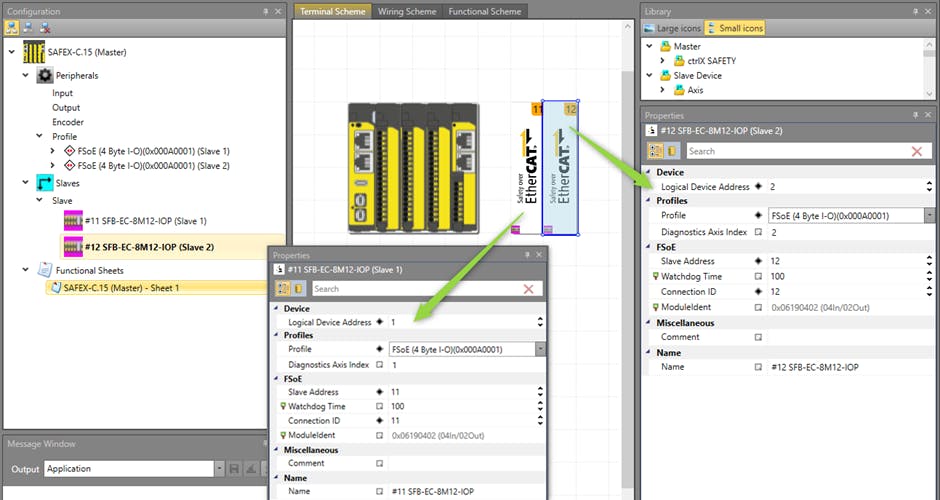
Note: The FSoE slave addresses must be set identically to the SFBs via the rotary coding switch.
The connection ID must also be uniquely set in the FSoE configuration, e.g. equal to the value of the slave address.
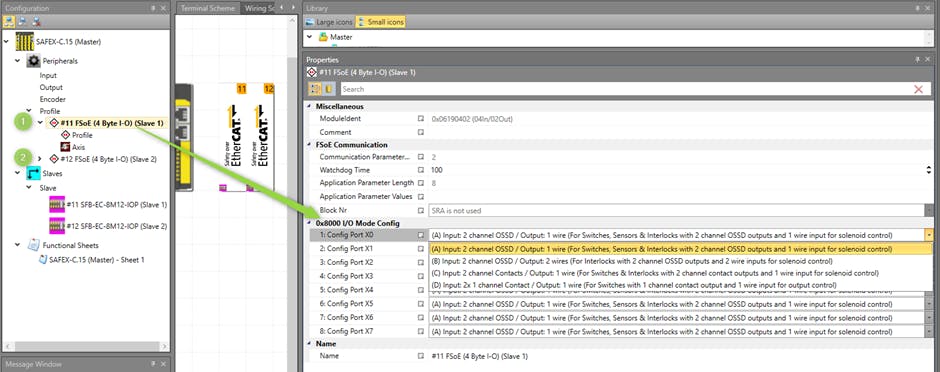
Configure the ports of the SFBs to the required extent.
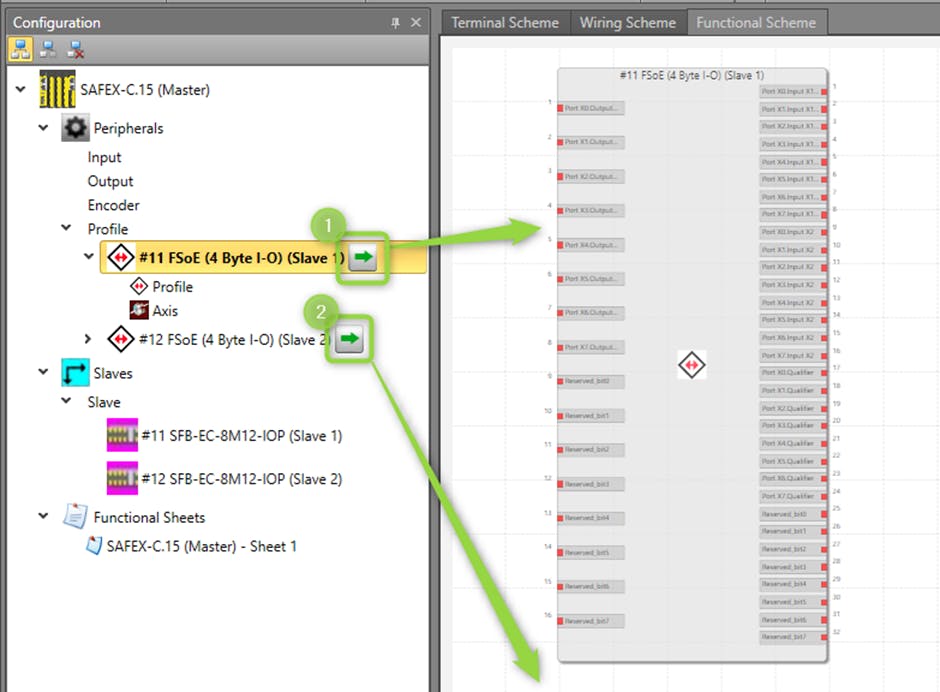
Switch to the "Functional Scheme" tab page and takeover the SFBs objects for programming by dragging and dropping.
Note: The necessity, generally, is indicated by the “square with the green arrow”.
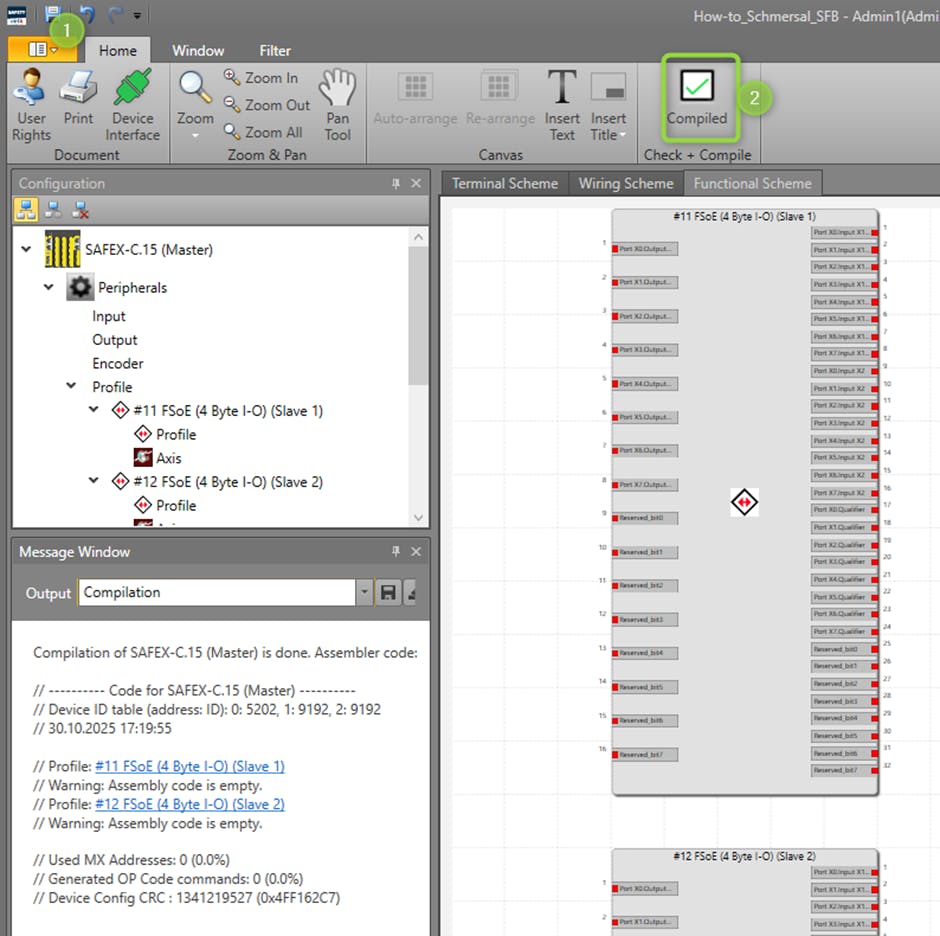
Save the project/configuration and compile it - there must be a green check mark, it means, no compilation error has occurred.
Note: Of course, the SFBs still must be programmed according to the connected devices used. However, this first step can also be taken without it.
Download the project/configuration into the SAFEX-C:
Firstly, switch to the “Device interface” view:

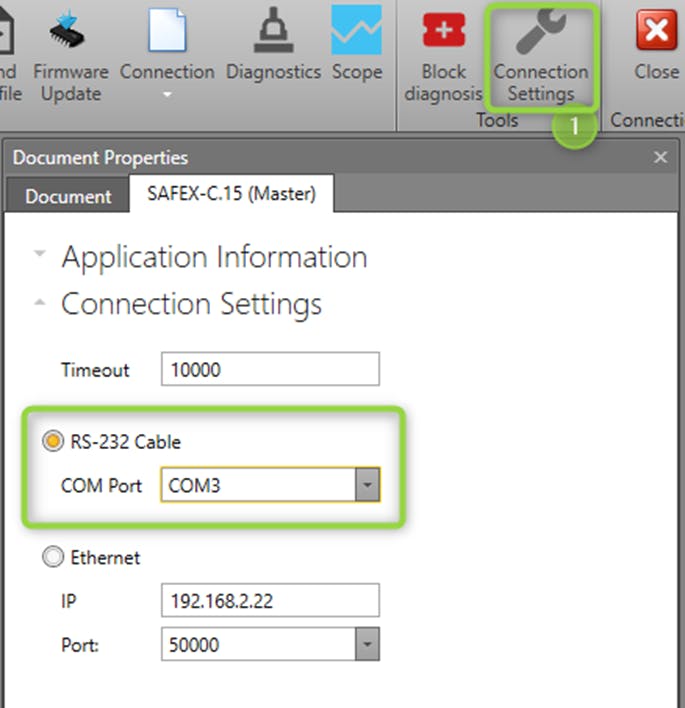
Check or set in the “Connection Settings” the correct way, e.g. the serial connection over the USB-C-connector of the SAFEX-C.15:
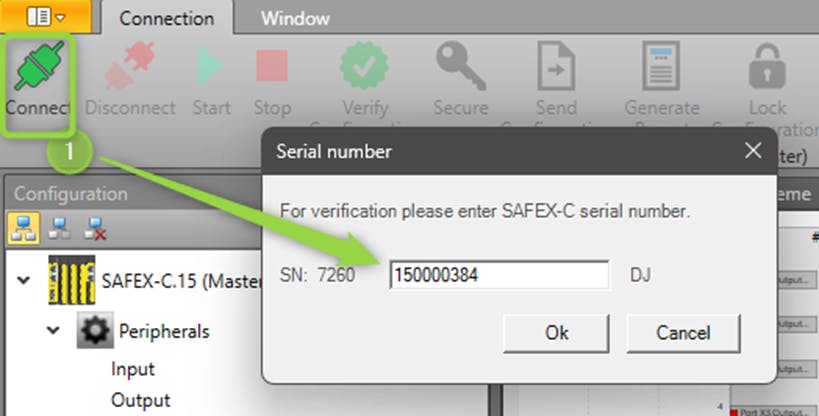
Then press “Connect” and enter the right serial number of the SAFEX-C.15 (“software password”):
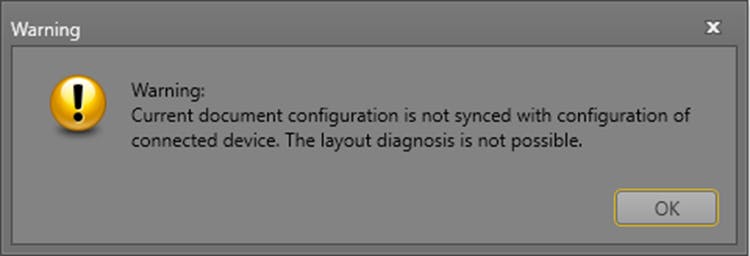
At the first time or if the project/configuration in the editor and on the control are different you get this message – press OK to go on.
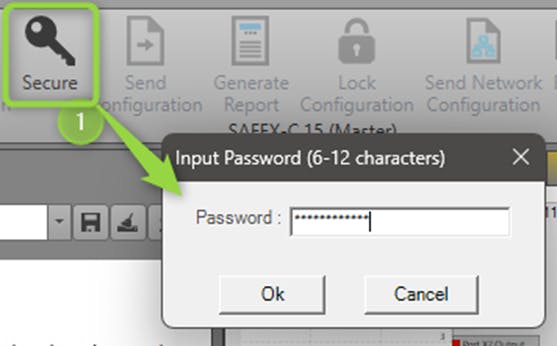
Then press “Secure” and enter the right password (“hardware password”, per default: boschrexroth):
Then download the project/configuration by pressing “Send Configuration”.
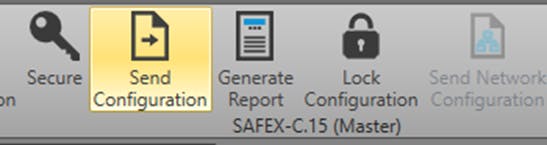
It will take some seconds till the download is done - see at the bottom line the progress and the several states in the message window.


After programming is finished the project/configuration can / should be locked – press the icon “Lock Configuration” in the ribbon bar.
Important note on re-initialization of the SFB
During power-up or communication interruption, module errors can be detected by the SFB. To cancel the passivation, it may be necessary to send an initial acknowledgement pulse:
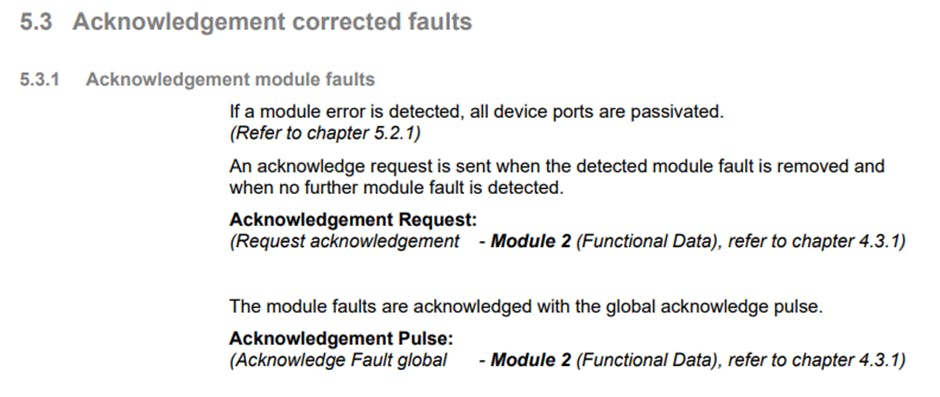
For more details, see chapter 5.3.1 in: DOC_MAN_SYS_SFB-EC_SEN_AIN_V1.pdf ff.
An addition is being prepared: Reference to the “global acknowledge" programming in ctrlX AUTOMATION.
[callout type="info" text="An addition is being prepared: Reference to the “global acknowledge" programming in ctrlX AUTOMATION."]
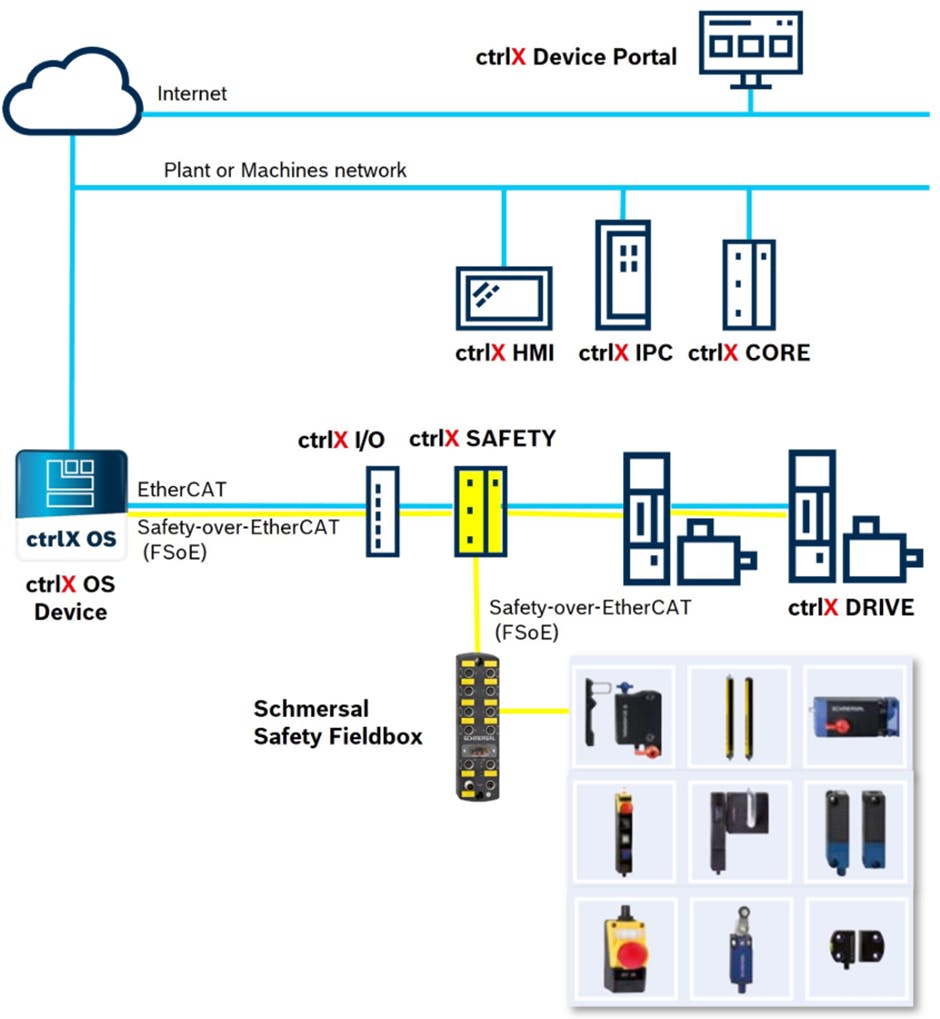
Systemlayout ctrlX AUTOMATION with Safety Fieldbox
As already mentioned above, the specific application case must be configured, programmed and commissioned in detail. The documentation and technical documents of the safety fieldbox and the ctrlX AUTOMATION system components are used for this purpose.