This how-to explains how to establish an FSoE connection between a safety control SAFEX-C.1x and ctrlX DRIVE, using ctrlX CORE as the EtherCAT master.
Table of contents
Settings in ctrlX SAFETY EngineeringSettings in ctrlX I/O EngineeringSettings in ctrlX DRIVE Engineering
Settings in ctrlX SAFETY Engineering
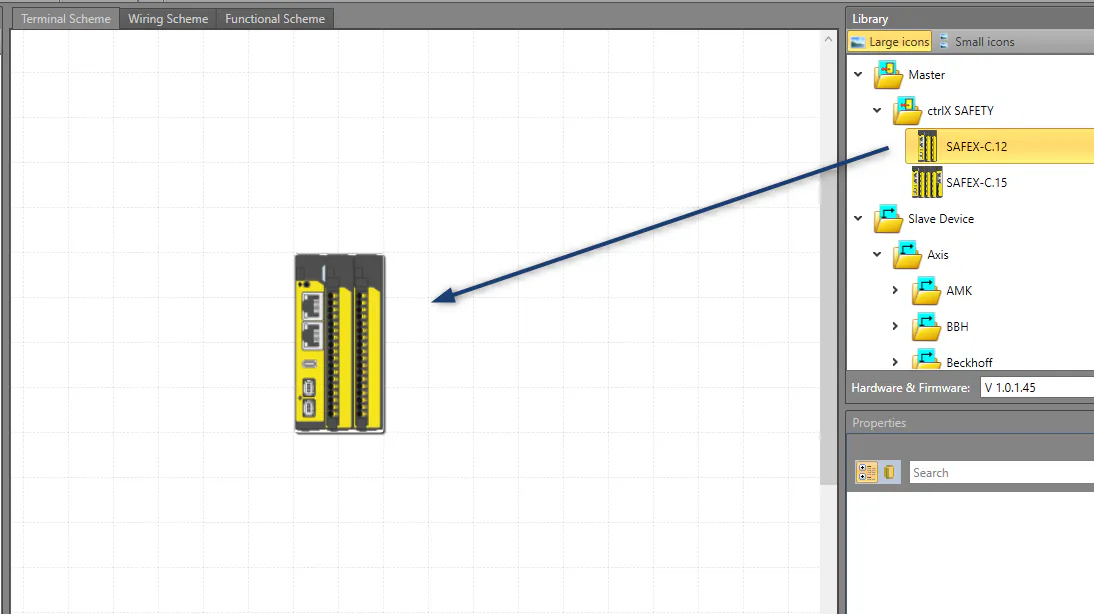
Add a SAFEX-C.1x controller to your project.
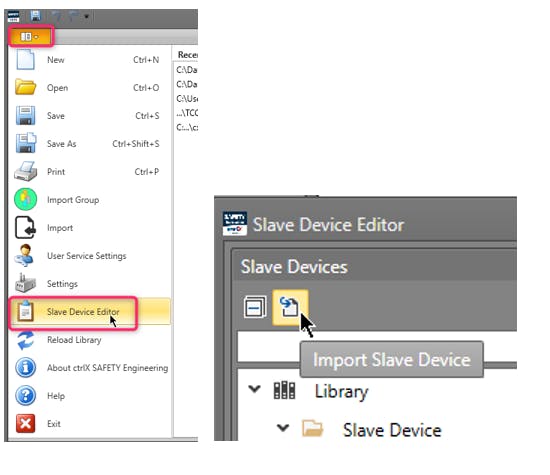
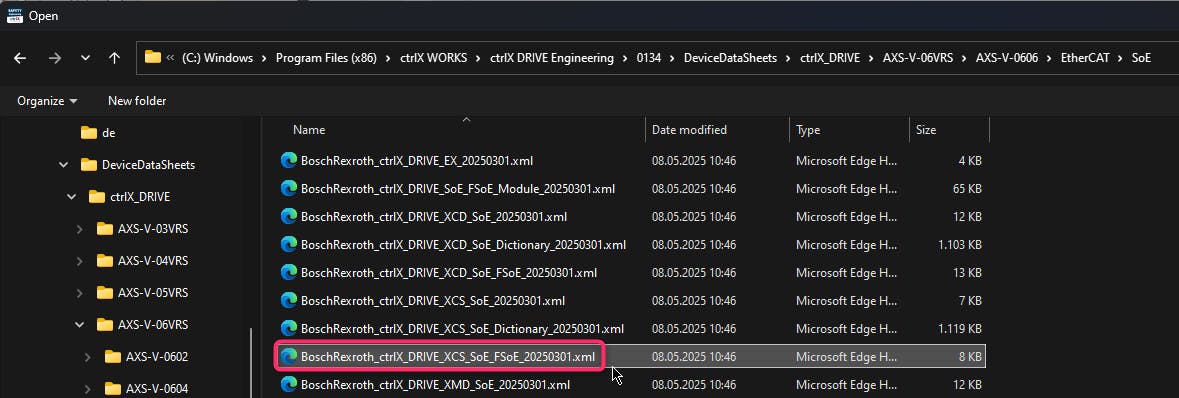
To support all assemblies/profiles which are available for the used drive firmware version, you have to import the ESI file matching the ctrlX DRIVE firmware. The file can be found in ctrlX DRIVE Engineering installation path, i.e.: C:\Program Files (x86)\ctrlX WORKS\ctrlX DRIVE Engineering\01xx\DeviceDataSheets\ctrlX_DRIVE\AXS-V-06VRS\AXS-V-0608 (or in the Collaboration Room).
[callout type="info" headline="Important" text="The ctrlX DRIVEplus coming with ctrlX SAFETY Engineering built-in-library (Slave Device > Axis > ctrlX DRIVE plus) can not be used." has-icon="true"]
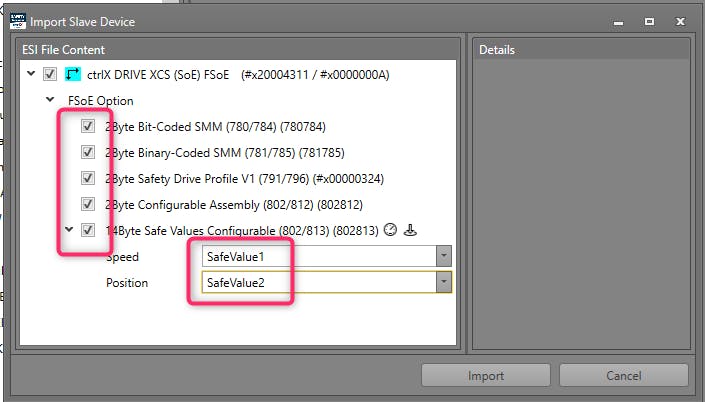
[callout type="info" headline="Important" text="The definition for Speed and Position can only be done at this point. After import the mapping can not be changed." has-icon="true"]
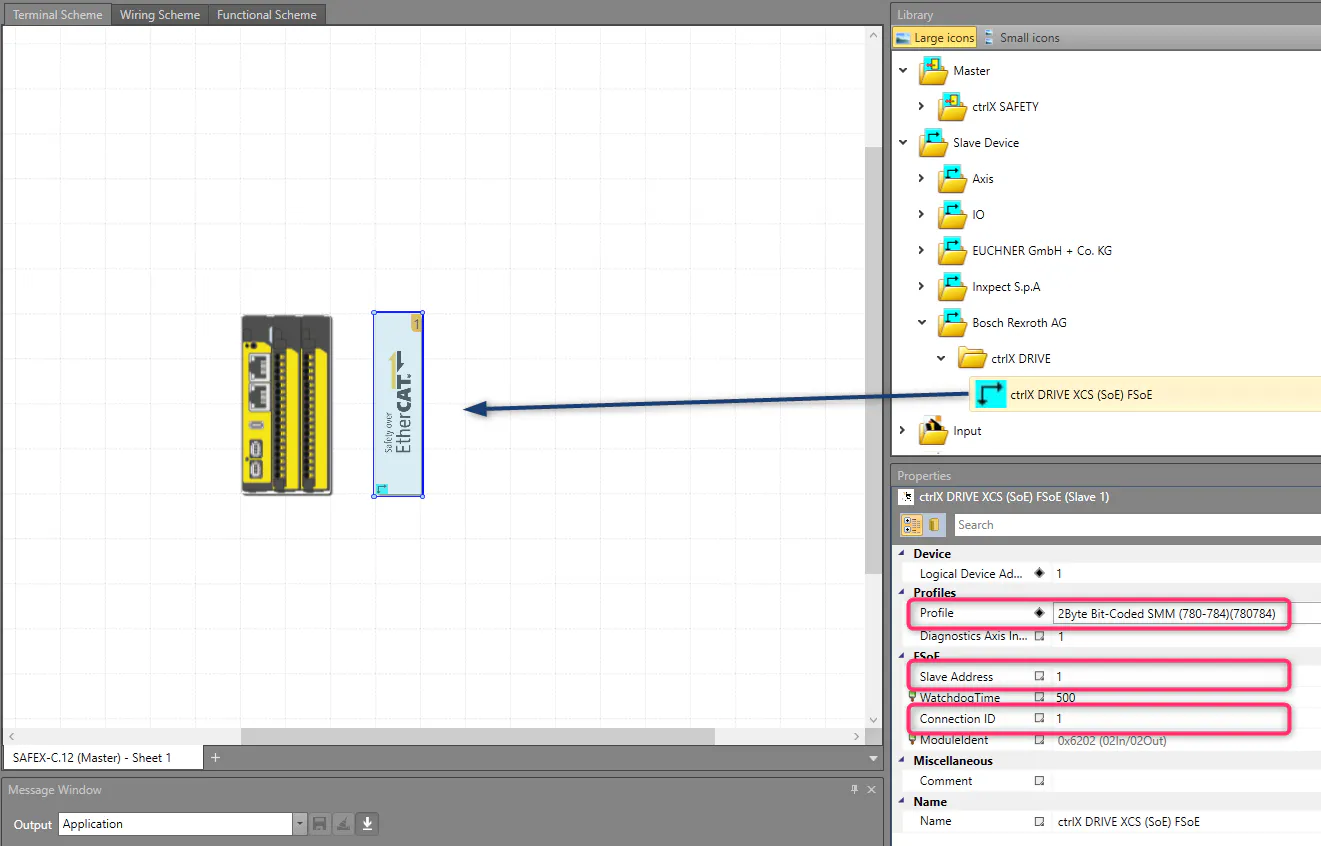
Add ctrlX DRIVE to project, choose a profile and slave address matching your drive configuration and set a connection ID you want to use.
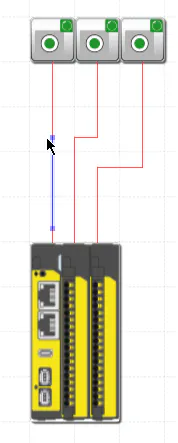
Add some switches to your hardware configuration, to activate safety functions in your drive.
Create a small logic in “Functional scheme” to map the switches to the control word transferred to drive.
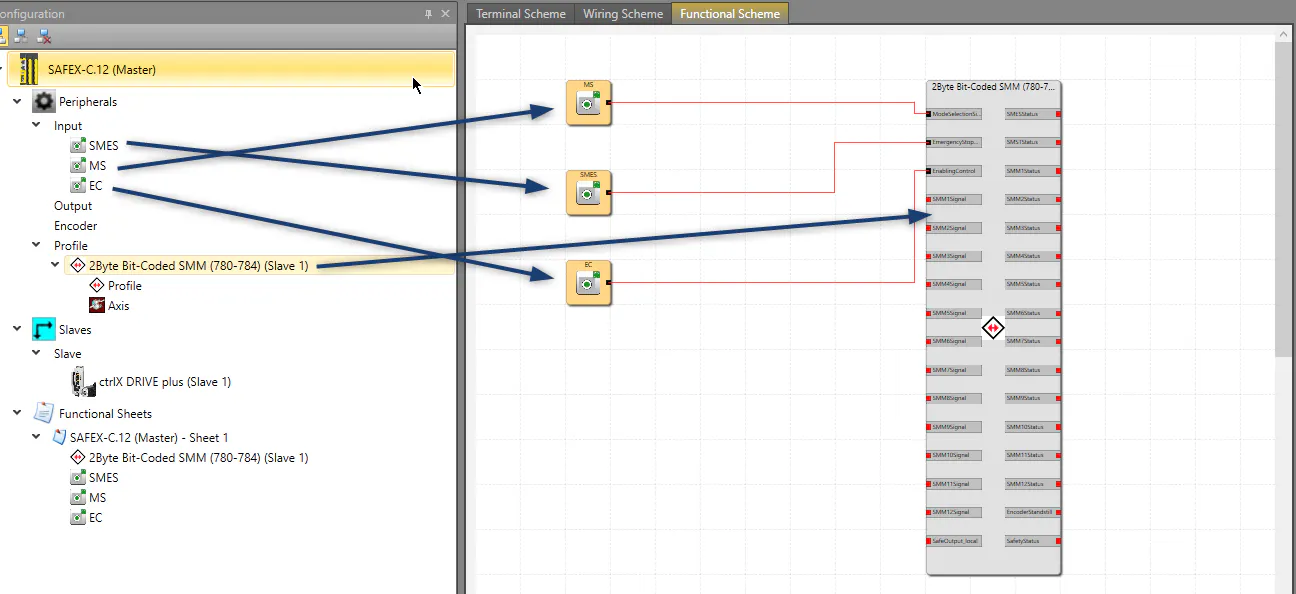
With this small demo logic you can deactivate the ‘emergency stop’ (SMES), switch between normal-/safe mode (MS) and activate SMM1 with ‘enabling control’ (EC).
Download the project (configuration) into the SAFEX-C.1x.
Settings in ctrlX I/O Engineering
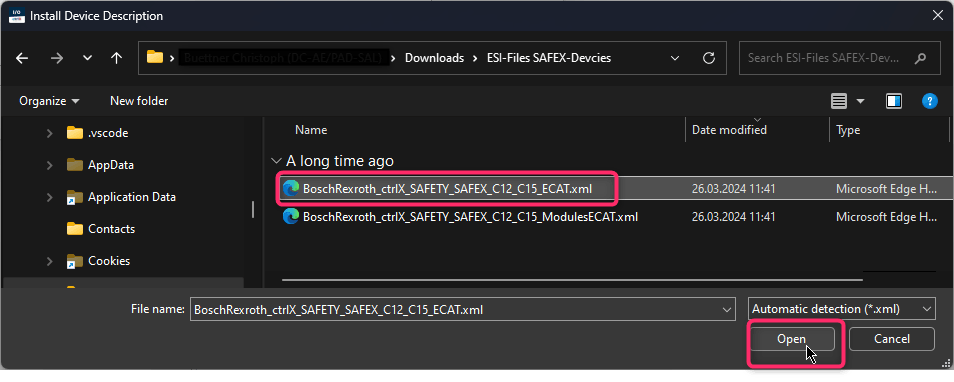
Install the device description (ESI file) for SAFEX-C.1x within the device repository of ctrlX I/O Engineering. This step only needs to be done when using the SAFEX-C.1x for the first time in the ctrlX I/O Engineering.
The latest device description can be found in collaboration room. After download unzip the archive.
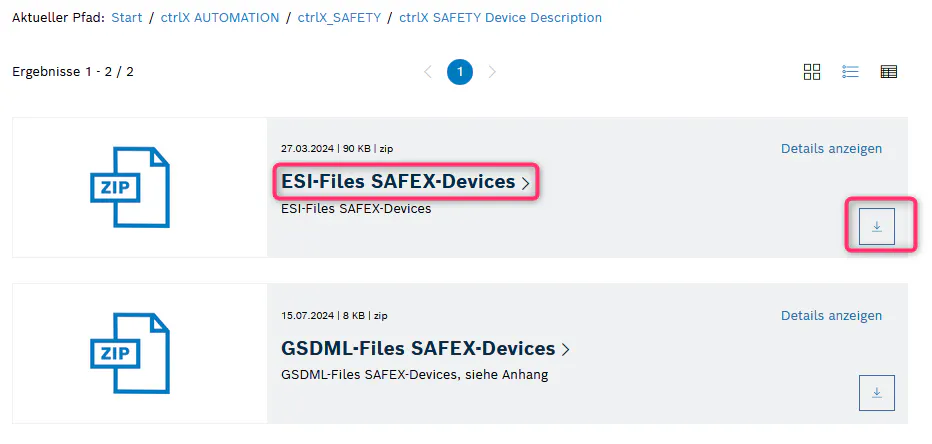
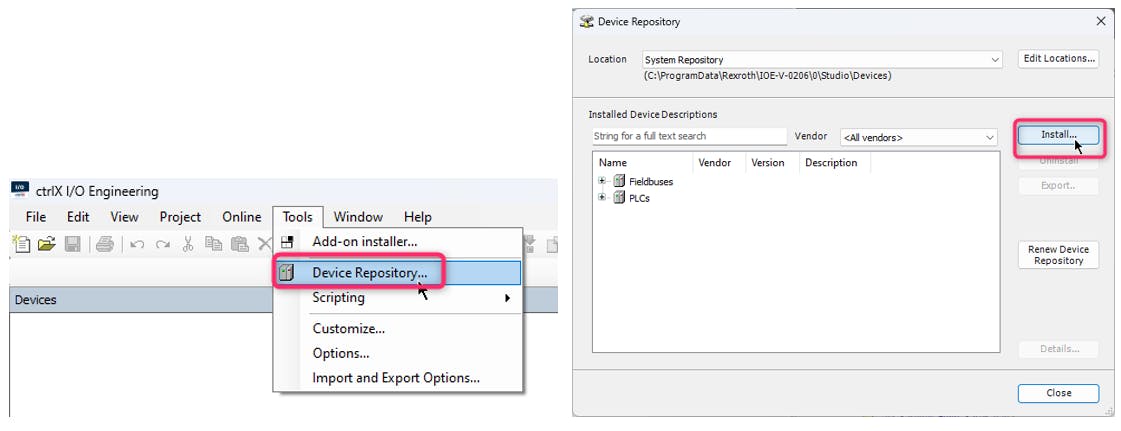
[callout type="info" headline="Hint" text="Both files of the zip (Device and Modules) needs to be unzipped and placed in same folder." has-icon="true"]
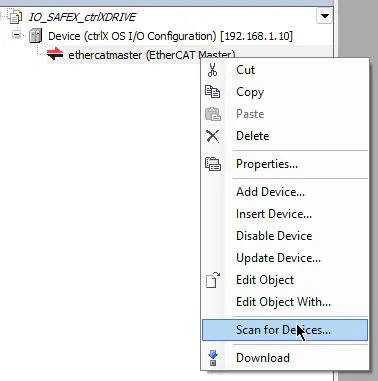
Scan for devices - SAFEX-C.1x and ctrlX DRIVE need to be connected to the EtherCAT master.
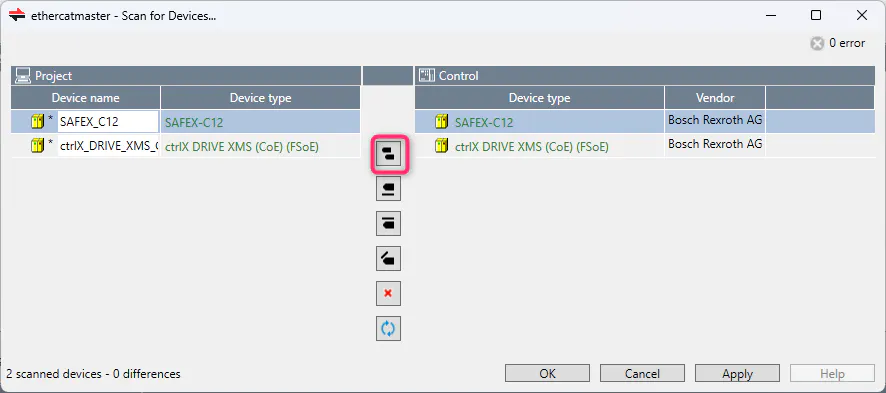
Add the devices to the project.
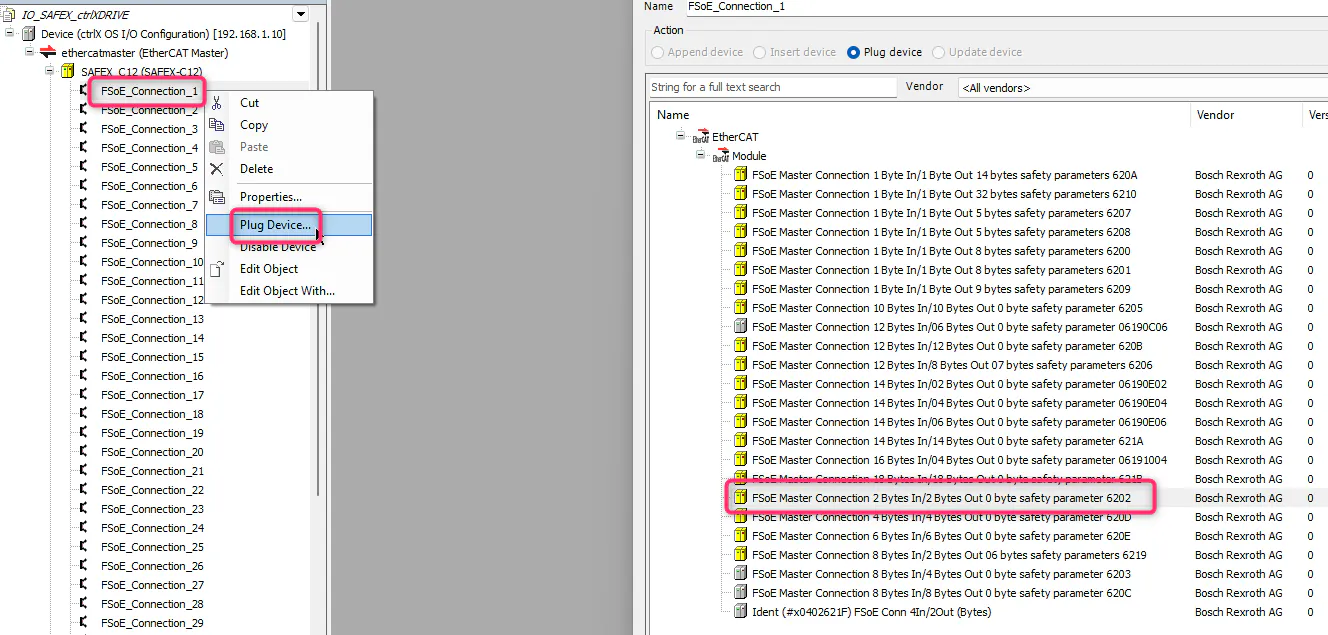
Plug the "2 bytes In/2 bytes Out" module to FSoE connection 1 of the SAFEX-C.1x. In case you have defined another profile in your SAFEX-C.1x project for the drive, you may need another module.
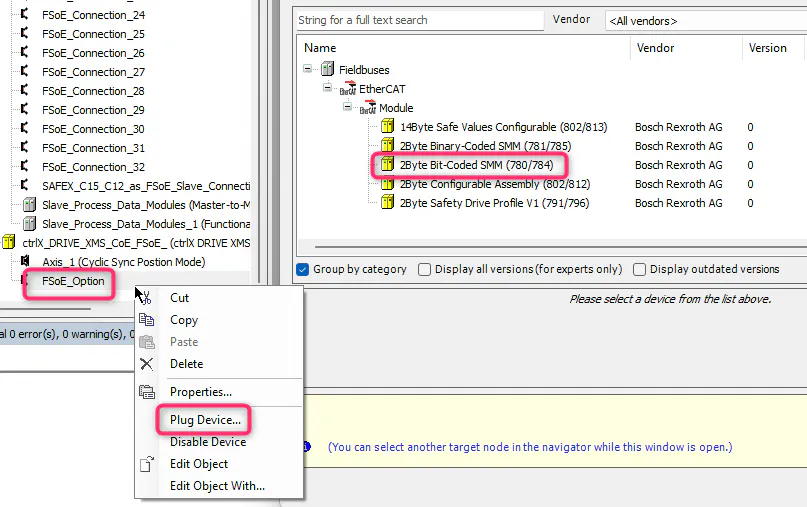
Plug the FSoE module matching your drive settings (here 780/784) as FSoE option for drive
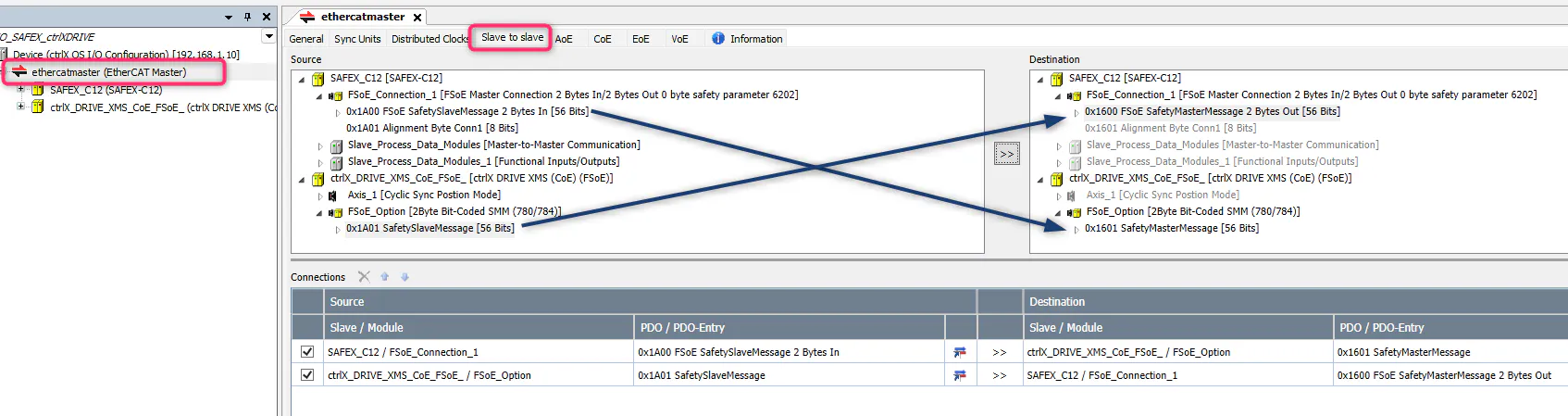
[callout type="info" headline="Important" text="Copy the FSoE telegrams from drive to SAFEX-C.1x and in the other direction. Therefore, use the Slave-to-slave-dialog of the ethercatmaster." has-icon="true"]
Settings in ctrlX DRIVE Engineering
Do a general commissioning of safe motion for your axis. Find detailed information in this How-to.
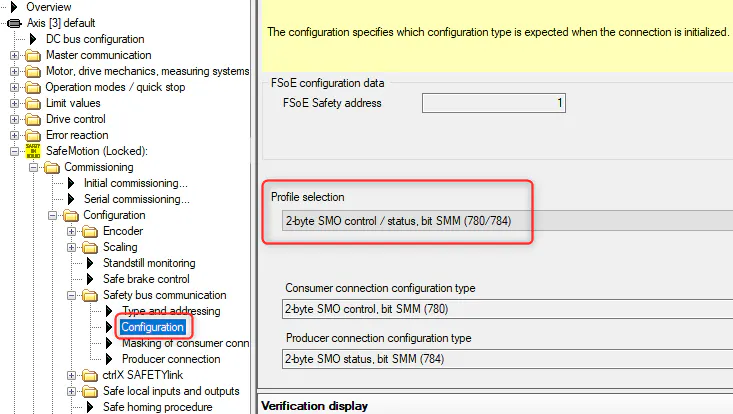
To activate FSoE for your drive, go to “Type and addressing”. Choose CoE or SoE and define same FSoE slave address like in your SAFEX-C.1x project.
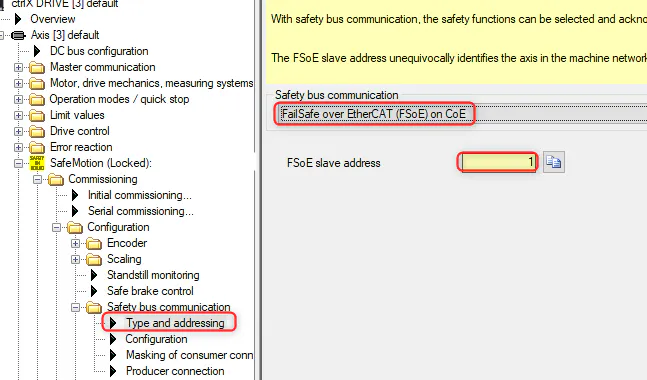
Also define the profile matching the drive settings in your SAFEX-C.1x project.
[callout type="info" headline="Hint" text="The profile defines the mapping of safety control and status word. You can select the profile which matches best the requirements of your application." has-icon="true"]
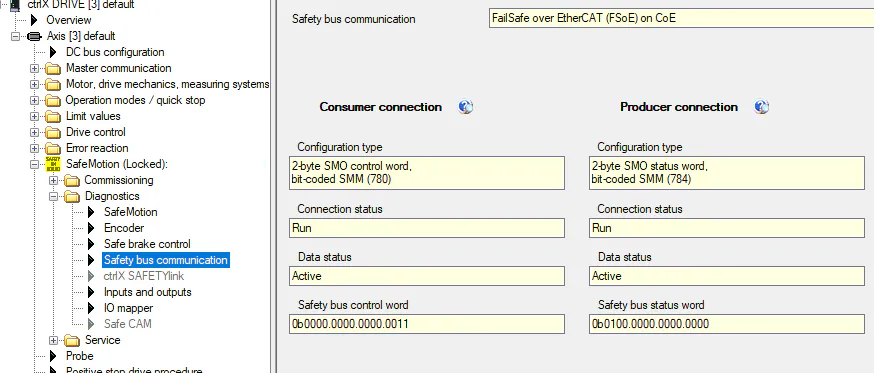
After switching the EtherCAT master to OP you can check safety control and status word and if the communication is running on a safety bus communication diagnostic screen.
The LED of SAFEX-C.1x should flash green if FSoE is running without errors.