This document provides a structured guide for developing a LabVIEW application that integrates with Bosch Rexroth’s ctrlX DRIVE using the eal4LabVIEW library.
Testing was conducted using the LabVIEW 2021 Professional Development System from National Instruments and the eal4LabVIEW library version 2.5.0.1.
EAL4LabVIEW Installation
Make sure that the eal4LabVIEW library is properly installed. The recommended way to do this is by using LabVIEW’s VI Package Manager (VIPM), a tool designed specifically to find, download, and manage LabVIEW add-ons and libraries.
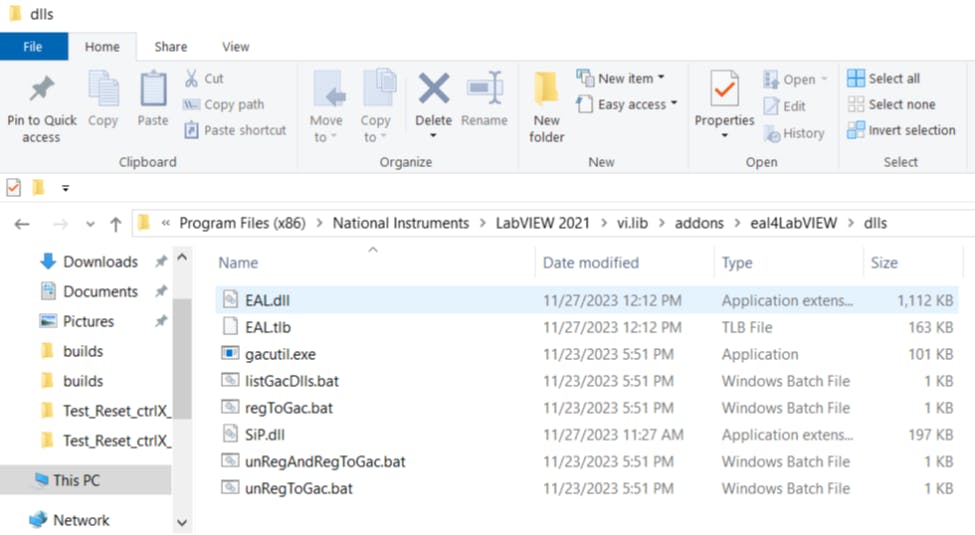
Once the installation is complete, a corresponding folder will be created within the National Instruments installation directory. This folder will contain two important files: EAL.dll and SIP.dll.
These DLL files (Dynamic Link Libraries) are essential for the eal4LabVIEW library to function correctly. You will need to manually add both files to your LabVIEW project to ensure full integration and functionality.
Adding DLLs to the project
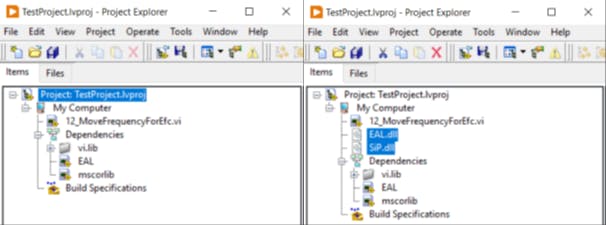
Create a LabVIEW project and add the EAL.dll and SIP.dll files to it.
Note 1: Make sure to add the EAL.dll and SIP.dll files from the National Instruments installation folder, as shown in Figure 1. Using versions from other locations will not work.
Creating an Executable and Installer
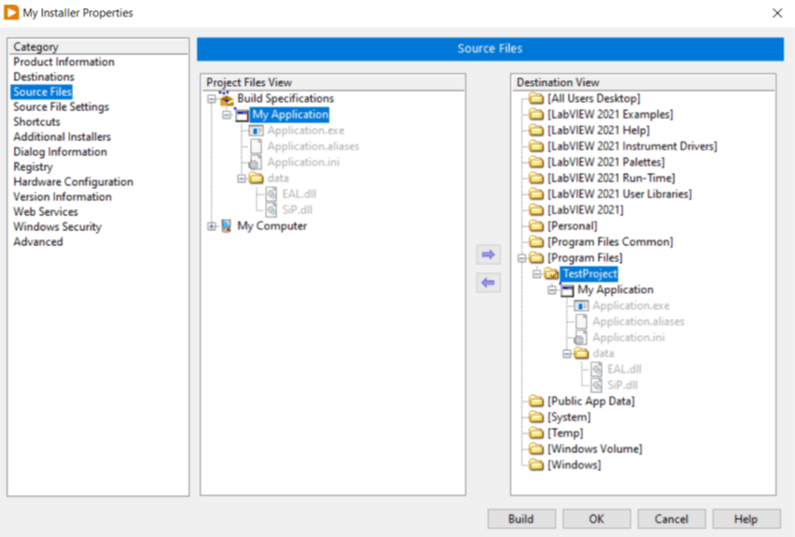
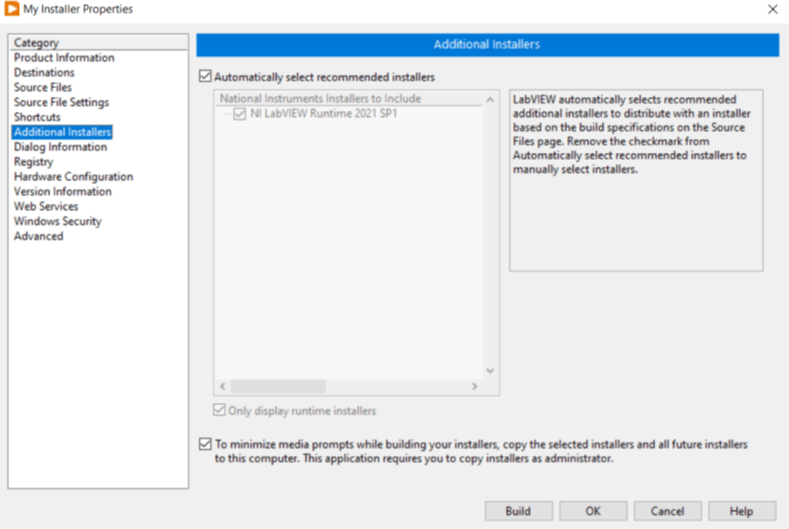
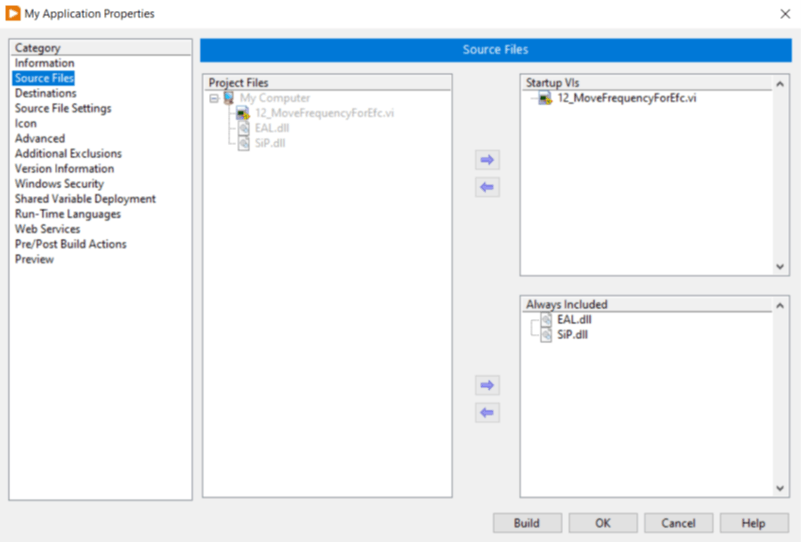
You can now create the executable and installer using the standard procedure. Make sure that the required EAL.dll and SIP.dll files are included and verify that the runtime environment is properly installed.
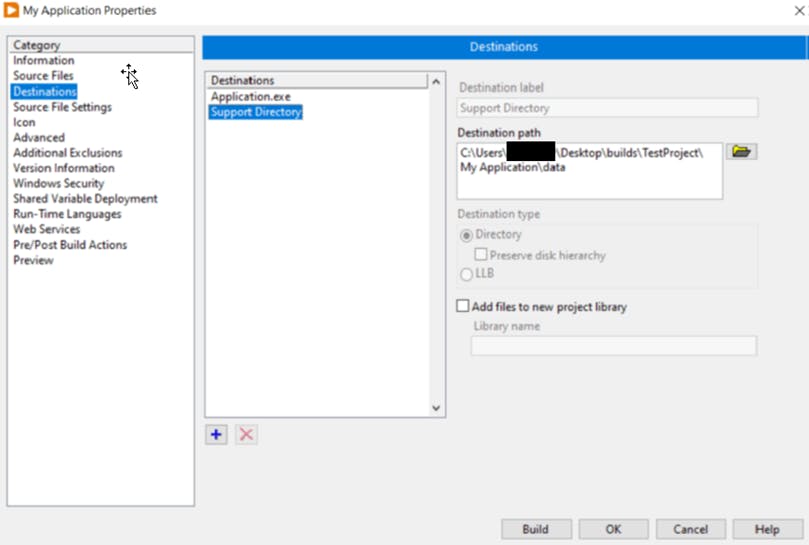
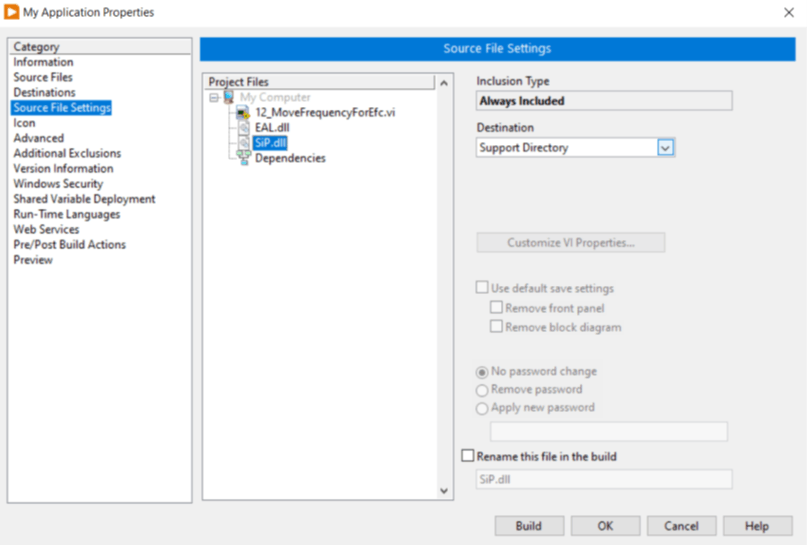
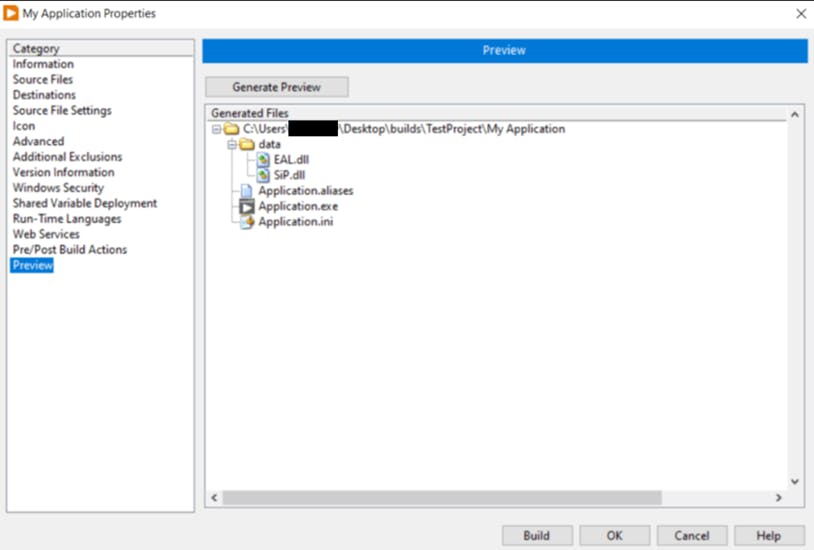
Note 2: The EAL.dll and SIP.dll files must be placed in the Support Directory, which is the default location for DLLs in a standard LabVIEW configuration. By default, this corresponds to the .\data\ subdirectory.
If a different folder structure is used, the DLL paths must be adjusted accordingly.
However, this setup has not been thoroughly tested, and no detailed guidance can be provided for such configurations.
The configuration is displayed in the following steps:
Now the installer can be created.