Requirements:
ctrlX CORE X3/X5/X7 or ctrlX CORE Virtual with internet connection
Node-RED app
PLC app (optionally)
MySQL Server (on PC or snap)
Basic snapcraft knowledge
Configured Environment to build the snap
Set MySQL Server
You can download MySQL installer for your target platform or use portable .zip archive, I will use portable mysql-8.0.38-winx64 in this guide.
Jump in 'mysql-8.0.38-winx64\bin' folder with CMD
Use command to initialize the server:
mysqld --initialize --consoleYou will need to save the temporary password:
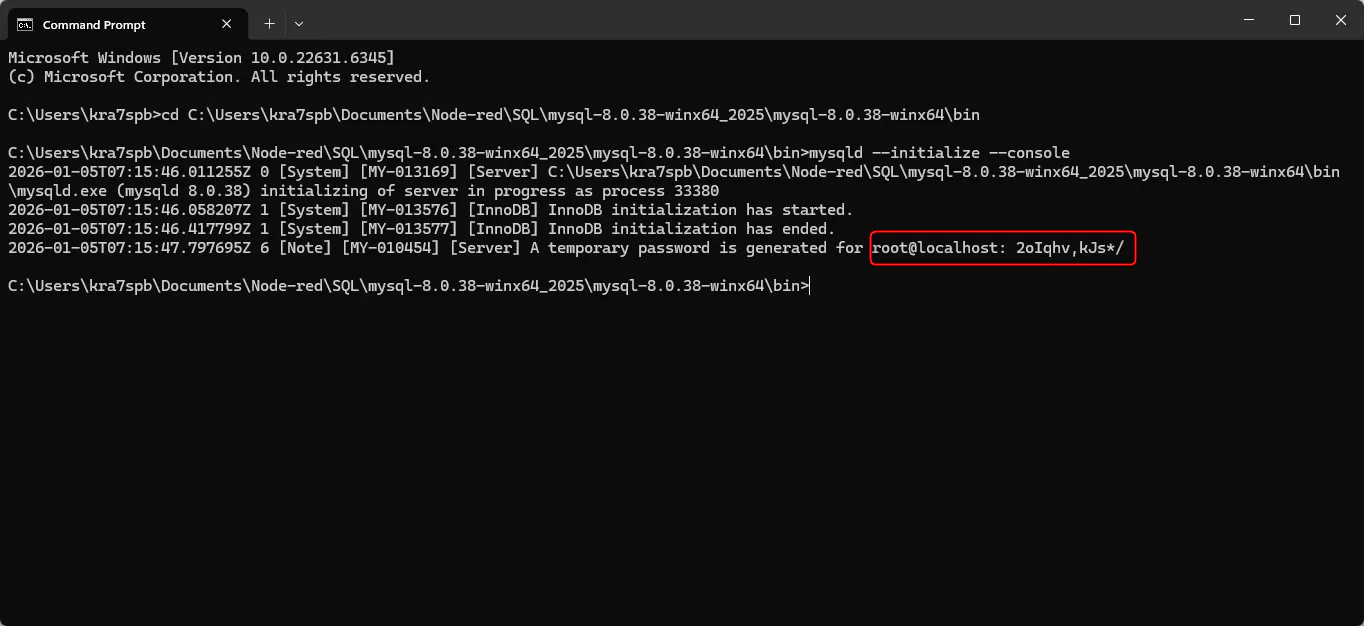
Start server:
mysqld --consoleYou will see it running on port 3306:
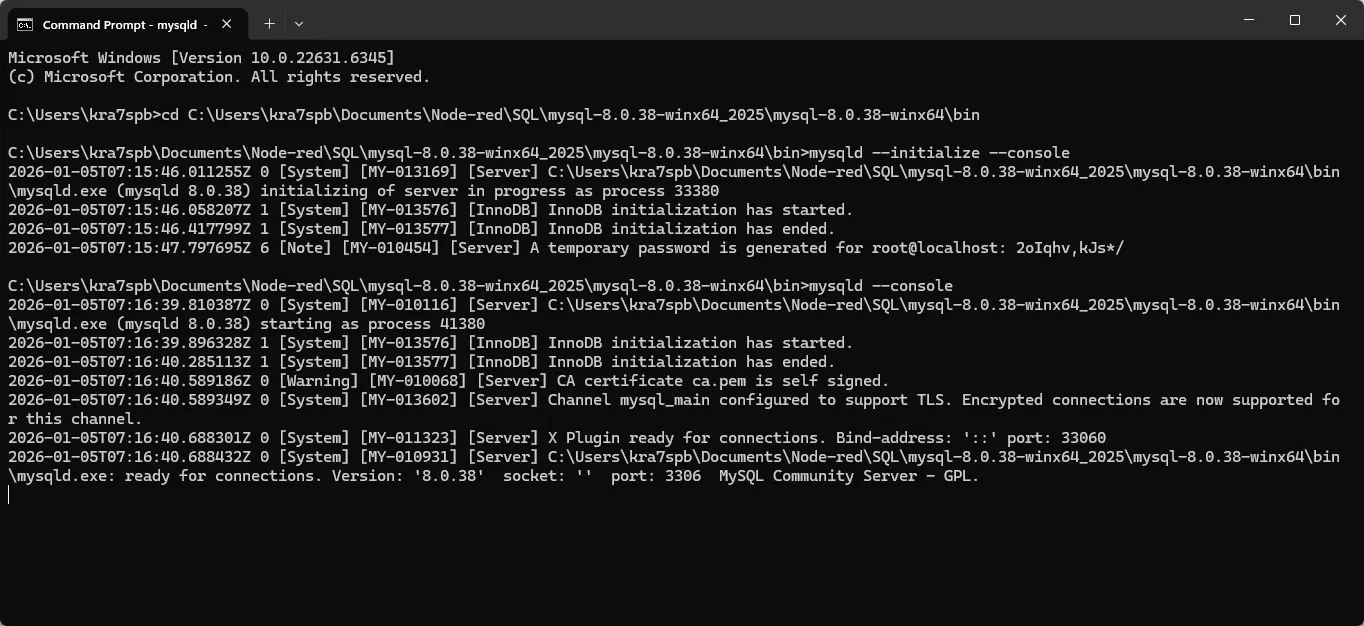
Now, run another terminal, go to the same directory and connect to the server:
mysql -u root -pSuccessful connection log:
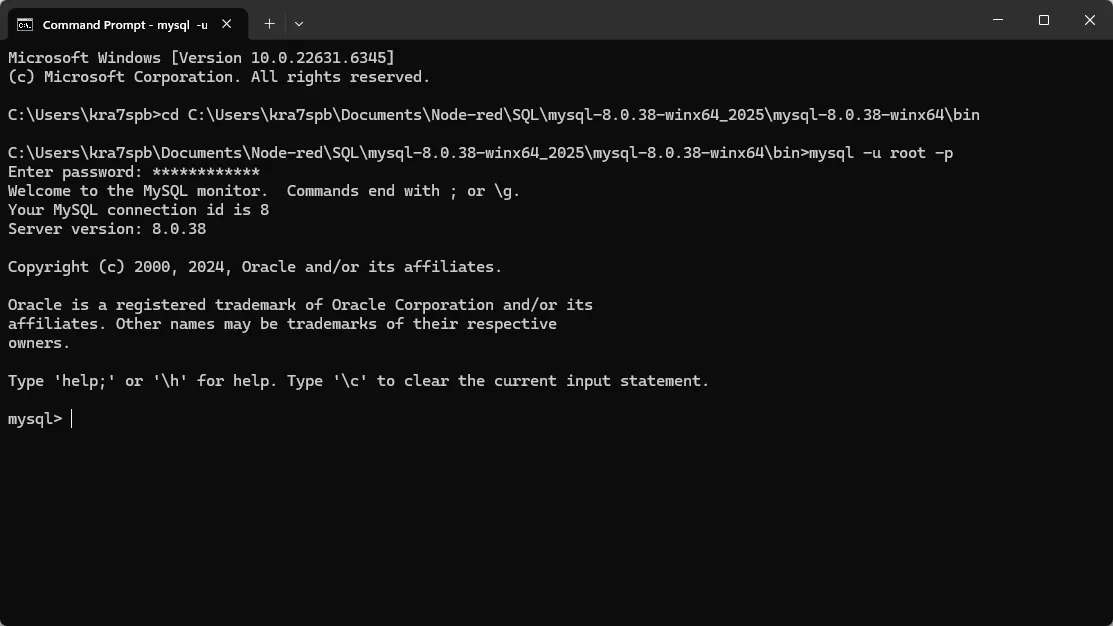
Optionally, we can change password now, I will change it to 'boschrexroth':
ALTER USER 'root'@'localhost' IDENTIFIED BY 'boschrexroth';let's create a database:
CREATE DATABASE db1;and switch to use it:
USE db1You will get the response:
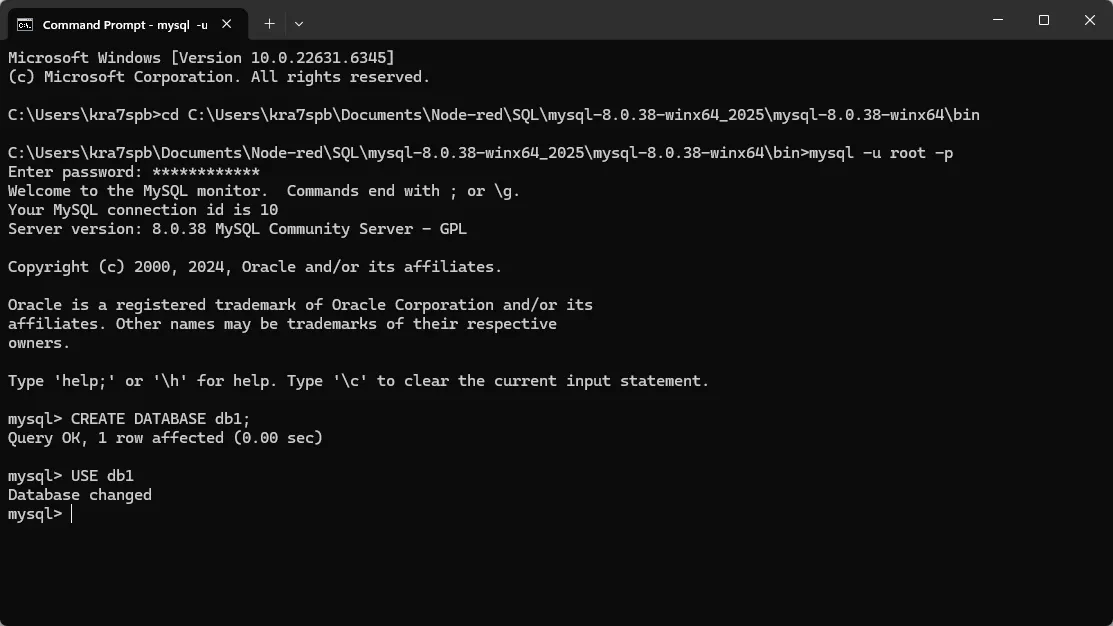
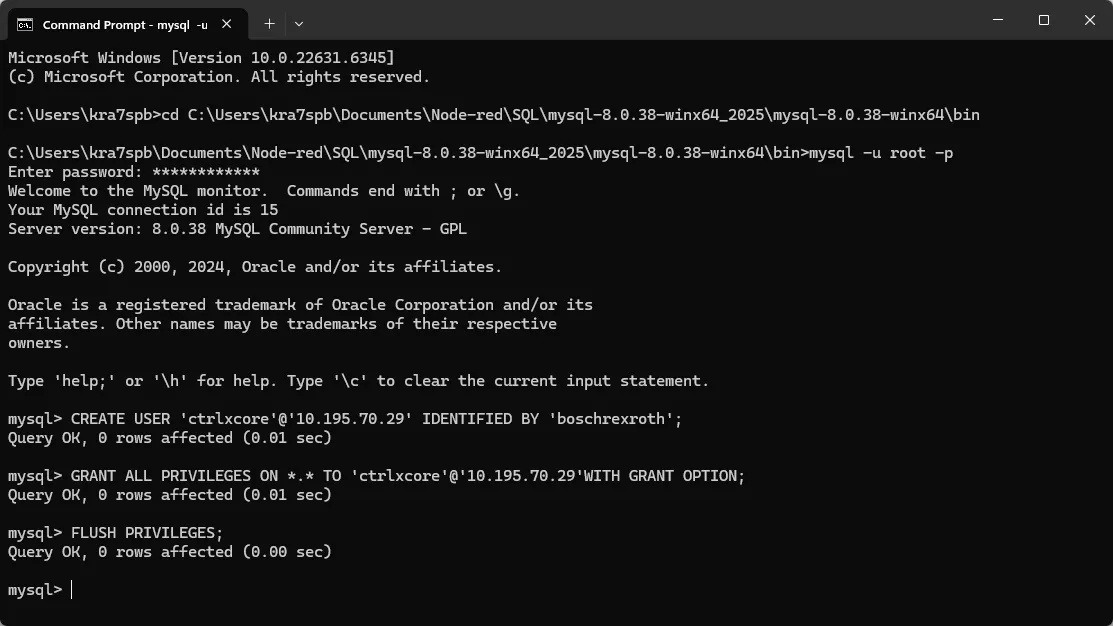
We are nearly good to go, just create a new user, grant permissions and use flush for immediate refresh of the rights:
CREATE USER 'ctrlxcore'@'10.195.70.29' IDENTIFIED BY 'boschrexroth';
GRANT ALL PRIVILEGES ON *.* TO 'ctrlxcore'@'10.195.70.29'WITH GRANT OPTION;
FLUSH PRIVILEGES;
if you get 'Query OK' after each command, can proceed further:
Install the node:
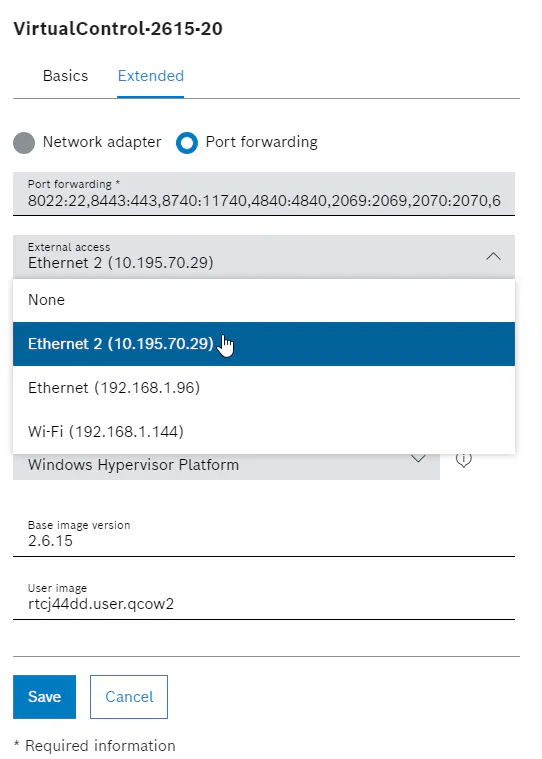
If you are using a Virtual core, like me in this guide, make sure that port forwarding is on, you also need to enable external access:
Run it!
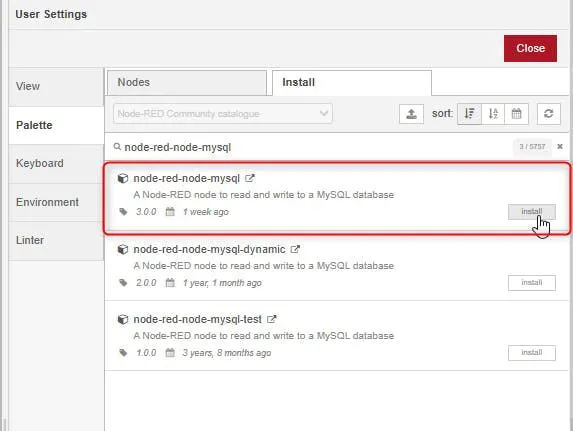
Now we can set up Node-red, you will need to add "node-red-node-mysql" to your palette, just open for palette, search for it and press install, but make sure your ctrlX CORE has connection to the internet.
Configure the Flow:
Insert required nodes:
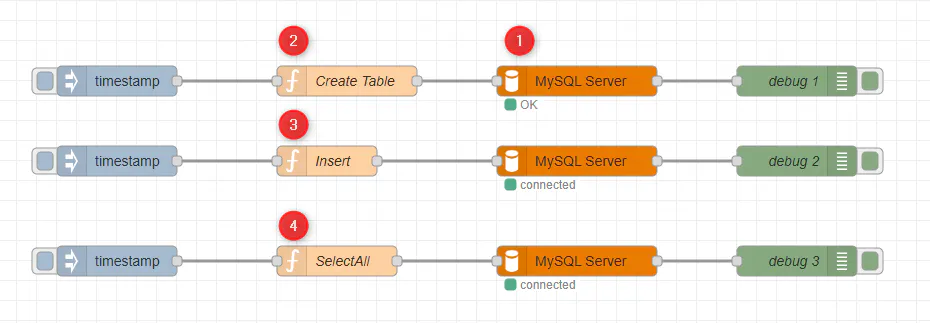
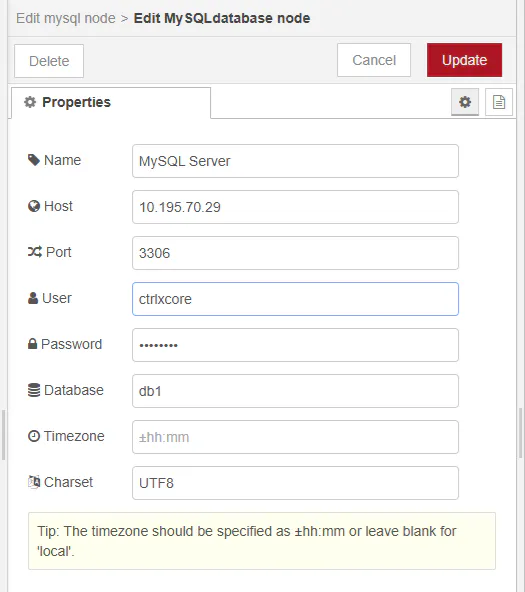
Edit settings of MySQL Server node to match the MySQL settings we've done before:
MySQL node settings Make a script for creating a table in our Database:
msg.topic= "CREATE TABLE Drives (id SERIAL PRIMARY KEY, device_id VARCHAR(50) NOT NULL, timestamp TIMESTAMP NOT NULL, velocity FLOAT, position FLOAT, torque FLOAT, status VARCHAR(20));"
return msg;
Script for inserting a table:
msg.topic= "INSERT INTO Drives (device_id, timestamp, velocity, position, torque, status) VALUES ('HCS01', NOW(), RAND() * 1000, RAND() * 10000, RAND() * 20, 'OK');"
return msg;
Script to read data from table:
msg.topic= "SELECT *From Drives;"
return msg;
Now you can press first inject to create a new table:

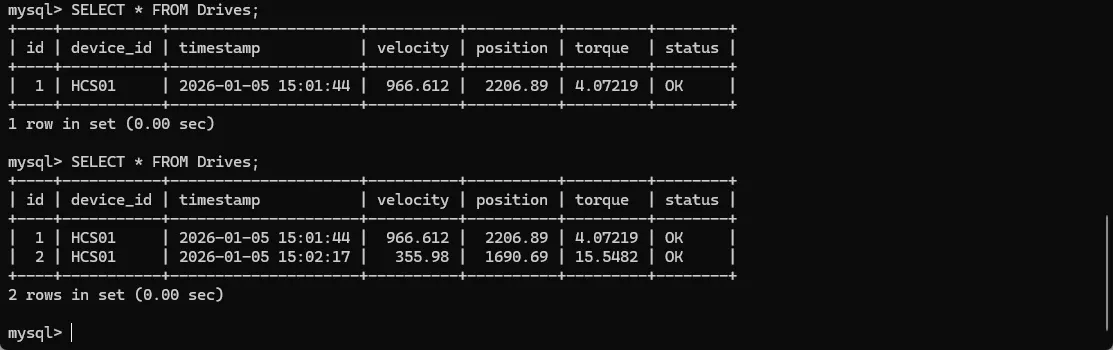
In MySQL terminal you can display created tables and get data from them:
SHOW TABLES;
SHOW COLUMNS FROM drives;
Result:
You can delete table with command:
DROP TABLE drives;Read data from PLC
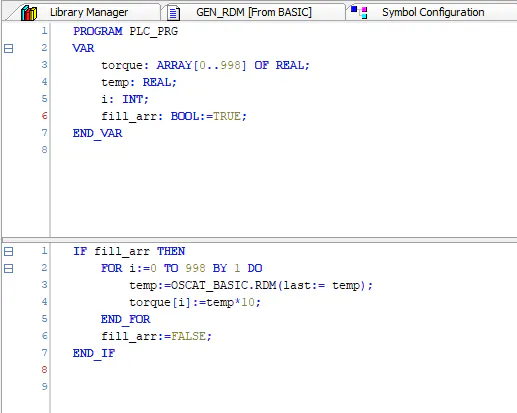
Create a simple PLC program to create an array of values, I am using OSCAT library to randomize it:
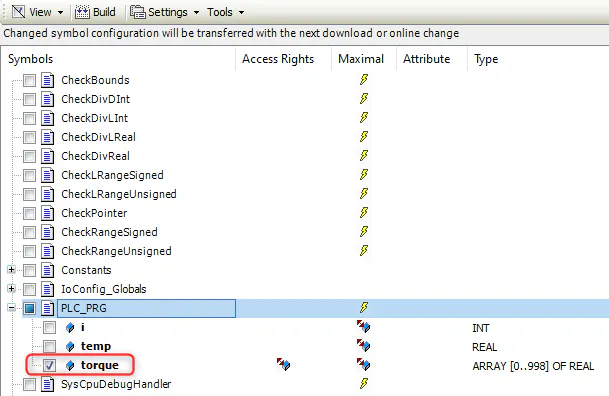
Don't forget to configure Symbol Configuration to publish your variable:
Load the code to your ctrlX CORE.
We need to add 'Read Datalayer' node and modify our script:
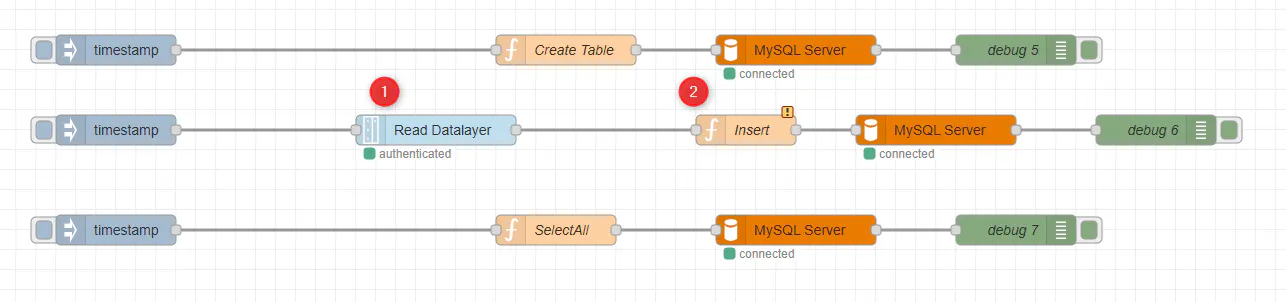
Edit device settings and path to your variable:
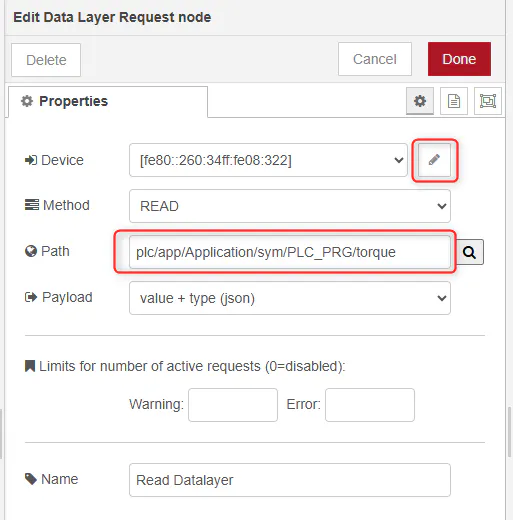
Insert the script, we only get torque value from PLC, other we keep randomized in Node-red:
msg.topic = "INSERT INTO Drives (device_id, timestamp, velocity, position, torque, status) VALUES ";

for (var i = 0; i < 998; i++) {
    var temp = msg.payload.value[i];
    msg.topic += "('HCS01', NOW(), RAND() * 1000, RAND() * 1000, "+msg.payload.value[i]+", 'OK'),";
}
msg.topic += "('HCS01', NOW(), RAND() * 1000, RAND() * 1000, " + msg.payload.value[998] +", 'OK')";
msg.topic += ";";

return msg;
Now after creating a table and pushing the data, you can check the tables using third inject:
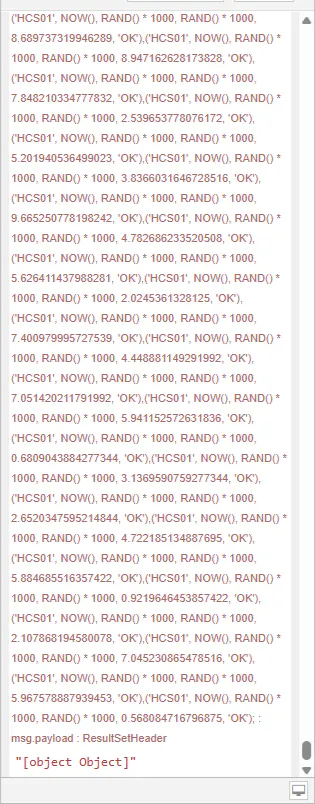
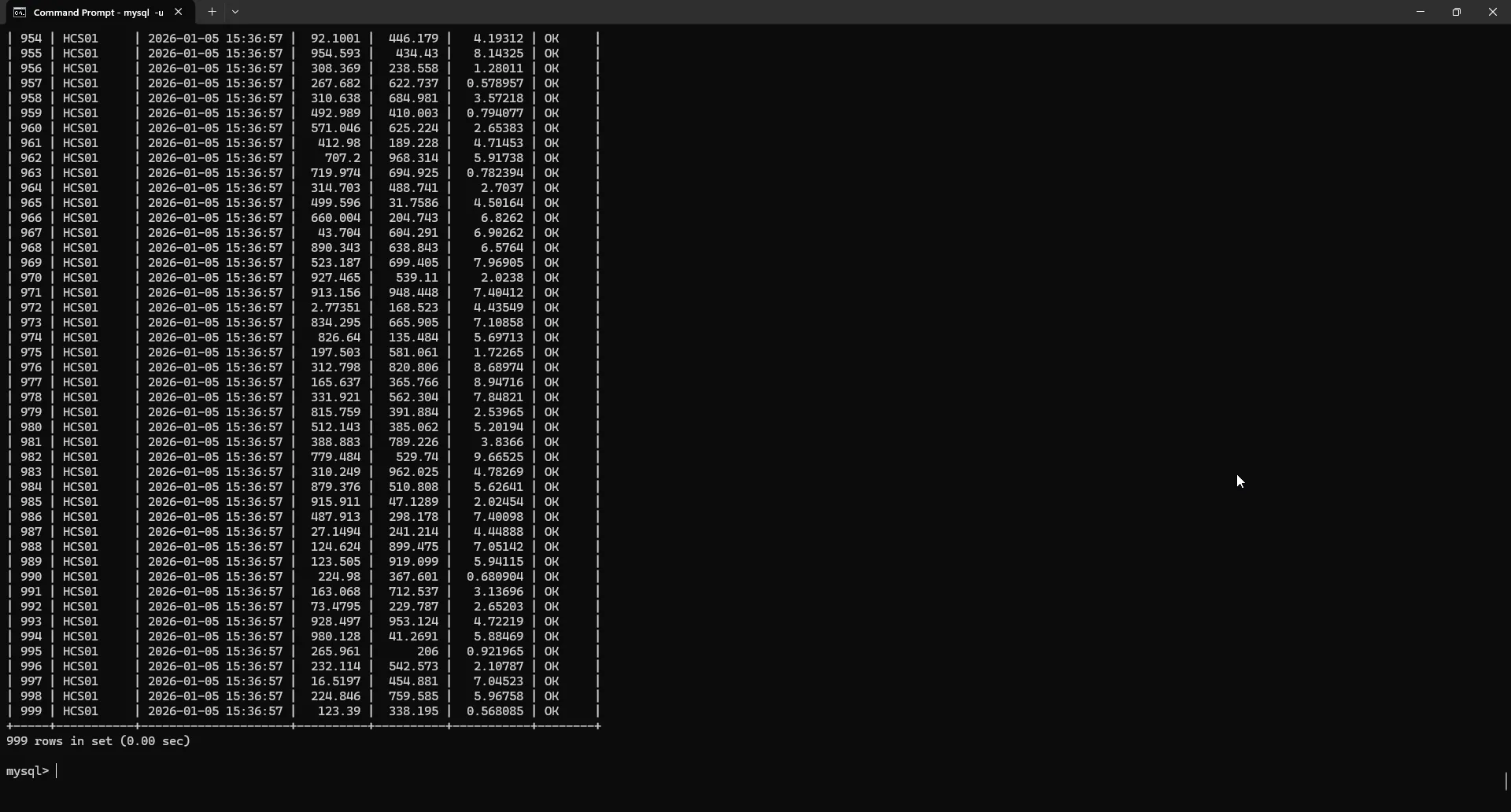
Or get it in MySQL terminal using 'SHOW COLUMNS FROM drives;' command:
Run MySQL on ctrlX CORE locally
Optionally, you can run MySQL Server on ctrlX CORE in a snap, please refer to official Canonical Github webpage for MySQL source code, it's easy to find. First you will need to change base version from core24 to core22 (if you are using Ctrlx OS 2.X.X/3.X.X), change mysql-server stage package to match it and build the snap. Install it on your ctrlX CORE:

You will need SSH access to the ctrlX CORE for initial setup. After accessing the ctrlX CORE, you can check available commands:
ls /snap/bin/ | grep mysqlCreate a new password:
sudo mysql.mysqladmin -u root password 'boschrexroth'And access MySQL server:
sudo mysql -u root -pYour terminal should look like this:
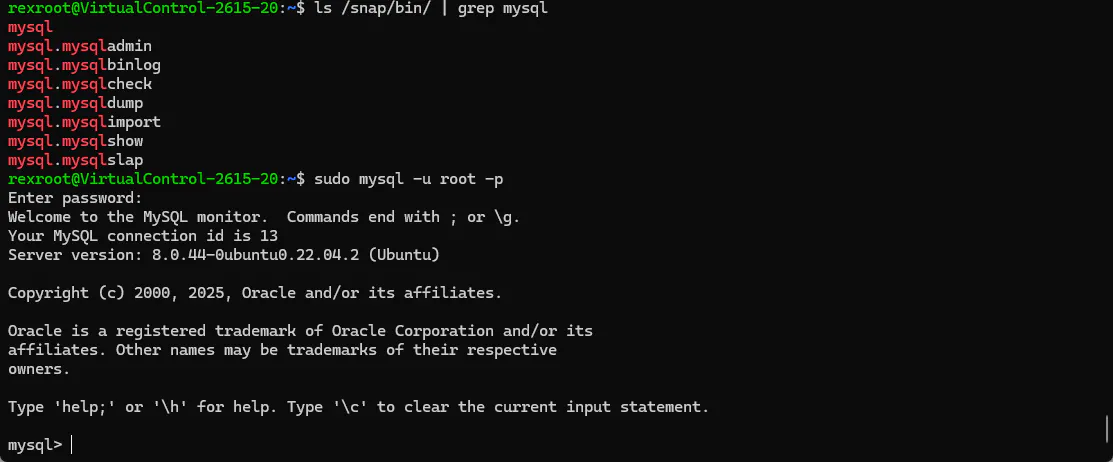
After that we can use standard commands to create a new user, you already know how to do it, just use localhost IP. Change the settings in Node-RED and enjoy the result!
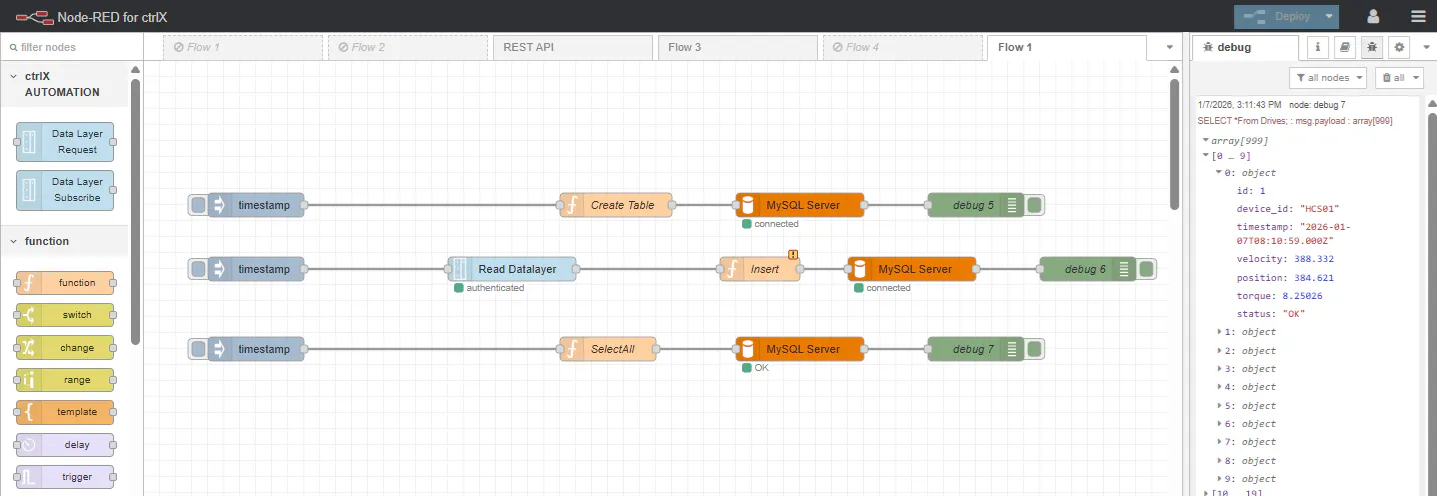
You can automate user and database creation by modifying install hook 'snap/hooks/install', just extend the script with custom function, for example new user ctrlxcore_auto and database db1:
create_app_db_and_user() {
    local init_file="$(mktemp)"

    # Create database
    echo "CREATE DATABASE IF NOT EXISTS db1;" >> "$init_file"

    # Create user with password
    echo "CREATE USER IF NOT EXISTS 'ctrlxcore_auto'@'127.0.0.1' IDENTIFIED BY 'boschrexroth';" >> "$init_file"

    # Grant all privileges
    echo "GRANT ALL PRIVILEGES ON *.* TO 'ctrlxcore_auto'@'127.0.0.1' WITH GRANT OPTION;" >> "$init_file"
    echo "FLUSH PRIVILEGES;" >> "$init_file"

    echo "SHUTDOWN;" >> "$init_file"
    chown snap_daemon:root "$init_file"

    # Run init file
    $SNAP/bin/setpriv.sh $SNAP/usr/sbin/mysqld \
        --defaults-file=$SNAP/etc/my.cnf \
        --user=snap_daemon \
        --skip-networking \
        --skip-mysqlx \
        --init-file="$init_file"
}
And run the function in the end of install hook:
create_app_db_and_userRebuild and install the snap, now you don't need any SSH access anymore!
Beware it is not recommended to use internal memory for deployment due to the limited capacity and lifetime of the memory!
Adding External Memory to Virtual CORE
For production purposes we will need to update the project to work with external memory.
This step can be skipped if you are using the real CORE.
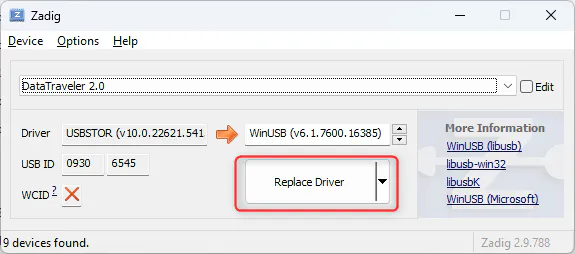
If you want to use it on Virtual ctrlX CORE, you will have to replace drivers to make it accessible in QEMU emulator, one of the ways is to use Zadig software. Run it, select your USD Drive and click on "Replace Driver"
Locate the Virtual image launch script and make a copy:
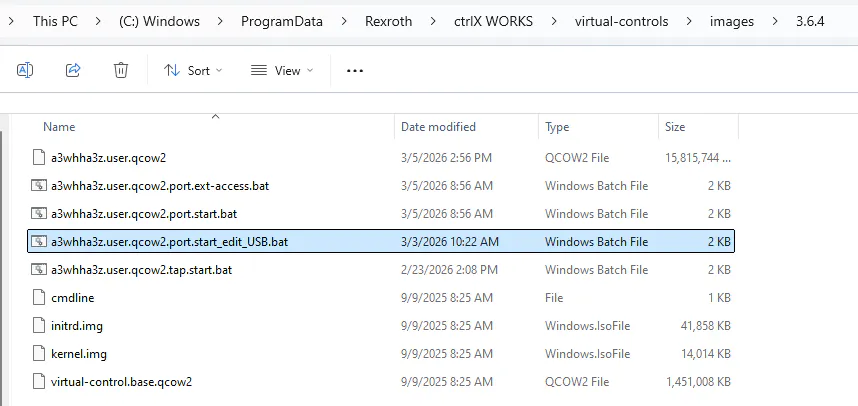
Edit it to make your USB Drive available in Virtual CORE, change vendorid and productid depending on the USB ID displayed in Zadig software:
-device qemu-xhci,id=xhci^
-device usb-host,vendorid=0x0930,productid=0x6545 ^
Save and run your control directly from a .bat script.
Memory mounting
Format the memory if needed and mount it for data exchange in Settings>Storage page:
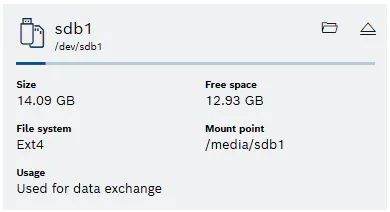
Now you can use /media/sdb1 link for your snap.
Source code modification
Modify 'snapcraft.yaml' to add 'removable-media' and 'hardware-observe' plug to mysqld apps section:
  mysqld:
    command: bin/mysqld.sh
    daemon: simple
    plugs:
      - network
      - network-bind
      - removable-media
      - hardware-observe
Locate 'snap/local/bin/mysqld.sh' and add code to use external media if available:
#!/bin/bash

INTERNAL_DATA="${SNAP_COMMON}/data"
EXTERNAL_DATA="/media/sdb1/data"

# If external media is accessible and data hasn't been migrated yet,
# copy the initialized database from internal to external storage.
if [ -d "/media/sdb1" ]; then
    if [ -f "${INTERNAL_DATA}/mysql.ibd" ] && [ ! -f "${EXTERNAL_DATA}/mysql.ibd" ]; then
        mkdir -p "${EXTERNAL_DATA}"
        chmod 775 "${EXTERNAL_DATA}"
        if "${SNAP}/usr/bin/setpriv" \
                --clear-groups --reuid snap_daemon --regid root \
                -- cp -a "${INTERNAL_DATA}/." "${EXTERNAL_DATA}/"; then
            chown snap_daemon:root "${EXTERNAL_DATA}"
            chmod 700 "${EXTERNAL_DATA}"
            # Clean up internal data only after successful copy.
            "${SNAP}/usr/bin/setpriv" \
                --clear-groups --reuid snap_daemon --regid root \
                -- rm -rf "${INTERNAL_DATA:?}/"*
        fi
    fi
fi

# Use external datadir if available, otherwise fall back to internal.
if [ -f "${EXTERNAL_DATA}/mysql.ibd" ]; then
    DATADIR="${EXTERNAL_DATA}"
elif [ -f "${INTERNAL_DATA}/mysql.ibd" ]; then
    DATADIR="${INTERNAL_DATA}"
else
    echo "ERROR: No initialized MySQL data directory found." >&2
    exit 1
fi

exec "${SNAP}/usr/bin/setpriv" \
    --clear-groups \
    --reuid snap_daemon \
    --regid root \
    -- \
    "${SNAP}/usr/sbin/mysqld" --defaults-file="${SNAP}/etc/my.cnf" --datadir="${DATADIR}"
Now you can rebuild and install the snap. You can check if data folder is moved to your media:

Have fun using it!
Related Links:
GitHub - canonical/mysql-snap: MySQL snap
IIoT: Use ctrlX CORE as a monitoring platform using InfluxDB and Grafana
GitHub - boschrexroth/ctrlx-automation-sdk: ctrlX AUTOMATION Software Development Kit
