Introduction
This article describes the installation and the basic settings to run CODESYS Softmotion on a supported CODESYS PLC / Motion controller with ctrlX DRIVE axis over EtherCAT CoE or EtherCAT SoE. The target controller must support CODESYS SoftMotion and should have sufficient performance for the calculation of the position, velocity, and acceleration data, and meets hard real-time properties with low jitter values.
The images used in this article correspond to the CODESYS IDE version V3.5 SP19 Patch 5 + (64-bit) and CODESYS SoftMotion version 4.16.0.0. So, they could be slightly different based on the actual CODESYS installation in your system.
CODESYS SoftMotion
CODESYS SoftMotion is an additional option for CODESYS compatible PLC systems. It is a Motion Control tool for controllers with PLCopen® functionality and CAMs, is integrated in the IEC 61131-3 programming system CODESYS. It extends the functional scope of these controllers to a motion controller with single-axis and synchronized multi-axis movements (electronic cams. electronic gears), optionally also with CNC and robotics support.
More information can be found in the below pages.
System Overview
A schematic of how the CODESYS PLC and the ctrlX DRIVEs are connected is shown in the image below.
The PLC can be programmed from the CODESYS IDE over its engineering port.
The drives can be configured from ctrlX DRIVE Engineering software over the EtherCAT EoE or over a ctrlX DRIVE Panel.
Compatibility of CODESYS SoftMotion and ctrlX DRIVE
CODESYS SoftMotion see release note for more information.
SoftMotion versions
ctrlX DRIVE Runtime
Additional info
SoftMotion 4.16.0.0 to ...
AXS-V-03 to ...
EtherCAT CoE (without SMO)
SoftMotion 4.18.0.0 to ...
AXS-V-03 to ...
EtherCAT CoE, SoE (with and without SMO)
[SM-5045], [SM-5579],
[SM-5495] incompatible change
SoftMotion 4.20.0.0 to ...
AXS-V-03 to ...
[SM-6193], [SM-6192]
Installation
The CODESYS SoftMotion package contains the device description files for ctrlX DRIVEs (both EtherCAT CoE and SoE). There is no need to install any additional package. The SoftMotion package can be downloaded from the CODESYS website. This document is based on the SoftMotion package version 4.16.0.0 but we recommend using the latest SoftMotion package available.
Installation of CODESYS SoftMotion package
Management of packages and their licenses in general is provided in the below CODESYS help.
To install the SoftMotion package, follow the below steps.
Open the CODESYS Installer dialog from Tools -> CODESYS Installer. The dialog must be opened with Administrator privileges to be able to install packages. On older CODESYS installations the CODESYS installer would be called as Package Manager.
Click on Install File(s) and select the SoftMotion package in the Open dialog.
Click Ok to confirm the installation and click Continue to start the installation.
The package installation will take a while. After successful installation click Ok to close the dialog.
ctrlX DRIVE Protocol and Profile
Wizard: Establishing a connection to the drive
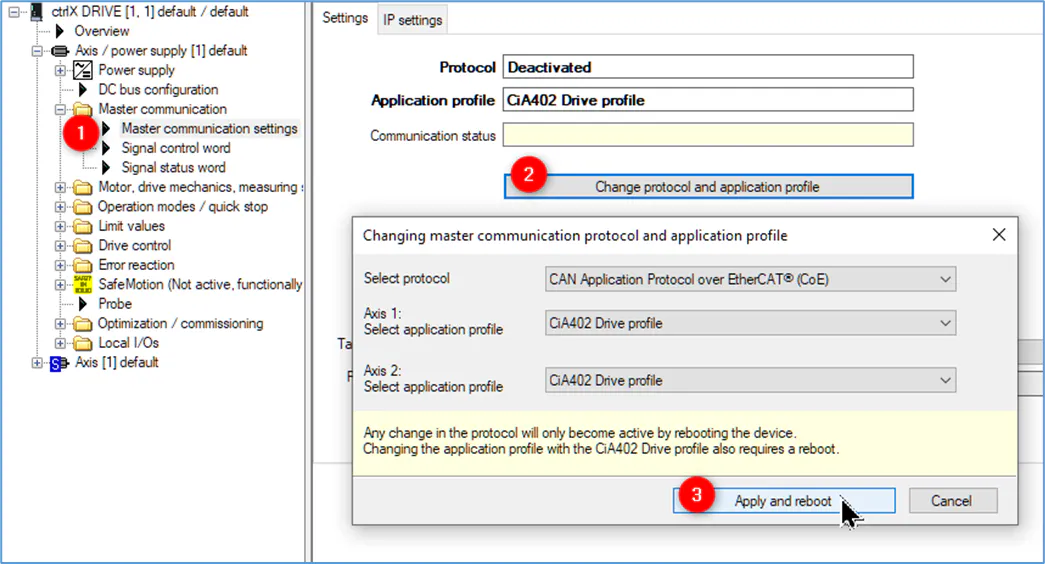
The drive should be set to EtherCAT communication (CoE or SoE) with the correct application profile type. This can be done using ctrlX DRIVE Engineering as shown in the image below.
The correct application profile settings are,
CiA402 Drive profile for EtherCAT CoE
Servodrive Profile for EtherCAT SoE
The drive must be rebooted for the settings to be active. It must be ensured that the EtherCAT line is connected correctly, and the power supply of the drive is on.
EtherCAT Master SoftMotion configuration
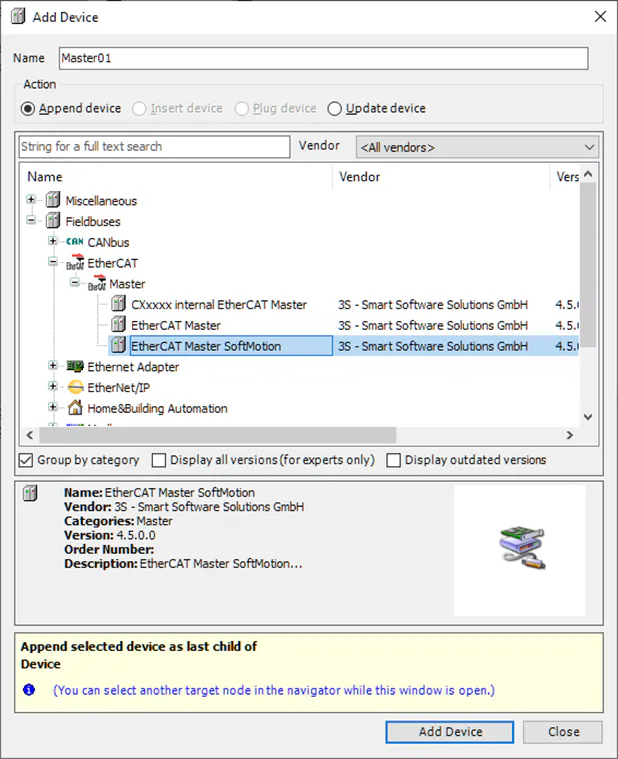
Start the CODESYS IDE, create a new project and choose your PLC device. Inside the new project, right click on the Device and click on Add Device option.
Choose the EtherCAT Master SoftMotion under EtherCAT fieldbus and click on the Add Device button.
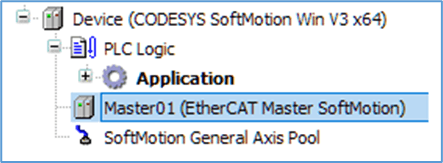
The EtherCAT_Master_SoftMotion is now added under the PLC device as shown in the image below.
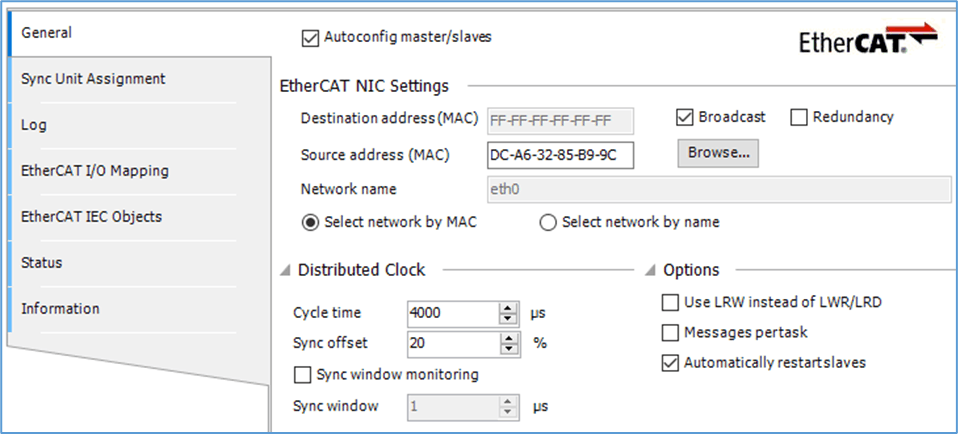
Open the EtherCAT master settings and configure the EtherCAT NIC and Distributed Clock settings as required. The below image is a representation of an EtherCAT master configuration.
Scanning and Adding drives
Right click on the EtherCAT master and click on Scan for Devices.
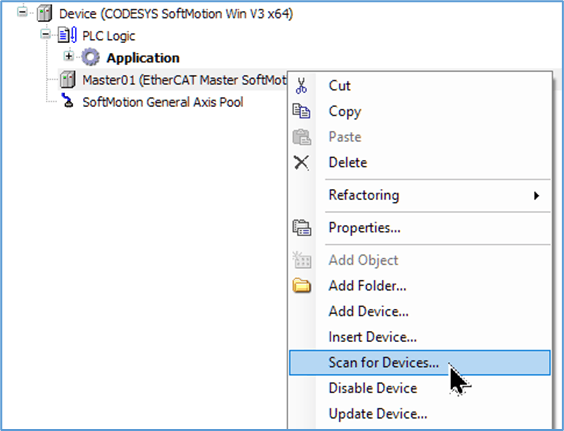
In the scan result you will see the drives which are connected to your EtherCAT master. Press the button “copy all newly scanned devices” in the scan result dialog to copy the drives to your project under the EtherCAT master on the left side of the dialog.
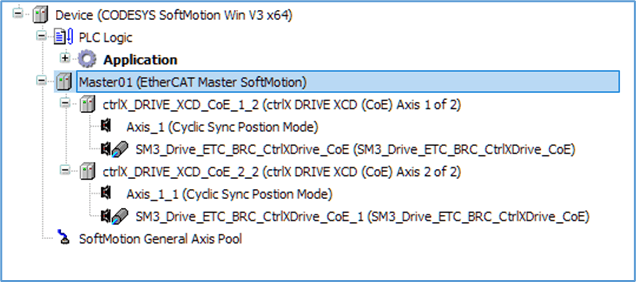
The corresponding device libraries are automatically added to the project:
Library EtherCAT SoE: SM3_Drive_ETC_BRC_CtrlXDrive_SoE
Library EtherCAT CoE: SM3_Drive_ETC_BRC_CtrlXDrive_CoE
Scaling/Mapping
SoftMotion has its own scaling. Therefore, the scaling of the ctrlX DRIVE and the scaling of SoftMotion must be compatible with each other. In CODESYS, “Units” are used as the measurement unit, so the correct normalization in the application must be ensured.
CODESYS Help SoftMotion Drives
ctrlX DRIVE, Runtime Application Manual CoE - Scaling of physical data
ctrlX DRIVE, Runtime Application Manual SoE - Scaling of physical data
Maximum travel range
The modulo handling is fully managed by CODESYS SoftMotion.
Set the parameter “Maximum travel range: Absolute format (0x2488:02 / S-0-0278 / --)” to its maximum value of 107374.1823. The configuration can be conveniently performed via ctrlX DRIVE Engineering.
In the drive overview, open the “Axis mechanics / Scaling” section and enter the values as shown in the figure below.
Note:
CODESYS SoftMotion also supports power-of-two values for parameter S-0-0278.
SoftMotion DriveInterfaceError: “Max Traval Range is not a Power of 2”
Important:
CODESYS SoftMotion version 4.17 -> 4.18 incompatible change, see Release Notes:
[SM-5495] SMC3_PersistPositionSingleturn: allow encoder ranges that are not a power of 2
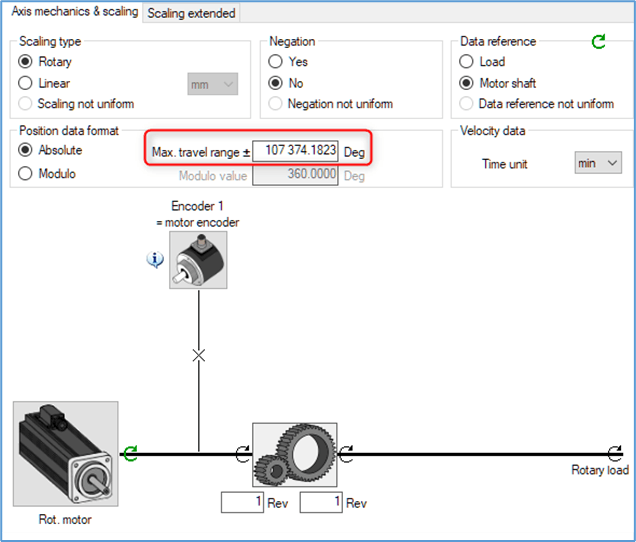
Axis configuration: Scaling Rotary
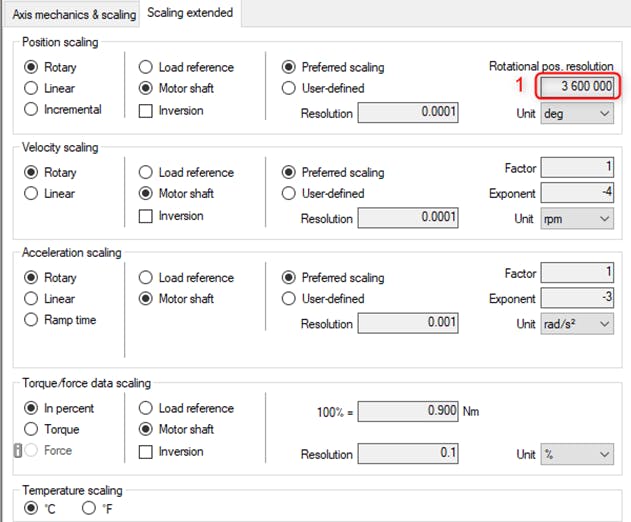
If the ctrlX DRIVE is set to “Rotary”, the integer degree resolution with decimal places of one revolution is available in parameter 0x2900:04 / S-0-0079 “Position data scaling: Rotational resolution” (1).
This setting should match the SoftMotion “increments” (1). To move in degrees, you can enter the value 360 in “units in application” (2).
ctrlX DRIVE example configuration for rotary
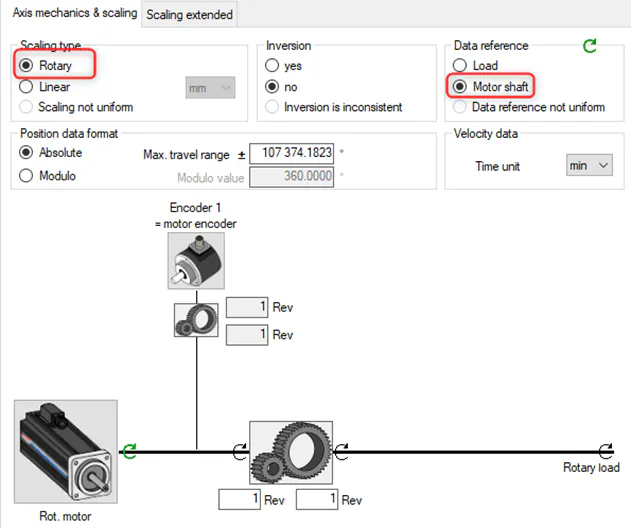
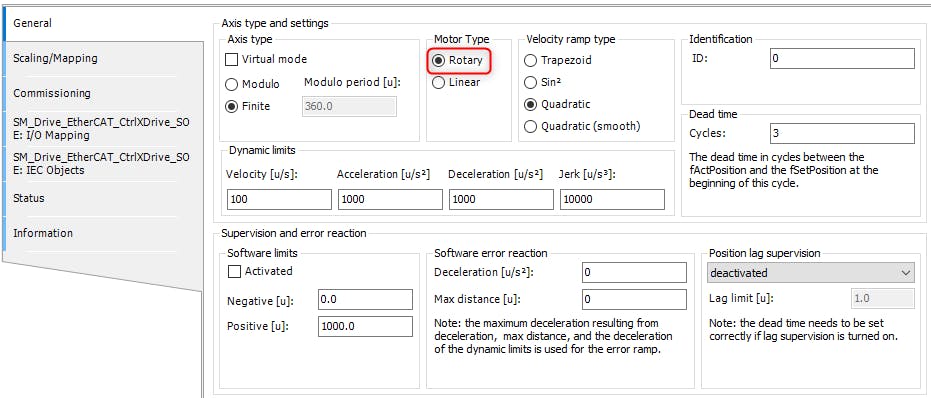
CODESYS SoftMotion example configuration for rotary
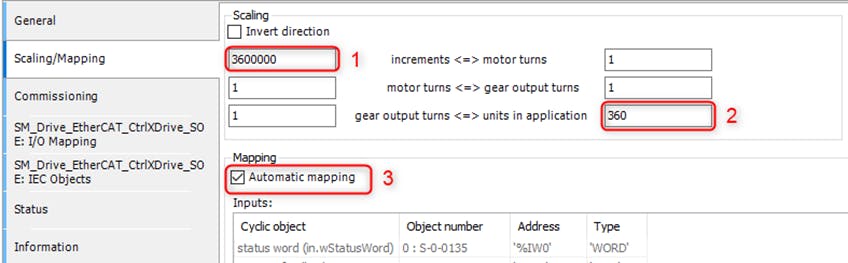
(3) Leave the Automatic Mapping selected as shown in the image below.
Axis configuration: Scaling Linear
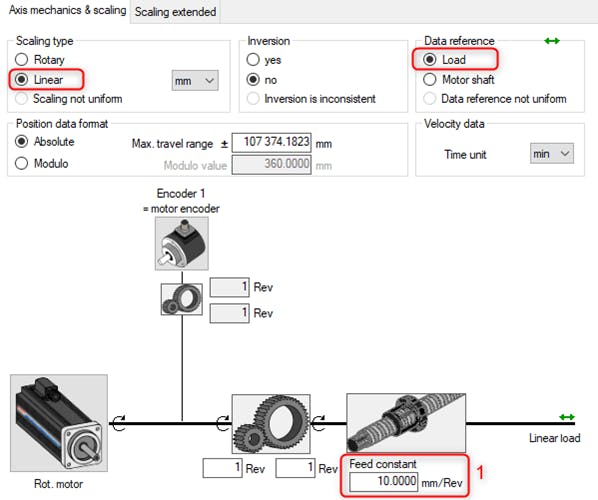
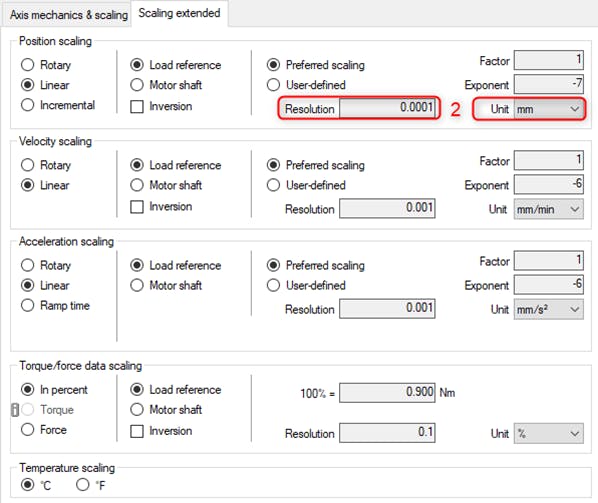
When both the ctrlX DRIVE and SoftMotion are set to “Linear,” the “Data Reference”
changes to “Load” instead of “Motor shaft.” Therefore, the “Feed constant” (1)
must also be checked. For normalization, the ctrlX DRIVE internally uses meters as the unit, but displays all values in millimeters with four decimal places (2) for better readability.
For example, if the ctrlX DRIVE is configured with a resolution (2) of 0.0001 mm, the scaling in SoftMotion must be configured so that 10,000 “increments” (3) correspond to one “units in application” (4) of 1.
ctrlX DRIVE example configuration for linear
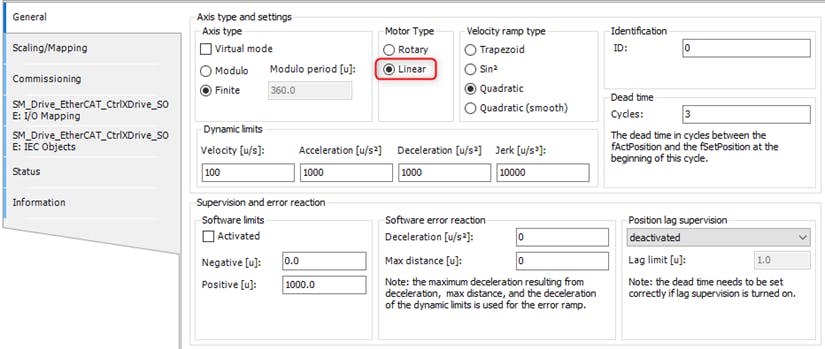
CODESYS SoftMotion example configuration for linear
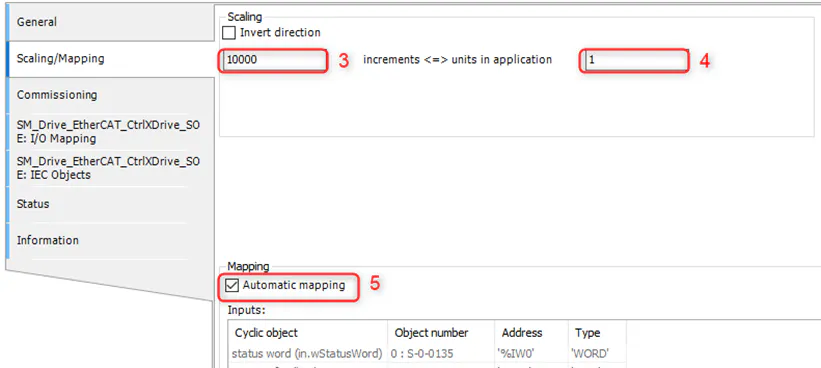
(5) Leave the Automatic Mapping selected as shown in the image below
ctrlX DRIVE with PowerSupply
ctrlX DRIVE Project Planning Manual - Control circuit for the mains connection
ctrlX DRIVE, Runtime Application Manual CoE - Device group and device configuration
ctrlX DRIVE, Runtime Application Manual SoE - Device group and device configuration
Writing Motion Programs & Using the built-in Visualization Templates
Creating a Motion POU & Linking to Motion Task
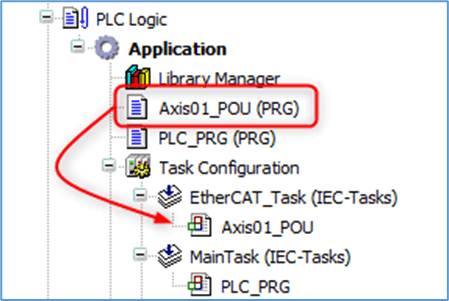
Create a new POU of the type PRG and provide it a suitable name. Use this POU to write the motion program.
Call this POU under the EtherCAT_Task as shown in the image below.
Linking the SoftMotion Axis to Motion Function Blocks
In the motion function block calls, link the Axis input to the SoftMotion axis under the drive.
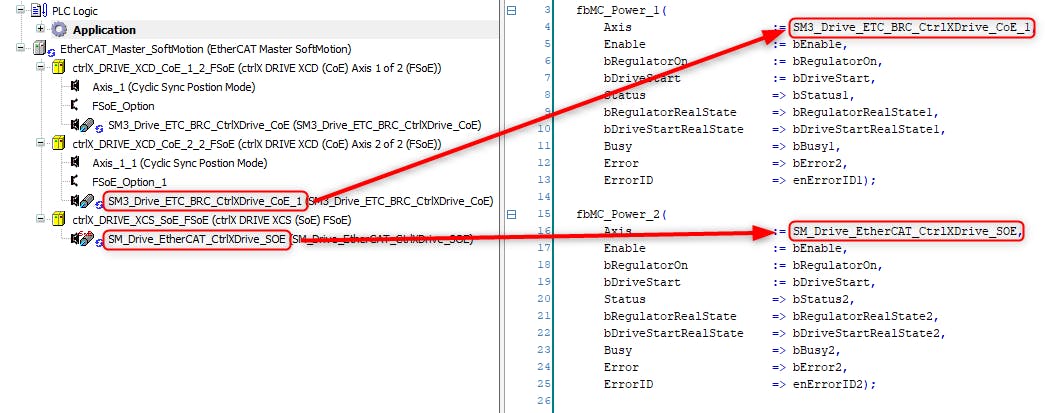
More information about CODESYS SoftMotion itself and the SM3_Basic library can be found in the online help links provided below.
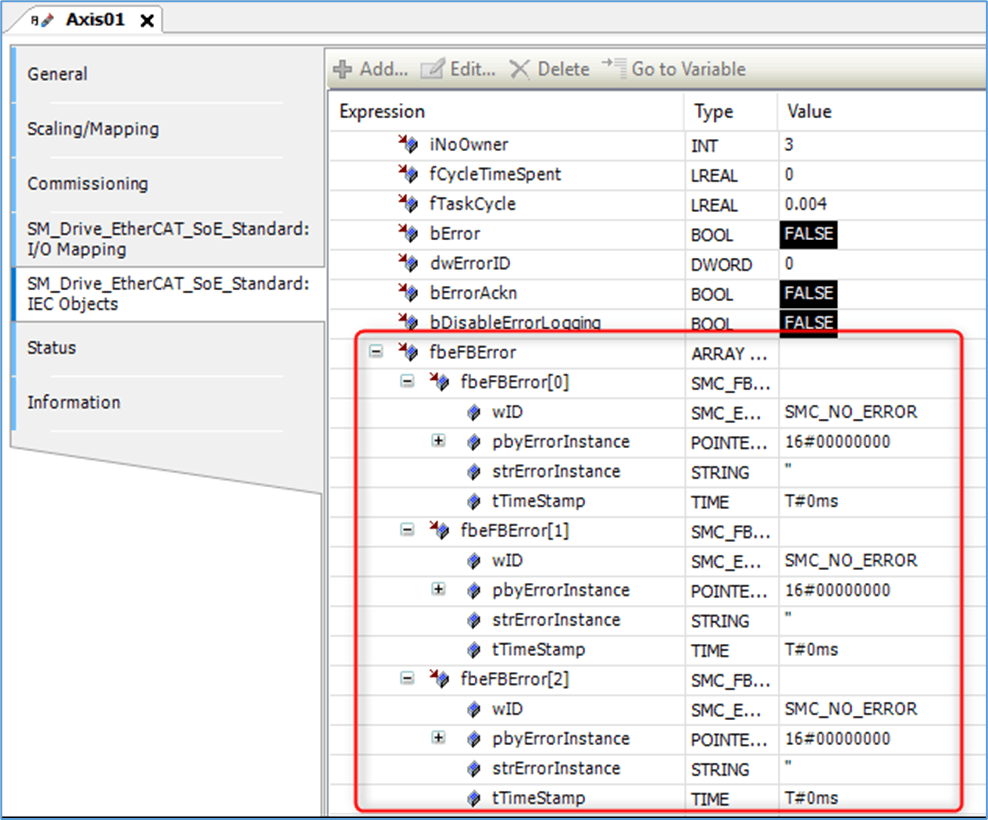
When an error occurs when using one of the motion blocks, a detailed diagnostic information can be found in the SoftMotion Axis page as shown in the image below.
Built-in Visualization Templates
The SM3_Basic library has a lot of built-in visualization templates that can be used directly by a programmer to test functionality of a motion function block with minimal code. One example is given below for the function block SMC_ChangeGearingRatio.
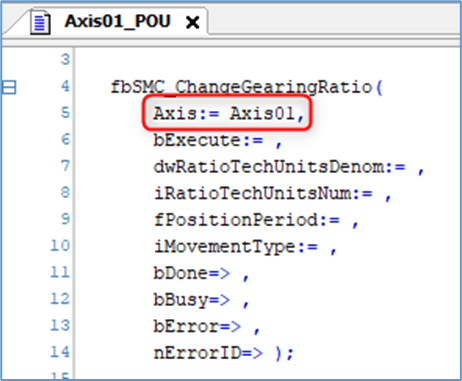
Create an instance of the function block SMC_ChangeGearingRatio in the motion POU as shown in the image below. Provide link to the motion axis via the Axis input. No need to create variables for inputs or outputs.
FB SMC_ChangeGearingRatio Add a visualization to the project -> right click on Application -> Add object -> Visualization.
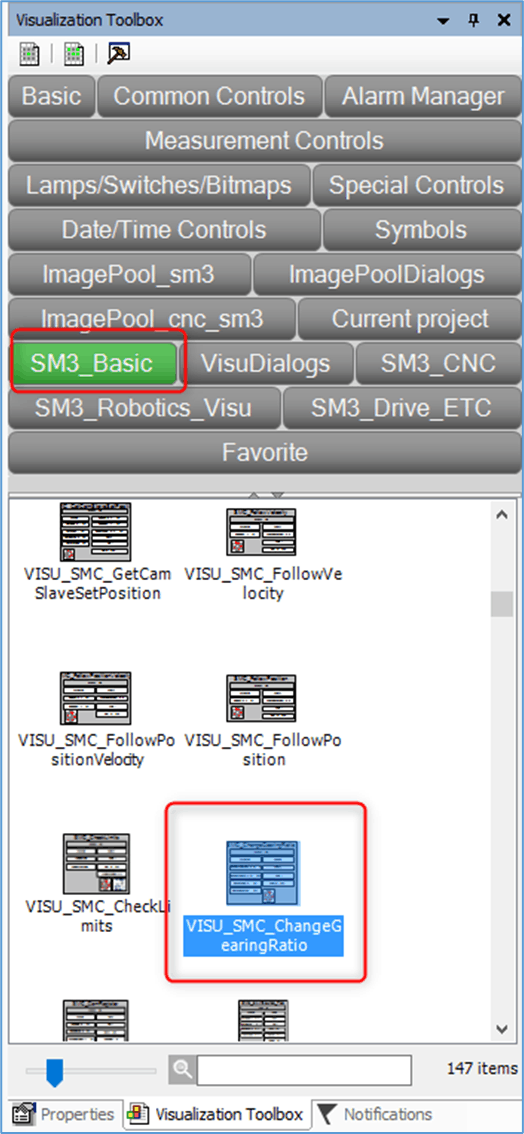
Open the created visualization. From the Visualization Toolbox on the right, select the SM3_Basic tab. Find the template VISU_SMC_ChangeGearingRatio as shown in the image below. Drag and drop the template onto the visualization.
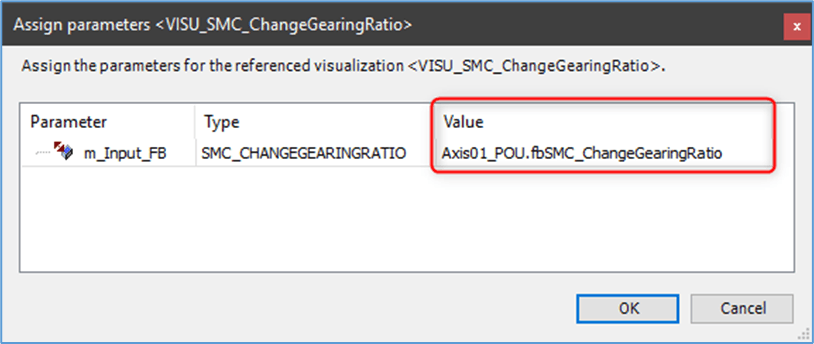
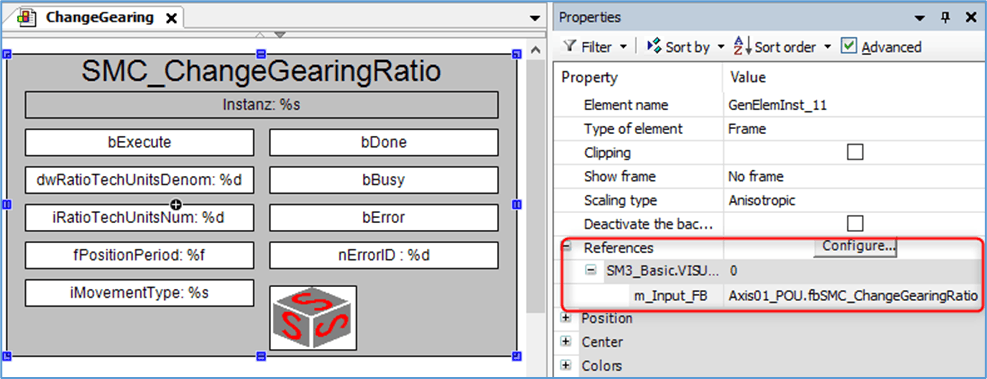
Select visu VISU_SMC_ChangeGearingRatio The Assign parameters dialog will open for the visualization template. Browse and choose the instance of the SMC_ChangeGearingRatio function block created in the motion POU and click OK. Now the inputs and outputs of the visualization are automatically mapped to the function block instance as shown in the image below and can be directly used.
Link visu on FB SMC_ChangeGearingRatio VISU_SMC_ChangeGearingRatio Like the example given above, there are lot of templates available in the SM3_Basic library which the user can directly use to verify the functionality of the SoftMotion SoE axis and the motion blocks.