Introduction
In this tutorial, I will write a web application based on the Blazor framework to read and write to Datalayer. Blazor is a web application framework based on .NET. The programming languages used are HTML and C#. The IDE used in this project is VS-Code.
Requirements
ctrlX CORE Virtual 02.06
App Build Environments
Visual Studio Code
.NET 8.0
ctrlx-automation-sdk 2.6.0
Preparation
Configure the ctrlx-automation-sdk 2.6.0 in App Build Environments.
Download the attachment at the end of the article and get ready.
Operation
Please watch the video for detailed operation steps. Here I will show you the key points.
[boschtube src="https://bosch.mediaspace.de.kaltura.com/embed/secure/iframe/entryId/0_ikjzq4u8/uiConfId/23448911/pbc/351475/st/0"]
Open the directory in the App Build Environments:
~/ctrlx-automation-sdk/samples-net/Create a new folder
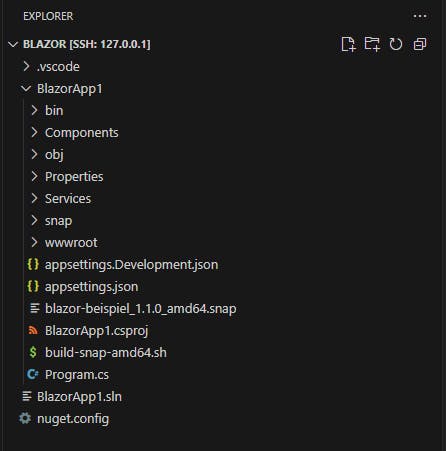
Blazoras the root directory of the project. The original project structure is as follows.Original project structure Copy the attached
nuget.configfile to the root directory and add its application to the .sln fileProject("{FAE04EC0-301F-11D3-BF4B-00C04F79EFBC}") = "BlazorApp1", "BlazorApp1\BlazorApp1.csproj", "{76F66DD6-110A-4A88-8F5D-74792AF2EE7C}" # copy from here ProjectSection(SolutionItems) = preProject nuget.config = nuget.config EndProjectSection # end here EndProjectAdd a reference to the ctrlX-DataLayer package in your .csproj file.
 <ItemGroup>
     <PackageReference Include="ctrlX-DataLayer" Version="4.*" />
 </ItemGroup>
Copy the
Serversfolder in the attachment to the./BlazorApp1directory to create theCtrlxDatalayerBlazor.serviceAdd the following to your .cs file
# Add new namespace
using CtrlxDatalayerBlazor.Services;
using Microsoft.Extensions.FileProviders;
# Fixed listening port e.g. 5003
builder.WebHost.UseUrls("http://0.0.0.0:5003");
# Add services to the container
builder.Services.AddSingleton<DatalayerService>();
# Specifies the location of static files (css) in the snap sandbox.
app.UseStaticFiles(new StaticFileOptions
    {
        FileProvider = new PhysicalFileProvider(
            Path.Combine(Environment.GetEnvironmentVariable("SNAP"), "wwwroot")
       )
    }
);
Create a Datalayer item in the navigation menu.
./BlazorApp1/Components/Layout/NavMenu.razor<div class="nav-item px-3"> <NavLink class="nav-link" href="Datalayer"> <span class="bi bi-list-nested-nav-menu" aria-hidden="true"></span> Datalayer </NavLink> </div>Copy the Datalayer page
Datalayer.razordescription file to./BlazorApp1/Components/PagesAdd a reference to the Datalayer service (./ BlazorApp1/Components/_Imports.razor)
@using CtrlxDatalayerBlazor.ServicesAdd a
containerstyle in./wwwroot/app.css.container { padding: 20px; background-color: white; border-radius: 5px; box-shadow: 0 4px 6px rgba(0, 0, 0, 0.1); }Copy the
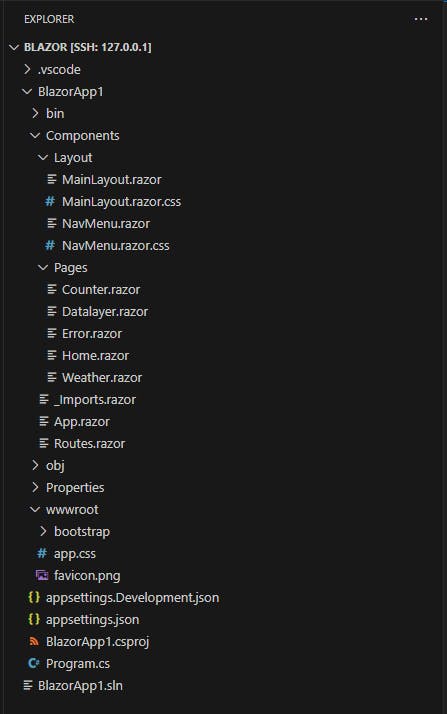
snapfolder andbuild-snap-arm64.shscript in the attachment to the./BlazorApp1directory to package snap files. The final project structure is as followsModified project structure Run the
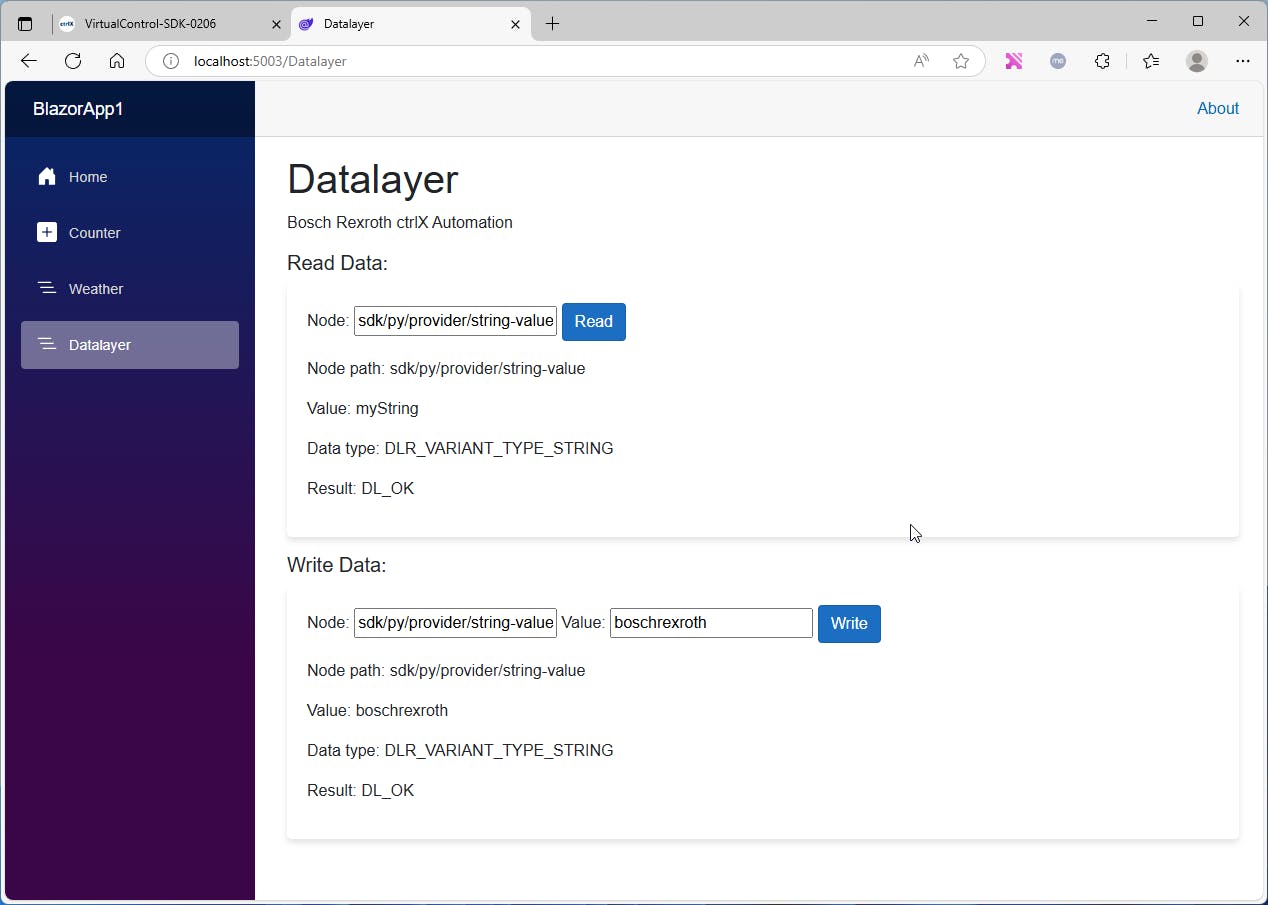
build-snap-arm64.shscript in terminal and install the snap on your Virtual Core. You can read and write variables in a specified node on the “Datalayer” page.Blazor Web App - Datalayer page