Introduction
This article guides you through updating ctrlX WORKS engineering software and the ctrlX CORE X3 controller to version 3.6, including data backup, SD card flashing, and restoring app configurations.
Steps
Step 1: Update ctrlX WORKS to Version 3.6
Starting with version 3.6, subprograms such as ctrlX PLC Engineering and ctrlX IO Engineering must be installed separately alongside ctrlX WORKS.
• Download ctrlX WORKS 3.6.3 from the Collaboration Room under ctrlX Store > ctrlX WORKS Engineering > 3.6.
• Install ctrlX WORKS, then separately install ctrlX PLC Engineering and ctrlX IO Engineering from the same store path.
• Verify that all engineering tools launch correctly from within ctrlX WORKS.

Step 2: Back up the current ctrlX CORE X3 System
Create a full system backup before updating to ensure that you can restore the previous state if needed.
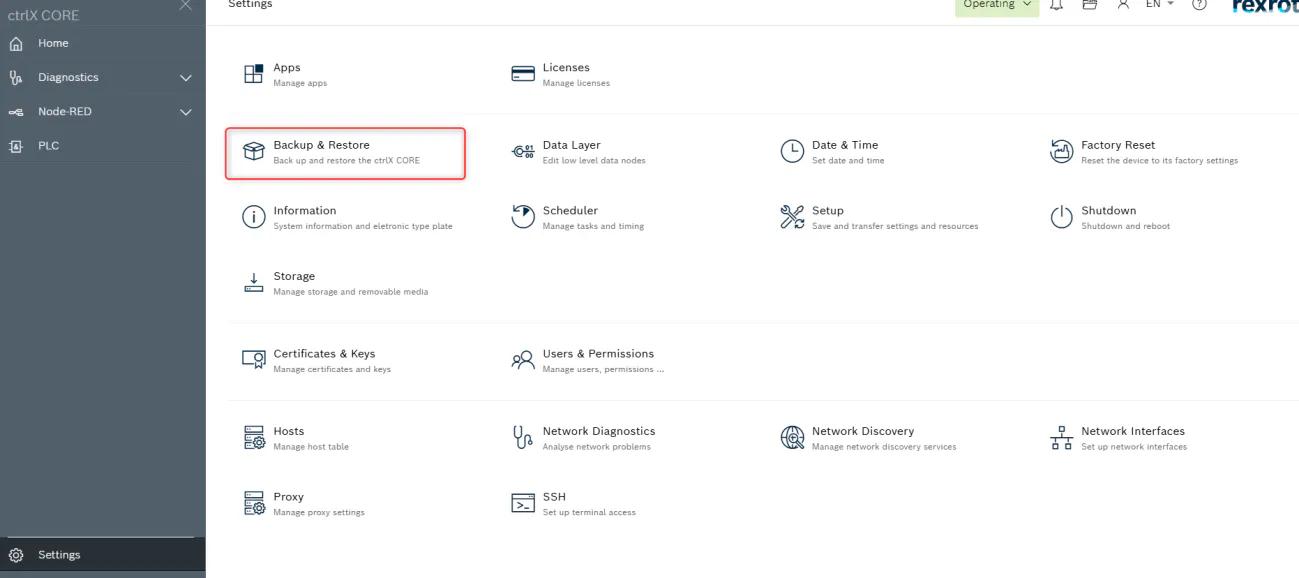
• Open the ctrlX CORE web UI, navigate to Settings > Backup & Restore.
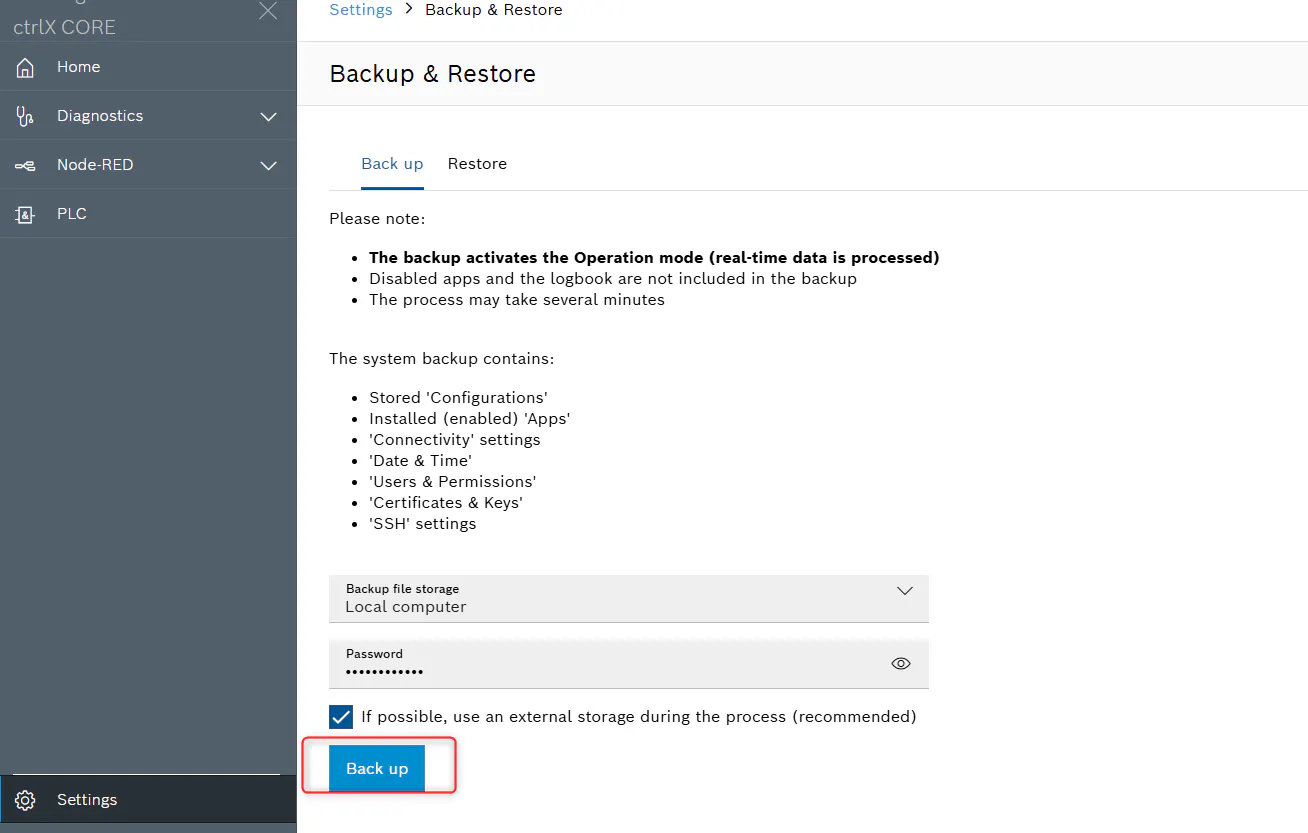
• Set the backup file storage to "Local computer" and enter the device password.
• Click "Back up" and wait for the process to complete; the backup file will be saved to your PC.
Step 3: Save and Export OPC UA App Data
Export the active App Data configuration before flashing so it can be restored after the update.
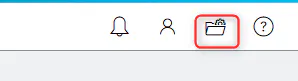
• Click the Manage App Data icon (briefcase) in the top-right toolbar of the ctrlX CORE UI.
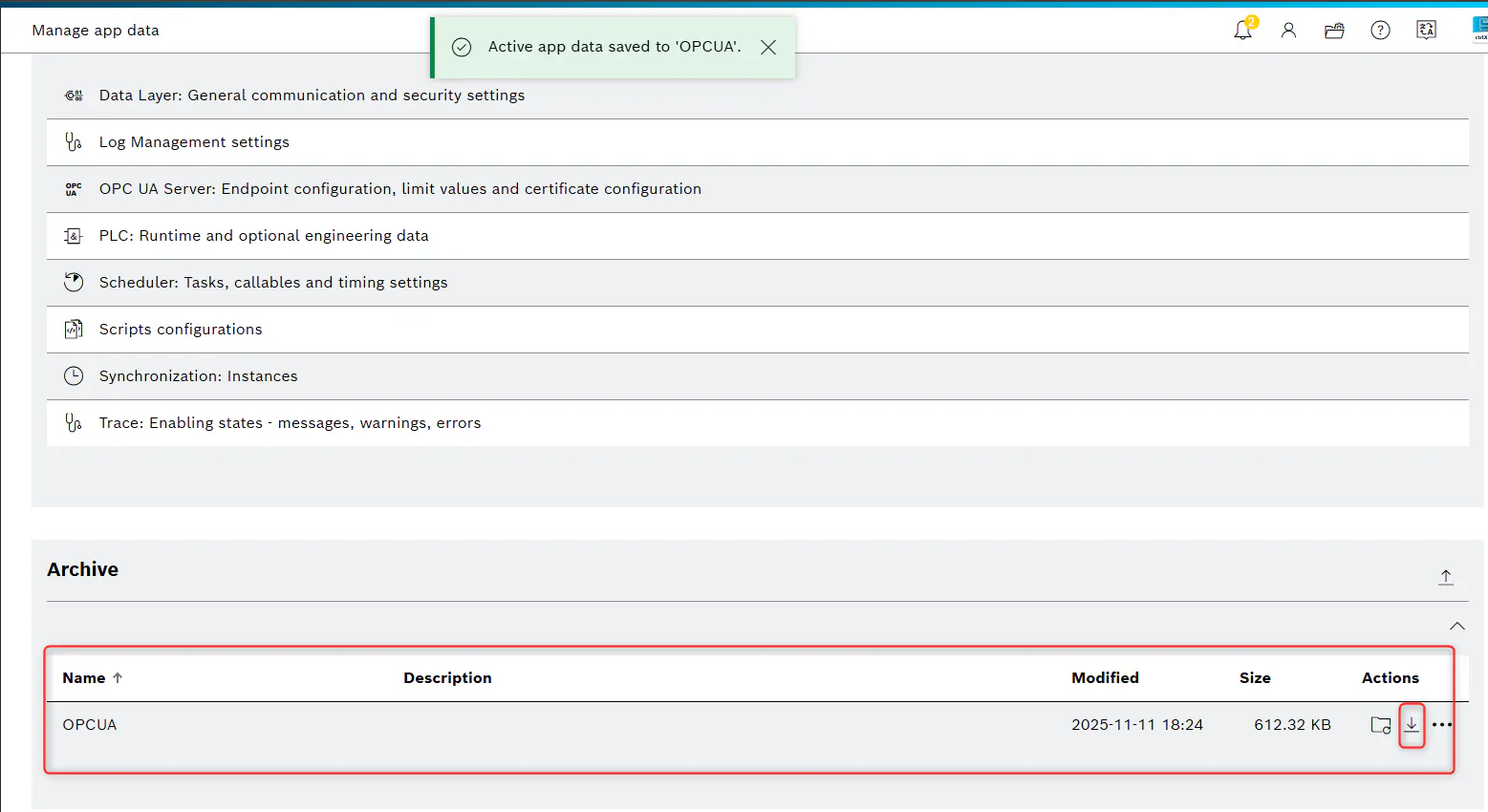
• On the Active App Data (in this case it is named OPCUA) panel, click "Save to archive" to snapshot the current configuration.
• Download the saved archive from the archive section to store it locally on your PC.

Step 4: Flash the System Image via MicroSD Card
Update the ctrlX CORE X3 firmware to version 3.6.3 using an SD card image flash.
• Download the X3 system image 3.6.3 from ctrlX Store > ctrlX OS SystemImage > ctrlX CORE X3 > 3.6.3 and extract the ZIP file onto the FAT32-formatted MicroSD card.
• Confirm that the SD card contains the folders: boot, licenses, rescue, and the file rescue.itb.
• Insert the MicroSD card into the powered-off ctrlX CORE, then power on the device.
• Wait approximately 10 minutes while the LED alternates between blue/red; a solid blue or green LED confirms success, while red indicates failure.
• Power off the device, remove the SD card, and verify that a .done file exists at rescue/[serial-number]/ on the card.

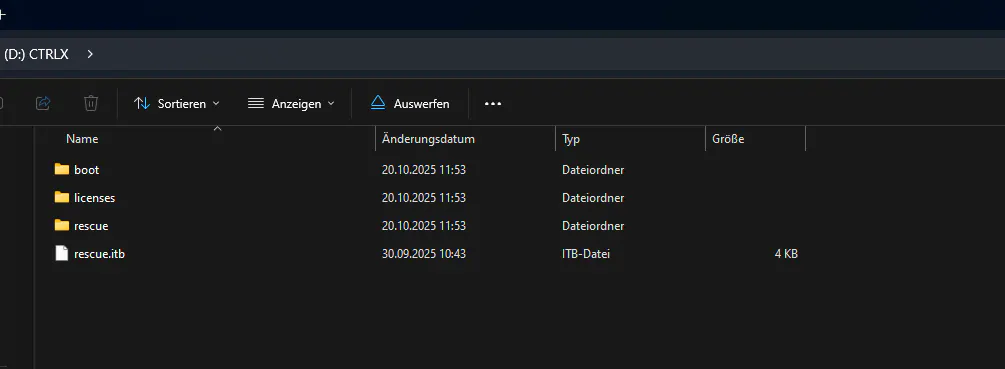
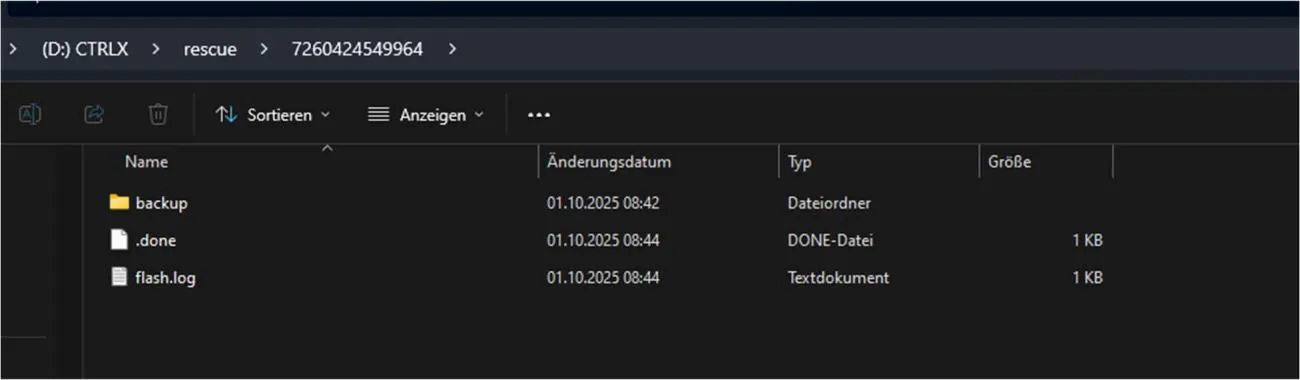
The Systemimage for the X5/X7 looks like this:
├── EFI
│   └── boot
│       ├── bootx64.efi
│       └── ctrlx-recovery-key.policy.sig
├── licenses
│   ├── frontend
│   │   └── licenses_production.json
│   ├── linux
│   │   ├── COPYING
│   │   ├── CREDITS
│   │   ├── Documentation
│   │   │   └── process
│   │   │       └── license-rules.rst
│   │   └── LICENSES
│   │       ├── deprecated
│   │       │   ├── GFDL-1.1
│   │       │   ├── GFDL-1.2
│   │       │   ├── GPL-1.0
│   │       │   ├── ISC
│   │       │   ├── Linux-OpenIB
│   │       │   ├── X11
│   │       │   └── Zlib
│   │       ├── dual
│   │       │   ├── Apache-2.0
│   │       │   ├── CC-BY-4.0
│   │       │   ├── CDDL-1.0
│   │       │   └── MPL-1.1
│   │       ├── exceptions
│   │       │   ├── GCC-exception-2.0
│   │       │   └── Linux-syscall-note
│   │       └── preferred
│   │           ├── BSD-2-Clause
│   │           ├── BSD-3-Clause
│   │           ├── BSD-3-Clause-Clear
│   │           ├── GPL-2.0
│   │           ├── LGPL-2.0
│   │           ├── LGPL-2.1
│   │           └── MIT
│   ├── tool.imageflash
│   │   └── tool.imageflash.fossinfo.json
│   └── u-root
│       └── LICENSE
└── rescue
    └── rexroth-arch02.ova
Step 5: Restore OPC UA App Data Configuration
After the update, re-import the previously saved App Data configuration into the updated controller.
• Click the Manage App Data icon in the ctrlX CORE UI and scroll to the Archive section.
• Click the Upload button (arrow-up icon) and select the App Data archive file (named "OPCUA" in this example) saved in Step 3.
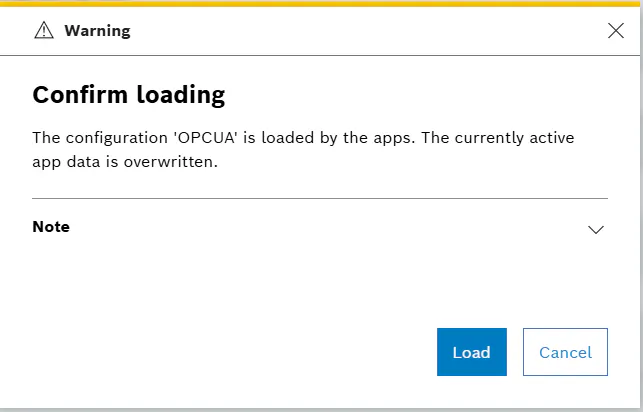
• Click the Load Configuration icon next to the uploaded archive and confirm the warning dialog by clicking "Load".
• Confirm that the App Data configuration should be reloaded.


Step 6: Update ctrlX IO Engineering and ctrlX PLC Engineering Projects
Migrate existing ctrlX IO Engineering and ctrlX PLC projects to version 3.6 compatibility formats using the newly installed engineering tools.
• Open IO Engineering 3.6, navigate to "Open Project", select your project, and click Continue when prompted.
• Update the Device and EtherCAT Master entries until all warning indicators (question marks) are resolved.
• For ctrlX PLC Engineering, first assign and download the required ctrlX OS - PLC license from the Bosch Rexroth Device Portal (https://ctrlx-deviceportal.boschrexroth.com/deviceportal), then upload the license .bin file via Settings > Licenses in the ctrlX CORE UI.
• Open ctrlX PLC Engineering 3.6, open the project, click Continue, then click "Set All to Newest" in the migration dialog and confirm with "OK".
• Compile the project and download it to the controller.
Conclusion
Following these steps ensures a safe and complete migration of ctrlX WORKS, ctrlX CORE firmware, and all associated configurations to Version 3.6.