OverviewPre-RequisiteExerciseStep 1: Add required librariesStep 2: Add CipObjectDintArray10 function blockStep 3: Check CipObjectDintArray10 function blockStep 4: Create a programStep 5: Download PLC projectStep 6: Create Studio5000 logicStep 7: Set MSG instructionsStep 8: Download Studio5000 projectStep 9: Randomize data arrayStep 10: Verify dataSummary
Overview
In this example we will go through the necessary steps to establish CIP messaging between an ctrlX CORE (Ethernet/IP Adapter) and a Rockwell PLC (Scanner). The exchanged data will be a double integer array.
Explicit CIP messaging is a non-time-critical, request/response-based communication method in EtherNet/IP used for setup, configuration, and diagnostics. It uses TCP for reliable, asynchronous data transfer, requiring explicit addressing (Class, Instance, Attribute) to access specific device data, unlike real-time cyclic I/O messages.
Pre-Requisite
Successfully executed the "Example for Ethernet/IP communication between ctrlX CORE (Adapter) and a Rockwell PLC (Scanner) using the CODESYS Ethernet/IP Adapter" how-to article
Exercise
Step 1: Add required libraries
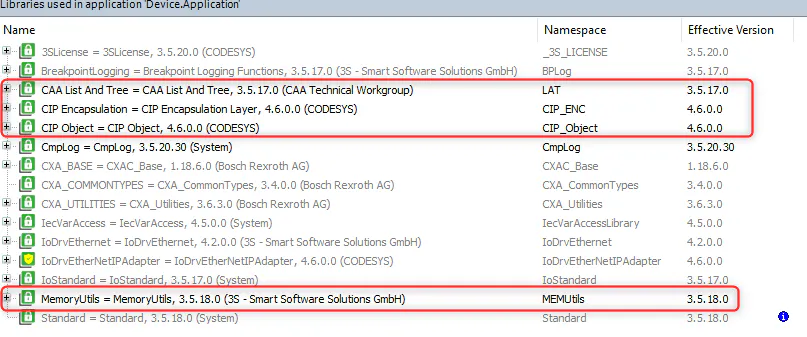
Add required libraries (see Figure 1.1) to your existing ctrlX PLC Engineering project from the above mentioned how-to article. Library versions are dependent on your ctrlX PLC Engineering version.
Step 2: Add CipObjectDintArray10 function block
Add CipObjectDintArray10 function block to your ctrlX PLC Engineering project by selection "Application" in your "Devices" explorer window and select "Project Menu -> Import PLCopenXML". The xml file can be found under the attachment section.
Step 3: Check CipObjectDintArray10 function block
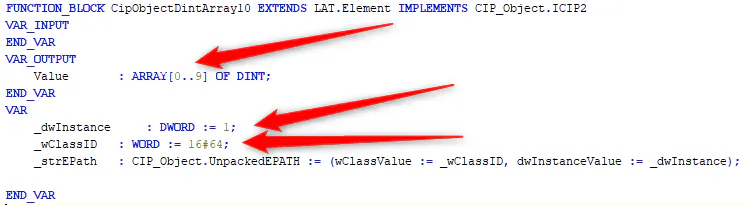
Open the newly created CipObjectDintArray10 function block. The CIP Instance and Class IDs can be set under the VAR section as well as the type of the Value, which defines the exchanged data. This function block was written in such a way where any data type can be used either as a single entity or as an array, as long as the size limit is observed.
Warning: The value's (exchange data) size cannot exceed 468 Bytes!
Step 4: Create a program
Create a program POU under your application and schedule it in a task. Copy the declaration and implementation sections from the text boxes below. This will register our CIP Object under the Ethernet/IP Adapter at startup.
VAR
	bInit : BOOL;
	CipObject1 : CipObjectDintArray10;
END_VARIF NOT bInit THEN
EtherNet_IP_Adapter.RegisterCIPObject(CipObject1);
bInit := TRUE;
END_IFStep 5: Download PLC project
Download the PLC project to your ctrlX CORE.
Step 6: Create Studio5000 logic
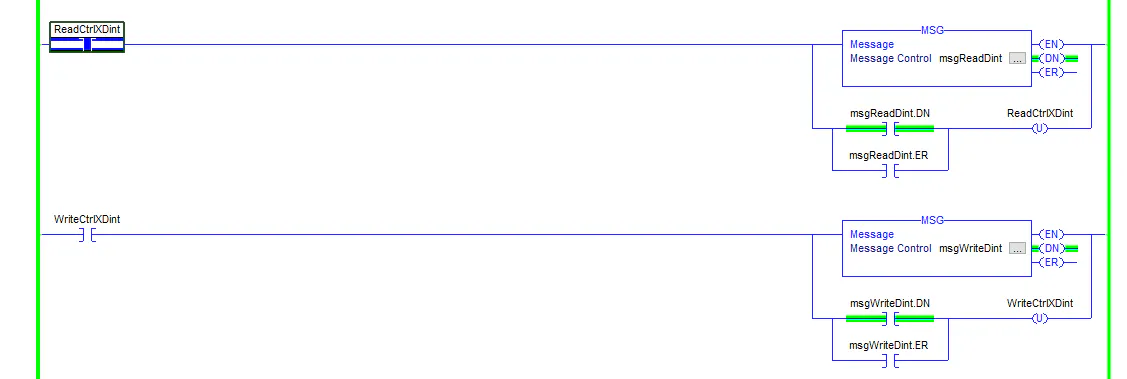
Create the logic (see Figure 6.1) within your Studio5000 project.
Step 7: Set MSG instructions
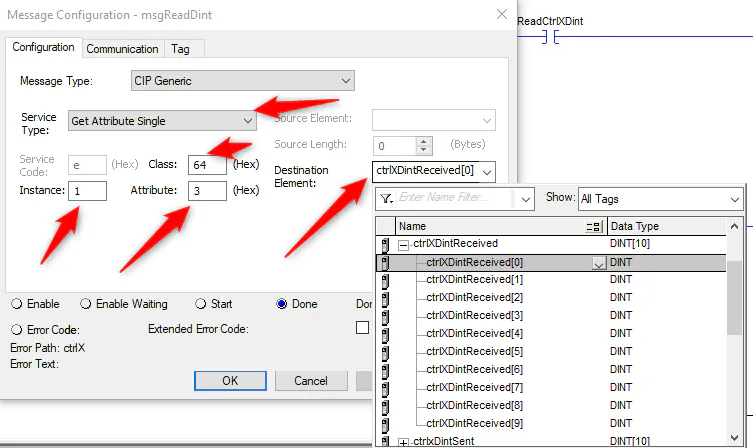
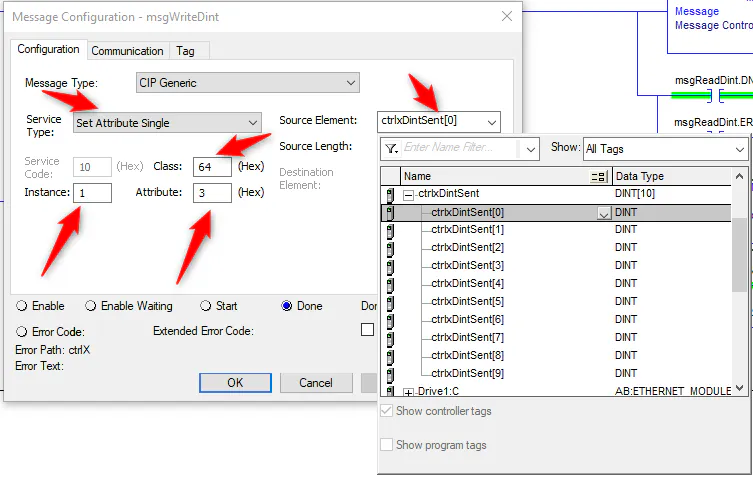
Set MSG instructions as shown in Figure 7.1, 7.2, 7.3 and 7.4.
Both MSG instructions' path has to be set to the ctrlX CORE's name under the hardware tree.

For reading / receiving we use Get Attribute Single Service Type with the previously configured Class and Instance IDs. The attribute must be set to 3. The destination element must match the previously set Value type.
For writing / sending we use Set Attribute Single Service Type with the previously configured Class and Instance IDs. The attribute must be set to 3. The source element must match the previously set Value type.
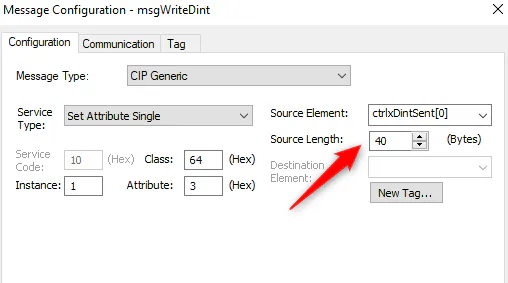
The Source Length must match the Value's size, which is 10 x 4 = 40 in this example.
Step 8: Download Studio5000 project
Download your Studio5000 project.
Step 9: Randomize data array
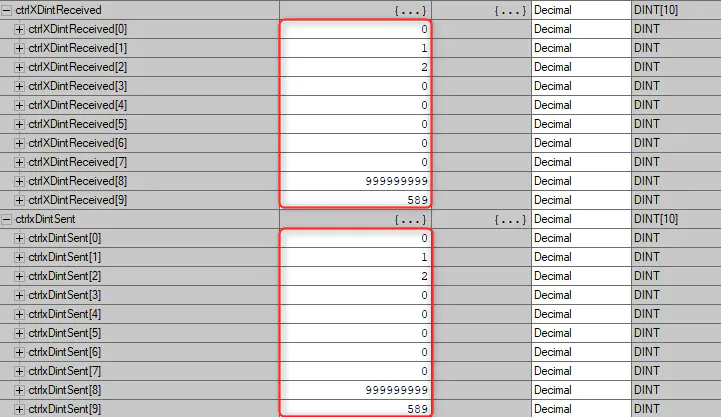
Set random numbers to your ctrlxDintSent data array. Set WriteCtrlxDint bit high. Make sure the sending MSG instruction's DN bit becomes true, which is indicates that the data exchange between the ctrlX CORE and the Rockwell PLC was successful. Trigger the read MSG instruction. You should have the same numbers in both DINT arrays.
Step 10: Verify data
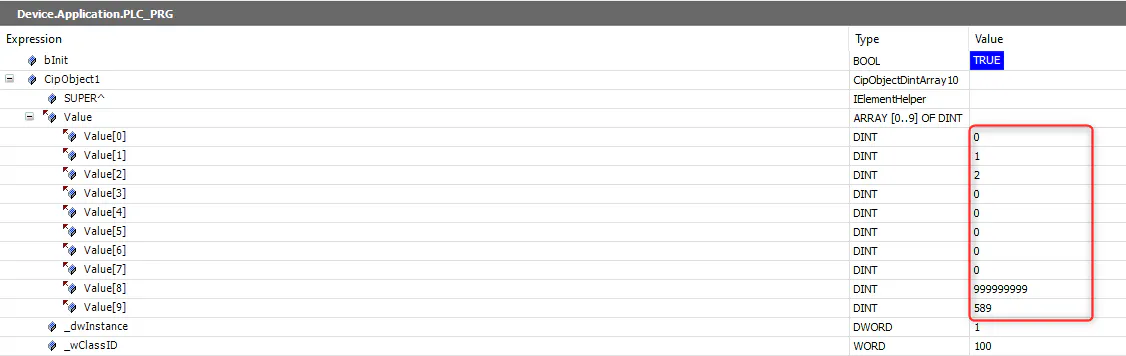
Verify that the same data appears on the ctrlX CORE's side.
Summary
You can duplicate the CipObject function block if you need to send different type of data, even User Defined Data Types (DUT Structure). Just change the Instance ID and Value's type as needed. Make sure you create the same data structure on the Scanner's side and verify that the data type and size match for a successful CIP data transfer. The CIP Object must be registered at startup!
Strings can be difficult to send / receive as the String data type structure is different in CODESYS from Rockwell's. Contact me for a workaround.
